April 1, 2026Dan Rodney/5 min read

Cropping Photos: Free Photoshop Tutorial

Master Professional Photo Cropping and Straightening Techniques

Essential Photoshop Cropping Skills

Non-Destructive Cropping

Learn to crop photos while preserving original image data for maximum flexibility and future editing options.

Aspect Ratio Control

Master precise cropping to specific ratios like 4:5 or 1:1 square formats for consistent professional results.

Photo Straightening

Fix tilted horizons and straighten individual layers using Photoshop's powerful alignment tools.

Topics Covered in This Photoshop Tutorial:

Cropping Photos, Straightening Photos, Straightening a Layer

Exercise Preview

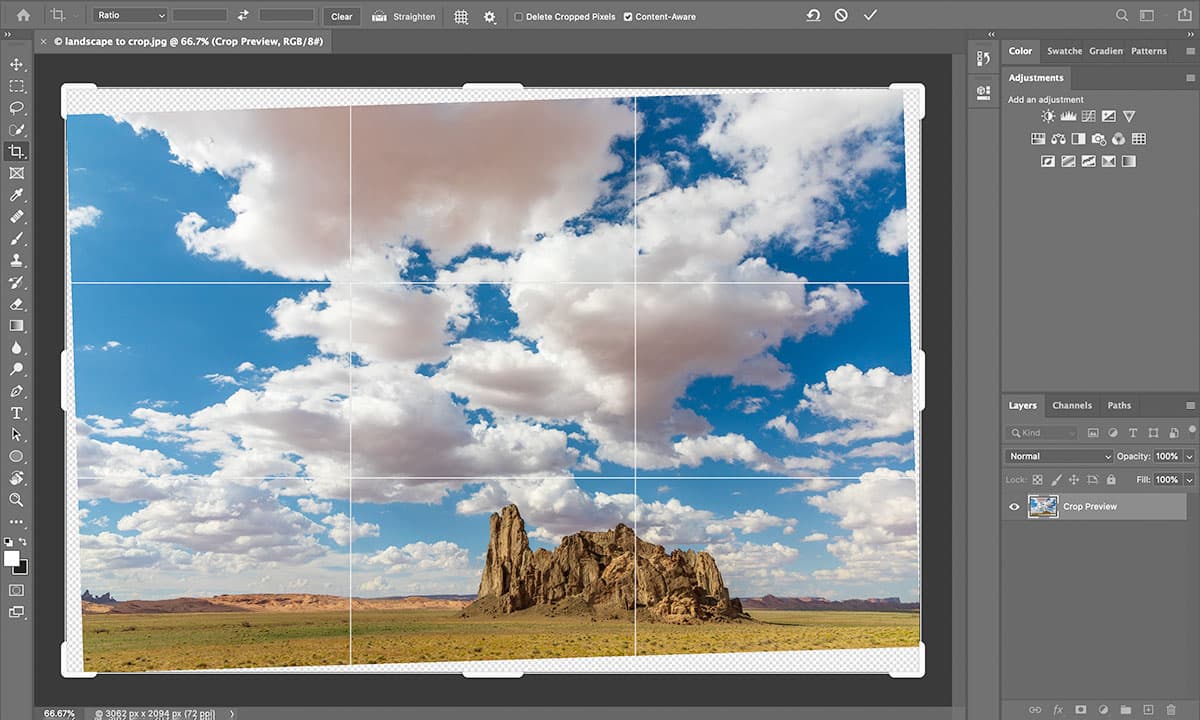
crop preview

Photo by Dan Rodney

Required Files

You'll need the landscape_to_crop.jpg file located in Desktop > Class Files > Photoshop Class folder to follow along with this tutorial.

Exercise Overview

Mastering the crop tool is fundamental to professional photo editing workflow. In this comprehensive exercise, you'll explore both destructive and non-destructive cropping techniques, learn to straighten tilted images using multiple methods, and understand when to apply each approach for optimal results.

  1. In Photoshop, navigate to File > Open.
  2. Browse to Desktop > Class Files > Photoshop Class and double-click landscape to crop.jpg to open it.
  3. Select the Crop tool crop tool from the Tools panel.
  4. Configure the Options bar settings at the top of your screen:

    • Ensure Delete Cropped Pixels is checked (this creates a destructive crop for demonstration purposes)
    • Verify that Content-Aware remains unchecked
  5. Drag the top left crop handle inward to remove excess sky from the composition.
  6. Press Return (Mac) or Enter (Windows) to apply the crop.
  7. Click the Crop tool crop tool again to reveal the crop handles.
  8. Pull the top left crop handle outward beyond the image boundary and release.
  9. Notice the solid colored area (typically white or gray) surrounding the photo. This reveals the destructive nature of the previous crop—the removed pixels are permanently deleted and cannot be recovered. This approach can be problematic when client revisions require different compositions.
  10. Press Esc to cancel the current crop operation.
  11. Choose File > Revert to restore the original image.

Getting Started with Basic Cropping

1

Open the Practice File

Navigate to File > Open and select landscape_to_crop.jpg from the Class Files folder

2

Select the Crop Tool

Click the Crop tool in the Tools panel to activate cropping mode

3

Configure Initial Settings

In the Options bar, ensure Delete Cropped Pixels is checked and Content-Aware is unchecked

4

Make Your First Crop

Pull the top left crop handle to remove excess sky, then press Return or Enter to apply

Cropping Non-Destructively

Non-destructive cropping preserves your original image data, allowing unlimited revisions and repositioning—essential for professional workflows where clients may request composition changes or when preparing images for multiple output formats.

  1. With the Crop tool active, uncheck Delete Cropped Pixels in the Options bar.
  2. Select the Crop tool crop tool from the Tools panel.
  3. Drag the top left crop handle inward to crop the sky area.
  4. Double-click within the crop area to apply the cropping.
  5. Switch to the Move tool move tool.
  6. Drag the image to reveal that the cropped portions remain intact, merely hidden beyond the document boundaries—providing complete flexibility for future adjustments.

Destructive vs Non-Destructive Cropping

FeatureDestructive CroppingNon-Destructive Cropping
Data PreservationPermanently deletes cropped pixelsPreserves original image data
FlexibilityCannot recover cropped areasCan reveal hidden areas anytime
File SizeSmaller file sizeLarger file size
Professional UseLimited editing optionsMaximum editing flexibility
Recommended: Use non-destructive cropping for professional workflows to maintain maximum editing flexibility.
Pro Tip: Unchecking Delete Cropped Pixels

Always uncheck Delete Cropped Pixels in the Options bar to preserve your original image data. You can reveal hidden areas later using the Move tool.

Cropping to a Specific Aspect Ratio

Professional photography often requires specific aspect ratios for social media platforms, print formats, or client specifications. Photoshop's preset ratios streamline this process while maintaining proper proportions.

  1. Navigate to File > Revert to reset the image.
  2. Select the Crop tool crop tool from the Tools panel.
  3. In the Options bar, click the Ratio dropdown and select 1:1 (Square) for Instagram-ready formatting.
  4. Adjust the crop boundaries by dragging the corner handles while maintaining the square proportions.
  5. Reposition the crop area by clicking and dragging within the selection to find the optimal composition.
  6. Double-click inside the crop area to finalize the square crop.
  7. Click the Clear button in the Options bar to remove the aspect ratio constraint for future cropping operations.

Common Aspect Ratios for Different Uses

1:1 Square

Perfect for Instagram posts and social media profiles. Creates balanced, symmetrical compositions.

4:5 Portrait

Ideal for Instagram portrait posts and vertical layouts. Maximizes mobile screen usage.

16:9 Landscape

Standard for YouTube thumbnails, website banners, and widescreen displays.

Setting Custom Aspect Ratios

1

Access Ratio Menu

With Crop tool selected, click the Ratio menu in the Options bar

2

Choose Your Ratio

Select from presets like 1:1 Square or enter custom dimensions

3

Position Your Crop

Drag handles to resize and drag inside crop zone to reposition

4

Clear for Next Use

Click Clear button in Options bar to remove aspect ratio constraints

Straightening a Photo

Camera shake, handheld shooting, or rushed capture situations often result in tilted horizons. Photoshop's straightening tools can correct these issues while preserving image quality. This particular image was captured hastily from a moving vehicle, creating the perfect learning scenario for horizon correction.

  1. Return to the original state with File > Revert.
  2. Optimize your view by choosing View > Fit on Screen.
  3. Activate the Crop tool crop tool from the Tools panel.
  4. Click the Straighten icon straighten tool in the Options bar.
  5. Identify a reference line that should be perfectly horizontal or vertical—the mountain horizon line provides an ideal reference. Click and drag along this horizon from one edge of the photo to the other.

    Upon release, Photoshop automatically calculates the rotation angle and straightens the image!

  6. Before accepting the crop, ensure optimal viewing with View > Fit on Screen.
  7. Examine the areas outside the crop boundary:

    • Some original image content will be lost due to the rotation
    • Transparent areas (indicated by white and gray checkerboard patterns) appear where no image data exists
  8. Enable Content-Aware in the Options bar to intelligently fill transparent areas.
  9. Extend the crop handles outward to preserve maximum image content rather than accepting the default tight crop.
  10. Double-click within the crop area to process the straightening operation.
  11. Allow Photoshop time to analyze and generate content for the transparent regions. The result should be a perfectly straight image with intelligently filled edges.

    Notice how the final image actually contains more pixels than the original, thanks to Content-Aware fill extending beyond the original boundaries!

    NOTE: Content-Aware technology has advanced significantly since 2020, but still requires careful inspection. While it performs excellently on this landscape, always examine edges for artifacts—in this example, the left horizon shows minor imperfections that may require manual retouching in critical applications.

Content-Aware Limitations

Content-Aware fill is not always perfect. Always inspect the edges carefully for any imperfections, especially along horizon lines where the algorithm may struggle.

Using the Straighten Tool

1

Activate Straighten Mode

With Crop tool selected, click the Straighten icon in the Options bar

2

Find Reference Line

Identify a line that should be perfectly horizontal or vertical, like a horizon

3

Draw Reference

Drag along your chosen reference line from one side of the photo to the other

4

Enable Content-Aware

Check Content-Aware in Options bar and extend crop handles to preserve image size

Straightening a Layer

When working with complex compositions containing multiple layers, the Crop tool's rotation affects the entire document. The Ruler tool provides precise layer-specific straightening, essential for composite work and multi-layer projects.

  1. Reset the workspace with File > Revert.
  2. Select the Horizontal Type tool type tool from the Tools panel.
  3. Click anywhere on the image to create a text layer for demonstration purposes.
  4. With the text selected, change the font size text size to 150 pt in the Options bar for visibility.
  5. The text content is irrelevant—we simply need a second layer to demonstrate selective straightening.
  6. Using the Crop tool now would rotate both the background image and text layer simultaneously, which isn't always desirable in professional composite work.
  7. In the Layers panel, click to select the Background layer specifically.
  8. Access the Ruler tool ruler tool by clicking and holding the Eyedropper tool eyedropper tool and selecting from the flyout menu.
  9. Draw a measurement line along the horizon from one side of the image to the other.
  10. Notice that Straighten Layer appears grayed out in the Options bar—this occurs because Background layers are locked by default to prevent accidental modifications.
  11. Unlock the layer by clicking the Lock icon lock icon background layer in the Layers panel.
  12. Click the now-active Straighten Layer button in the Options bar to rotate only the selected layer.
  13. This exercise demonstrates layer-specific transformations—you can close the file without saving since this was purely instructional.

Crop Tool vs Ruler Tool for Straightening

FeatureCrop Tool MethodRuler Tool Method
AffectsEntire document and all layersSelected layer only
Layer RequirementsWorks with any layer typeRequires unlocked regular layer
Best Use CaseSingle layer documentsMulti-layer compositions
Recommended: Use Ruler tool when you need to straighten only specific layers while preserving other elements like text.
Converting Background Layers

Background layers must be converted to regular layers before using Straighten Layer. Simply click the Lock icon in the Layers panel to unlock.

Key Takeaways

1Non-destructive cropping preserves original image data by unchecking Delete Cropped Pixels, allowing future adjustments and recovery of cropped areas
2Use specific aspect ratios like 1:1 or 4:5 through the Ratio menu to create consistent crops for different platforms and purposes
3The Straighten tool within the Crop tool automatically corrects tilted photos by drawing a reference line along what should be horizontal or vertical
4Content-Aware fill can automatically generate content for transparent areas created during straightening, though results should always be inspected for quality
5For multi-layer documents, use the Ruler tool instead of the Crop tool to straighten individual layers without affecting other elements
6Background layers must be unlocked before using the Straighten Layer function - click the Lock icon in the Layers panel to convert
7Always use View > Fit on Screen when evaluating crops and straightening results to see the full impact of your adjustments
8The Move tool reveals hidden cropped areas in non-destructive crops, proving that the original image data remains intact and accessible

RELATED ARTICLES