April 1, 2026Dan Rodney/4 min read

Prepping an Image for the Web

Master Professional Web Image Optimization Workflow

Core Photoshop Web Preparation Skills

Resizing & Resampling

Master the art of reducing image dimensions while maintaining quality using Photoshop's automatic resampling algorithms.

Soft Proofing

Preview how your images will appear in different color spaces before final export to ensure consistent web display.

JPEG Compression

Balance file size and image quality through strategic compression settings for optimal web performance.

Topics Covered in This Photoshop Tutorial:

Resizing & Resampling, Soft Proofing, Image Compression (JPEG)

Exercise Preview

save for web

Exercise Overview

Web optimization requires a fundamentally different approach than print preparation. Where print work prioritizes maximum quality and color accuracy, web images demand a careful balance between visual fidelity and file performance. This exercise guides you through a professional web preparation workflow that ensures your images look crisp while loading quickly across all devices and connection speeds.

Web vs Print Image Preparation

FeatureWeb PreparationPrint Preparation
Color SpacesRGBAdobe RGB/CMYK
Resolution72 PPI300+ PPI
File Size PriorityMinimal for speedMaximum quality
CompressionHeavy JPEGMinimal/None
Recommended: Web preparation prioritizes loading speed and cross-browser compatibility over maximum image quality.

Prepping the Image for Use on the Web

  1. From the Photoshop Adv Class folder, open East River-for web.psd.

    Notice that no color management dialog appeared? This indicates the image has already been converted to our Adobe RGB workspace and is ready for processing. This streamlined workflow prevents unnecessary color space conversions that can degrade image quality.

  2. Execute File > Save As and save it back into the Photoshop Adv Class folder as yourname-East River-for web.psd.

    NOTE: If you've made compositional changes or have multiple layers, this is the critical point to flatten your image using Layer > Flatten Image. Flattening reduces file complexity and ensures consistent processing in subsequent steps.

  3. Navigate to Image > Image Size to access the resizing controls.

  4. Enable Resample and select Automatic. Hold off on clicking OK—we're setting up multiple parameters first.

    Behind the scenes, Photoshop intelligently selects Bicubic Sharper when reducing image dimensions. This algorithm preserves edge definition better than standard Bicubic interpolation, crucial for maintaining crisp details in web images. This automatic selection has been a significant workflow improvement since CS6, eliminating the need for manual algorithm selection.

  5. Configure the following parameters for optimal web delivery:

    Resolution: 72 Pixels/Inch
    Width: 450 Pixels

    The 72 PPI resolution is standard for web display, while the 450-pixel width provides excellent clarity on both desktop and mobile devices without creating unnecessarily large file sizes.

  6. Click OK to apply the resize operation.

  7. If you're not already viewing at actual size, go to View > 100% to see exactly how the image will appear to web visitors.

    This actual-size preview is crucial for quality assessment. What looks acceptable at 25% zoom may reveal compression artifacts or blur at 100%.

  8. Apply appropriate sharpening using your preferred technique, such as Smart Sharpen or Unsharp Mask.

    Resizing operations inherently soften images, making this sharpening step essential for professional results. Smart Sharpen typically provides more control and better results for web images, particularly for photographs with varied content.

Adobe RGB Workspace Advantage

Images already converted to Adobe RGB workspace eliminate color management dialogs and streamline your workflow, allowing immediate editing without conversion delays.

Image Size Optimization Workflow

1

Enable Resample with Automatic

Photoshop automatically selects Bicubic Sharper for size reduction, maintaining better sharpness than standard Bicubic resampling.

2

Set Web-Standard Resolution

Change resolution to 72 pixels per inch, the standard for web display that balances quality with file size.

3

Define Pixel Dimensions

Set width to 450 pixels or your target size, ensuring images fit properly within your web layout constraints.

4

Preview at Actual Size

View at 100% to see exactly how the image will appear to web visitors on their screens.

CS6 Workflow Improvement

Prior to CS6, users had to manually select Bicubic Sharper for each resize operation. The Automatic setting now intelligently chooses the best resampling method based on whether you're enlarging or reducing image size.

Saving the File Appropriately

With your image properly sized and sharpened, the final step involves exporting with optimal compression settings for web delivery.

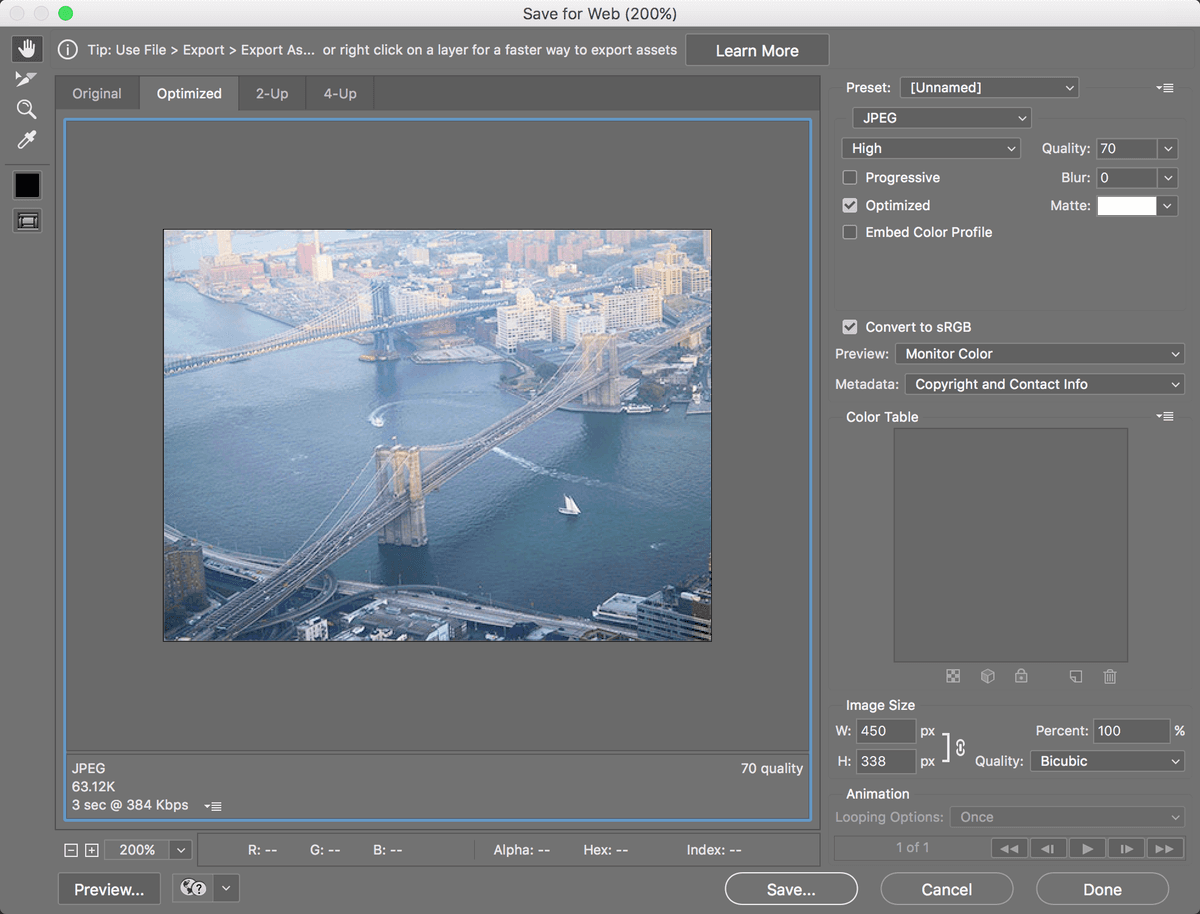
  1. Execute File > Export > Save for Web (Legacy).

    NOTE: While Adobe labeled this feature as "Legacy" and introduced newer export methods like Export As, Save for Web remains the gold standard for web optimization in 2026. The newer tools, while improved since their 2015 introduction, still lack some of the granular control and preview capabilities that make Save for Web indispensable for professional work. Adobe continues supporting this tool precisely because it provides unmatched precision for web image optimization.

  2. In the upper right section below the Preset menu, select JPEG as your file format.

  3. Set Quality to 70 as your starting point.

    This quality setting typically provides the optimal balance between file size and visual quality for most photographic content. You can fine-tune this value based on your specific image—complex images with fine details may benefit from quality 75-80, while simpler graphics might work well at 60-65.

  4. Verify that Convert to sRGB remains checked—this default setting is crucial for consistent web display.

    While sRGB offers a smaller color gamut than Adobe RGB or ProPhoto RGB, it remains the universal standard for web display in 2026. This conversion ensures your images appear consistently across all browsers and devices.

    Resist the temptation to embed color profiles for web images because:

    • Color profiles add 3-5 kilobytes per image, and this overhead compounds quickly across websites with hundreds of images, measurably impacting page load speeds.
    • Even in 2026, color management support remains inconsistent across browsers and devices, making profile embedding largely ineffective for web delivery.
  5. Click Save and store the optimized file in your Photoshop Adv Class folder.

  6. Close the original Photoshop file, saving any changes to preserve your work.

    Always maintain your original PSD file with layers intact—it serves as your master file for future edits or alternative export requirements.

Save for Web (Legacy) vs New Export Methods

Pros
Complete feature set with all optimization options
Proven reliability for web image export
Advanced compression controls and preview
Comprehensive color management options
Cons
Marked as Legacy with no future updates
Won't support new features like artboards
May be phased out in future Photoshop versions
Interface feels dated compared to new methods

Recommended JPEG Quality Settings

High Quality
85
Recommended Web
70
High Compression
50
Maximum Compression
30
Why Skip Color Profile Embedding for Web

Embedding color profiles adds unnecessary kilobytes to each image file. With multiple images per webpage, this significantly impacts loading speed, and most browsers don't support color management anyway.

Final Web Export Checklist

0/5

Key Takeaways

1Web image preparation differs significantly from print preparation, prioritizing file size and loading speed over maximum quality.
2Adobe RGB workspace eliminates color management dialogs and streamlines the web preparation workflow for immediate editing.
3Photoshop's Automatic resampling intelligently selects Bicubic Sharper for size reduction, maintaining better image sharpness than manual methods.
4Standard web resolution of 72 PPI with specific pixel dimensions ensures proper display across different devices and browsers.
5Save for Web (Legacy) remains the preferred export method despite its legacy status due to its comprehensive feature set and reliability.
6JPEG quality setting of 70 provides the optimal balance between visual quality and file size for web applications.
7Converting to sRGB color space is essential for consistent web display, while avoiding color profile embedding prevents unnecessary file bloat.
8Viewing images at 100% zoom during preparation shows the actual size users will see, enabling accurate quality assessment before export.

RELATED ARTICLES