April 1, 2026Dan Rodney/8 min read

Creating Tiling Patterns

Master Photoshop pattern creation for professional design

Pattern Creation Techniques You'll Learn

Basic Pattern Definition

Learn to create simple repeating patterns using Photoshop's Define Pattern feature. Perfect for backgrounds and textures.

Half Drop Patterns

Create sophisticated diagonal patterns using the Offset filter. Eliminate obvious grid-like repetition for professional results.

Pattern Management

Organize and delete patterns efficiently using Photoshop's preset management tools across different versions.

Topics Covered in This Photoshop Tutorial:

Working with Patterns, the Offset Filter, Deleting Old Patterns

Exercise Preview

patterns before and after

Exercise Overview

In this comprehensive exercise, you'll master the art of creating seamless patterns in Photoshop—a fundamental skill for any designer working in digital media. Repeating patterns serve as the backbone for countless design applications, from web backgrounds and print materials to packaging design and textile work. Whether you're crafting subtle textures for user interfaces or bold graphics for branding campaigns, understanding pattern creation will significantly expand your creative toolkit and professional capabilities.

Pattern Applications

Repeating patterns are essential for web backgrounds, print materials, and graphic design projects across all media types.

Working with Basic Patterns

Let's begin with the fundamentals of pattern creation. This foundational technique will give you immediate results while establishing the core concepts you'll build upon throughout this tutorial.

  1. From the Photoshop Class folder, open patterns.psd.

  2. Go to Edit > Define Pattern.

  3. In the dialog that appears, name the pattern yourname heart and click OK.

    Congratulations! You've just created your first pattern. This simple process converts any selected area (or entire canvas if nothing is selected) into a repeating tile. Now let's test how effectively it repeats by creating a dedicated test canvas—a professional practice that ensures your patterns work flawlessly across different applications.

  4. Go to File > New and on the right under Preset Details set the following specifications for optimal pattern testing:

    Width: 900 px
    Height: 900 px
    Resolution: 72 Pixels/Inch (ppi)
    Color Mode: RGB Color
    Background Contents: White
  5. Uncheck Artboards to maintain a single canvas workspace.

  6. Click Create.

  7. In the Layers panel, click the Create new fill or adjustment layer button adjustment layer button and choose Pattern.

    If Photoshop doesn't automatically select your newly created pattern, click on the pattern preview thumbnail on the left side of the Pattern Fill dialog and locate your pattern at the end of the list—Photoshop always places custom patterns after the default library.

  8. Click OK to apply the pattern fill.
  9. Examine your results carefully. While this pattern repeats successfully, you might notice that the hearts appear somewhat sparse with excessive spacing. This common issue occurs when too much background area is included in the original pattern definition. Leave this file open as your testing ground and switch back to the patterns.psd file to refine your approach.
  10. Choose the Rectangular Marquee tool rectangular marquee tool to create a more precise selection.
  11. In the Options bar at the top of the screen, verify that Feather is set to 0 pixels to maintain crisp edges—essential for seamless pattern repetition.
  12. Draw a tighter selection around the heart, leaving only minimal background space. This technique, known as "optimizing the tile boundary," directly controls the spacing in your final pattern and demonstrates the precision required for professional pattern work.
  13. Go to Edit > Define Pattern to create your refined version.
  14. In the dialog that appears, name the pattern yourname heart 2 and click OK.
  15. Switch back to your test file (likely named Untitled-1).
  16. In the Layers panel, double–click on the icon for the Pattern Fill 1 layer pattern layer heart to access the pattern options.
  17. Locate your improved pattern by clicking on the pattern thumbnail and selecting yourname heart 2 from the end of the list.

    Notice the dramatic improvement! Your second pattern, yourname heart 2, contains significantly less background area around the heart motif, resulting in a more cohesive, professional-looking tiled pattern with optimal spacing. This principle—minimizing unnecessary background in pattern tiles—is fundamental to effective pattern design.

  18. Click OK to close the Pattern Fill dialog and confirm your changes.

Creating Your First Pattern

1

Define Pattern

Open patterns.psd and go to Edit > Define Pattern. Name it with your personal identifier for organization.

2

Create Test Document

Set up a 900x900px document at 72 PPI with RGB color mode and white background for pattern testing.

3

Apply Pattern Fill

Use Create new fill or adjustment layer button and choose Pattern to test your design's repetition.

Pattern Spacing Comparison

FeatureLoose SpacingTight Spacing
Selection AreaFull background includedMinimal background around element
Visual ResultHearts widely spacedHearts closely packed
Use CaseSubtle backgroundsBold pattern fills
Recommended: Use tight spacing for prominent patterns, loose spacing for subtle backgrounds

Using Offset to Make Interesting Patterns (A Half Drop)

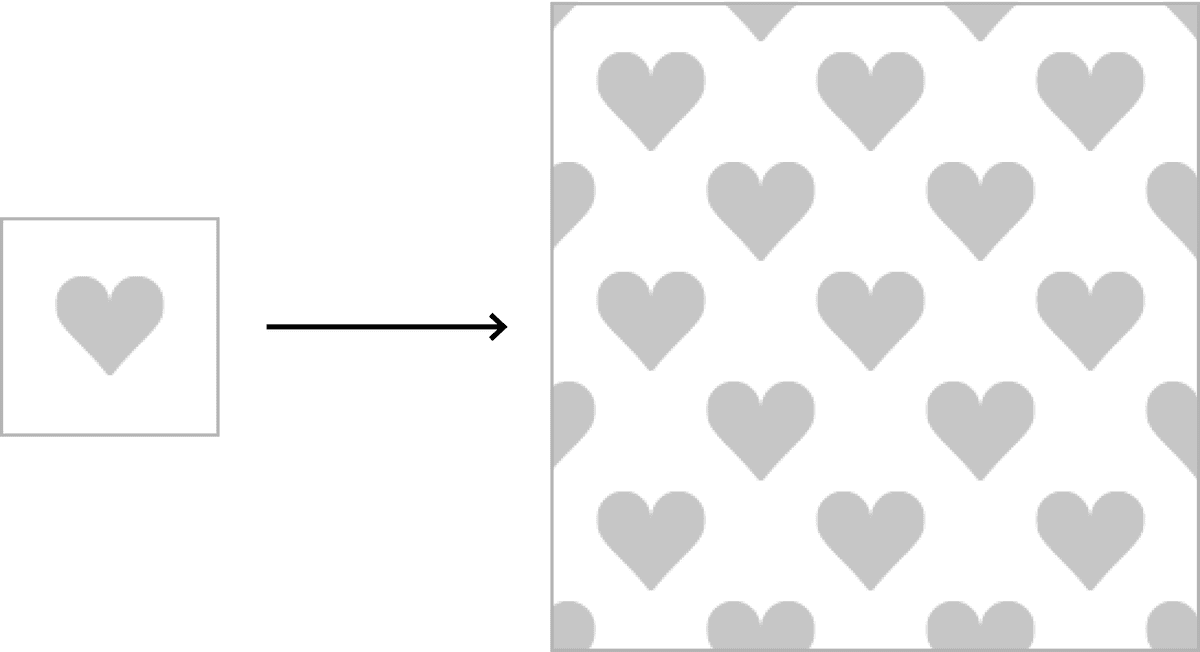
While basic grid patterns serve many purposes, they can appear predictable and mechanical. Professional designers often employ advanced techniques like the "half drop" method to create more sophisticated, organic-feeling patterns that avoid obvious repetition. This approach, widely used in textile and wallpaper design, creates diagonal flow that's far more visually engaging.

  1. Switch back to the patterns.psd file to begin creating your half drop variation.
  2. Choose Select > Deselect to clear any active selections.
  3. In the Layers panel, duplicate the heart layer by dragging it onto the New layer button new button at the bottom of the panel. This non-destructive approach preserves your original artwork.
  4. Ensure the heart copy layer is selected in the Layers panel before proceeding.
  5. Navigate to Filter > Other > Offset and configure these precise settings:

    Horizontal pixels right: 50 px
    Vertical pixels down: 50 px
    Undefined Areas: Choose Wrap Around

    Professional Insight: We're using 50 pixels because it represents exactly half of our 100×100 pixel document dimensions. This mathematical relationship—offsetting by 50% of the canvas size—is the key to creating effective half drop patterns. The "Wrap Around" option ensures that any pixels pushed beyond the canvas boundaries reappear on the opposite side, maintaining seamless continuity.

  6. Click OK to apply the offset transformation.
  7. Examine your document carefully. The Offset filter has strategically repositioned the duplicate heart, splitting it across the corners of your canvas. This seemingly counterintuitive placement is actually brilliant—when this pattern tiles, these corner fragments will align perfectly with adjacent tiles, creating the signature diagonal flow of a half drop pattern.
  8. Now let's explore Photoshop's enhanced pattern creation workflow, which was significantly improved in 2020 and remains the current standard in 2026. Go to Window > Patterns to access the dedicated Patterns panel.
  9. At the bottom right of the Patterns panel, click the New pattern icon new button to utilize this streamlined creation method.
  10. In the dialog that appears, name the pattern yourname heart half drop and click OK.
  11. Switch to your test document to evaluate the results.
  12. In the Patterns panel, click on your newly created pattern (positioned at the end of the list).

    The transformation is remarkable! This half drop pattern eliminates the rigid, grid-like appearance of basic patterns, instead creating a sophisticated diagonal rhythm that's far more pleasing to the eye. This technique is invaluable for any design work where you need patterns that feel organic and professionally crafted rather than obviously computer-generated.

Understanding the Offset Filter

The Offset filter moves pixels by specified amounts. When pixels go off the canvas edge, Wrap Around makes them appear on the opposite side, creating seamless patterns.

Creating Half Drop Patterns

1

Duplicate Layer

Drag the heart layer onto the New layer button to create a copy for offset manipulation.

2

Apply Offset Filter

Use Filter > Other > Offset with 50px horizontal and vertical (half the 100px document size) and Wrap Around.

3

Create Pattern via Patterns Panel

Use Window > Patterns and click New pattern icon for the modern Photoshop 2020+ workflow.

Half Drop vs Grid Patterns

Pros
Less predictable and more visually interesting
Eliminates obvious grid-like repetition
Creates diagonal flow and movement
Professional appearance for commercial use
Cons
Requires additional steps to create
More complex to visualize during design
May not suit all design aesthetics

Optional Bonus (If You Finish Early)

Ready to tackle more complex pattern challenges? This advanced section addresses a common real-world scenario: working with photographic or painted elements that don't naturally tile seamlessly. You'll learn professional retouching techniques that transform problematic source material into flawless repeating patterns.

  1. Return to the patterns.psd file to work with more challenging source material.
  2. In the Layers panel, click the eye icon eye hide show icon next to the leaves layer to reveal this more complex artwork.
  3. Select the leaves layer in the Layers panel.
  4. Go to Edit > Define Pattern to create an initial pattern from the unmodified leaves.
  5. In the dialog that appears, name the pattern yourname leaves and click OK.
  6. Switch to your test document to examine the results.
  7. In the Patterns panel, click on your new pattern (located at the end of the list).

    The results clearly demonstrate why direct pattern creation from complex artwork often fails. Those harsh, obvious seam lines where the pattern edges meet are the hallmark of amateur pattern work. Professional designers must address these issues through careful retouching—a skill that separates hobbyists from professionals.

  8. Switch back to the patterns.psd file to begin the professional correction process.
  9. Ensure the leaves layer remains selected in the Layers panel.
  10. Apply Filter > Other > Offset with these settings:

    Horizontal pixels right: 50 px
    Vertical pixels down: 50 px
    Undefined Areas: Choose Wrap Around

    Troubleshooting Note: If your offset results look unexpected, you may have invisible pixels extending beyond your canvas boundaries—a common issue when working with moved or transformed elements. Here's the professional solution:

    • Select the Crop tool crop tool from the toolbar.
    • In the Options bar, ensure Delete Cropped Pixels is checked to permanently remove off-canvas data.
    • Press Return (Mac) or Enter (Windows) to crop precisely to canvas dimensions, eliminating any problematic off-canvas pixels.
  11. Now comes the critical retouching phase. Use either the Healing Brush healing brush tool or Clone Stamp clone stamp tool tool to carefully blend the harsh seam lines that are now visible in the center of your canvas. Work with a soft-edged brush and sample from nearby areas to maintain natural texture flow. This meticulous work is what transforms amateur attempts into professional-quality seamless patterns.
  12. Once your retouching is complete, go to Edit > Define Pattern.
  13. Name this refined pattern yourname leaves 2 and click OK.
  14. Switch to your test document for the final evaluation.
  15. In the Patterns panel, select your perfected pattern (at the end of the list) to see the dramatic improvement your professional retouching has achieved.

Edge Visibility Problem

Natural elements like leaves often create noticeable seams when tiled. The edges become obvious repetition points that break the pattern illusion.

Fixing Pattern Seams

1

Apply Offset Filter

Move seam lines to the center of your canvas using 50px horizontal and vertical offset with Wrap Around.

2

Clean Up Edges

Use Healing Brush or Clone Stamp with soft-edged brushes to make seam lines invisible.

3

Crop Clean

Use Crop tool with Delete Cropped Pixels checked to eliminate any problematic off-canvas pixels.

Deleting Old Patterns

As you develop your pattern design skills, you'll inevitably accumulate numerous test patterns and iterations. Managing your pattern library efficiently is crucial for maintaining a professional workflow and preventing system bloat. Here's how to maintain a clean, organized pattern collection.

In Photoshop 2020 & Later (Current Standard in 2026):

  1. In the Patterns panel (Window > Patterns) select the pattern(s) you want to remove. You can select multiple patterns by holding Cmd (Mac) or Ctrl (Windows) while clicking.
  2. Click the Trash button trash button at the bottom right of the panel and confirm by clicking OK. This streamlined approach reflects Adobe's commitment to improving user experience in recent versions.

In Legacy Versions (Photoshop 2019 & Older):

  1. Navigate to Edit > Presets > Preset Manager to access the older management system.
  2. Under Preset Type, choose Patterns from the dropdown menu.
  3. Select the pattern(s) you want to delete from the grid display.
  4. Click Delete to remove them permanently from your library.

Pattern Deletion Methods by Version

FeaturePhotoshop 2020+Photoshop 2019 & Older
Access MethodWindow > Patterns panelEdit > Presets > Preset Manager
SelectionSelect pattern(s) in panelChoose Patterns under Preset Type
DeletionClick Trash buttonClick Delete button
Recommended: Use the Patterns panel method if available - it's more intuitive and faster

Pattern Management Best Practices

0/4

Key Takeaways

1Basic pattern creation requires only the Define Pattern command, making it accessible for beginners to create simple repeating backgrounds.
2Pattern spacing is controlled by selection area - tighter selections around elements create more densely packed pattern repeats.
3Half drop patterns using the Offset filter create more sophisticated, less grid-like appearances by introducing diagonal repetition.
4The Offset filter with Wrap Around setting moves pixels and wraps them to opposite edges, essential for seamless pattern creation.
5Natural elements like leaves require seam cleanup using Healing Brush or Clone Stamp tools after applying offset to hide repetition edges.
6Photoshop 2020 introduced the dedicated Patterns panel, streamlining pattern creation and management compared to older preset workflows.
7Pattern management becomes critical over time - use consistent naming conventions and regularly delete unused patterns to maintain organization.
8Testing patterns in separate documents at full scale reveals how they will appear in real applications and helps identify spacing or seam issues.

RELATED ARTICLES