April 1, 2026Dan Rodney/4 min read

Preparing Digital Photos for Print

Master Professional Photo Print Preparation Workflows

Essential Print Preparation Elements

Color Mode Conversion

Transform RGB digital camera images to CMYK color mode for optimal print reproduction. This ensures accurate color representation in professional printing.

Resolution Optimization

Adjust pixel density to 300 PPI without resampling to maintain image quality while achieving print-ready specifications.

File Format Selection

Choose between PSD and TIFF formats based on workflow requirements and compatibility needs with different applications.

Topics Covered in This Photoshop Tutorial:

Viewing and setting Image Size, understanding Resampling advantages and limitations, professional saving as PSD, optimizing TIFF compression

Exercise Overview

Professional print production demands CMYK color mode and 300 ppi (pixels per inch) resolution to ensure crisp, publication-quality output. Digital cameras capture images in RGB color space, typically at 72 ppi or variable resolutions optimized for screen display. This exercise demonstrates the essential workflow for converting camera-ready images into print-production assets that meet industry standards.

  1. From the Photoshop Class folder, open the file koala—facing camera.jpg.

  2. Navigate to Image > Mode > CMYK Color to convert the color profile for print production. If Photoshop displays a color profile warning, click OK to proceed with the conversion.

  3. Access Image > Image Size to examine the current dimensions and resolution. Keep this dialog open—we'll analyze the numbers before making changes.

  4. Examine the current settings: the Resolution shows 72 ppi while the Document Size displays 32.444 by 48.667 inches. This configuration would produce an oversized print with noticeably poor quality—the pixels would be large enough to see individual squares, creating a pixelated appearance unsuitable for professional applications.

  5. Locate and uncheck Resample at the bottom of the dialog. This critical step prevents Photoshop from artificially generating new pixel data.

  6. In the Resolution field, enter 300. Watch as the Document Size automatically recalculates to 7.787 by 11.68 inches. This represents the maximum dimensions at which this image can be printed while maintaining professional quality standards.

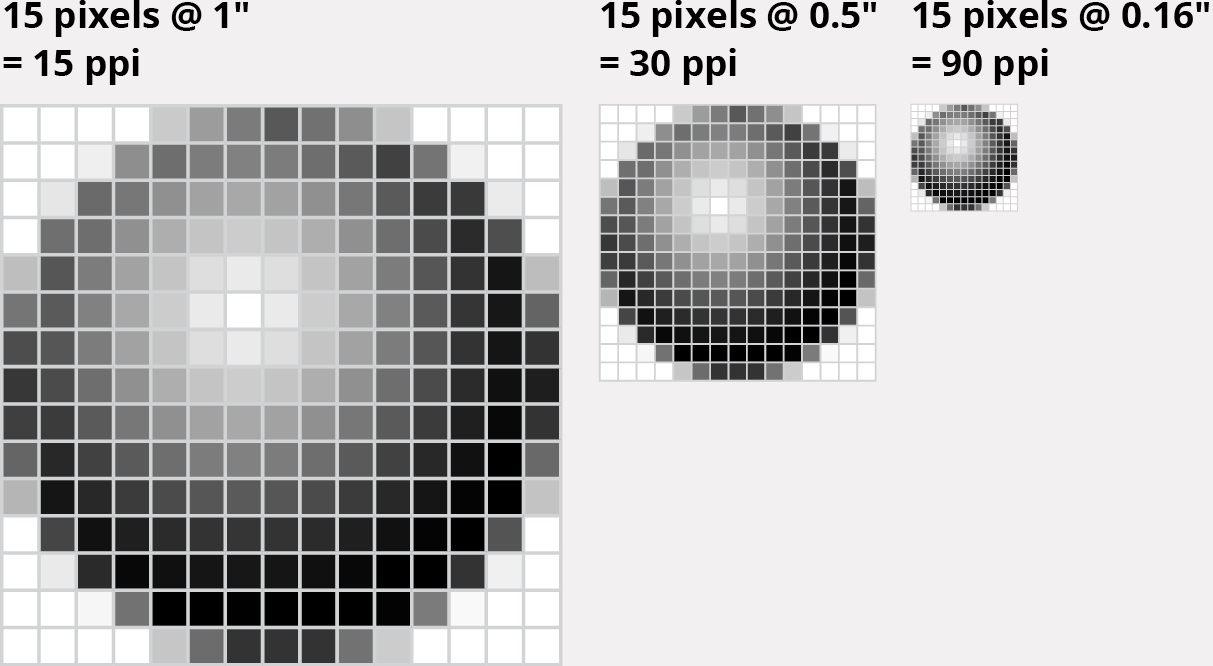
    Understanding this trade-off is fundamental to print production: we're not adding or removing pixel information (which would degrade quality), but rather redistributing the existing pixels across a smaller physical area. At 300 ppi, individual pixels become imperceptible to the human eye, resulting in smooth gradations and sharp detail. This approach preserves the image's native resolution while optimizing it for high-quality reproduction. See the detailed explanation in the sidebar below for technical specifics.

  7. Click OK to apply the resolution changes.

  8. Select File > Save As to preserve your work in a professional format.

  9. Choose between PSD and TIFF formats based on your workflow requirements. Both formats maintain complete image fidelity, but serve different professional contexts: PSD files integrate seamlessly within Adobe's Creative Suite ecosystem, supporting advanced layer structures and effects. TIFF files offer broader compatibility across design applications and typically generate smaller file sizes when compressed with LZW algorithms, making them ideal for client delivery and cross-platform collaboration.

    Digital Camera vs Print Ready Specifications

    FeatureDigital Camera DefaultPrint Ready Standard
    Color ModeRGBCMYK
    Resolution72 PPI300 PPI
    File FormatJPGPSD/TIFF
    Quality PriorityWeb DisplayPrint Output
    Recommended: Converting from camera defaults to print standards ensures professional quality output
    Image Size Impact

    The example koala image demonstrates how resolution changes affect print dimensions: at 72 PPI it would print at 32.444 x 48.667 inches with poor quality, but at 300 PPI it prints at 7.787 x 11.68 inches with excellent quality.

Save As PSD

  1. Under Format (Mac) or Save as type (Windows), select Photoshop.

  2. Name the file yourname-koala.psd and click Save.

  3. If prompted about compatibility, leave Maximize Compatibility checked and click OK. This ensures the file opens correctly in different versions of Photoshop and other Adobe applications.

PSD Format Analysis

Pros
Excellent integration with Adobe Creative Suite applications
Preserves all Photoshop layers and editing capabilities
Maintains full image quality without compression artifacts
Industry standard for professional design workflows
Cons
Limited compatibility with non-Adobe software
Larger file sizes compared to compressed alternatives
May require Adobe software for viewing and editing

Save As TIFF

  1. Under Format (Mac) or Save as type (Windows), select TIFF.

  2. Name the file yourname-koala.tif and click Save.

  3. Set Image Compression to LZW and click OK. LZW compression uses sophisticated algorithms to reduce file size by up to 50% without any quality loss—a crucial advantage for managing large image libraries and reducing storage costs. While universally accepted in professional workflows, verify compatibility if delivering to legacy systems or specialized output devices.

  • Close the file to complete the exercise.

  • TIFF Format Analysis

    Pros
    Widely accepted across different software platforms
    LZW compression reduces file size while maintaining quality
    Lossless compression preserves all image data
    Better cross-platform compatibility than PSD
    Cons
    LZW compression may not be compatible with all applications
    Slightly more complex compression settings to configure
    Less seamless integration with Adobe workflow compared to PSD
    LZW Compression Benefits

    LZW compression is a lossless method that reduces file size while maintaining complete image quality, making it ideal for professional print workflows where both quality and efficiency matter.

    Understanding Resolution and Resampling

    Resampling OFF: Disabling resampling redistributes existing pixel data without creating or destroying information. This approach maintains image integrity by adjusting pixel density rather than pixel count. The result: smaller, denser pixels that produce sharp, professional-quality prints capable of passing critical scrutiny in commercial applications.

    resampling off

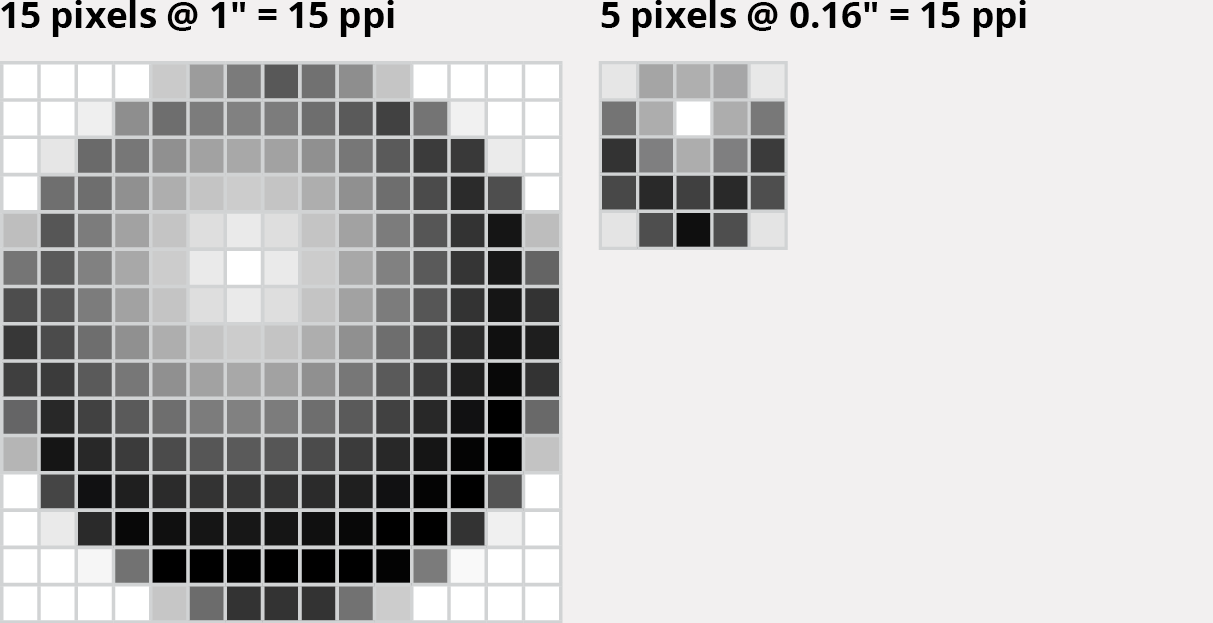
    Resampling ON: Enabling resampling allows Photoshop to interpolate new pixels or discard existing ones. While useful for web optimization (where smaller file sizes improve loading speeds), this process inevitably introduces quality compromises. Use resampling strategically—primarily when creating web graphics or when source material exceeds your target requirements by a significant margin.

    resampling on

    Key Takeaways

    1Standard print images require CMYK color mode and 300 PPI resolution for professional quality output
    2Digital camera images typically start as RGB at 72 PPI and need conversion for print preparation
    3Disabling resampling when adjusting resolution maintains image quality by changing pixel size rather than adding or removing pixels
    4PSD format offers superior Adobe Creative Suite integration while TIFF provides broader cross-platform compatibility
    5LZW compression in TIFF files reduces file size without sacrificing image quality through lossless compression
    6Higher resolution results in smaller print dimensions but significantly better print quality
    7The maximum quality print size is determined by the original pixel dimensions and target resolution
    8Proper file format selection depends on workflow requirements and software compatibility needs

    RELATED ARTICLES