April 1, 2026Dan Rodney/6 min read

Nondestructive Dodging & Burning

Master Professional Photo Retouching Techniques

Essential Photoshop Skills

Nondestructive Workflow

Learn to edit photos without permanently altering original image data. This approach maintains image quality and allows unlimited revisions.

Layer Management

Master the use of blend modes and layer effects to achieve professional results. Understanding layer interactions is crucial for advanced retouching.

Precision Control

Develop fine motor control for detailed work like lip enhancement and shadow adjustment. Low exposure settings provide better control than high-impact edits.

Topics Covered in This Photoshop Tutorial:

Master the art of creating nondestructive dodge and burn layers to precisely lighten and darken areas of your images with professional control and flexibility.

Destructive vs Nondestructive Editing

FeatureDestructive MethodNondestructive Method
Image DataPermanently alteredOriginal preserved
FlexibilityLimited revisionsUnlimited adjustments
QualityDegrades with editsMaintains integrity
Professional UseNot recommendedIndustry standard
Recommended: Always use nondestructive methods for professional photo retouching to maintain flexibility and quality.

Exercise Preview

preview dodge&burn

Exercise Overview

Professional retouchers rely on dodging and burning to sculpt light and shadow, creating dimension and evening out tonal inconsistencies that can make or break a portrait. This selective lightening and darkening technique—borrowed from traditional darkroom practices—remains one of the most powerful tools in digital photo editing. The key difference in modern workflows is working nondestructively, preserving your original image data while maintaining complete creative control. This approach allows you to refine your adjustments indefinitely, meeting the demanding standards of commercial photography and high-end retouching work.

Understanding 50% Gray

In Soft Light blend mode, 50% gray is completely neutral and invisible. This is the foundation of nondestructive dodging and burning - you're essentially painting light and shadow on an invisible canvas.

Getting Started

Before diving into the dodge and burn technique, we'll set up your workspace and establish the proper file structure for professional editing.

  1. If you've just completed the previous frequency separation exercise, you should have yourname-frequency-separation.psd still open. If not, navigate to and reopen it from Desktop > Class Files > Skin Retouching Class.

    For those joining at this stage, open frequency-separation-done.psd located in Desktop > Class Files > Skin Retouching Class. This provides you with a properly prepared base image for the dodge and burn process.

  2. Navigate to File > Save As to create a dedicated working file for this exercise.

  3. Name your file yourname-dodge&burn.psd and save it into the Skin Retouching Class folder. This naming convention helps maintain project organization—critical for professional workflows.

  4. Access the Actions panel through Window > Actions. We'll use a pre-built action to create the optimal layer setup for nondestructive dodge and burn work, ensuring consistency and efficiency in your process.

  5. Look for the FX-Ray Retouch action set. If you completed the previous exercise, this should already be loaded and you can proceed to step 6. If the FX-Ray Retouch folder isn't visible, follow the loading instructions below.

    File Setup Process

    1

    Open Previous Work

    Start with yourname-frequency-separation.psd or open frequency-separation-done.psd from the Class Files folder

    2

    Save New Version

    Use File > Save As to create yourname-dodge&burn.psd in the Skin Retouching Class folder

    3

    Prepare Actions Panel

    Open the Actions panel and locate the FX-Ray Retouch folder for automated layer creation

Loading the FX-Ray Retouch Actions

  1. Click the panel menu icon panel menu at the top right of the Actions panel and select Load Actions.

  2. In the file browser, navigate to Desktop > Class Files > Skin Retouching Class > Frequency Separation Photoshop Action and select the appropriate action file for your Photoshop version:

    FX-Ray_Retouch_CC.atn for Creative Cloud versions
    FX-Ray_Retouch_CS5.atn for legacy CS5 and CS6 installations
  • In your Layers panel, click to select the neck color layer—this should be the topmost layer within your Frequency Separation group. This strategic selection ensures the new dodge and burn layer will be positioned above all existing retouching work, maintaining your editing hierarchy.

  • Expand the FX-Ray Retouch folder in the Actions panel to reveal the available actions.

  • Select the Dodge&Burn Layer action and click the Play button actions play button at the bottom of the panel.

    Note: If your Actions panel is set to Button Mode, simply click the gold Dodge&Burn Layer button to execute the action.

  • Action File Compatibility

    FeaturePhotoshop VersionRequired Action File
    CC and HigherCreative CloudFX-Ray_Retouch_CC.atn
    CS5 and CS6Creative SuiteFX-Ray_Retouch_CS5.atn
    Recommended: Use the correct action file for your Photoshop version to ensure compatibility and proper functionality.
    Layer Selection Importance

    Always select the top layer in the Frequency Separation group before running the action. This ensures your dodge and burn layer appears above all previous work.

    Dodging & Burning

    Now that your workspace is properly configured, let's explore the mechanics of professional dodging and burning and put these techniques into practice.

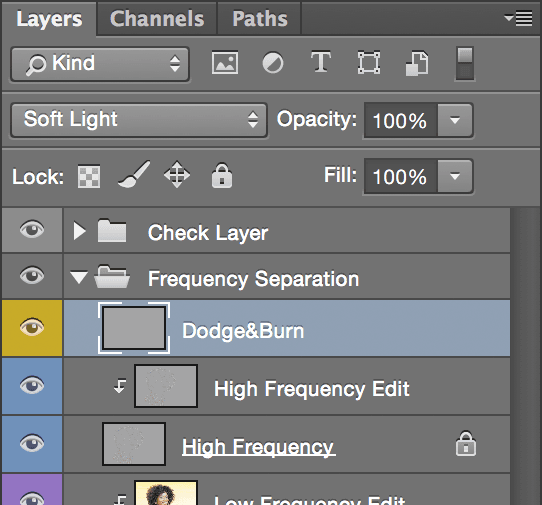
    1. Examine the newly created Dodge&Burn layer in your Layers panel. Notice its gray thumbnail and Soft Light blending mode—this setup is fundamental to nondestructive dodge and burn work. The Soft Light blend mode interprets gray values as follows:

      • 50% neutral gray creates no visual change, effectively becoming invisible
      • Values lighter than 50% gray brighten (dodge) the underlying image areas
      • Values darker than 50% gray darken (burn) the underlying image areas

      Currently filled with 50% gray, this layer has zero impact on your image. As you paint with darker or lighter tones, you'll selectively influence the brightness of underlying layers—this is the essence of nondestructive editing.

    2. Adjust your view to comfortably see both the face and neck area. This zoom level allows you to work with precision while maintaining context of the overall composition.

    3. Select the Burn tool burn tool from the Tools panel. You may need to click and hold the Dodge tool dodge tool to access it from the tool group.

      Memory tip: The Burn tool darkens areas (like burnt toast), while the Dodge tool lightens them (dodging shadows in traditional darkroom work).

    4. Configure your Options bar settings: set Exposure to 10% and select a soft-edged brush. This conservative exposure setting is crucial for professional results—it's always better to build up effects gradually through multiple passes than to over-correct with a single heavy-handed stroke.

      Professional retouchers typically work with exposures between 5-15%, allowing for precise control and natural-looking results.

    5. Let's enhance the model's facial definition by subtly darkening the neck area below the chin. This creates better separation between the face and neck, drawing attention to the primary focal point. Using an appropriately-sized soft brush, gently paint over the shadow area beneath the chin.

      Work in light passes—you may need to paint over the same area 2-3 times to achieve the desired effect. This gradual approach ensures natural-looking results.

    6. Switch focus to enhancing lip definition by lightening their edges. Select a smaller brush suitable for precise detail work—this level of refinement separates amateur from professional retouching.

    7. Here's a workflow-accelerating tip that professional retouchers use constantly: hold Option (Mac) or ALT (Windows) to temporarily toggle between the Dodge and Burn tools. This eliminates the need to manually switch tools, dramatically speeding up your workflow.

      Practice this technique now: while holding Option (Mac) or ALT (Windows), paint a subtle highlight along the top edge of the model's lip to create definition and dimension.

    8. Monitor your progress by toggling the Dodge&Burn layer visibility. Click the eye icon eye hide show icon next to the layer name to compare before and after states. This real-time comparison helps you maintain subtlety—the hallmark of professional retouching.

    9. The nondestructive nature of this technique provides unlimited creative flexibility. Continue refining other areas that could benefit from tonal adjustment. Consider enhancing cheekbone definition, evening out forehead tones, or adding subtle highlights to the eyes. Remember the tool behavior:

      • Paint directly with the Burn tool to darken areas
      • Hold Option (Mac) or ALT (Windows) while painting to lighten (dodge) areas

      The key to professional results is restraint—subtle adjustments that enhance rather than overpower the natural beauty of your subject.

    10. Once satisfied with your dodge and burn work, save your file to preserve this stage of the editing process, then close it to complete the exercise.

    Dodge and Burn Tool Effects

    Burn Tool (Darkening)

    Darker than 50% gray values darken underlying layers. Think of burning toast - it gets darker with heat application.

    Dodge Tool (Lightening)

    Lighter than 50% gray values brighten underlying layers. Use for highlighting edges and creating definition.

    Neutral Gray (No Effect)

    Exactly 50% gray produces no change to underlying layers, making it invisible in Soft Light blend mode.

    Recommended Settings

    10%
    Exposure percentage for controlled edits
    50%
    Gray value for neutral base layer

    Professional Retouching Checklist

    0/5

    Key Takeaways

    1Nondestructive dodging and burning preserves original image data while allowing unlimited revisions and adjustments
    2The Soft Light blend mode makes 50% gray completely invisible, creating a neutral base for light and shadow painting
    3Low exposure settings (10%) provide better control than high-impact edits, enabling subtle professional results
    4The Burn tool darkens areas while the Dodge tool lightens them, with Alt/Option key toggling between tools
    5Actions automate complex layer setups, but proper layer selection is crucial for correct placement in the layer stack
    6Multiple subtle passes create more natural-looking results than attempting dramatic changes in single applications
    7Professional retouching focuses on enhancing existing features rather than creating obvious artificial effects
    8Layer visibility toggles allow real-time comparison of before and after states for quality control

    RELATED ARTICLES