Photoshop for Design: Compositing into a Photo
Composite a Design into a Photo
File → Place Embedded
Place your magazine ad over the photo's right-hand page; size and rotate roughly into position.
Edit → Transform → Distort
Drag each corner one at a time to match the perspective of the photo's page.
Add a Layer Mask + Blend
Soften edges so the design sits naturally inside the photo.
Add Texture & Shading
Multiply or Soft Light layers add the photo's lighting and paper texture to the design.
Noble Desktop's Photoshop Bootcamp covers retouching, compositing, color correction, and pro editing.
Learn how to create a realistic mockup using Photoshop in this comprehensive tutorial, featuring step-by-step instructions on how to distort and warp graphics onto photos, add texture and shading, and create a convincing paper texture effect and shadow.
Exercise Preview
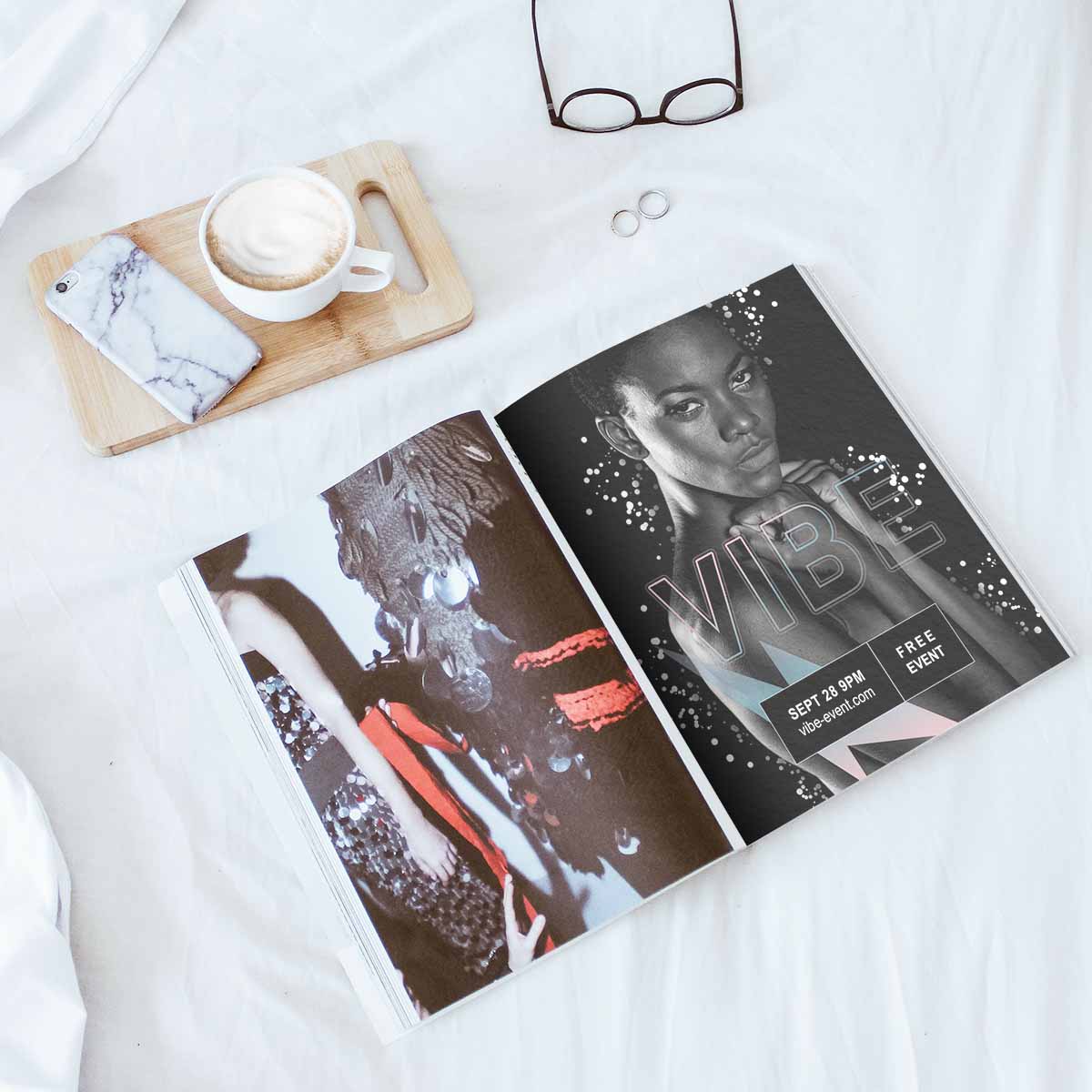
Photo background for the mockup by Sincerely Media on Unsplash
Distorting & Warping the Design to Fit Our Mockup
- From the Photoshop Class folder, open the 6D Open magazine.psd file.
- Go to File > Place Embedded.
- In the Photoshop Class folder and double–click on 6C Magazine ad.psd
Size and position the magazine ad as best you can over the right-hand page:
- Drag inside the image to move it.
- Use the resize handles to size it.
- Drag outside the image to rotate it.
You won’t be able to size and position it perfectly, but get it close.
Because of the perspective in the photo, we need more control over where the corners go. Choose Edit > Transform > Distort.
- Drag each corner (one at a time) so it matches the corner of the magazine page in the underlying photo. Zoom in so you can be accurate.
- This will get you very close, but the top of the magazine is curved. We’ll need a different method of transforming to accomplish that.
Choose Edit > Transform > Warp.
A grid of lines has been overlaid on the magazine ad. The top left corner has a blue dot, but one line to the right of that is another blue dot.
Drag that blue dot up and out to bend the top line as shown here:

- Hit Return (Mac) or Enter (Windows) to accept the changes.
- In the Layers panel, rename the layer your design
Choose View > Fit on Screen (Cmd–0 (Mac) or CTRL–0 (Windows)).
Adding a Paper Texture
- Go to File > Place Embedded.
- In the Photoshop Class folder and double–click on 6D Paper texture.jpg
Scale it down a little and position it over so it covers our magazine ad completely. We don’t need to rotate it and position it perfectly, because the texture doesn’t really have an noticeable angle.
- To accept the size/position, double–click on the paper texture.
We only want this visible in the shape of the magazine ad layer, so we’ll need to use a clipping mask.
- In the Layers panel, hold the Option (Mac) or ALT (Windows) key and position the cursor on the divider line between the 6D Paper texture and your design layers. When the cursor changes to
 then click once.
 - The texture should now only appear where we placed our magazine ad.
- In the Layers panel, hold the Option (Mac) or ALT (Windows) key and position the cursor on the divider line between the 6D Paper texture and your design layers. When the cursor changes to
- We need to make the texture transparent so we can see our ad underneath. In the Layers panel, select the 6D Paper texture layer.
- At the top of the Layers panel set Opacity to 20%.
- Choose View > 200% so we can see the details better.
While this texture is supposed to be subtle, we can barely set it anymore. Let’s use a blend mode to make it a bit more noticeable.
At the top left of the Layers panel change Normal to Pin Light.
The change is subtle, but this blending mode brings out a bit more of the dark parts of the texture so we can see it more.
In the Layers panel, click the eye
 next to the 6D Paper texture layer a few times to see that this texture makes our ad feel more realistic in this photo.
Adding a Shadow in the Fold
One more thing we can do to make this more realistic, is adding a shadow in the crease of the magazine (at the spine).
- Choose View > Fit on Screen (Cmd–0 (Mac) or CTRL–0 (Windows)).
- We’re going to need black for our shadow. Near the bottom of the Tools panel, click the small Default Colors icon
 to set the Foreground color to black (or hit D on your keyboard).
 - In the Layers panel, make sure the 6D Paper texture layer is selected.
- Hold Option (Mac) or ALT (Windows) and at the bottom of the Layers panel, click the Create new fill or adjustment layer
 and choose Gradient.
 Because you held Option (Mac) or ALT (Windows) you’ll see an options dialog:
- Check on Use Previous Layer to Create Clipping Mask.
- Name it shadow
- Click OK.
Click the down arrow to the right of Gradient.
In the Basics folder double–click the 2nd thumbnail (the Foreground to Transparent gradient). If you pause a moment over it, the name will appear.
- Reduce Scale to 9% so it’s a much smaller gradient.
Change Angle to 31° (don’t worry when the gradient disappears).
- To make the gradient visible again, in the image drag and pull to the right to get the gradient onto the magazine.
- Once it’s positioned and looks good (don’t worry if it’s too dark, we’ll adjust the opacity in a moment), click OK.
If you think the shadow is too dark, adjust the layer’s Opacity in the Layers panel.
Congratulations, you’re all done!