April 1, 2026Dan Rodney/4 min read

Opening & Editing a Typical Image

Master Professional Image Processing and Color Management

Professional Color Management Workflow

This tutorial demonstrates industry-standard practices for converting images from device-specific profiles to working color spaces for professional editing.

Essential Color Management Steps

1

Convert to Working Space

Transform device-specific profiles into standardized editing environments

2

Edit in Device-Independent Space

Work in consistent color spaces like Adobe RGB for optimal results

3

Soft Proof Output

Preview how images will appear in different output scenarios

Converting an Image into the Working Space

  1. Download the class files. Before beginning this exercise, ensure you have the necessary practice files by referring to the Downloading the Class Files page at the beginning of the workbook. These files contain the specific examples we'll be working with to demonstrate proper color management workflows.

  2. In Photoshop, navigate to File > Open to begin importing your image.

  3. From the Color Management Seminar Files folder, locate and open East River.psd. This file has been specifically prepared to demonstrate the color profile conversion process you'll encounter in real-world scenarios.

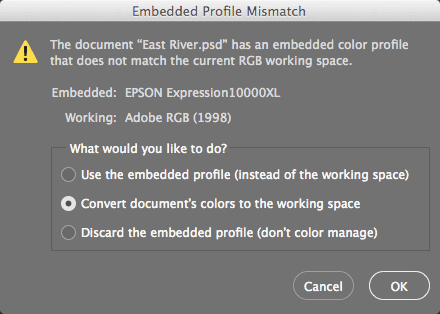
  4. Upon opening, Photoshop will detect a profile mismatch and display the following color management dialog:

    opening image convert colors

  5. The current embedded profile (EPSON Expression 10000XL) is a device-specific profile created for an Epson scanner—essentially a digital fingerprint of how that particular scanner captures color. While this profile accurately represents how the image was originally digitized, it's not optimal for editing. Professional workflows require transitioning from device-dependent capture profiles to standardized, device-independent working spaces that provide consistent color behavior across different monitors and output devices. Select the second option, Convert document's colors to the working space, which in our case is Adobe RGB—a working space specifically designed to encompass a wide gamut suitable for professional print and digital workflows.

  6. Click OK to complete the conversion. Your image is now operating in a standardized color space, ready for professional editing with predictable color behavior across different devices and output scenarios.

    NOTE: This represents the standard workflow for most professional projects. When you open images captured by scanners or digital cameras, they typically arrive with embedded profiles specific to the capture device. Converting to your designated working space ensures consistent color management throughout your editing process and provides the foundation for accurate final output.

  7. Close the file to complete this exercise, but remember this fundamental workflow—it's the cornerstone of professional color management.

Now that you understand the conversion process, let's explore how to maintain color accuracy throughout your editing workflow using Photoshop's soft proofing capabilities.

Device Profile vs Working Space

FeatureDevice ProfileWorking Space
Color ConsistencyScanner-specificStandardized
Editing ReliabilityVariablePredictable
Cross-PlatformLimitedUniversal
Professional UseNot RecommendedIndustry Standard
Recommended: Always convert to working space like Adobe RGB for professional editing
Embedded Profile Recognition

When Photoshop detects an EPSON Expression 10000XL profile, it identifies this as a device-specific scanner profile that should be converted to your working space.

Image Conversion Workflow

0/4

Soft Proofing While Editing the Image

Professional color management extends beyond initial conversion. As you develop your images, soft proofing becomes essential for maintaining output accuracy. This feature simulates how your image will appear in its final destination, whether that's a printing press, a specific monitor profile, or web browsers across different platforms. Think of soft proofing as a preview system that prevents costly surprises at the output stage.

  • For print workflows, soft proofing reveals how your RGB colors will translate to CMYK, highlighting potential issues with out-of-gamut colors that cannot be accurately reproduced in print. This preview allows you to make informed creative decisions during editing rather than discovering limitations after the fact.

  • For digital delivery, soft proofing simulates how images will appear across different devices and color spaces, from high-end monitors with wide color gamuts to standard sRGB displays commonly found on consumer devices and web browsers.

Setting up Soft Proofing for Print

Navigate to View > Proof Setup to access Photoshop's proofing options. Here you'll specify which output profile to simulate during your editing process. For general print workflows, select Working CMYK, though you may want to choose specific press profiles if you're working with a particular printing facility or have custom ICC profiles for your output device.

Turning on Soft Proofing

Use View > Proof Colors (Ctrl/Cmd+Y) to toggle soft proofing on and off. This keyboard shortcut allows you to quickly compare your working space colors against the simulated output, making it easy to spot shifts in saturation, hue, or brightness that will occur during final output.

Checking for Out-Of-Gamut Colors

Activate View > Gamut Warning (Ctrl/Cmd+Shift+Y) to identify colors that fall outside your target output space. Photoshop will overlay these problematic areas with a neutral gray highlight, allowing you to address gamut issues proactively. This is particularly crucial when working with vibrant colors or when transitioning from wide-gamut working spaces like Adobe RGB or ProPhoto RGB to more constrained output spaces like standard offset printing profiles.

Soft Proofing Applications

Print Preview

Shows how colors will shift when converted to CMYK for printing. Identifies out-of-gamut colors that cannot be accurately reproduced.

Web Preview

Displays how images will appear on different monitor types. Helps ensure consistent appearance across Mac and PC platforms.

Setting Up Print Soft Proofing

1

Access Proof Setup

Navigate to View > Proof Setup to configure proofing parameters

2

Select Working CMYK

Choose the appropriate CMYK profile for your intended print output

3

Toggle Proof Colors

Use View > Proof Colors to switch between normal and proof viewing

4

Enable Gamut Warning

Activate View > Gamut Warning to highlight unprintable colors

Soft Proofing Benefits and Limitations

Pros
Preview color shifts before final output
Identify out-of-gamut colors early in editing process
Save time and materials on test prints
Ensure cross-platform consistency for web images
Make informed color correction decisions
Cons
Accuracy depends on monitor calibration quality
Cannot replicate exact paper and ink interactions
May show conservative gamut warnings
Requires understanding of different color spaces
Out-Of-Gamut Color Management

Gamut Warning highlights colors that cannot be accurately printed in CMYK. These areas require color adjustment to achieve predictable print results.

Professional Editing Workflow

Start of Project

Initial Conversion

Convert from device profile to working space

Throughout Editing

Periodic Soft Proofing

Check color accuracy during editing process

Before Output

Final Gamut Check

Verify all colors are within output gamut

Key Takeaways

1Convert images from device-specific profiles to standardized working spaces like Adobe RGB for consistent professional editing
2Scanner and camera profiles are device-dependent and should be transformed to device-independent workspaces
3Soft proofing provides essential preview capabilities for both print and web output scenarios
4Working CMYK profile selection in Proof Setup determines print preview accuracy
5Gamut Warning feature identifies colors that cannot be accurately reproduced in print
6Periodic soft proofing during editing helps identify color issues before final output
7View menu contains all essential soft proofing controls: Proof Setup, Proof Colors, and Gamut Warning
8Professional color management workflow requires understanding both input device profiles and output requirements

RELATED ARTICLES