Creating a Complex Animation
What This Tutorial Covers
Frame Animation
Frame-by-frame timeline animation in Photoshop.
Layer Visibility
Toggle layers across frames for traditional animation.
Export Options
GIF, video, and Photoshop's native animation export.
Noble Desktop's Graphic Design Certificate covers Photoshop alongside Illustrator and InDesign — the complete Adobe toolkit.
Dive into the depth of Photoshop by exploring our tutorial that covers topics such as creating custom animations using clipping masks, manually animating an object, utilizing Unify Layer options, and making edits applicable to all frames.
Exercise Preview

Adding Clipping Masks for Custom Animations
The file has all of the text and graphics we’ll be using for this banner. The text has been rasterized so you don’t have to worry about installing the same font we used. All the tricks we’ll be looking at work just as well with live text.
Most of our animation will be moving and fading things in. But for the word EXPO, we want to do something a little fancier. We will make it look like each letter is being drawn on the screen by revealing each letter in different directions.
In the Layers panel, notice the E, X, and P have been separated onto their own layers. (Don’t worry about the letter O—we’ll talk about it later.)
To create the revealing effect you saw earlier, we will be covering up each letter with a green rectangle, and then moving the rectangle out of the way to reveal the letter. It’s easiest to have all of our elements in place before we start animating, so let’s create those green rectangles before we do anything else.
In the Layers panel, select the E layer.
Choose the Rectangle tool
 .
.In the Options bar at the top, click on the color picker next to Fill.
In the panel that opens, click on the Color Picker
 in the upper right-hand corner.
Enter #79C143 for the color. This matches the green background we already have.
Click OK.
In the document, draw a rectangle around the letter E so that it’s fully covered. It’s OK if the rectangle covers up some of the other text as well; we’ll fix that next.
In the Layers panel, make sure the Rectangle 1 layer is directly above the E layer.
With the Rectangle 1 layer still selected, go into the Layers panel menu
 and choose Create Clipping Mask.
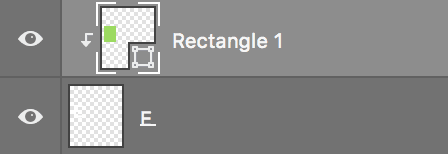
The Rectangle 1 layer is now clipped off where the letter E layer ends. This means the shape will only cover up the E layer below it, no matter how much we move the rectangle around our document. To indicate this, the layers will look as shown below:
To keep things organized, select the Rectangle 1 layer and the E layer.
Go to Layer > Group Layers.
Double–click Group 1, and rename the layer group E.
Let’s do the same thing for the letter P. Select the P layer.
In the document, draw a rectangle around the letter P so that it’s fully covered.
In the Layers panel, make sure the new Rectangle 2 layer is directly above the P layer.
There’s another way to create a clipping mask. Hold Option (Mac) or ALT (Windows) and mouse over the line between the Rectangle 2 and P layers until you see the icon shown below, then click:
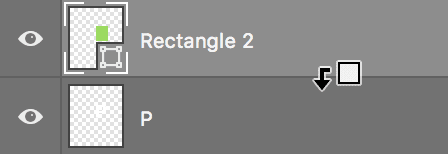
After you release the mouse, you should see that the layers become clipped.
To keep things organized, select the Rectangle 2 layer and the P layer.
As a shortcut to group the two layers, press Cmd–G (Mac) or CTRL–G (Windows).
Double–click Group 1, and rename the layer group P.
The letter X will be a little different. We are going to create two rectangles, one that we’ll animate moving up, and one that we’ll animate moving down.
Select the X layer.
Draw a rectangle around the left half of the letter X in the document, so that only the left side of the X is completely covered.
Draw another rectangle around the right half of the letter X in the document, so that the right side of the X is also covered. It’s okay if the two rectangles overlap just a little bit.
In the Layers panel, make sure the Rectangle 3 and Rectangle 4 layers are directly above the X layer.
In order to create the clipping mask, select the Rectangle 3 and Rectangle 4 layers.
The technique we just used only works for single layers. We want to clip multiple layers, so we’ll need to use the menu this time. Go into the Layers panel menu
and choose Create Clipping Mask.To keep things organized, select the Rectangle 3, Rectangle 4, and X layers.
Press Cmd–G (Mac) or CTRL–G (Windows) to group the three layers.
Double–click Group 1, and rename the layer group X.
The animation will start with a blank green surface, and then we’ll build everything up from there. However, we want our first frame to have all the information on it. That way, if the animation does not work on a website and it’s stuck on the first frame, the info will still be there for people to see. Right now, the E, X, and P letters are hidden by their respective green rectangles. We’ll have to reveal them so they are showing on the first frame when we create our animation.
In the Layers panel, expand the E, X, and P layer groups.
Hide all the green rectangle layers by clicking the eye
 to the left of each.
Feel free to collapse the layer groups again if you’d like.
Creating a Frame Animation
Now that we have all of the text and graphics we’ll be using for this banner, we can start animating.
In the Timeline panel, click the Create Frame Animation button. If instead there is a button that says Create Video Timeline, click the arrow
 to the right of Create Video Timeline and choose Create Frame Animation. Then click the Create Frame Animation button.
At the bottom of the Timeline panel, click the Duplicates selected frames button
 .
.In the Timeline panel, make sure frame 2 is selected.
In the Layers panel, hide all the layers EXCEPT for The 5th Annual and green bg by clicking the eye
to the left of each.TIP: You can drag through the eye column (instead of having to click each eye individually) to make hiding or showing multiple layers faster.
With frame 2 still selected, let’s set the timing. We want this to be a little faster and smoother than our previous animations. Click 0 sec. at the bottom of frame 2, and from the menu that appears, choose Other.
Set the Delay to .08 seconds and click OK.
With frame 2 still selected, click the Duplicates selected frames button
.Frame 3 is the correct ending position for this bit of animation. We’re going to work backwards and change the starting position of the text on frame 2.
Select frame 2.
In the Layers panel, select the The 5th Annual layer.
With the Move tool
 , hold Shift and drag the The 5th Annual text up until it’s completely off the canvas.
Select frames 2 and 3.
At the bottom of the Timeline panel, click the Tweens animation frames button
 .
.In the Tween dialog, set:
- Frames to Add: 3
- Parameters: Keep everything checked.
Click OK.
Now we need to bring in the word SCIENCE. Select frame 6 and click the Duplicates selected frames button
.With frame 7 selected, in the Layers panel show the SCIENCE layer.
In the Timeline panel, select frames 6 and 7.
At the bottom of the Timeline panel, click the Tweens animation frames button
.In the Tween dialog, set:
- Frames to Add: 3
- Parameters: Keep everything checked.
Click OK.
At the bottom left of the Timeline panel, make sure looping is set to Forever.
Animating Letters
We’ll move around the green rectangles we created earlier to hide or reveal the E, X, and P letters. We clipped the green rectangles to their respective letters so they won’t accidentally cover up other parts of the animation.
In the Timeline panel, select frame 10.
In the Layers panel, show the E, X, and P folders by clicking the blank box to the left of each.
If they aren’t already, expand the folders for the letters E, X, and P by clicking the arrow
 next to the folder icon for each so you can see the layers inside.
Show the green rectangle layers within each of those folders.
The letters EXP should not be visible in your document because the green rectangles are covering them up. We’re going to reveal them next. If any of the letters are visible, make sure you have shown all the green rectangle layers in the Layers panel.
With frame 10 still selected, click the Duplicates selected frames button
.Select frame 11. Now, we can decide how we want our letters to be revealed.
In the Layers panel, select the Rectangle 1 layer in the E folder.
With the Move tool
, move the green rectangle to the right until the letter E has been entirely revealed in your document.TIP: You can use the Arrow keys to nudge a layer (the Move tool must be selected).
There are two rectangles for the letter X. Select Rectangle 3 in the Layers panel.
With the Move tool
, move it up until one half of the X has been revealed.Select Rectangle 4 in the Layers panel.
With the Move tool
, move it down so that the rest of the X has been revealed.In the Layers panel, select the Rectangle 2 layer in the P folder.
With the Move tool
, move it to the right until the letter P has been entirely revealed. Things should now be set up so that frame 11 says EXP and frame 10 does not show those letters at all.Ready to see how it animates? Select frames 10 and 11.
At the bottom of the Timeline panel, click the Tweens animation frames button
.In the Tween dialog, set:
- Frames to Add: 11
- Parameters: Keep everything checked.
Click OK.
Check out how things are looking so far by clicking the Play button
 . Click the Stop button
  when you’re done.
Animating the O
Now it’s time to animate the O. We want the O to be revealed in a circle, which we can’t do with a simple tween animation. Tweening between locations will only move in a straight line. What we’ve done instead is broken the O into 12 different parts, which we will reveal one at a time with a more manual type of animating.
NOTE: Unfortunately, there’s no easy way to split up the O evenly. Here’s how we did it: We first turned off anti-aliasing in the Options bar. We then split the shape in half by selecting half of it, then choosing Layer > New > Layer Via Cut. That created two layers. We then split each of those layers in half again using the same method. We then split each of those four layers into three more segments, etc. You get the idea! Afterwards, we organized the layers and labeled them so we would remember the order. This was all rather tedious, so that’s why we’ve done it for you.
In the Layers panel, expand the O folder.
Notice there are 12 numbered layers in there. We are going to show the entire letter O in all our frames first, then hide pieces of the O in each of our frames so a bit of it is revealed in each frame.
In the Timeline panel, click on frame 11, then hold Shift and click on frame 22 to select frames 11–22.
In the Layers panel, show the O folder. The O is now entirely visible in all our frames. Next we’ll start hiding parts of the O in each of our frames.
In the Timeline panel, select frame 11.
In the Layers panel, hide layers O 2 through O 12. You can click each eye
or drag through the column. Only O 1 should be showing when you’re finished!Select frame 12.
Hide layers O 3 through O 12 so only O 1 and O 2 are showing.
Select frame 13.
Hide layers O 4 through O 12 so only O 1, O 2, and O 3 are showing.
Continue with frames 14 through 22, revealing one more layer for each frame. It’s a bit tedious, but it gives a nice result.
Frame Which Layers to Hide Frame 14 O 5 through O 12 Frame 15 O 6 through O 12 Frame 16 O 7 through O 12 Frame 17 O 8 through O 12 Frame 18 O 9 through O 12 Frame 19 O 10 through O 12 Frame 20 O 11 through O 12 Frame 21 Only O 12 Frame 22 Nothing—all O layers should be showing To declutter the Layers panel, collapse all of the open folders.
Let’s add a slight pause before EXPO is revealed. Select frame 10.
Click 0.08 sec. at the bottom of the frame, and from the menu choose 0.2.
Preview by clicking the Play button
. Looks cool so far! Click the Stop button when you’re done.Press Cmd–S (Mac) or CTRL–S (Windows) to save our work so far.
Animating Graphics
Looks cool so far. We just have a little more information to add.
In the Timeline panel, select frame 22 and click Duplicates selected frames
.With frame 23 selected, go to the Layers panel and show the last three layers we want to appear in the animation:
- The Armory May 8–9
- electron
- atom
We’ll make the animation look a little nicer by fading in those last three layers. Select frames 22 and 23.
At the bottom of the Timeline panel, click the Tweens animation frames button
.In the Tween dialog, set:
- Frames to Add: 3
- Parameters: Keep everything checked.
Click OK.
The last thing we want to do is animate the electron so it’s moving around the atom following the ellipse. This is a little tricky to do. So far, we’ve been using Tween to animate an object moving. Unfortunately, Tween only works if the object is moving in a straight line. Because we want our object to move following the ellipse, we will have to adjust the position manually 1 frame at a time.
However, just because Tween is not able to give us the final results we want, doesn’t mean we can’t utilize it to start the process. We want the electron to be halfway around the ellipse after 8 frames, so let’s do some tweening to show us how far it should move in each frame.
Select frame 26 and click the Duplicates selected frames button
.With frame 27 selected, in the Layers panel select the electron layer.
With the Move tool
, move the electron so that it’s halfway around the ellipse:
Select frames 26 and 27.
At the bottom of the Timeline panel, click the Tweens animation frames button
.In the Tween dialog, set:
- Frames to Add: 7
- Parameters: Keep everything checked.
Click OK.
Now we have to go back to all of those added frames and move the electron so it’s following along the path of the ellipse. Select frame 27.
Notice our electron is slightly to the left of its original position. We want to move the electron down and slightly to the right so it’s on the line of the ellipse.
With the Move tool
, move the electron so it’s on the line of the ellipse.Select frame 28.
Move the electron down and slightly to the right so it’s on the line of the ellipse.
Continue this process for the remaining frames. Remember that the electron should be a quarter of the way around the ellipse at frame 30. You might not see the electron at first because it’s hiding in the nucleus of the atom, but if you move it, you will see that it’s there.
We’ll repeat the same steps for the second half of the ellipse. Select frame 34, and click the Duplicates selected frames button
.With frame 35 selected, move the electron back to its starting position.
Select frames 34 and 35.
At the bottom of the Timeline panel, click the Tweens animation frames button
.In the Tween dialog, set:
- Frames to Add: 7
- Parameters: Keep everything checked.
Click OK.
Go through frames 35 to 41, and move the electron up and slightly to the left so it’s on the line of the ellipse in each frame.
We don’t actually need frame 42. We only added it so we could get a good tween animation. Select frame 42 and at the bottom of the Timeline panel click the trash icon
 .
.In the dialog that appears, click Yes.
Test out the animation to see if the electron’s journey looks relatively smooth and adjust any individual frames as needed.
We want the electron to make one more journey around, but it would be a pain to have to repeat all those steps. Luckily, we don’t have to. Select frames 26–41.
Click the Duplicates selected frames button
. Photoshop will make a copy of all the selected frames at the end of our animation. You should end up with a total of 57 frames.
Making Changes
Let’s say we need to change something about our GIF after we’ve already set everything up. This can get a little complicated. The main thing to remember is that Photoshop can animate a layer’s position, visibility, and layer style.
If you need to change anything other than one of those three things, you can make the changes to the layer anywhere and it will apply throughout the animation. But if you want to change the position, visibility, or layer style, you have to make sure it applies to all the frames, and not just the one you have selected.
First, let’s make a simple change. We need to change some of the text in our file. Select any frame where May 8–9 is visible, like frame 57.
With the Type tool
 , click on the date on the image and change it to read May 15–16 instead.
To commit the change, click the checkbox
 near the right side of the Options bar.
Play
through the animation to notice the change was made throughout. Easy!Because we weren’t making a change to the layer’s position, visibility, or layer style all we had to do was make the change and it applied throughout our animation.
Now we’re going to take that same text and move it further up the document. This is more complicated, because layer position is something that Photoshop can animate. We’ll look at two different techniques to deal with this.
Select any frame where The Armory May 15–16 is fully visible in the document (frame 26 or later).
In the Layers panel, select the The Armory May 15–16 layer.
Towards the top of the Layers panel, next to Unify, click the Unify layer position button
 .
.By choosing Unify layer position, whenever we move this particular layer, it will move to the same position throughout the animation. Otherwise, we would only be moving the layer in one frame.
Using the Move tool
, move the text up so it’s sitting just below the word EXPO.Click Play
and notice that the text remains in the same new location throughout. Click Stop when done previewing the animation.NOTE: The Unify layer visibility button
 and Unify layer style button
  work the same way as the Unify layer position button . Use the Unify layer visibility button when you want to change the opacity of a layer throughout an animation. Use the Unify layer style button when you want to change the effect of a layer throughout an animation.
- Let’s try a different method for changing an animated element. Select frame 1.
In the Layers panel, select the The 5th Annual layer.
Towards the top of the Layers panel, notice that Propagate Frame 1 is checked on. This means that whatever changes are made on frame 1 for this layer will happen to the entire animation.
NOTE: Be careful when editing frame 1 in your own animations. Even if you made sure to check Propagate Frame 1, this can be a little glitchy, so always check to make sure it has made the change to all frames, and use the Unify buttons if it doesn’t. In some cases you may also want to change frame 1 without changing the rest of the animation (as we’ve done in previous exercises), in which case you would need to uncheck Propagate Frame 1 first.
With the The 5th Annual layer selected, set its Opacity to 70%.
Click Play
and notice that the opacity change has been made throughout.Press Cmd–S (Mac) or CTRL–S (Windows) to save the working file.