April 1, 2026Dan Rodney/3 min read

More Layer Masks & Collages

Master Advanced Layer Masking and Collage Techniques

Prerequisites

This tutorial assumes you have access to Photoshop and basic familiarity with layers. You'll need the provided exercise files in the Photoshop Class folder.

Exercise Preview

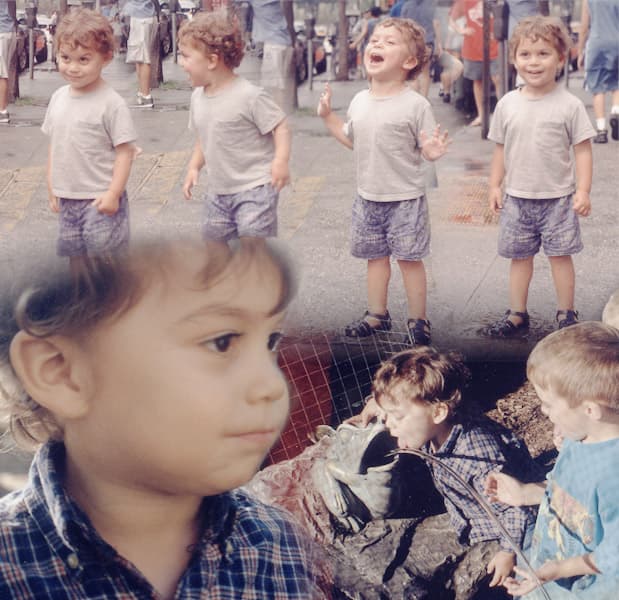
devinder collage2 done

What You'll Learn

Layer Mask Fundamentals

Understanding how black, white, and gray paint affects layer visibility. Master the core principles of non-destructive editing.

Seamless Blending Techniques

Remove harsh edges between images using gradients and soft brushes. Create natural-looking transitions between multiple layers.

Advanced Collage Composition

Combine multiple images into cohesive artwork. Learn proper layering and organization for complex projects.

Exercise Overview

In this hands-on exercise, you'll create a sophisticated collage that demonstrates advanced layer masking techniques. The final result will mirror the polished composition shown above, where multiple portrait elements blend seamlessly into a cohesive artistic statement. This project builds upon foundational masking skills while introducing more nuanced blending approaches that are essential for professional digital compositing work.

Collage Creation Workflow

1

Open Starter File

Navigate to the Photoshop Class folder and open devinder collage2-started.psd to access the pre-arranged image layers.

2

Blend Duet Layers

Apply masks to the four Duet layers showing Devinder at the top and use gradients or brushes to create seamless transitions.

3

Add New Images

Use File > Place Embedded to import devinder not smiling.psd and devinder frog fountain.psd from the Collage folder.

4

Refine Edge Blending

Apply masks to the newly placed images and paint with soft brushes using black or white to blend edges naturally into the composition.

Layer Management Best Practice

Always verify which layer you're working on by hiding and showing layers. Check whether you're editing the layer itself or its mask to avoid unwanted modifications.

More Practice: Making Another Collage

  1. Ready to dive deeper into layer masking workflows? Navigate to the Photoshop Class folder, then open the Collage subfolder and launch devinder collage2-started.psd. This exercise will challenge you to refine your masking precision and develop an eye for seamless compositing.

    The starter file contains multiple pre-positioned images that form the foundation of your collage. Your task is to transform these disparate elements into a unified composition through strategic masking and blending. Here's your roadmap to success:

  2. Focus first on harmonizing the four Duet layers positioned at the top of the composition. Currently, these portrait shots of Devinder display harsh, distracting edge transitions that immediately signal amateur compositing work. Your goal is to create smooth, natural blending that draws the viewer's eye across the sequence without interruption.

    Accomplish this by adding layer masks to each Duet layer, then employ gradient tools and brush painting techniques to control visibility with surgical precision. Consider the lighting direction and emotional flow between portraits as you work—professional compositing requires both technical skill and artistic sensibility.

    Master these fundamental masking principles as you work:

    • Black conceals—painting with black on a mask renders those pixels transparent, hiding the underlying layer content.
    • White reveals—white paint on a mask ensures full opacity, making layer pixels completely visible.
    • Gray creates transparency—varying gray values produce partial transparency effects, essential for subtle blending work.
  3. Expand your composition by incorporating additional visual elements. Use File > Place Embedded to import two supplementary images from the Collage folder: devinder not smiling.psd and devinder frog fountain.psd. These elements will add narrative depth and visual complexity to your final piece.

  4. Execute professional-grade edge blending on your newly placed images. Add masks to both layers, then employ soft brush techniques with black or white paint to create organic, believable transitions. The goal is invisible integration—viewers should never question where one image ends and another begins.

    Maintain focus and organization throughout your workflow. Always verify your active layer selection and confirm whether you're editing layer pixels or mask data. When uncertainty arises, toggle layer visibility to identify your current working layer—this simple habit prevents costly mistakes and maintains project momentum.

    For reference and inspiration, examine devinder collage2-done.psd located in the Collage folder. This completed example demonstrates professional-level masking execution and can guide your decision-making when facing challenging blend scenarios. Study the mask opacity choices and brush work to understand the subtle techniques that separate amateur from professional compositing results.

Layer Mask Painting Rules

0/3

Before vs After Masking

FeatureBefore MaskingAfter Masking
Edge QualityHarsh visible linesSmooth seamless transitions
Visual FlowDisconnected elementsCohesive composition
Professional AppearanceAmateur cut-and-paste lookPolished artistic result
Recommended: Layer masks are essential for creating professional-quality collages that appear naturally blended rather than artificially assembled.
Reference File Available

Open devinder collage2-done.psd in the Collage folder to see the finished example and compare your technique with the completed version.

Key Takeaways

1Layer masks enable non-destructive editing by controlling pixel visibility without permanently altering original images
2Black paint on masks hides pixels, white paint reveals them, and gray creates partial transparency for subtle effects
3Soft brushes and gradients are essential tools for creating seamless transitions between collage elements
4The File > Place Embedded command properly integrates new images while maintaining editability in complex compositions
5Always verify which layer and mask you're editing to prevent accidental modifications to the wrong elements
6Professional collages require careful attention to edge blending to avoid obvious cut-and-paste appearances
7Reference files provide valuable learning opportunities to study advanced techniques and compare your work
8Layer organization and naming conventions become critical when working with multiple images in complex projects

RELATED ARTICLES