April 1, 2026Dan Rodney/4 min read

Ghosting Part of an Image

Master Professional Image Ghosting Techniques in Photoshop

Core Skills You'll Master

Layer Opacity Control

Learn to adjust transparency levels for subtle visual effects. Master the hand slider technique for quick opacity adjustments.

Layer Feathering

Create smooth, non-destructive edge transitions. Apply professional softening techniques to eliminate harsh boundaries.

Text Readability

Solve common text visibility problems over complex backgrounds. Implement ghosting techniques for enhanced legibility.

Topics Covered in This Photoshop Tutorial:

Setting a Layer's Opacity, Feathering Layers

Tutorial Requirements

You'll need access to Photoshop and the camel.tif file from the Photoshop Class folder to complete this exercise successfully.

Exercise Preview

camel done

Photo by Dan Rodney

Ghosting Process Overview

1

Create Selection

Use Rectangular Marquee tool to select the bottom half inch across the entire image using rulers as guides

2

Add Fill Layer

Create a solid color fill layer with white color to serve as the ghosted background

3

Adjust Opacity

Set layer opacity to approximately 50% or experiment with different values for desired effect

4

Add Text Content

Insert text using Horizontal Type tool with specific formatting and positioning

5

Apply Feathering

Soften edges using 20px feather value in Properties panel for professional finish

Exercise Overview

Text readability over complex backgrounds remains one of the most persistent challenges in graphic design. When text is placed directly over photographs or patterns, legibility often suffers dramatically. This exercise teaches you a professional technique that creates a subtle, semi-transparent overlay—a method widely used in web design, marketing materials, and digital publishing to ensure text remains crisp and readable while maintaining visual harmony with the underlying image.

Ghosting Technique Benefits and Considerations

Pros
Significantly improves text readability over complex backgrounds
Non-destructive editing allows unlimited adjustments
Creates professional, polished visual appearance
Maintains image visibility while adding text overlay
Quick opacity adjustments using hand slider method
Cons
May reduce overall image contrast in ghosted areas
Requires careful opacity balancing for optimal results
Hard edges may appear abrupt without feathering
Professional Tip

When the mouse hovers over the Opacity word, it transforms into a hand slider. Click and drag left or right to quickly adjust opacity values without typing specific numbers.

Adding the Text Layer

We'll start by creating the foundational elements: a semi-transparent background strip and properly formatted text that will serve as our readable overlay.

  1. From the Photoshop Class folder, open the file camel.tif.

  2. Ensure that you can see the entire image by pressing Ctrl+0 (Windows) or Cmd+0 (Mac) to fit the image to your window.

  3. Press D to reset to the default foreground and background colors (black foreground, white background).

  4. If rulers aren't visible, navigate to the View menu and select Rulers, or use the keyboard shortcut Ctrl+R (Windows) or Cmd+R (Mac).

  5. Select the Rectangular Marquee tool rectangular marquee tool and draw a selection across the bottom half-inch of the entire image width. Use the rulers as your guide to ensure consistent measurements.

  6. Open the Layers panel by going to Window > Layers or pressing F7.

  7. At the bottom of the Layers panel, click the Create new fill or adjustment layer button adjustment layer button, then choose Solid Color from the dropdown menu.

  8. In the Color Picker dialog, select pure white and click OK. This creates a solid white layer that will serve as our text background.

  9. Double-click the layer's name in the Layers panel and rename it ghosted color for better organization and workflow clarity.

  10. At the top of the Layers panel, adjust the opacity of the ghosted color layer. Start with 50%, then fine-tune based on your image's contrast needs—darker images may require higher opacity for better text visibility.

    TIP: When you hover your cursor over the word "Opacity," it transforms into a hand slider hand slider. Click and drag left or right to adjust values quickly—a time-saving technique professional designers use constantly.

  11. Select the Horizontal Type tool type tool from the toolbar or press T.

  12. In the Options bar at the top of the screen, configure your text settings: Myriad Pro Bold, 14 pt, and Left aligned text left align. These settings provide excellent readability for most applications.

  13. Click once at the far left of the ghosted color area to create a blinking text cursor, positioning it where your text will begin.

  14. Type the following sample text: Organic Camel Milk at a Grocery Store Near You!

  15. Switch to the Move tool move tool by pressing V.

  16. Use the Arrow keys to precisely nudge the text into the center of the white ghosted box, ensuring balanced spacing on all sides.

    TIP: Hold Shift while pressing Arrow keys to move the text 10 pixels at a time—perfect for faster positioning adjustments during the design process.

Text Layer Setup Requirements

0/4
Efficient Movement Technique

Press Shift plus Arrow keys to move elements 10 pixels at a time, making large positioning adjustments much faster than single-pixel movements.

Feathering the Layer to Add More Subtlety

While our current design is functional, the sharp edge where the ghosted box meets the photograph creates a jarring visual break. Professional designers typically soften these transitions to create more sophisticated, polished results that feel integrated rather than simply overlaid.

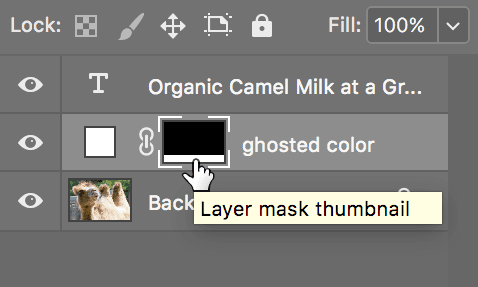
  1. In the Layers panel, click to select the white layer mask thumbnail in the ghosted color layer (shown below). You'll know it's selected when you see a white border around the mask thumbnail:

    ghosting part of an image select layer mask

  2. Open the Properties panel (Window > Properties) and locate the Feather setting. Set it to 20 px to create a gradual, soft transition between the ghosted area and the photograph.

  3. Evaluate the visual result critically. If the soft edge feels too subtle or too pronounced for your specific image and design goals, adjust the feather value accordingly—try values between 10-30 px for most applications, or return to 0 px if you prefer the crisp edge.

    The advantage of this mask-based feathering approach is its non-destructive nature—you can modify or remove the effect at any time without losing image quality or starting over, making it invaluable for client work and iterative design processes.

  4. Save your work by going to File > Save As. Ensure the Format (Mac) or Save as type (Windows) is set to Photoshop to preserve all layers and editability, then name the file yourname-camel.psd.

Feathered vs Non-Feathered Edges

FeatureHard Edge (0px)Feathered Edge (20px)
Visual ImpactAbrupt, harsh transitionSmooth, professional blend
Editing FlexibilityFixed appearanceAdjustable anytime
Professional QualityBasic overlay effectPolished, subtle integration
ReversibilityNon-destructiveNon-destructive
Recommended: Use 20px feathering for professional results, but experiment with values to match your specific design needs.
Non-Destructive Advantage

The feathering technique applied to layer masks is completely non-destructive, meaning you can modify or remove the effect at any time without losing original image data.

Key Takeaways

1Ghosting technique solves text readability problems over complex photo backgrounds by creating semi-transparent overlay areas
2Layer opacity around 50% provides optimal balance between text visibility and background image preservation
3Rectangular Marquee tool with ruler guides ensures precise selection of ghosting areas across image width
4Hand slider method for opacity adjustment offers faster workflow than manual value entry in Properties panel
5Solid color fill layers with white color create effective ghosted backgrounds for text overlay applications
620px feathering on layer masks eliminates harsh edges and creates professional, subtle transitions
7Non-destructive editing techniques allow unlimited adjustments without compromising original image data
8Proper text formatting with Myriad Pro Bold 14pt ensures professional typography standards in overlay design

RELATED ARTICLES