April 1, 2026Dan Rodney/7 min read

Lifestyle Shot: Balancing Skin Tones

Master Professional Photo Retouching with Precision Techniques

Essential Photoshop Skills You'll Master

Quick Mask Mode Selections

Learn to make precise selections using Quick Mask Mode with custom colors and brush techniques for complex areas like skin.

Color Channel Adjustments

Master individual RGB channel manipulation to correct color casts and achieve natural skin tone balance across different body areas.

Selection Intersections

Combine multiple selection methods to target specific areas while preserving detail and maintaining realistic results.

Topics Covered in This Photoshop Tutorial:

Making Rough Selections in Quick Mask Mode, Intersecting Selections, More Adjusting the Curves of Individual Color Channels

Exercise Preview

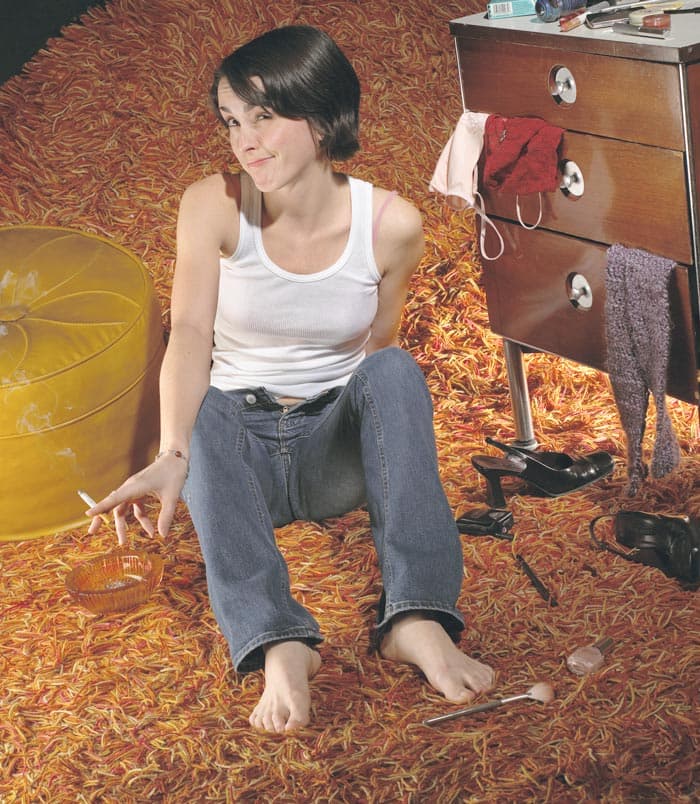
lifestyle skin tones done

Exercise Overview

In this exercise, we'll tackle one of the most challenging aspects of portrait retouching: achieving consistent skin tone throughout an image. Professional photographers and retouchers know that even under controlled lighting conditions, different parts of the body can exhibit varying color temperatures and tonal qualities. We'll demonstrate how to identify these inconsistencies and use advanced selection techniques combined with targeted curve adjustments to create a harmonious, natural-looking result.

This technique becomes particularly crucial when working with lifestyle photography where models are positioned in natural poses that create shadows and highlight variations across different body parts.

File Management Best Practice

Always save your work regularly throughout this exercise. Use the naming convention 'yourname-lifestyle.psd' and save to your designated Photoshop Advanced Class folder for easy project management.

Balancing the Tone of the Right Arm

We'll begin by addressing the most noticeable tonal discrepancy in this image. The right arm exhibits a yellow cast that disrupts the overall color harmony. This is a common issue in portrait photography, often caused by reflected light from surrounding surfaces or subtle variations in the subject's natural skin tone. Remember to save your work regularly throughout this process—complex selections and adjustments deserve protection against unexpected crashes.

  1. If you just completed exercise 2E, yourname-lifestyle.psd should still be open. If not, open it now.

    If you didn't complete the last few exercises and need a finished version of the file, you can open lifestyle_selections-done.psd. Save it back into the Photoshop Adv Class folder as yourname-lifestyle.psd.

  2. Examine the skin tone of the right arm carefully. Notice how it displays a distinct yellow hue compared to the cooler tones present in the rest of the visible skin? This color cast creates an unnatural appearance and draws the viewer's attention away from the overall composition. Our goal is to neutralize this cast while maintaining the arm's natural luminosity and texture.

  3. Select the Lasso tool lasso tool and create a loose selection around the entire arm area, deliberately excluding the hand. At this stage, precision isn't critical—we're creating a rough boundary that we'll refine using our pre-existing skin channel. Focus on capturing the arm's general shape while maintaining some breathing room around the edges.

  4. Navigate to the Channels panel where our previously created skin selection awaits.

  5. Hold Cmd–Opt–Shift (Mac) or CTRL–ALT–Shift (Windows) and click on the skin channel. This keyboard combination creates an intersection between your current lasso selection and the skin channel, resulting in a precise selection of only the arm's skin area. The marching ants should now conform perfectly to the skin boundaries while excluding the hand entirely.

  6. Return to the Layers panel, then click the New adjustment layer button adjustment layer button and choose Curves. This non-destructive approach allows for future refinements without compromising the original image data.

  7. Name the new layer match arm to maintain clear organization as we build multiple adjustment layers.

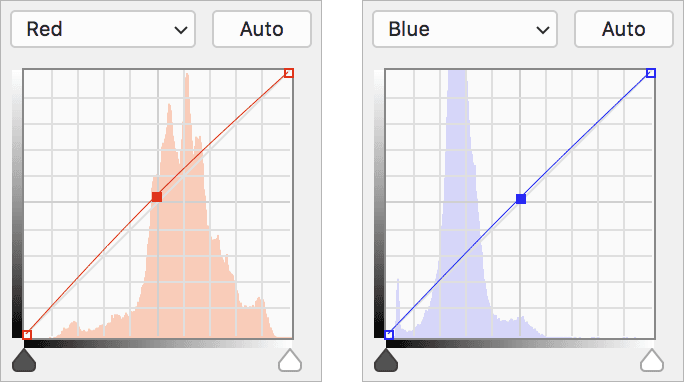
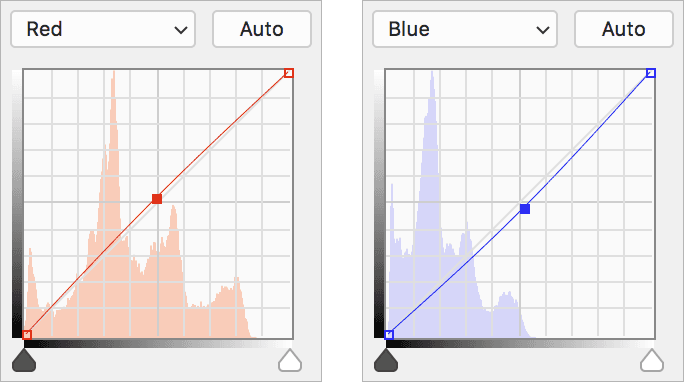
  8. In the Properties panel, we'll counteract the yellow cast by boosting the complementary colors. Add some Red and Blue as shown below. The red addition warms the skin naturally, while the blue component neutralizes the unwanted yellow bias:

    lifestyle arm red&blue

Right Arm Color Correction Workflow

1

Make Initial Selection

Use the Lasso tool to loosely select the arm area, excluding the hand. Precision isn't critical at this stage.

2

Load Skin Channel

In Channels panel, hold Cmd-Opt-Shift (Mac) or Ctrl-Alt-Shift (PC) and click the skin channel to refine selection.

3

Create Curves Layer

Add new Curves adjustment layer named 'match arm' and adjust Red and Blue channels to neutralize yellow cast.

Balancing the Tone of the Hand

Now we'll shift our attention to the hand, which presents the opposite challenge. Here, we're dealing with a bluish color cast accompanied by slightly reduced luminosity. This section will demonstrate the power of Quick Mask mode for creating organic, painterly selections that feel natural and avoid the harsh edges that can plague geometric selection tools.

  1. Study the hand's skin tone carefully. Compared to the arm we just corrected, notice how it exhibits a subtle bluish cast and appears slightly darker? This cool bias creates a disconnect from the warmer, more natural skin tones we want to achieve throughout the image.

  2. At the bottom of the Tools panel, double–click the Quick Mask Mode button quick mask mode. This opens the Quick Mask options dialog, where we'll customize our working environment for optimal visibility.

  3. In the dialog that appears, under Color Indicates select Selected Areas and choose a bright lime green color. This high-contrast color choice ensures maximum visibility against skin tones, making it easy to see exactly what you're selecting as you paint.

  4. Click OK to confirm these settings.

  5. Choose a 150 px brush and set it to heavily feathered. This larger, soft-edged brush creates natural-looking selections that blend seamlessly with the surrounding areas, avoiding the telltale signs of digital manipulation.

  6. Set the foreground color to black, which will add to our selection in Quick Mask mode.

  7. Paint over the hand from the wrist down with confident, overlapping strokes. Embrace the freedom of this approach—you can be deliberately sloppy with your brush work, so long as you cover all the skin areas that require color correction. The beauty of this technique lies in its forgiving, organic nature.

  8. Exit Quick Mask mode by clicking the Standard mode button standard mode at the bottom of the Tools panel. Your painted area will now appear as an active selection with marching ants.

  9. Navigate to the Channels panel to refine this selection further.

  10. To create an intersection between your current selection and the skin channel, hold Cmd–Opt–Shift (Mac) or CTRL–ALT–Shift (Windows) and click on the skin channel. This ensures we're only selecting actual skin pixels, eliminating any background or clothing areas that might have been included in your painted selection.

    Quick Mask Mode Setup

    Configure Quick Mask Mode to show selected areas in bright lime green. This visual feedback makes it easier to see exactly what areas you're painting for selection.

    Hand Tone Correction Process

    1

    Enter Quick Mask Mode

    Double-click Quick Mask button, set to show Selected Areas in lime green for better visibility.

    2

    Paint Selection Area

    Use 150px heavily feathered brush with black foreground to paint over hand from wrist down.

    3

    Intersect with Skin Channel

    Exit Quick Mask, then load skin channel intersection using keyboard shortcuts for precise selection.

    4

    Apply Color Corrections

    Create 'match hand' Curves layer, add Red, reduce Blue, and lighten overall RGB to correct bluish cast.

Loading Selections

While the keystrokes used in this exercise represent the fastest workflow for experienced users, don't worry if you forget them. You can achieve identical results by navigating to Select > Load Selection.

This dialog-based approach provides explicit control over selection operations. Here you can choose what you want to load as a selection, and whether you want to create a new selection, add to, subtract from, or intersect with the current selection. This interface is particularly helpful when working with multiple saved selections or when you need to visualize the logical relationship between different selection operations.

  • With the hand precisely selected, return to the Layers panel, then click New adjustment layer adjustment layer button and choose Curves.

  • Name the new layer match hand to maintain our organized layer structure.

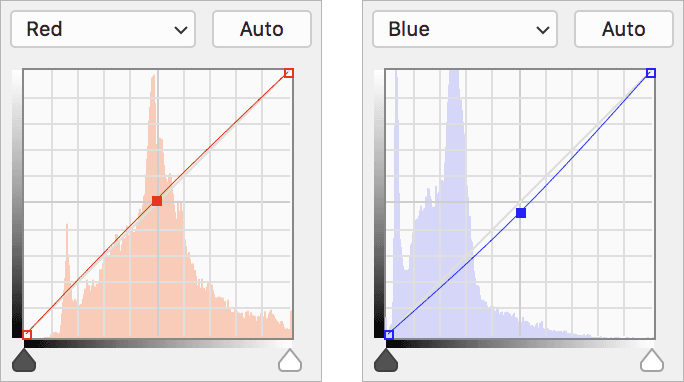
  • In the Properties panel, we'll warm up the hand by adding Red and reducing the Blue channel as shown below. This combination counteracts the cool blue cast while introducing warmth that harmonizes with the rest of the skin tones:

    lifestyle hand red&blue

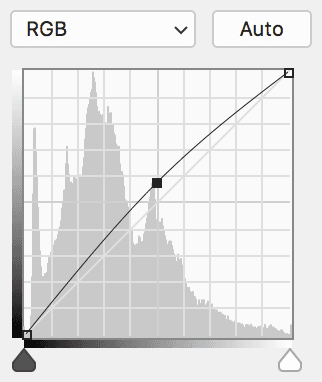
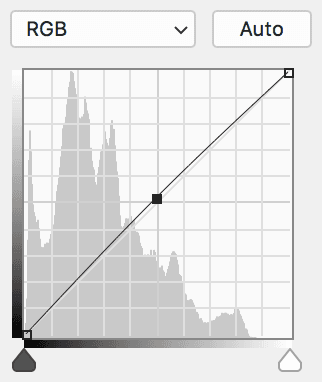
  • Finally, brighten the overall RGB curve to match the luminosity of the surrounding skin areas, as demonstrated below. This subtle lift ensures the hand doesn't appear unnaturally dark compared to the arm:

    lifestyle hand rgb

  • Selection Methods Comparison

    FeatureKeyboard ShortcutsMenu Method
    SpeedFastestSlower
    Access MethodCmd-Opt-Shift + ClickSelect > Load Selection
    Options AvailableLimitedFull control (New, Add, Subtract, Intersect)
    Best ForQuick workflowComplex selection operations
    Recommended: Use keyboard shortcuts for speed in regular workflow, but menu method when you need precise control over selection operations.

    Balancing the Tone of the Feet

    We'll conclude this exercise by addressing the feet, which suffer from similar issues as the hand—a combination of cool color bias and reduced luminosity. By now, you should feel comfortable with the workflow we've established: rough geometric selection, intersection with the skin channel, and targeted curve adjustments. This final section will reinforce these techniques while completing our comprehensive skin tone correction.

    1. The feet require similar attention to what we applied to the hand. Use the Lasso tool lasso tool to create a loose selection around both feet. Don't stress about precision—we're establishing a general boundary that will be refined by our skin channel intersection.

    2. Switch to the Channels panel.

    3. Hold Cmd–Opt–Shift (Mac) or CTRL–ALT–Shift (Windows) and click on the skin channel. The selection should now conform precisely to the feet's skin areas, excluding any background elements or shadows.

    4. In the Layers panel, click the New adjustment layer button adjustment layer button and choose Curves.

    5. Name the new layer match feet to complete our systematic approach to organization.

    6. In the Properties panel, apply the same color correction strategy we used for the hand: add Red to introduce warmth and reduce Blue to eliminate the cool cast, as shown below:

      lifestyle feet red&blue

    7. Enhance the overall RGB luminosity to bring the feet into tonal harmony with the rest of the corrected skin areas:

      lifestyle feet rgb

    8. Save your file thoroughly—this represents significant progress in your retouching workflow. The techniques you've mastered in this exercise form the foundation for professional-level portrait correction. In the next exercise, we'll build upon these skills to tackle even more sophisticated color and tonal challenges.

    Final Color Correction Checklist

    0/6

    Key Takeaways

    1Quick Mask Mode with custom colors provides superior visual feedback when making complex selections on skin areas
    2Intersecting selections using keyboard shortcuts (Cmd-Opt-Shift + click) combines the precision of channel masks with rough lasso selections
    3Individual RGB channel adjustments in Curves are more effective than overall color correction for targeted skin tone balancing
    4Different body areas often require unique color corrections - arms may need yellow reduction while hands need blue reduction and brightening
    5Regular file saving throughout complex editing workflows prevents loss of detailed adjustment work
    6Feathered brushes in Quick Mask Mode allow for natural selection edges that blend seamlessly with skin texture
    7Proper layer naming conventions ('match arm', 'match hand', 'match feet') maintain organization in complex retouching projects
    8The Select > Load Selection menu provides alternative access to intersection operations when keyboard shortcuts are forgotten

    RELATED ARTICLES