Color Correction Techniques: Typical Image
Photoshop Essentials
Layers & Masks
Non-destructive editing with layer masks and adjustment layers.
Selections
Quick Select, lasso, pen, and Select Subject for precise isolation.
Color & Tone
Curves, Levels, and Hue/Saturation for pro-quality color work.
Smart Objects
Resize and transform without losing image quality.
Noble Desktop's Photoshop Bootcamp covers retouching, compositing, color correction, and pro editing.
Discover the step-by-step process for correcting overall contrast and color in photos using Photoshop, with a focus on techniques like using curves and customizing curve options for optimal results.
Exercise Preview
Getting Started
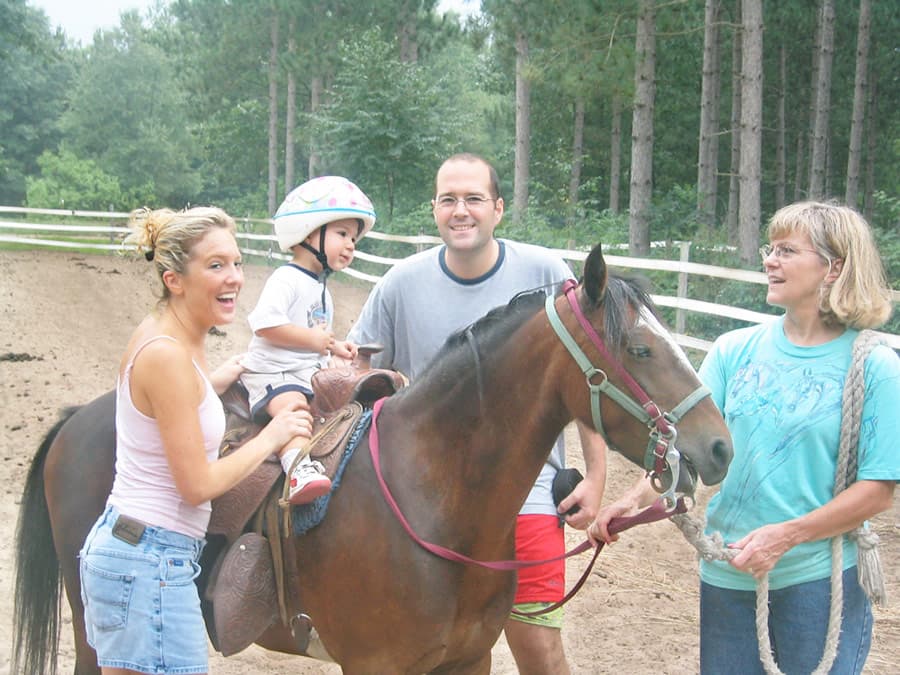
From the Photoshop Adv Class folder, open HorseFamily.psd.
Save the file back into Photoshop Adv Class as yourname-HorseFamily.psd.
While retouchers hope to get a great image with properly balanced color, shadows and highlights, in the real-world not all of us get those images. This snapshot is dull and bluish. Let’s color correct it and give it more contrast for punch. If it’s not already visible, show the Histogram panel by choosing Window > Histogram.
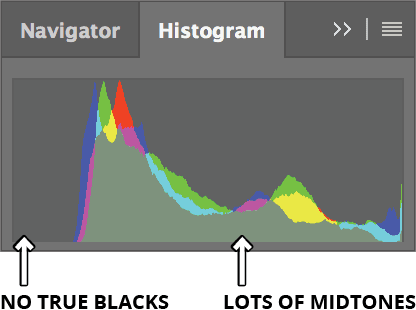
As shown below, you can see that the image contains no true blacks, and a lot of tones are concentrated at the midtones, especially the darker midtones. That would explain the lack of contrast.
Correcting Overall Contrast & Color
- Choose Layer > New Adjustment Layer > Curves.
- Name the layer overall color & contrast and click OK.
- In the upper right of Properties panel, hold Option (Mac) or ALT (Windows) and click the Auto button to open the options dialog.
Do NOT click OK until we tell you to! Try each of the four Algorithms with and without Snap Neutral Midtones checked.
You’ll probably find that Find Dark & Light Colors with Snap Neutral Midtones NOT checked works best, even though the image is a bit dark.
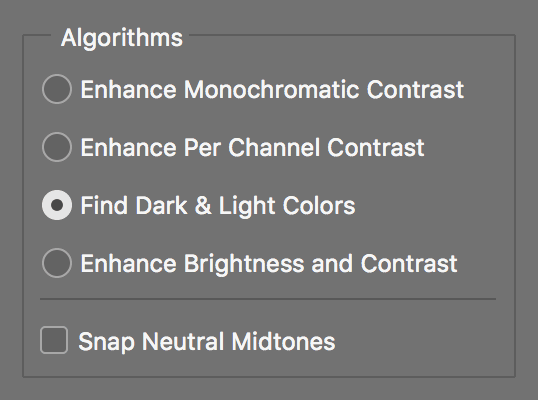
Under Target Colors & Clipping, set Shadows to 0.
This prevents more shadow pixels from being clipped into pure black.
Click OK.
Before we do more color correction, let’s set up the Properties panel so it’s easier to use. Go to the Properties panel menu
 and choose Curves Display Options.
Uncheck Channel Overlays and click the Detailed grid button
 .
.TIP: Another way to get the detailed grid is to Option–click (Mac) or ALT–click (Windows) on the grid.
Click OK. Much better. Now let’s do some color correction.
The midtones are a bit dark, so grab the midtones on the curve and lighten them to something like the curve shown below.
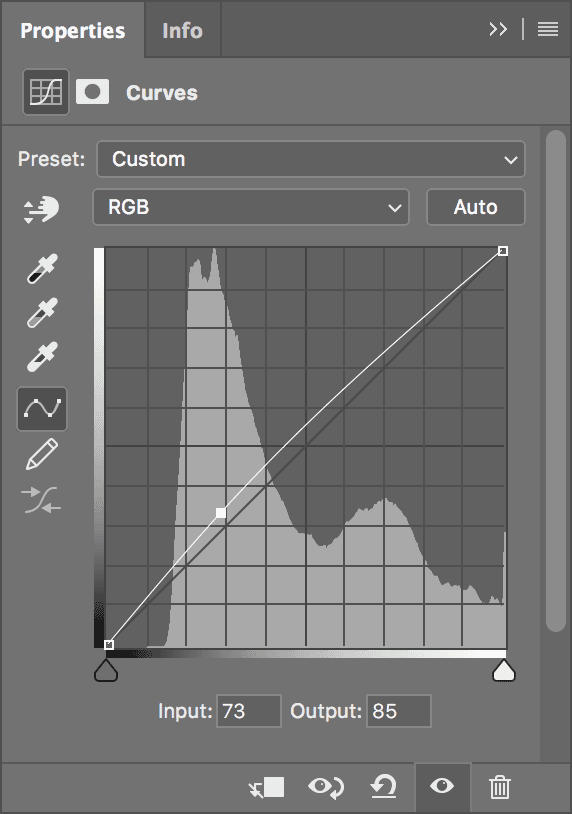
Using the menu at the top of the Curves adjustment, look through the RGB channels to see what the Auto feature has done for you. If you want, continue to tweak your curves until you’re satisfied.
In the Layers panel, hide and show
 the overall color & contrast adjustment layer to see just how much you’ve changed the image.
Save the file if you wish, then close it.