April 1, 2026Dan Rodney/12 min read

Adding Page Navigation & Editing Smart Objects

Master Photoshop web design with smart objects

Essential Photoshop Skills You'll Master

Smart Object Workflows

Learn to edit vector and pixel-based smart objects seamlessly. Master the ability to swap and modify assets without losing quality.

Professional Navigation Design

Create polished website navigation bars with proper spacing, alignment, and visual hierarchy using Photoshop's layout tools.

Adobe Integration

Seamlessly import and edit Illustrator files within Photoshop. Bridge the gap between vector and raster design workflows.

Topics Covered in This Photoshop for Web Design Tutorial:

Master the fundamentals of professional web design workflows: creating navigation bars with proper stroke styling, managing layer opacity for visual hierarchy, achieving precise spacing through automated distribution, importing and optimizing vector graphics from Adobe Illustrator, editing vector-based Smart Objects in Illustrator for scalable graphics, editing pixel-based Smart Objects in Photoshop for raster adjustments, utilizing Content-aware Fill for seamless photo retouching, and implementing efficient asset swapping workflows

Exercise Preview

preview page nav smart objects

Exercise Overview

In this comprehensive exercise, you'll build a professional website navigation system from the ground up while mastering Smart Object workflows that are essential for modern web design projects. You'll discover how Smart Objects maintain design flexibility and enable non-destructive editing—skills that differentiate professional designers from beginners. This foundation will serve you whether you're designing for responsive websites, mobile applications, or complex multi-page web experiences.

  1. In Photoshop, close any files you have open to ensure optimal performance.
  2. Go to File > Open or hit Cmd–O (Mac) or CTRL–O (Windows).
  3. Navigate to Class Files > yourname-Photoshop for Web Class > NYC and double–click About Page—Ready for Navigation.psd.

    This refined version of your desktop design incorporates the foundational elements from previous exercises, now ready for navigation enhancement. Notice how the layout structure provides clear areas for user interaction—a hallmark of thoughtful web design architecture.

Tutorial Workflow Overview

1

File Setup

Open the prepared About Page file and familiarize yourself with the existing desktop design layout

2

Navigation Creation

Build a professional navbar with proper dimensions, styling, and opacity settings

3

Asset Integration

Import vector graphics from Illustrator and learn smart object editing techniques

4

Content Refinement

Use content-aware fill and logo swapping to perfect the final design

Creating a Navbar Background

Professional navigation requires precise dimensions and positioning. We'll create a navbar that spans the full width of your design, establishing the visual foundation for user navigation.

  1. Go to View > Fit on Screen to view the complete document layout and maintain design context.
  2. Verify the navbar width against your artboard dimensions. In the Layers panel, select the Desktop artboard.
  3. In the Properties panel (Window > Properties), confirm the width (W) reads 1280 px—a standard width that accommodates most desktop displays while remaining manageable for responsive adaptation.
  4. Organize your workflow by placing new elements in their designated folders. In the Layers panel, select the nav folder.
  5. Expand the nav folder to ensure proper layer hierarchy for your new navbar element.
  6. In the Tools panel, select the Rectangle tool rectangle tool.
  7. At the top left of the Options bar, confirm the menu is set to Shape rather than Path or Pixels—this ensures you're creating a scalable vector shape.
  8. Draw a rectangle across the top portion of the cab photo. Don't worry about precision at this stage; we'll set exact specifications next.
  9. In the Properties panel, input these professional navigation dimensions:

    W: 1280 px
    H: 70 px (This height provides comfortable touch targets while maintaining visual proportion)
    X: 0 (Flush left alignment with the artboard edge)
    Y: 0 (Top-aligned for immediate user recognition)
  10. In the Layers panel, double–click the Rectangle 1 layer name within the nav folder and rename it nav bg for clear organization.
  11. Address the layer stacking order to reveal navigation text. The navbar background currently obscures the text elements, so we'll reposition it in the layer hierarchy.
  12. With the nav bg layer selected, choose Layer > Arrange > Send to Back.
  13. Notice in the Layers panel that nav bg now sits at the bottom of the nav folder, below the three text layers—exactly where background elements belong.
  14. Create visual consistency by matching the navbar color to your footer. Double–click the Layer thumbnail for nav bg.
  15. With the Color Picker dialog open, click directly on the footer's purple background to sample the color.

    This should automatically set the color to #483a40, ensuring brand consistency across your interface.

  16. Click OK to apply the color change.

Navbar Specifications

Width
1,280
Height
70
X Position
0
Y Position
0

Adding a Stroke

Strategic use of strokes creates visual separation and hierarchy in web interfaces. We'll add a subtle white border that defines the navbar's bottom edge without overwhelming the design.

  1. Add definition to your navbar with a clean bottom border. In the Properties panel, click the Stroke icon stroke icon properties.
  2. In the color panel that opens, navigate to the Grayscale folder and select White (the first swatch) for maximum contrast against the dark navbar.
  3. Hit Return (Mac) or Enter (Windows) to confirm your color selection.
  4. Set the Stroke width to 1 px—thin enough to be subtle, thick enough to provide clear definition.
  5. Select the Move tool move tool to better visualize your stroke.
  6. The navbar now displays a white stroke on all sides, though visibility may be compromised by Photoshop's artboard outline. We'll disable this interface element for clearer design assessment.
  7. Navigate to Photoshop > Preferences (Mac) or Edit > Preferences (Windows) and select Interface.
  8. Locate the Artboards section and change the second dropdown menu from Line to None to eliminate visual interference.
  9. Click OK to apply the preference change.
  10. Now you can clearly assess the white stroke on all navbar edges. For professional web design, we want stroke visibility only on the bottom edge. We'll strategically hide the other sides by positioning the navbar beyond the artboard boundaries.
  11. With nav bg selected in the Layers panel, press the Up Arrow key once to move the navbar upward, hiding the top stroke beyond the artboard edge.
  12. Press the Left Arrow key once to shift the navbar left, concealing the left stroke.
  13. Hide the right stroke by extending the navbar beyond the canvas. Press Cmd–T (Mac) or CTRL–T (Windows) to enter transform mode.
  14. Drag the right resize handle beyond the artboard's right edge, effectively hiding the right stroke outside the visible canvas area.
  15. Press Return (Mac) or Enter (Windows) to confirm the transformation.
  16. Set your view to accurate sizing for precise design evaluation:

    • For standard displays: View > 100%
    • For high-resolution (Retina) displays: View > 200%
  17. Hold the Spacebar and drag to navigate to the upper-right portion of your design for detailed inspection.

Stroke Visibility Tip

Turn off artboard outlines in Preferences > Interface to clearly see your stroke effects. Change the second Artboards menu from Line to None for better visual clarity.

Layer Opacity Vs. Fill Opacity

Understanding the distinction between layer opacity and fill opacity gives you sophisticated control over design elements—a technique that separates professional designers from amateurs. This knowledge directly translates to CSS RGBA values in web development.

  1. Create visual depth by allowing background imagery to show through your navbar. With nav bg selected, locate the Opacity control at the top of the Layers panel and reduce it to 50%.

    Pro tip: You can adjust opacity by typing the value directly or dragging left/right over the word Opacity. The drag method allows for real-time experimentation—invaluable when fine-tuning visual relationships.

  2. Observe how this adjustment affects both the navbar fill and the white stroke. For optimal legibility, we need the stroke to remain prominent while only the fill becomes transparent.
  3. Return Opacity to 100% to restore full visibility.
  4. Now adjust Fill opacity to 50% instead. This control affects only the shape's fill, not its stroke properties.
  5. Notice the sophisticated result: the fill now allows background visibility while maintaining full stroke opacity for clear content delineation. This technique mirrors modern CSS approaches to interface design.

Opacity vs Fill Opacity

FeatureLayer OpacityFill Opacity
Affects FillYesYes
Affects StrokeYesNo
Affects Layer EffectsYesNo
CSS EquivalentElement OpacityBackground Opacity
Recommended: Use Fill Opacity when you want to maintain stroke visibility while making backgrounds transparent

Importing Illustrator Files

Modern web design workflows integrate multiple Adobe applications. Smart Object integration between Photoshop and Illustrator maintains vector scalability while enabling raster-based layout composition—essential for responsive design projects.

  1. Enable guides for precise positioning by pressing Cmd–; (Mac) or CTRL–; (Windows) if they're not already visible.
  2. Activate the column guides for alignment reference. In the Layers panel, show the columns layer by clicking where the eye eye icon icon should appear.
  3. Establish proper layer hierarchy by selecting the Resources layer within the nav group, ensuring your logo will be positioned above it in the stacking order.
  4. Import your brand identity element using File > Place Embedded—this method creates a Smart Object that maintains the original Illustrator file's vector properties.
  5. Navigate to Class Files > yourname-Photoshop for Web Class > NYC and double–click NYC Logo.ai.
  6. When the import dialog appears, click OK to accept the default settings, which preserve optimal quality and editability.
  7. The logo appears centered in your document. Double–click to confirm the size and exit placement mode.
  8. Position the logo professionally by dragging it to the upper-left corner, aligning its left edge with the second guide from the left (which corresponds to your grid system's content margin).
  9. Hide guides for cleaner design assessment: Cmd–; (Mac) or CTRL–; (Windows).
  10. Disable the columns layer by clicking its eye eye icon icon.
  11. With the NYC Logo layer selected, press Cmd–T (Mac) or CTRL–T (Windows) to enter transform mode.
  12. In the Options bar, ensure the Link icon aspect ratio link shows an outlined dark background, indicating constrained proportions—crucial for maintaining logo integrity.
  13. Scale the logo appropriately using the right-side resize handles. Target a size that balances brand presence with navigation functionality, similar to this example:

    nyc logo resize

  14. Fine-tune positioning using the Arrow keys for pixel-perfect placement.
  15. Confirm your adjustments by pressing Return (Mac) or Enter (Windows) to exit transform mode.

Smart Object Benefits

When you place Illustrator files using Place Embedded, Photoshop automatically creates smart objects that preserve the original vector quality and allow non-destructive editing.

Spacing Layers Evenly

Professional interfaces require precise spacing that creates visual rhythm and improves user experience. Photoshop's distribution tools eliminate guesswork and ensure mathematical precision in your layouts.

  1. Address the uneven spacing between navigation links at the page's upper right—inconsistent spacing appears unprofessional and can confuse users about clickable areas.
  2. In the Layers panel, select the Resources layer within the nav group.
  3. Hold Shift and click the Events layer to select all three navigation text layers simultaneously.
  4. In the Options bar, click the Distribute Horizontally icon distribute horizontally to create mathematically equal spacing.

    The algorithm calculates optimal spacing based on the text elements' boundaries, creating the professional consistency that distinguishes quality web design.

Perfect Layer Alignment Process

1

Select Multiple Layers

Select the first layer, then hold Shift and click additional layers to select them all

2

Distribute Horizontally

Use the Distribute Horizontally icon in the Options bar to create equal spacing between elements

3

Create Selection Area

Cmd/Ctrl-click the nav bg layer thumbnail to create a marquee for vertical alignment reference

4

Align Vertical Centers

Click Align vertical centers to perfectly center all elements within the navbar

Aligning Layers

Vertical alignment creates visual harmony and ensures accessibility compliance by providing predictable interface patterns. This systematic approach to alignment reflects professional design methodology.

  1. Create a selection boundary that defines your alignment area. In the Layers panel, hold Cmd (Mac) or CTRL (Windows) and click the nav bg layer thumbnail to select the navbar's visible boundaries.
  2. Confirm the marquee selection appears around the navbar in your document—this defines the vertical centering reference.
  3. Select the NYC Logo layer in the nav folder.
  4. Extend selection to include all navigation elements by holding Shift and clicking the Events layer, capturing all three text layers plus the logo.
  5. Click the Align vertical centers button align vertical center in the Options bar.

    Your logo and navigation links now share perfect vertical alignment within the navbar—a hallmark of professional interface design that improves both aesthetics and usability.

  6. Clear the selection marquee by choosing Select > Deselect.

Editing Smart Objects

Smart Objects revolutionize design workflows by maintaining connections to source files while enabling non-destructive editing. This approach mirrors modern development practices where assets can be updated globally without manual replacement in every instance.

  1. Identify and address visual distractions that compromise your design's effectiveness. The street sign visible behind the NYC logo creates visual competition and reduces brand clarity. We'll eliminate this using Smart Object editing capabilities.

  2. Access the embedded source file by double-clicking the Smart Object thumbnail (left side) of the cab layer in the Layers panel.

  3. When Photoshop displays the Smart Object editing warning, click OK. This dialog reminds you to save changes for them to appear in your main document.

  4. The original photograph opens in a new document window. Zoom in on the problematic street sign at the upper left.

  5. Select the Lasso tool lasso tool for freeform selection.

  6. Create a selection around the street sign, including a small margin for seamless blending:

    lasso around sign

  7. Navigate to Edit > Fill to access Photoshop's intelligent content replacement.

  8. From the Contents menu, select Content-Aware and click OK. This AI-powered feature analyzes surrounding pixels to create believable replacements.

  9. Choose Select > Deselect to evaluate the results. Content-Aware Fill typically produces excellent results, but if imperfections remain, repeat the process on problem areas.

  10. Save your changes with File > Save. The edits are automatically integrated into your main design document.

  11. Close the Smart Object file to return to your main layout.

  12. Verify the street sign has been seamlessly removed from behind your logo—the power of non-destructive Smart Object editing in action.

Content-Aware Fill Magic

Content-Aware Fill can intelligently remove unwanted objects from photos by analyzing surrounding pixels. Select the area with the Lasso tool, then use Edit > Fill with Content-Aware selected.

Swapping Out the Logo with a Different Version

Asset replacement workflows become crucial when clients request variations or when A/B testing different design approaches. Smart Objects make this process efficient and error-free.

  1. Test a design alternative by evaluating whether a white logo provides better contrast and brand visibility against the semi-transparent navbar background. Select the NYC Logo layer.

  2. Access the replacement feature via Layer > Smart Objects > Replace Contents.

  3. Navigate to Class Files > yourname-Photoshop for Web Class > NYC and double–click NYC Logo White.ai.

  4. Accept the default import options by clicking OK.

    The colorful logo is instantly replaced with the white version, maintaining all positioning, scaling, and layer effects. This workflow enables rapid design iteration without manual repositioning—essential for client presentation workflows.

Smart Object Logo Management

Pros
Maintains original aspect ratio and quality
Easy to swap between different versions
Non-destructive workflow preserves original files
Consistent sizing across replacements
Cons
Requires understanding of smart object workflow
File sizes can be larger due to embedded content
May need specific file formats for best results

Editing the Logo in Illustrator

Cross-application editing represents the pinnacle of Creative Cloud integration. This workflow enables real-time collaboration between design applications while maintaining file integrity and version control.

Note: This section requires Adobe Illustrator. If you don't have Illustrator access, skip to the next section.

Demonstrate advanced asset modification by converting the colored logo to white using Illustrator's vector editing capabilities—useful when specific color variations don't exist in your asset library.

  1. Revert to the original colored logo using Edit > Undo Replace Contents.

  2. Double–click the NYC Logo layer's Smart Object thumbnail to launch the embedded Illustrator file.

  3. If Photoshop displays an editing alert, click OK to confirm your workflow understanding.

  4. Adobe Illustrator launches automatically. If you encounter a PDF Modification warning, select Discard changes and click OK.

  5. Ensure the Color panel is visible by going to Window > Color if necessary.

  6. Select the Selection tool ai selection tool from Illustrator's toolbox.

  7. Click once on the logo to select the entire grouped object.

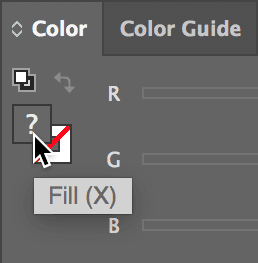
  8. Activate the Fill icon at the top left of the Color panel if it's not already selected:

    illustrator select fill color

  9. Apply white to all logo elements by clicking the White swatch at the bottom left of the Color panel. If the swatch isn't visible, manually set all RGB values to 255 for pure white:

    illustrator change fill color

  10. Save your modifications using File > Save.
  11. Close the Illustrator file to return to Photoshop.
  12. Your Photoshop document now displays the updated white logo, demonstrating seamless cross-application editing capabilities that maintain Smart Object relationships.
  13. View your complete layout using View > Fit on Screen to appreciate the professional navigation system you've created.
  14. Save your progress with Cmd–S (Mac) or CTRL–S (Windows). Your mastery of Smart Object workflows now enables efficient, professional web design iteration and client collaboration.

Cross-Application Editing Workflow

Step 1

Double-click Smart Object

Opens the original file in its native application

Step 2

Edit in Illustrator

Make changes using Illustrator's vector tools and color controls

Step 3

Save and Return

Save the file and return to Photoshop to see automatic updates

Key Takeaways

1Smart Objects preserve original file quality and enable non-destructive editing workflows between Photoshop and Illustrator
2Fill Opacity affects only the layer fill color, while Layer Opacity affects the entire layer including strokes and effects
3Content-Aware Fill can intelligently remove unwanted objects from photos by analyzing surrounding pixel patterns
4Proper layer organization using folders and meaningful names is essential for complex web design projects
5The Distribute and Align tools ensure professional spacing and positioning of navigation elements
6Vector graphics imported from Illustrator maintain scalability and editability when placed as Smart Objects
7Navigation bars should be precisely positioned and sized for consistency across different screen layouts
8Cross-application workflows between Adobe Creative Suite programs streamline professional design processes

RELATED ARTICLES