April 1, 2026Dan Rodney/3 min read

Images with an Incorrect Profile Embedded

Master Color Management for Professional Image Editing

Understanding Color Profile Issues

When software incorrectly assigns color profiles during image download, it fundamentally changes how Photoshop displays your images, affecting your entire editing workflow.

Common Color Profile Scenarios

Correct Profile Embedded

Image displays accurately as intended by the capture device. No correction needed for proper workflow.

Incorrect Profile Embedded

Wrong profile causes display issues. Requires profile reassignment to match original capture device specifications.

No Profile Embedded

Image lacks color information entirely. Must assign appropriate profile based on source device characteristics.

Getting Started

  1. Navigate to File > Open.
  2. Open DKNY-wrong profile (should be sRGB).tif from the Color Management Seminar Files folder.

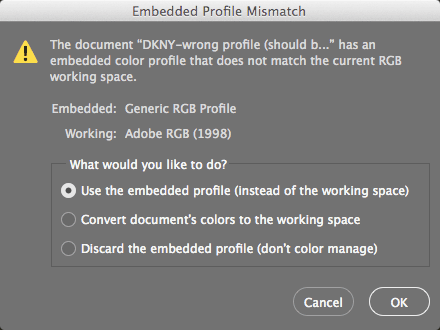
  3. Photoshop will display the following profile mismatch warning:

    wrong profile

  4. Select Use the embedded profile and click OK.

    What's happening here: This image was originally captured on a digital camera, but the software used during download incorrectly assigned it a different profile—Generic RGB Profile. This profile mismatch causes Photoshop to interpret and display the image's colors incorrectly. When we assign the proper profile that accurately describes the camera's color characteristics, Photoshop will render the image as originally intended.

    For this particular scenario, your choice between Use the embedded profile and Discard the embedded profile is inconsequential. Whether the image carries an incorrect profile or no profile at all doesn't matter—our next step involves assigning the accurate profile that will properly represent the image data.

    While incorrect embedded profiles aren't encountered daily, they occur frequently enough in professional workflows that understanding this correction process is essential for maintaining color accuracy across your projects.

Opening Images with Profile Issues

1

Navigate to File Menu

Go to File > Open and locate your image file from the designated folder

2

Handle Profile Warning

When the profile mismatch dialog appears, select Use the embedded profile option

3

Confirm Selection

Click OK to proceed, knowing you will correct the profile assignment in the next steps

Profile Dialog Choice Impact

Whether you choose Use the embedded profile or Discard the embedded profile does not matter at this stage since you will be assigning the correct profile in the subsequent workflow steps.

Assigning the Proper Profile so Photoshop Displays the Image Properly

Now that we've opened the file, we need to correct the profile assignment to ensure accurate color representation.

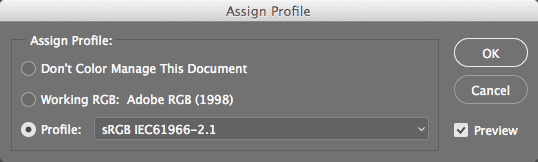
  1. Navigate to Edit > Assign Profile.

  2. Most consumer and many professional digital cameras capture images in sRGB color space. As demonstrated below, select sRGB from the Profile dropdown menu, but wait before clicking OK—we want you to observe the preview first.

    assign correct profile

  3. Watch carefully as Photoshop recalculates the display to accurately represent how the camera originally captured this dusk scene. Notice the building lights and vehicle illumination that indicate approaching darkness—the image should appear darker than before, which more accurately reflects the actual lighting conditions when photographed. Toggle the Preview checkbox on and off to clearly see this dramatic correction. The result now authentically represents what the camera sensor recorded.

  4. Click OK to apply the correct profile assignment.

Profile Assignment Workflow

1

Access Assign Profile

Navigate to Edit > Assign Profile to open the profile assignment dialog

2

Select Correct Profile

Choose sRGB from the Profile menu to match the digital camera's color space

3

Preview Changes

Use the Preview checkbox to compare before and after results, then click OK when satisfied

Before vs After Profile Assignment

FeatureIncorrect Generic RGBCorrect sRGB Assignment
Image BrightnessToo light for dusk sceneProperly darkened
Color AccuracyMisrepresented tonesCamera-accurate display
Detail VisibilityBuilding/car lights unclearProper dusk lighting visible
Recommended: Always assign the profile that matches your capture device for accurate representation

Converting into a Device-Independent Workspace for Image Editing

With the correct source profile now assigned, our next step involves optimizing the color space for professional editing workflows.

While this image originated from a digital camera using sRGB—a color space well-suited for web design and screen display—sRGB's relatively narrow gamut limits our editing flexibility, particularly for print reproduction. Converting to a broader, device-independent workspace frees us from the constraints of the original capture device and provides access to a wider range of colors for professional image enhancement.

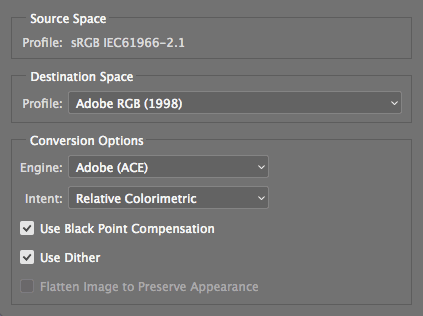
  1. Access Edit > Convert to Profile and configure the following settings:

    wrong profile image convert to profile

    Important consideration: While Adobe RGB serves as an excellent general-purpose workspace with its expanded gamut, it's not universally optimal for every workflow. Professional photographers and designers should evaluate their specific output requirements—whether primarily web, offset printing, digital printing, or mixed media—to determine the most appropriate RGB working space. In 2026, many professionals also consider newer wide-gamut spaces like Display P3 or Rec. 2020 depending on their target viewing environments and output devices.

  2. Click OK to execute the profile conversion.

    You're now working within a robust device-independent color space that provides the flexibility and color range necessary for professional image editing, color correction, and output preparation across multiple media types.

  3. Since this is a demonstration exercise, close the file without saving changes.

sRGB Limitations for Print Work

While sRGB works well for web design, its smaller color gamut makes it unsuitable for professional print work where broader color ranges are essential.

Converting to Professional Workspace

1

Open Convert to Profile

Go to Edit > Convert to Profile to access workspace conversion options

2

Select Target Profile

Choose Adobe RGB or another professional workspace suitable for your intended output

3

Complete Conversion

Click OK to convert the image into the device-independent color workspace

Device-Independent Workspace Benefits

Pros
Broader color gamut for professional editing
Not limited by input device capabilities
Better suited for print production workflows
Maintains color integrity across different output devices
Cons
Larger file sizes due to expanded color information
Requires color management knowledge for proper implementation
May not be necessary for web-only projects

Color Management Best Practices

0/4

Key Takeaways

1Incorrect color profiles embedded during image download cause Photoshop to display images improperly, affecting the entire editing workflow
2Digital cameras typically shoot in sRGB color space, but download software may incorrectly assign Generic RGB or other profiles
3The initial choice between using or discarding embedded profiles is irrelevant when you plan to assign the correct profile afterward
4Assigning the proper profile that matches your capture device ensures Photoshop displays images as originally intended by the camera
5The Preview function in profile assignment dialogs allows you to compare before and after results to verify improvements
6sRGB color space works well for web design but has limitations for professional print work due to its smaller color gamut
7Converting to device-independent workspaces like Adobe RGB provides broader color ranges better suited for professional editing
8Workspace selection should be based on your specific workflow requirements rather than universal recommendations

RELATED ARTICLES