April 1, 2026Dan Rodney/8 min read

Adding Photos: Free Photoshop Tutorial

Master Photo Integration in Web Design Projects

Core Skills You'll Master

Photo Integration

Learn to seamlessly import and position photos in web layouts using Place Embedded for professional results.

Layer Management

Master grouping and organizing layers for efficient workflow and easier project maintenance.

Proportional Scaling

Understand the link toggle and transform tools to maintain image quality while resizing elements.

Topics Covered in This Photoshop for Web Design Tutorial:

Importing Photos, Resizing Photos, Grouping Layers

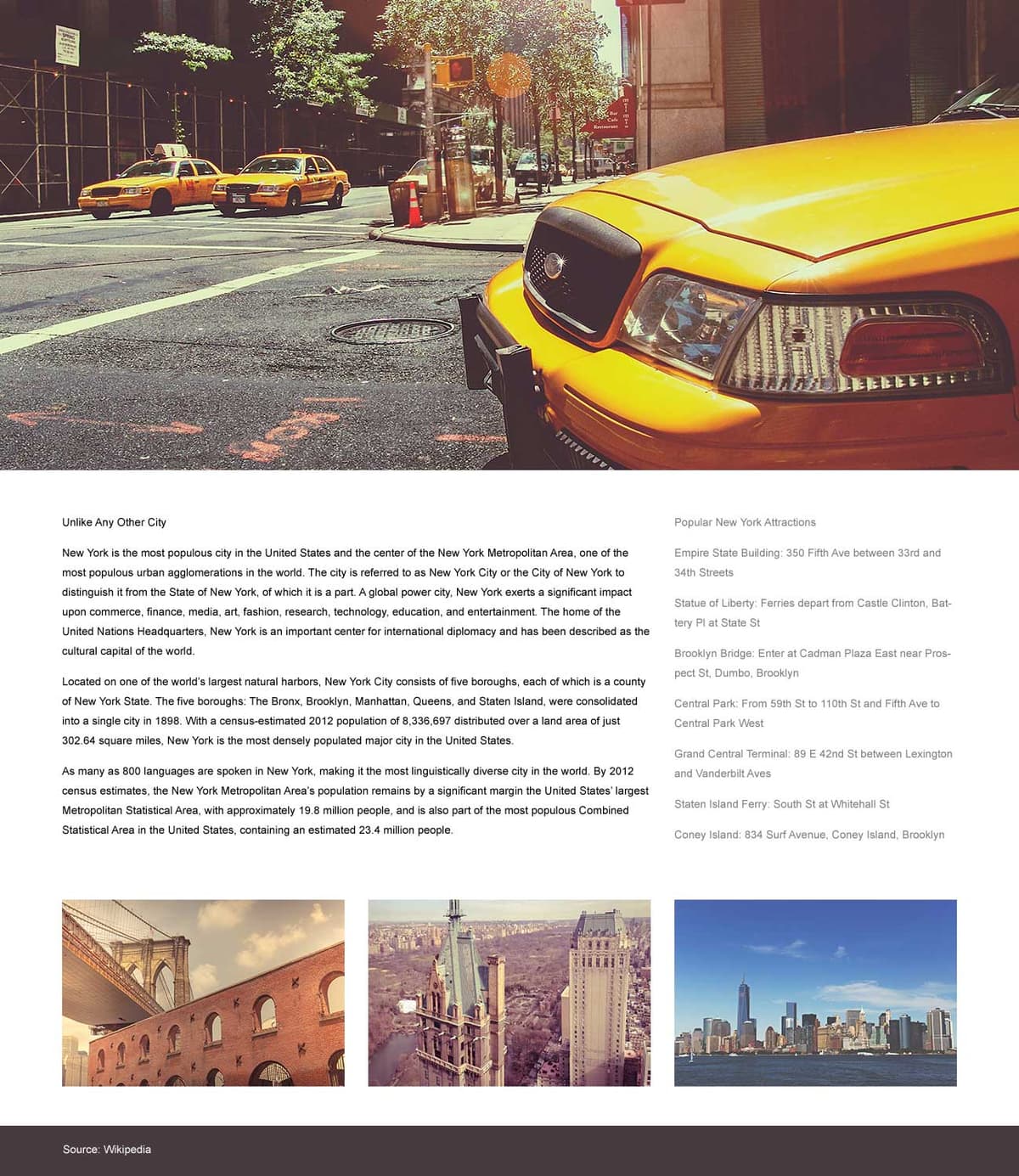
Exercise Preview

preview photos

Tutorial Progression

5 min

Setup Phase

Open the prepared About Page file and prepare for photo placement

10 min

Hero Image

Import and position the main cab photo at the top of the layout

15 min

Gallery Creation

Add three smaller photos and arrange them in a grid layout

5 min

Organization

Group layers and optimize the project structure for future editing

Exercise Overview

In this comprehensive exercise, you'll master essential web design skills by adding photos and a footer to your layout. You'll learn professional techniques for editing content, resizing elements, and optimizing background colors—all critical skills for creating polished, client-ready web designs. These techniques remain foundational to modern web design workflows, even as design tools continue to evolve.

Project Scope

This exercise builds upon previous work with a more developed desktop design. You'll be working with the About Page—Ready for Photos.psd file located in your NYC project folder.

Importing a Photo

  1. In Photoshop, close any files you have open to ensure a clean workspace for this exercise.
  2. To open a file efficiently, use the keyboard shortcut Cmd–O (Mac) or CTRL–O (Windows).
  3. Navigate to Desktop > Class Files > yourname-Photoshop for Web Class > NYC and double–click on About Page—Ready for Photos.psd to open it.

    This file represents a more developed version of the desktop design you've been building in previous exercises. Notice how the layout structure is now ready for visual content—a common milestone in professional web design projects where wireframes evolve into high-fidelity mockups.

  4. We'll add a hero image at the top of the page to create immediate visual impact. Remember that Photoshop places new layers above the currently selected layer—understanding this layer hierarchy is crucial for efficient workflow. In the Layers panel, select the Popular New York Attractions layer.
  5. Go to File > Place Embedded to import your image.

    NOTE: Place Embedded creates a complete copy of the file within your document rather than linking to an external file. This approach offers significant advantages for professional workflows: your document remains self-contained, changes won't affect the original image file, and collaboration becomes seamless since team members don't need access to your original assets. While file sizes increase slightly, the workflow benefits typically outweigh this consideration, making Place Embedded the preferred choice over Place Linked in most scenarios.

  6. Navigate to Class Files > yourname-Photoshop for Web Class > NYC > NYC Photos and double–click cab.psd to select your hero image.
  7. Photoshop intelligently auto-scales the image to fit within your document boundaries, preventing immediate overflow issues. Press Return (Mac) or Enter (Windows) to accept this initial sizing—you can always refine positioning later.
  8. Using the Move tool move tool, drag the photo vertically until its top edge snaps to the document's top edge, creating a full-bleed hero image effect.
  9. Now let's organize our text elements for easier management. Professional designers consistently group related layers to maintain clean, navigable layer structures. In the Layers panel, select Popular New York Attractions.
  10. Hold Shift and click on Unlike Any Other City to select the range of text layers.
  11. Press Cmd–G (Mac) or CTRL–G (Windows) to group these layers together.
  12. Rename Group 1 to something meaningful by double–clicking its name and typing: text columns

    Descriptive layer names become invaluable when returning to projects after time away or when collaborating with other designers.

With your hero image and text structure in place, let's move on to adding supporting visual content that will enhance your page's storytelling.

Place Embedded vs Place Linked

Pros
Creates a copy within the document for portability
No dependency on external file locations
Changes don't affect the original image file
Document works on any computer without additional files
Cons
Increases overall document file size
Cannot automatically update if source image changes
Requires more storage space for the PSD file

Photo Import Process

1

Select Target Layer

Choose the Popular New York Attractions layer to ensure proper placement order

2

Place Embedded

Use File > Place Embedded to import cab.psd with automatic sizing

3

Position and Accept

Use Move tool to snap photo to top edge, then press Return to confirm

4

Group Text Layers

Select and group text elements for easier management and movement

Adding Three Smaller Photos

Supporting images below your main content help tell a more complete visual story while maintaining user engagement. We'll add three carefully positioned photos that complement your layout's grid structure.

  1. Make your guides visible by pressing Cmd–; (Mac) or CTRL–; (Windows). Guides are essential for maintaining consistent alignment in professional layouts.
  2. Protect your carefully planned grid by locking guides to prevent accidental movement. Go to View > Lock Guides—this simple step prevents layout disasters during intensive design sessions.
  3. For efficiency when adding multiple assets, we'll use drag-and-drop import directly from your file system. Keep Photoshop open while switching to your Desktop.
  4. Navigate to Class Files > yourname-Photoshop for Web Class > NYC > NYC Photos to access your image assets.
  5. Arrange your screen to display both the Photoshop file and the NYC Photos window simultaneously—this dual-view approach streamlines asset management.
  6. Click once on bridge.psd to select it as your first image.
  7. Hold Cmd (Mac) or CTRL (Windows) and click on Central Park.jpg and skyline.jpg to create a multi-selection.

    You should now have 3 files selected—this batch-import technique significantly speeds up asset integration.

  8. Drag all selected files from your Desktop and drop them directly onto the Photoshop window. This method preserves file quality while streamlining your workflow.
  9. In Photoshop, press Return (Mac) or Enter (Windows) three times to accept the automatic sizing for each imported photo.
  10. Your Layers panel should now display 3 new photo layers. Select the skyline layer to begin positioning.
  11. Hold Shift then click the bridge layer to select all 3 photos simultaneously—group selection enables uniform transformations.
  12. Initiate a Free Transform by pressing Cmd–T (Mac) or CTRL–T (Windows). This powerful tool allows precise scaling and positioning control.
  13. In the Options bar, ensure the Link icon aspect ratio link shows an outlined dark background (indicating it's active). If not, click the Link icon aspect ratio link to enable proportional scaling.

    fix aspect ratio

    NOTE: Understanding this link toggle is crucial for professional image handling. It fundamentally changes how scaling behaves:
    • Link aspect ratio link ON: Maintains aspect ratio by default. Hold Shift only when you need to distort proportions.
    • Link aspect ratio link OFF: Allows free distortion by default. Hold Shift to preserve proportions.
  14. Proceed without holding Shift for the following transformations:

    • Grab any resize handle and scale the photos smaller so they'll comfortably fit below your text content—precision isn't critical at this stage.

    • Reposition the images by clicking and dragging from the photo area (avoid resize handles) to move them below the text, aligning the left edge with the second vertical guide from the left.

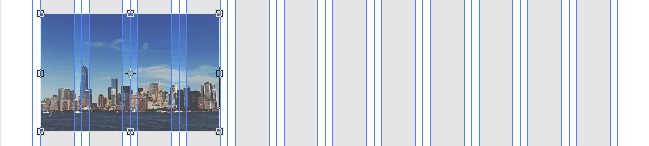
  15. Now we'll achieve precise 4-column width sizing. Here's a professional tip: Photoshop's guide snapping behavior has a quirk when scaling proportionally. Corner resize handles don't snap to guides reliably, but middle side handles do work consistently.

    Use the middle resize handle on the right edge to adjust width (remember: don't hold Shift) until the photos span exactly 4 grid columns:

    resize skyline photo

  16. Commit your transformation by pressing Return (Mac) or Enter (Windows), or double-clicking the photos. Your images now maintain perfect proportions while fitting your grid system.
  17. Select the Move tool move tool to begin fine-tuning positioning.
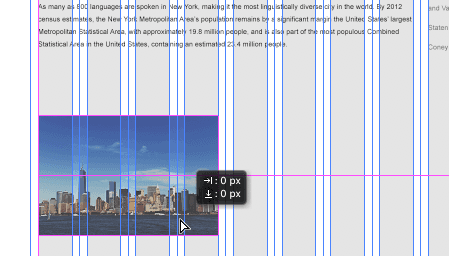
  18. With all 3 images still selected, adjust their vertical position until you see a pink horizontal Smart Guide appear, indicating perfect vertical centering within the available space. Smart Guides are invaluable for achieving pixel-perfect alignment without manual measurement.

    placement 3imgs

  19. In the Options bar (top left), uncheck Auto-Select to gain more precise control over layer selection—this prevents accidentally selecting unintended layers during complex compositions.
  20. Now we'll position each image individually for optimal visual balance. In the Layers panel, click the skyline layer to isolate your selection.
  21. Drag the skyline image to the right, using Smart Guides to align it perfectly under the sidebar column. These visual feedback tools ensure consistent spacing across your design.
  22. In the Layers panel, select the Central Park layer for positioning.
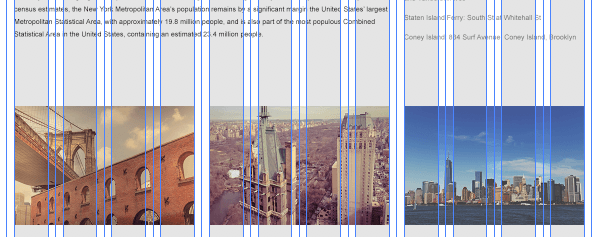
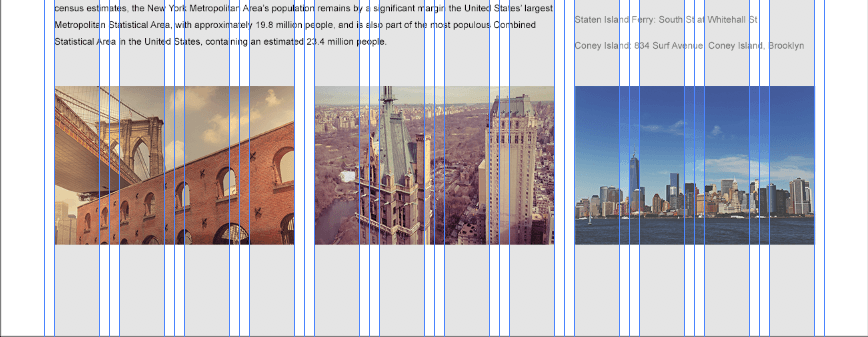
  23. Position it centrally between the other two images, creating balanced visual weight across your layout. Your final arrangement should achieve even spacing and visual harmony:

    placement 3imgs final

With your images positioned, let's organize your layer structure to ensure long-term project maintainability and seamless collaboration.

Multi-File Import Technique

Use Cmd/Ctrl+click to select multiple files, then drag them directly from Desktop to Photoshop for efficient batch importing. This saves time compared to importing files individually.

Transform Link Toggle Behavior

FeatureLink ONLink OFF
Default ResizeProportionalUnproportional
With Shift KeyUnproportionalProportional
Guide SnappingMiddle handles onlyAll handles
Recommended: Keep Link ON for proportional scaling and use middle side handles for precise guide snapping

Multi-Photo Positioning Workflow

1

Batch Import

Select bridge.psd, Central Park.jpg, and skyline.jpg, then drag to Photoshop window

2

Group Transform

Select all three photos and use Free Transform to resize as a unit

3

Size to Grid

Use right middle handle to snap width to 4 column guides without holding Shift

4

Individual Positioning

Separate and position each image using Smart Guides for precise alignment

Organizing the Layers

  1. Professional layer organization isn't optional—it's essential for efficient workflow and collaboration. Let's group the three smaller photos for easier management. In the Layers panel, select the skyline layer.
  2. Hold Shift and click the bridge layer to select all three smaller photos simultaneously.
  3. Create a group by pressing Cmd–G (Mac) or CTRL–G (Windows). Grouping related elements dramatically improves file navigation, especially in complex projects.
  4. In the Layers panel, double–click the default name Group 1 and rename it to photos for immediate identification.
  5. Reorganize your layer hierarchy by dragging the photos folder below the text columns folder in the Layers panel. Be precise—avoid dropping it inside the text columns folder, which would create unwanted nesting.
  6. Ensure the cab layer sits above both groups but below the columns layer, maintaining logical visual hierarchy.

    NOTE: This organizational step serves purely structural purposes, making your file more navigable for future editing sessions and team collaboration. Consistent layer organization is a hallmark of professional design work.

  7. Test your grouping functionality by selecting the photos folder in the Layers panel—this should allow you to move all three images simultaneously.
  8. On the artboard, make a slight vertical adjustment to the photo group positioning, as shown below. This final tweak optimizes visual spacing within your overall composition:

    placement 3imgs move up

  9. Save your progress by pressing Cmd–S (Mac) or CTRL–S (Windows). Congratulations—you've successfully created a professional web layout with properly integrated images and organized layer structure!

Layer Organization Best Practices

0/4
Project Complete

You've successfully added a hero image and photo gallery to your web design layout. The organized layer structure will make future edits and collaboration much more efficient.

Key Takeaways

1Use Place Embedded instead of Place Linked to create portable Photoshop documents that work independently of original image files
2Select target layers before importing to control the stacking order and ensure proper placement in your design hierarchy
3The Transform Link toggle changes resize behavior - keep it ON for proportional scaling and use middle handles for guide snapping
4Drag multiple files directly from Desktop to Photoshop for efficient batch importing instead of using File menu repeatedly
5Group related layers with descriptive names to maintain organized project structure and improve workflow efficiency
6Smart Guides help achieve precise alignment when positioning multiple elements in grid-based layouts
7Lock guides before starting complex positioning work to prevent accidental movement during the design process
8Layer organization is purely structural but critical for project maintenance and collaboration with other designers

RELATED ARTICLES