Fashion Shot: Cloning vs. Healing
Photoshop Best Practices
Always use adjustment layers and Smart Objects.
Flatten only at export, not during editing.
filename-v1.psd, filename-v2.psd — never overwrite history.
Color decisions are only as good as the display you make them on.
Noble Desktop's Photoshop Bootcamp covers retouching, compositing, color correction, and pro editing.
Delve into the intricacies of Photoshop and learn to wield the Clone Stamp and Healing Brush tools with precision in this advanced tutorial, perfect for those looking to refine and perfect their skills in photo editing.
Exercise Preview
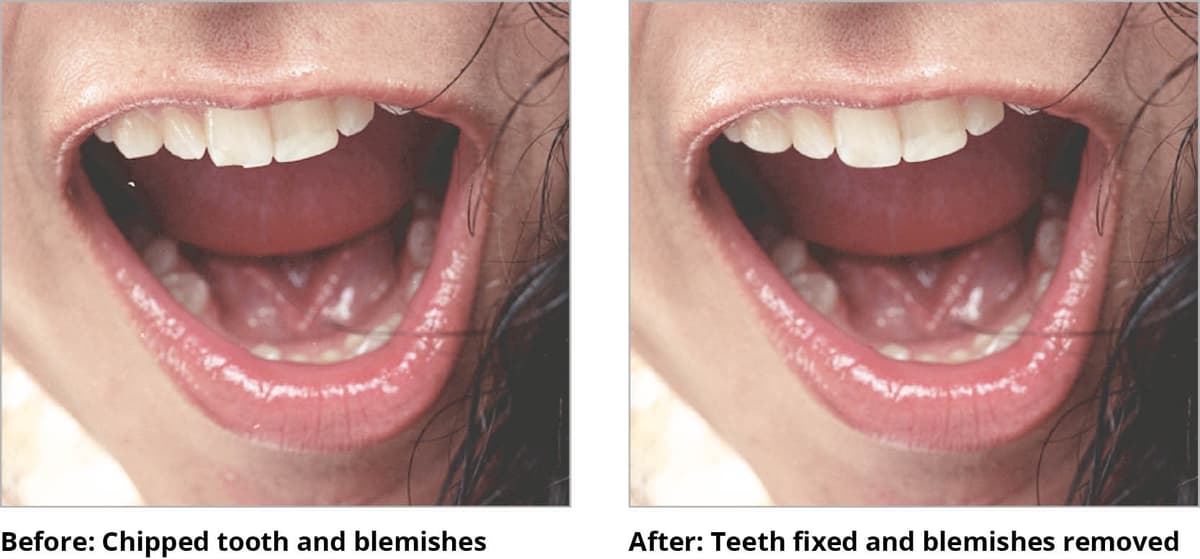
Fixing Teeth & Blemishes on Her Cheek & Nose
Use the Clone Stamp tool
 to fix her teeth. Hold Option (Mac) or ALT (Windows) and click on a good area, then paint somewhere else to “clone” the original area.
NOTE: The Clone Stamp
is better than the Healing Brush  near crisp edges. The Healing Brush would blend the dark mouth area into the tooth.
TIP: Brush Size & Hardness Keystrokes
To quickly change the size or hardness of any painting tool (such as the Clone Stamp or Healing Brush), use the following keystrokes:
Size: [or]Hardness: Shift– [or Shift–]Use the Healing Brush tool
to remove blemishes from her cheeks. (For now only do her cheeks; leave her nose for later.) Be careful not to get too close to stray hairs or edges as this tool will blend the hair or edge into the skin in what is often an undesirable way. Use the Clone Stamp if you get into those types of areas.NOTE: The Healing Brush is used in the same manner as the Clone Stamp. Hold Option (Mac) or ALT (Windows) and click on a good area/texture, then paint over the area you want to “heal.” After you click, it will work its magic and blend the textures and tones together.
Use the Healing Brush
on the nose. This tool is good to use here because there are no edges that will hinder it from working.TIP: The Healing Brush doesn’t have an opacity setting, but immediately after making a brush stroke you can go to Edit > Fade Healing Brush. In the dialog that appears, reduce the opacity and you can even preview the effect! That’s even better than guessing an opacity ahead of time.
Removing Stray Hairs
Remove the flyaway hairs by Clone Stamping
them out. You don’t want to use the Healing Brush because it would blend the hair into the skin and darken it. We want to completely remove (stamp out) the stray hairs.Be sure to save the file, then just leave it open because you’ll continue to work with it in the next exercise.