Designing in 2x Photoshop Files
What This Tutorial Covers
Retina Sizes
2x dimensions for high-DPI display targets.
Smart Object Workflow
Vector preservation through scaling.
Export Strategies
Generate 1x and 2x assets from a single 2x source.
Noble Desktop's Graphic Design Certificate covers Photoshop alongside Illustrator and InDesign — the complete Adobe toolkit.
Learn the ins and outs of Photoshop for Web Design, including designing at 2x versus 1x, turning a wireframe into a real design, setting anti-aliasing & hyphenation, aligning to a selection, and using clipping masks to crop an image.
Exercise Preview
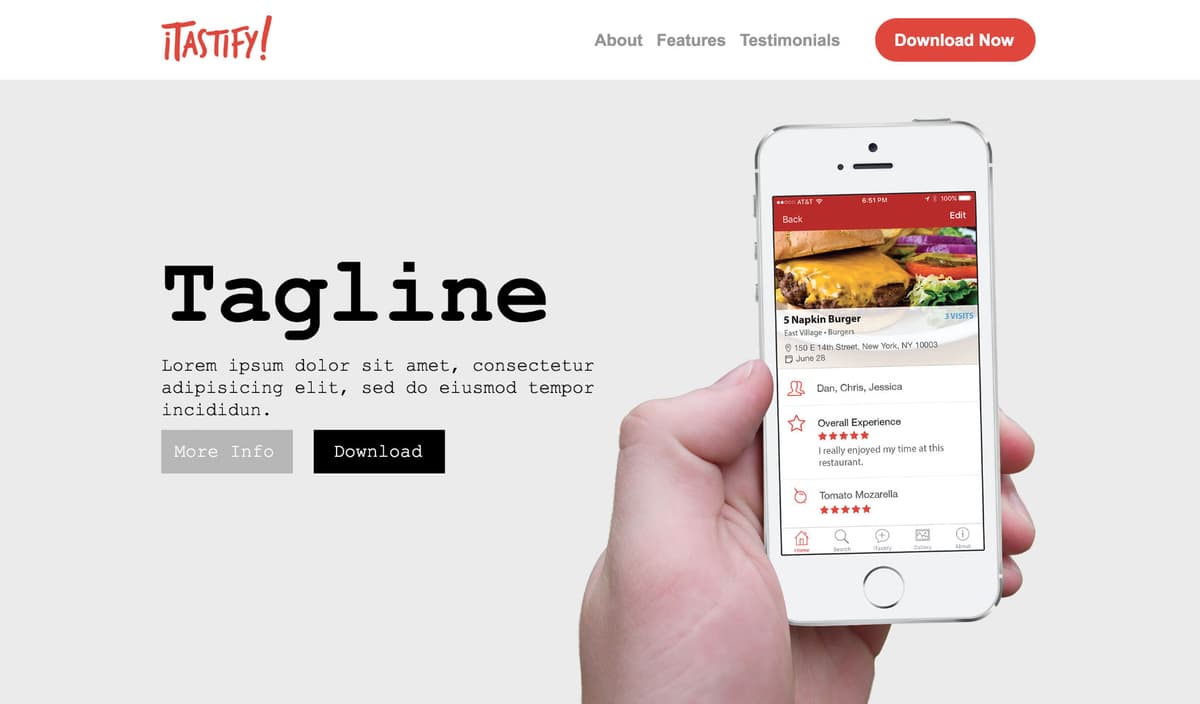
Adding the ITastify Logo
This new webpage design will be for an iPhone app called iTastify. We’ll start at the top (with the logo) and work our way down.
Zoom in so you can see the top of the page better.
Choose the Move tool
 .
.At the top left of the Options bar, make sure:
Auto-Select is NOT checked.
The menu to its right is set to Layer.
Cmd–click (Mac) or CTRL–click (Windows) on the Logo text at the top left of the page to select it.
We don’t actually need this placeholder anymore so just delete it by pressing Delete (Mac) or Backspace (Windows).
If the guides are not visible, show them by hitting Cmd–; (Mac) or CTRL–; (Windows).
Go to File > Place Embedded.
Navigate into Class Files > yourname-Photoshop for Web Class > iTastify and double–click itastify-logo.ai.
In the dialog that opens, click OK.
Drag the logo to the top left of the document around where the placeholder was.
We could resize it manually, but we have an exact size in mind, so there’s a better way. We want to show you how to enter a specific size.
In the Options bar at the top of the screen, make sure the Link icon
 has an outlined dark background (which indicates it’s checked). If it does not have a dark background, click the Link icon to turn it on.
Though the width and height are shown as percentages, we can actually type in pixel dimensions as well!
Next to H type 100 px and hit Return (Mac) or Enter (Windows) twice to apply it.
Move the logo so it’s aligned with the left side of the first gray column. As you position it, notice there’s not much whitespace above/below the logo. Let’s move everything below the nav down a bit.
Hide the guides by hitting Cmd–; (Mac) or CTRL–; (Windows).
In the Layers panel hide the columns layer.
In the Layers panel select the masthead folder.
Shift–click on the footer folder.
Make sure you’re still using the Move tool
.Hit the Down Arrow key twice to see it moves down, but barely.
We’d like to move a bit faster. Hold Shift and hit the Down Arrow key twice. That’s better.
Holding Shift while hitting the Arrow keys moves 10 pixels at a time, while hitting just the Arrow keys alone moves 1 pixel at a time.
Cmd–click (Mac) or CTRL–click (Windows) on the iTastify logo to select it.
Use the Arrow keys to vertically center it between the top of the page and the masthead.
Designing the Navbar Text Links
- We want to zoom to accurate size. Now that we’re in a 2x file we zoom to accurate size differently than we did in the NYC file. Read carefully!
- Low-Res Screen: Zoom to 50% by hitting Cmd–1 (Mac) or CTRL–1 (Windows), then hitting Cmd–Minus(-) (Mac) or CTRL–Minus(-) (Windows) two times!
- Hi-Res Screen: Go to View > 100% or hit Cmd–1 (Mac) or CTRL–1 (Windows).
Viewing 1x & 2x Files at Accurate Size
When viewing files on-screen it’s important to know their accurate size. The proper zoom amount is determined by the resolution of your monitor and file. You don’t need to stay at these zoom levels the whole time you’re designing, just check every once in a while to maintain accuracy.
| File Res | Screen Res | Zoom |
|---|---|---|
| 1x | 1x Low-Res Screen | 100% |
| 1x | 2x Hi-Res Screen | 200% |
| 2x | 1x Low-Res Screen | 50% |
| 2x | 2x Hi-Res Screen | 100% |
NOTE: When viewing a 2x file on a 1x Low-Res Screen it will not look better, because the screen cannot physically show the extra detail.
- Scroll to the top right of the file so you can see the navbar text.
- In the Layers panel, in the nav folder select the Testimonials layer.
- Hold Shift and click on the About layer so all 3 nav text layers are selected.
- Choose the Type tool
 .
. In the Options bar, change the font to Arial Bold at 36 px.
Important: Translating Type Size into CSS
When designing in a hi-res (2x/Retina) file, everything is double the pixel size of a low-res (1x) file.
When coding type size in CSS, browsers make sure the size appears the same on hi-res and low-res displays. CSS was first created for low-res displays, so type size always refers to a 1x type size. This ensures type appears the same size across all screen resolutions. Unfortunately this is not how Photoshop works. Photoshop is more literal, so type sizes appear differently in different resolution files. In a 2x file, Photoshop’s type size is twice what it will be in a webpage’s CSS. Therefore you must always choose even type sizes, otherwise you’ll end up with undesirable half pixel sizes. For example, in a Photoshop 2x file, 20px will be 10px in CSS.
- Choose the Move tool .
- With the type layers still selected in the Layers panel, in the Options bar, click the Distribute Horizontally icon
 to make even out the spacing between the 3 pieces.
 - Choose the Type tool .
Anti-aliasing determines how text looks—sharpnesss, thickness, etc. We want to use the kind that best mimics how the type looks in a web browser. In the Options bar, set Anti-aliasing
 to Mac LCD (Mac) or Windows LCD (Windows).
NOTE: Photoshop can replicate Mac or Windows system anti-aliasing for fonts. Assuming text will remain text (not flattened into an image), Photoshop’s anti-aliasing is just for preview purposes. The final text rendering will be handled by the web browser (styled with CSS), or by the operating system if you’re designing an app. You can only choose the anti-aliasing for your system, so if you’re on a Mac you can choose Mac, but not Windows (and vice versa). Which should you choose?
For web design the best option is Mac LCD or Windows LCD because they replicate a web browser’s default text appearance.
For iOS apps (iPhone/iPad) the best option is Mac. If you’re designing for iOS on Windows, Mac is not available, so Crisp or Smooth are probably the closest.
To learn more, refer to the sidebars at the end of this exercise.
- In the Options bar, click the text Color swatch.
- Do not click OK until we say so! Set the color to #959595
We’d like to remember this color, so click Add to Swatches and:
- Name it text gray
- Uncheck Add to my current library.
- Click OK once.
- Click OK a second time.
- Open the Swatches panel (Window > Swatches).
In the Swatches panel, notice at the bottom there’s a new gray swatch. Hover over it and you’ll see it’s named text gray.
Setting Anti-Aliasing & Hyphenation for the Entire Document
- All the text layers in this file must be set to use the proper anti-aliasing. Instead of changing one layer at a time, we can change them all at once! In the Layers panel select the topmost content, the nav folder.
- Shift–click on the bottommost content, the footer folder.
- Make sure you’re still in the Type tool .
- In the Options bar, set Anti-aliasing to Mac LCD (Mac) or Windows LCD (Windows).
- While we have all the text layers still selected, go to the Paragraph panel (not the Paragraph Styles) and notice that Hyphenate is checked.
- Web browsers do not hyphenate text, so uncheck it!
- Choose Select > Deselect Layers.
Designing the Navbar’s Download Button
- At the top right of the navbar, select the Download button text.
- In the Options bar, change the font to Arial Bold at 36 px.
- We want to refine the background of the navbar’s Download button. Let’s make it the same color as the iTastify logo, so make sure you can see them both on-screen.
- In the Layers panel, go into the nav folder, then find the Download Button folder.
- In the Download Button folder, double–click the layer thumbnail of Download bg.
- With the Color Picker open, click on the iTastify logo to sample its color.
- Make sure the color in the dialog is #e24637
Click Add to Swatches and:
- Name the swatch iTastify
- Uncheck Add to my current library.
- Click OK.
- Click OK again to close the Color Picker.
- Let’s round the edges of the rectangle. Toward the bottom of the Properties panel, make sure the Link icon is depressed.
Hover over the Top left corner radius icon so that you see the hand pointer, as shown below:
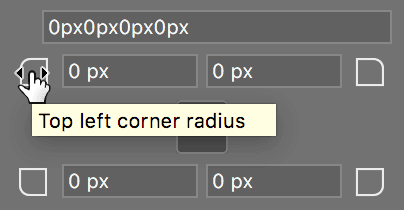
- Watching the file, drag to the right until the button’s corners reach maximum roundness.
- The client just asked us to change the button to say Download Now. No problem. Choose the Type tool .
- Hover over the text. If the cursor has a circle around it press Return (Mac) or Enter (Windows) to deselect the vector background.
- Click into the Download text and change the button text to: Download Now
- Select the Move tool .
- Cmd–click (Mac) or CTRL–click (Windows) the button background.
- Show the guides by hitting Cmd–; (Mac) or CTRL–; (Windows).
- Hit Cmd–T (Mac) or CTRL–T (Windows) to start a free transform.
The Link
in the Options bar should still be turned on, which means resizing the button will change the width and height proportionally. We only want to change the width. Hold Shift–Option (Mac) or Shift–ALT (Windows) while you drag the right side’s middle handle… dragging it out to the rightmost guide.- We held Shift to resize unproportionally.
- We held Option (Mac) or ALT (Windows) to resize from the center point so both sides (left/right or top/bottom) moved instead of just one side.
- Hit Return (Mac) or Enter (Windows) to finish the transform.
- To make sure the text is centered on the button background, in the Layers panel, select the Download Now text and Download bg.
- In the Options bar:
- Click the Align horizontal centers button
 .
. - Click the Align vertical centers button
 .
.
- Click the Align horizontal centers button
Aligning to a Selection
We want to make sure the nav links and Download button are all vertically aligned.
- Hide the guides by hitting Cmd–; (Mac) or CTRL–; (Windows).
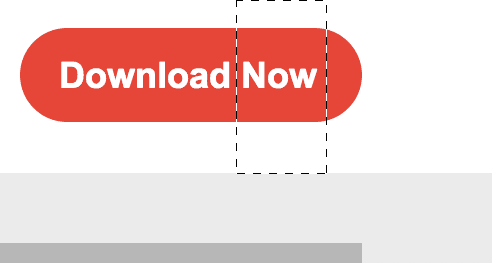
- Let’s vertically align the elements in the nav to its white bakground. Select the Rectangular Marquee tool
 .
. Drag a selection box as shown (don’t worry about width, just make sure the height lines up with the top of the masthead background):
- In the Layers panel, in the nav folder select the Testimonials layer.
- Hold Shift and click on the Download Button folder so all 3 nav text layers and the Download Button group are selected.
- Select the Move tool .
In the Options bar, click the Align vertical centers button
.Check it out! Both the Download button and nav links are perfectly vertically aligned in the white space.
Get rid of the selection by choosing Select > Deselect or hitting Cmd–D (Mac) or CTRL–D (Windows).
Adding & Cropping the Masthead Image
- We’re done with the nav section so in the Layers panel, collapse any folders that are still expanded.
- Choose the Move tool .
- We can delete the App image placeholder. Cmd–click (Mac) or CTRL–click (Windows) the App on Mobile Device text on the page and hit Delete.
- Cmd–click (Mac) or CTRL–click (Windows) the app screenshot background on the page and hit Delete.
- In the Layers panel, select the masthead bg layer (in the masthead folder) so that the photo will be added above it in the masthead folder.
- Go to File > Place Embedded.
- Navigate into Class Files > yourname-Photoshop for Web Class > iTastify and double–click iphone-hand-mockup.psd.
- It’s way too big for our layout. In the Options bar, set W to 68% (the Link icon should still be checked so H should change proportionally too).
- Hit Return (Mac) or Enter (Windows) twice.
- Notice this image has a white background. We’d prefer the background to be the same as in the wireframe. In the Layers panel, double–click the Smart Object thumbnail for the iphone-hand-mockup layer.
- A new window should open with a large version of the image. Fortunately for us, this image has a separate background, which makes it easy for us to edit. Click the eye
 next to the bg color layer to hide it.
 - Go to File > Save.
- Close the file.
- Back in the wireframe document, notice that the image background is transparent!
With the Move tool
selected, place the image approximately as shown: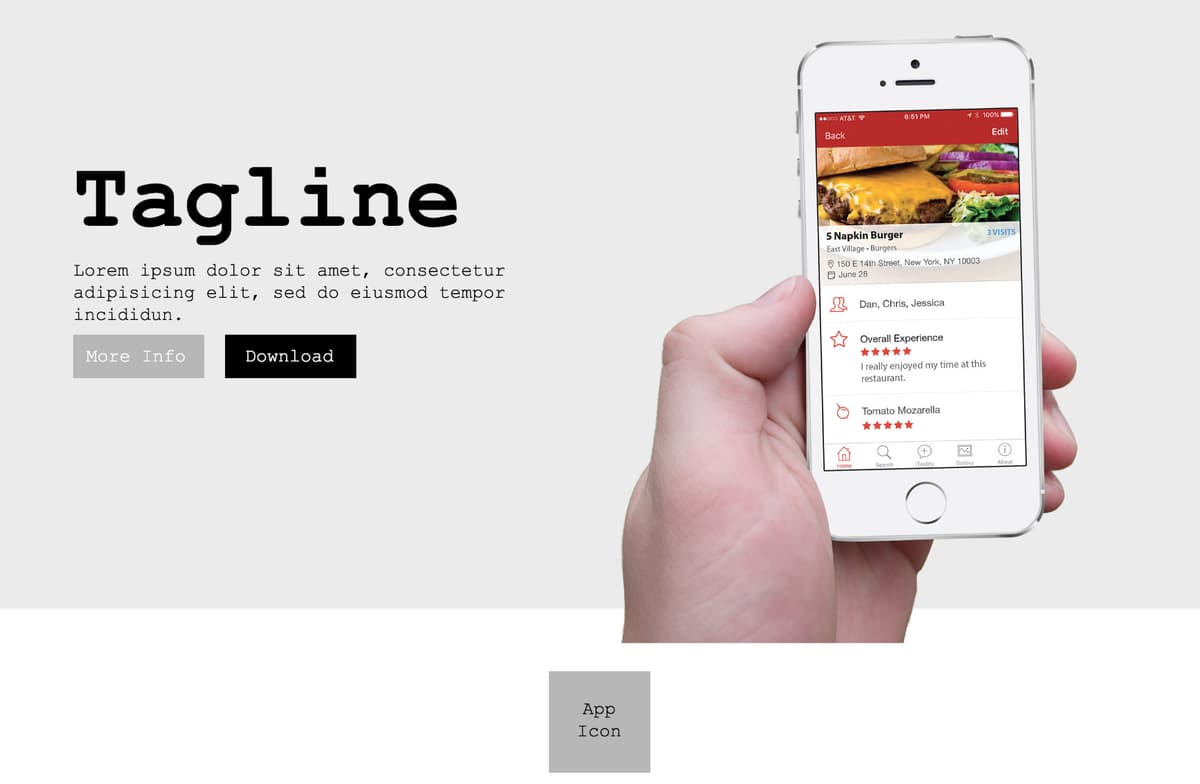
The bottom of the hand is currently hanging over the edge of the masthead background, but we don’t want that. We can clip the photo so that it’s only showing within the background dimensions.
- In the Layers panel, find the iphone-hand-mockup layer.
Hold Option (Mac) or ALT (Windows) and Hover over the line between the iphone-hand-mockup and masthead bg layers until you see the icon shown below, then click:
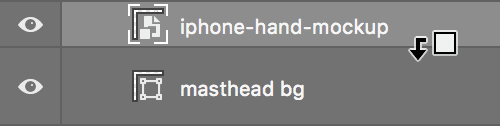
The bottom of the hand should now be clipped off where the masthead bg ends. The layers will look like this:
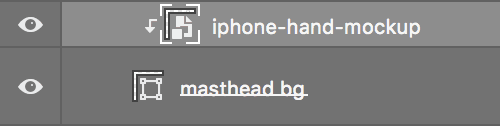
- With the iphone-hand-mockup layer selected, try moving the photo around to see that it is only visible in that space. Neat!
- In the Layers panel, show the columns layer.
- Move the photo so you leave one empty gray column on its right. Align the photo’s right edge with the right side of the gray column one over from the right.
Save your work by hitting Cmd–S (Mac) or CTRL–S (Windows).
To finish this design it would be more of this kind of work: importing graphics, adding the real text, styling text, etc. We won’t have you do all the tedious work, but in the next couple exercises we’ll explore some new features.
Optional Bonus: Adjusting the Placement of Assets
Now that we see the actual assets placed, we realize they are too far to the outside of the page. Let’s move them in a bit. We want to create something like the example below.
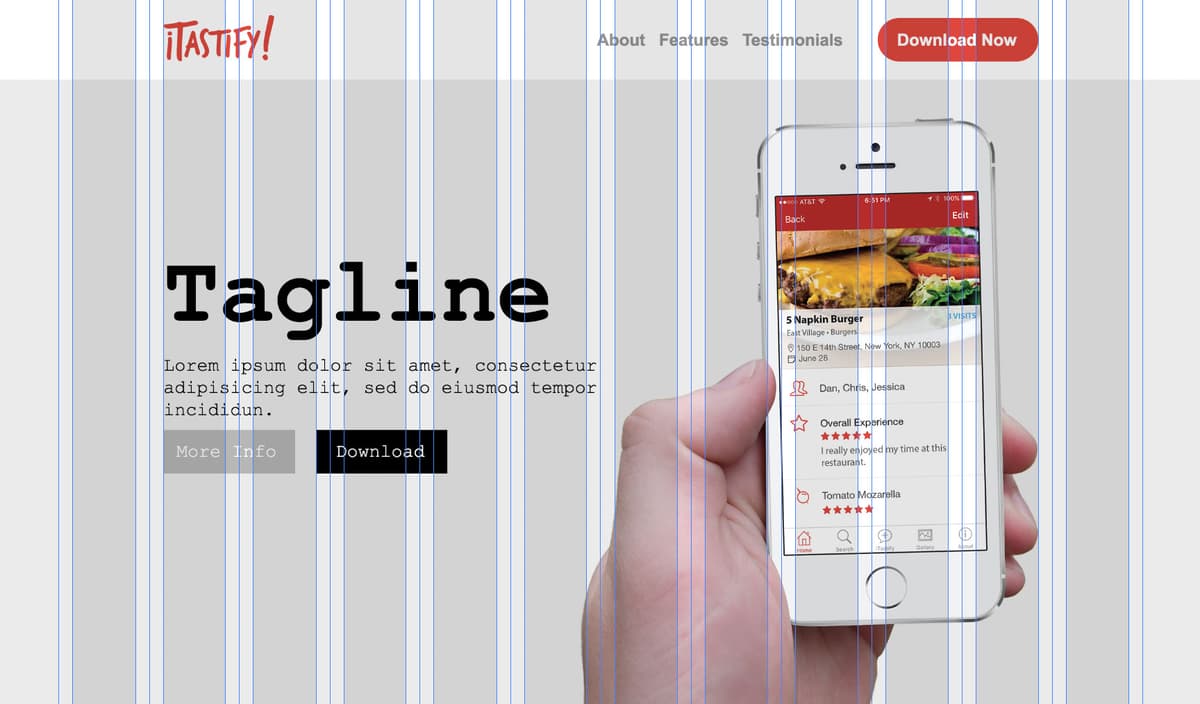
If the guides are not visible, show them by hitting Cmd–; (Mac) or CTRL–; (Windows).
We’ll start by moving in the elements on the left of the page. We’ll move them in so there’s one empty gray column on their left.
- Cmd–click (Mac) or CTRL–click (Windows) on the iTastify logo.
- Shift–drag it one column to the right.
- In the Layers panel, go into the masthead folder and select the Download button group.
- Shift–click on the Tagline Lorem ipsum… text.
- In the file hold Shift and drag them to the right by one gray column, so they align with the logo above.
- In the Layers panel, in the nav folder select the Testimonials layer.
- Hold Shift and click on the Download Button folder so all 3 nav text layers and the Download Button group are selected.
- In the file, hold Shift and move them to the left by one gray column.
The layout should now look something like the following example. With so few elements, we think the tighter layout looks better. We don’t have to use all the columns just because they are available!
Don’t worry about the tagline paragraph breaking onto three lines. Soon that will be replaced with real text and get styled.
Save your work by hitting Cmd–S (Mac) or CTRL–S (Windows).
Choosing Fonts
Before deciding on a font, you must check the license agreement to make sure use on a website is allowed. There are many sources of free and paid web fonts, but here are two:
- Fonts.Google.com has many free fonts.
- Fonts.adobe.com has many fonts, including high quality fonts not found in free services. Adobe Fonts is included with your Creative Cloud subscription.
Anti-Aliasing Options Explained
If you want even more details, here’s what we know:
- Mac LCD text appears slightly thicker and darker than Mac.
- Mac LCD replicates the macOS subpixel font smoothing. MacOS uses a subtle colorization in its font smoothing, but Photoshop renders in grayscale. It’s very close, but not exact.
- Mac replicates the macOS grayscale font smoothing (which is used when LCD font smoothing is disabled or not available).
- Windows LCD text appears thinner, smoother, and lighter than Windows.
- Windows LCD replicates the default browser appearance.
For Web Developers: Webkit CSS Equivalents of Anti-Aliasing Options
Mac LCD and Windows LCD replicate default browser appearance: -webkit-font-smoothing: subpixel-antialiased
Mac replicates: -webkit-font-smoothing: antialiased