April 1, 2026Dan Rodney/5 min read

Exporting Assets: SVG (Scalable Vector Graphics)

Master SVG Export for Professional Web Graphics

SVG vs Pixel Formats

Unlike pixel-based formats that require multiple resolution versions, a single SVG file displays beautifully on any resolution display, making it ideal for modern responsive web design.

Topics Covered in This Photoshop for Web Design Tutorial:

Exporting SVG from Photoshop, Exporting SVG from Illustrator

Exercise Preview

preview svg export

Exercise Overview

Understanding the fundamental difference between pixel-based and vector-based graphics is crucial for web design professionals. Photographs rely on pixels for their rich detail and color gradations, while icons, logos, and interface elements perform best as vectors. In this comprehensive exercise, you'll master the art of exporting vectors as SVG (scalable vector graphics)—the web-optimized vector format that has become the industry standard for responsive design. Unlike pixel-based formats such as JPEG that require multiple resolution variants (1x, 2x, and sometimes 3x for high-DPI displays), a single, well-crafted SVG file delivers crisp visuals across every device and screen resolution imaginable.

Here's the critical limitation every designer must understand: Photoshop can only export proper SVG files from native Photoshop vectors—those created using the Pen tool, Shape tools, or other built-in vector functions. The Vector Smart Objects that we commonly place or paste from external sources cannot be properly exported as SVG from Photoshop. Since most professional workflows involve imported vector assets, this limitation means we typically need to turn to Adobe Illustrator for reliable SVG export. This workflow knowledge can save hours of troubleshooting and ensure your final assets meet professional web development standards.

Vector vs Pixel-Based Graphics for Web

FeatureVector (SVG)Pixel (JPEG/PNG)
Resolution IndependenceInfinite scalabilityFixed resolution
File Versions NeededSingle file1x and 2x versions
Best Use CasesIcons, logos, simple graphicsPhotographs, complex imagery
File SizeSmall for simple graphicsLarger, varies by compression
Recommended: Use SVG for icons and logos to ensure crisp display across all devices and screen densities.
Photoshop SVG Limitation

Photoshop can only export proper SVG from native vectors created with Pen and Shape tools. Vector Smart Objects cannot be properly exported as SVG, which is why Illustrator is typically required.

Exporting SVG from Photoshop

For those rare instances when you're working with native Photoshop vector layers, the export process is refreshingly straightforward:

  1. In the Layers panel, Right–click on the vector shape layer you want to export, and choose Export As.
  2. Set Format to SVG.
  3. Click Export.

Quick SVG Export from Photoshop

1

Select Vector Layer

In the Layers panel, right-click on the native vector shape layer you want to export

2

Choose Export Option

Select 'Export As' from the context menu

3

Set Format

Set Format to SVG in the export dialog

4

Export File

Click Export to save your SVG file

Getting Started in Photoshop

Let's begin by setting up our workspace and examining the logo asset we'll be optimizing. We'll work with a complete design file that demonstrates real-world conditions you'll encounter in professional projects.

  1. In Photoshop, close any files you have open to ensure a clean workspace.
  2. Go to File > Open or hit Cmd–O (Mac) or CTRL–O (Windows).
  3. Navigate to Desktop > Class Files > yourname-Photoshop for Web Class > iTastify and double–click iTastify Design Done.psd.
  4. Choose View > 100% to work at actual size—this gives you the most accurate representation of how your assets will appear in the browser.
  5. Scroll to the top left of the artboard so you can see the iTastify logo clearly.
  6. In the Layers panel, expand the nav folder to reveal the navigation elements.
  7. Click once on the itastify-logo layer to select it—notice this is likely a Smart Object, indicated by the small icon in the thumbnail.
  8. In the Properties panel (Window > Properties) note that the W (Width) is 229 px. Document this measurement carefully—maintaining consistent sizing between design and development phases is essential for pixel-perfect implementation.

Photoshop Setup Tasks

0/5

Exporting SVG from Illustrator

Now we'll move into the primary workflow for professional SVG export. This process ensures we maintain vector fidelity while optimizing for web performance—a balance that separates amateur work from professional-grade assets.

  1. In the Layers panel, double–click the itastify-logo layer's Smart Object thumbnail (the small square icon to the left of the layer name). This action will launch the source application.
  2. If you get an alert about what to do after editing, click OK to acknowledge the workflow.
  3. Adobe Illustrator should launch automatically. If you encounter a PDF Modification warning, check Discard changes and click OK—this prevents unwanted modifications to your source file.

    You should now see the iTastify logo in Illustrator's native environment. Before exporting, we need to address a critical aspect of professional SVG creation: initial sizing. While SVG files can scale infinitely without quality loss, setting the correct initial dimensions saves web developers time and reduces the likelihood of implementation errors. When developers receive properly sized assets, they can drop them directly into code without additional scaling calculations—a small consideration that significantly impacts workflow efficiency.

  4. Hit Cmd–A (Mac) or CTRL–A (Windows) to select all artwork elements.
  5. Open the Transform panel by choosing Window > Transform to access precise sizing controls.
  6. Locate the Link icon illustrator transform link to the right of W and H fields. Ensure this is enabled (linked) to maintain proportional scaling.
  7. Set W (Width) to 229 px and hit Return (Mac) or Enter (Windows) to apply the transformation.

    The logo will scale proportionally to match your design specifications. This precision ensures seamless integration during the development phase.

  8. Choose File > Export > Export As to access Illustrator's modern export engine.

    IMPORTANT: While Illustrator offers SVG export through File > Save As, the File > Export method utilizes Adobe's updated SVG engine, which generates cleaner, more efficient code with smaller file sizes. This translates directly to faster load times and better web performance—critical factors in today's mobile-first web environment.

  9. Navigate to Desktop > Class Files > yourname-Photoshop for Web Class > iTastify > optimized folder.
  10. Set Format (Mac) or Save as Type (Windows) to SVG (svg).
  11. Click Export to proceed to the optimization settings.
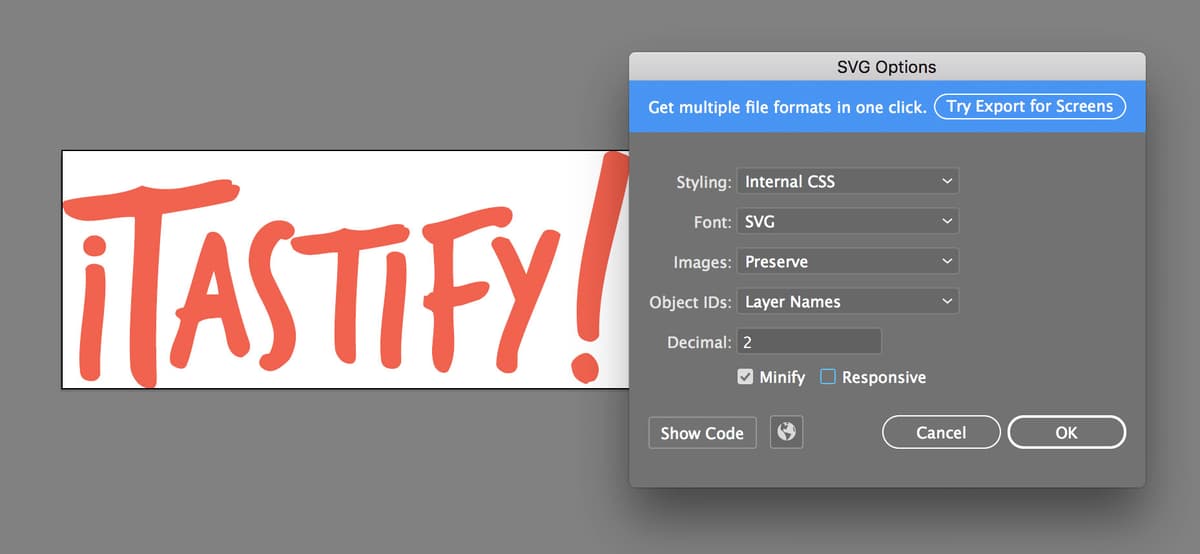
  12. Configure the SVG export options with these professional-grade settings:

    Styling: Presentation Attributes
    Font: Convert to Outlines
    Images: Embed
    Object IDs: Layer Names
    Decimal: 2
    Check Minify
    Uncheck Responsive

    These settings optimize for web delivery while maintaining design integrity. Converting fonts to outlines eliminates font dependency issues, while the minify option removes unnecessary code bloat. For comprehensive details on each setting and advanced optimization techniques, reference the complete guide at tinyurl.com/ai-svg-export

  13. Click OK to generate your optimized SVG file.
  14. Close the Illustrator file without saving changes—this preserves your original source file in its unmodified state.
  15. Switch back to Photoshop to complete the workflow.

    CAUTION: If you accidentally saved changes in Illustrator, the logo may appear smaller in your Photoshop design. Simply hit Cmd–Z (Mac) or CTRL–Z (Windows) to restore the original sizing.

  16. Close the Photoshop file without saving changes to maintain your original design file integrity.

Why Size Matters in SVG Export

While SVG files can be scaled to any size, setting the correct initial dimensions saves web developers from having to code specific sizes, streamlining the implementation process.

Preparing Artwork for SVG Export

1

Open Smart Object

Double-click the Smart Object thumbnail to launch Illustrator

2

Handle PDF Warning

If prompted, check 'Discard changes' and click OK

3

Select All Artwork

Use Cmd+A (Mac) or Ctrl+A (Windows) to select all elements

4

Resize to Target Dimensions

In Transform panel, set width to 229 px with link icon enabled

Illustrator SVG Export Methods

FeatureFile > ExportFile > Save As
Code QualityCleaner, optimizedStandard output
File SizeSmallerLarger
Download SpeedFasterSlower
RecommendationPreferred methodLegacy option
Recommended: Always use File > Export > Export As for cleaner SVG code and better web performance.

Critical SVG Export Settings

Styling: Presentation Attributes

Embeds styling directly in SVG elements for better compatibility and self-contained files.

Font: Convert to Outlines

Ensures text displays correctly even when fonts aren't installed on the user's system.

Images: Embed

Includes any raster images directly in the SVG file for complete portability.

Minify: Enabled

Removes unnecessary whitespace and comments to reduce file size and improve load times.

Important: Don't Save Changes

Always close the Illustrator file without saving changes to prevent unwanted modifications to your original Smart Object in Photoshop.

Key Takeaways

1SVG files provide infinite scalability with a single file, eliminating the need for multiple resolution versions required by pixel-based formats
2Photoshop can only export proper SVG from native vectors created with Pen and Shape tools, not from Vector Smart Objects
3Adobe Illustrator is the preferred tool for SVG export due to Photoshop's limitations with placed vector content
4Setting correct initial dimensions in Illustrator saves web developers from having to code specific sizes during implementation
5Use File > Export rather than File > Save As in Illustrator for cleaner, smaller SVG code that downloads faster
6Critical export settings include Presentation Attributes styling, Convert to Outlines for fonts, Embed for images, and enabling Minify
7Always close Illustrator files without saving changes to prevent unwanted modifications to original Photoshop Smart Objects
8SVG format is ideal for icons, logos, and simple graphics that need to display crisply across all device types and screen densities

RELATED ARTICLES