April 1, 2026Dan Rodney/8 min read

Cropping, Resizing, & Blending

Master Photoshop cropping resizing and blending techniques

Core Skills You'll Master

Gradient Tool Mastery

Learn to create smooth transitions and fading effects using foreground to transparent gradients for professional image blending.

Pattern Creation

Develop custom patterns from existing image elements and apply them seamlessly to different parts of your design.

Blending Modes

Understand how multiply and other blending modes affect layer interactions for realistic texture application.

Topics Covered in This Photoshop Tutorial:

The Gradient Tool, Advanced Pattern Creation Techniques, Strategic Blending Mode Applications

Exercise Preview

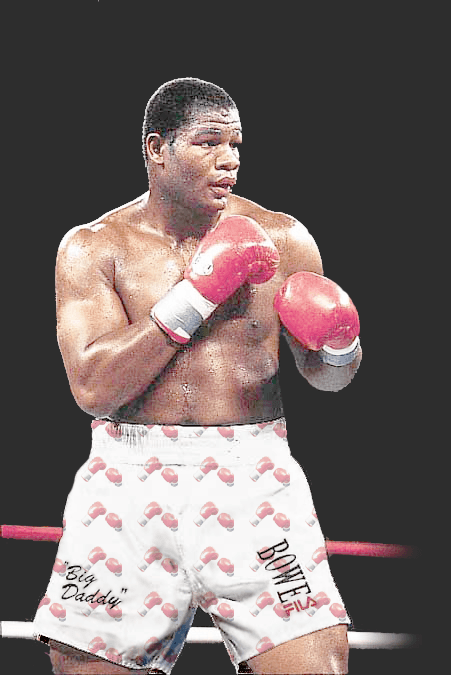
riddick done

Exercise Overview

This comprehensive exercise demonstrates professional image enhancement techniques using Photoshop's Gradient tool, Multiply blend mode, precision selection methods, and custom pattern creation. You'll master the art of seamlessly integrating background modifications with foreground elements while maintaining photographic integrity. These skills form the foundation of commercial photo retouching and creative compositing work.

Tutorial Workflow Overview

1

Background Preparation

Clean up and standardize the background using selection tools and fill techniques

2

Canvas Expansion

Add working space by expanding canvas size with proper anchor positioning

3

Gradient Effects

Create fade effects using linear gradients on separate layers

4

Pattern Application

Design custom patterns and apply them with blending modes for realistic results

Cleaning up the Background

Professional photo editing begins with establishing clean, consistent backgrounds. This process requires careful attention to color uniformity and edge definition to create a polished foundation for subsequent enhancements.

  1. From the Photoshop Class folder, open Riddick Bowe.tif.
  2. Select the Crop tool crop tool.
  3. In the Options bar at the top of the screen, ensure Delete Cropped Pixels is enabled to permanently remove unwanted areas and reduce file size.
  4. Notice the selection handles positioned at all corners and sides of the image. Drag the right handle inward to eliminate the distracting BUDW sign, creating a cleaner composition focused on the subject.
  5. Complete the crop operation using any one of these methods:

    • Press Return (Mac) or Enter (Windows).
    • Double–click within the cropped area.
    • Click the commit checkbox checkbox in the Options bar.
  6. The background exhibits subtle tonal variations that can distract from the subject. To create a uniform black background that will seamlessly blend with our canvas extension, select the Magic Wand tool magic wand tool.

  7. In the Options bar, set Tolerance to 28. This value balances precision with efficiency, capturing similar tones without overextending into the subject.

  8. Click on the dark background surrounding Riddick to initiate the selection.

  9. Hold Shift and click on any unselected dark background areas to add them to your selection. Pay special attention to spaces between the boxing ropes, which often harbor isolated background pixels.
  10. Select the Lasso tool lasso tool for precision refinement of your selection boundaries.
  11. Remove any selection areas that incorrectly include parts of Riddick's body by holding Option (Mac) or ALT (Windows) and dragging around the areas you want to deselect.
  12. Fine-tune your selection using these modifier techniques:

    • Hold Shift while dragging to add areas to the selection.
    • Hold Option (Mac) or ALT (Windows) while dragging to subtract areas from the selection.
  13. Once your selection is refined, activate the Eyedropper tool eyedropper tool.

  14. Sample the darkest area of background near Riddick's head to establish your target color.

  15. Fill the selected background with your sampled color by navigating to Edit > Fill and configuring:

    • Set Contents to Foreground Color.
    • Click OK.

    Pro Tip: Master these essential fill shortcuts: Option–Delete (Mac) or ALT–Delete (Windows) for foreground color, and Cmd–Delete (Mac) or CTRL–Delete (Windows) for background color. These shortcuts dramatically accelerate your workflow in professional retouching scenarios.

  16. Deselect by pressing Cmd–D (Mac) or CTRL–D (Windows).

Selection Tool Settings

Set Magic Wand Tolerance to 28 for optimal background selection. This value provides enough sensitivity to capture similar tones while avoiding over-selection of subject areas.

Background Cleanup Checklist

0/5

Adding Blank Area to the Right Side

Canvas expansion is a fundamental technique for creating additional compositional space. This method maintains image quality while providing room for design elements or text placement—essential skills for commercial applications and social media formatting.

  1. Navigate to Image > Canvas Size and configure the following specifications:

    Width: Change the unit dropdown to Percent, then enter 200 to double the canvas width
    Height: Maintain current dimensions
    Canvas extension color: Foreground (ensuring seamless background continuity)
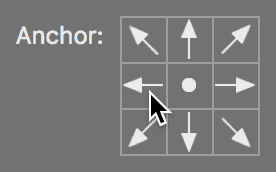
    Anchor: Select the left-middle anchor point to position existing content on the left side:
    canvas size example
  2. Click OK to execute the canvas expansion.

Canvas Size Expansion

Setting width to 200% effectively doubles your canvas width. The left-middle anchor ensures the original image stays positioned on the left side while new space is added to the right.

Making the Ropes Fade Out

Creating realistic fadeouts requires understanding gradient behavior and layer interaction. This technique simulates natural lighting falloff and creates visual hierarchy by directing attention to your primary subject while maintaining compositional balance.

  1. Create a new layer specifically for the gradient effect by clicking the Create a new layer button new button at the bottom of the Layers panel. Working on separate layers maintains flexibility and enables non-destructive editing.
  2. Double–click the new layer's name and rename it rope fade for organized workflow management.
  3. Select the Gradient tool gradient tool from the Tools panel.
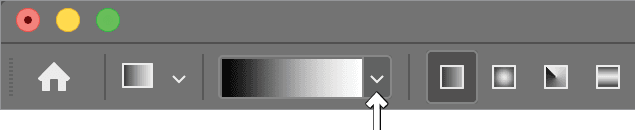
  4. Access the gradient picker by clicking the dropdown arrow adjacent to the gradient preview in the Options bar:

    col1 options gradient tool

  5. Expand the Basics folder and select the second gradient thumbnail: Foreground to Transparent. This gradient type preserves the underlying image while creating smooth transitions—ideal for subtle masking effects.

  6. Ensure Linear Gradient linear gradient is selected in the Options bar for predictable, directional fading.

  7. Drag from the right edge of the ropes toward the left, following the natural angle of the rope lines. Stop before reaching Riddick's shorts to maintain subject definition. The gradient direction determines the fade progression, with longer drags creating more gradual transitions.

Using Separate Layers for Gradients

Pros
Non-destructive editing preserves original image
Easy to adjust opacity and positioning later
Can be modified without affecting background
Maintains layer organization for complex projects
Cons
Increases file size with additional layers
Requires more memory for processing
Gradient Direction Technique

Drag along the angle of the ropes for natural-looking fade effects. Start from the right edge of the ropes and drag toward the left, stopping before reaching other elements.

Creating a Custom Pattern for His Shorts

Custom pattern creation transforms ordinary design elements into cohesive visual themes. This advanced technique demonstrates how to extract, modify, and repurpose image elements while maintaining thematic consistency—a valuable skill for branding and creative projects.

  1. Click the Background layer in the Layers panel to ensure proper layer targeting.

  2. Using the Rectangular Marquee tool rectangular marquee tool, draw a precise selection around both boxing gloves. These elements will form the foundation of our thematic pattern.

  3. Copy the selected gloves using Cmd–C (Mac) or CTRL–C (Windows).

  4. Create a new document by selecting File > New and configure:

    • Set Background Contents to Transparent to ensure clean pattern edges.
    • Click Create.
  5. Paste the glove selection using Cmd–V (Mac) or CTRL–V (Windows).

  6. Access the Quick Selection tool quick selection tool by clicking and holding the Magic Wand tool magic wand tool, then selecting from the flyout menu.

  7. In the Options bar, select a 10 px hard-edged brush for precise edge definition.

  8. The Quick Selection tool enables painterly selection techniques. Click in the center of the right glove and drag across the entire glove surface until fully selected. This tool intelligently recognizes similar tones and textures.

  9. Refine your selection by holding Option (Mac) or ALT (Windows) and dragging over any incorrectly selected background areas to remove them.

  10. Add the left glove to your selection by holding Shift and dragging within its boundaries.

  11. Invert your selection using Select > Inverse to target the background instead of the gloves.

  12. Delete the background by pressing Delete (Mac) or Backspace (Windows), leaving only the gloves on a transparent background.

  13. Deselect using Cmd–D (Mac) or CTRL–D (Windows).

  14. Initiate the scaling transformation with Edit > Free Transform.

  15. In the Options bar, activate the Maintain aspect ratio button maintain aspect ratio between the Width and Height values to preserve the gloves' proportions during scaling.

  16. Set the Width (W) value to 20% in the Options bar. This dramatic reduction creates an optimal pattern scale that won't overwhelm the shorts' surface area.
  17. Apply the transformation by pressing Return (Mac) or Enter (Windows) twice.

  18. Define the pattern boundaries using the Rectangular Marquee tool rectangular marquee tool to draw a selection slightly larger than the scaled gloves. This border ensures proper pattern tiling.

  19. Convert your selection to a pattern via Edit > Define Pattern.

  20. Name the pattern yourname-gloves and click OK to save it to your pattern library.

  21. Keep this document open for potential adjustments, then return to the Riddick Bowe file. If it's not visible, access it through Window menu and select Riddick Bowe from the document list at the bottom.

Pattern Creation Process

1

Extract Source Material

Select and copy the boxing gloves using Rectangular Marquee tool from the background layer

2

Prepare New Document

Create new document with transparent background to isolate the pattern elements

3

Refine Selection

Use Quick Selection tool with 10px brush to precisely select gloves and remove background

4

Scale and Define

Resize to 20% maintaining aspect ratio, then define as pattern with custom name

Filling the Shorts with a Pattern

Pattern application through adjustment layers provides maximum flexibility while preserving the original image data. Combined with strategic blending modes, this approach creates sophisticated texture overlays that enhance rather than obscure underlying detail—essential for professional-quality results.

  1. Clear any active selections by pressing Cmd–D (Mac) or CTRL–D (Windows).
  2. Ensure the Background layer remains selected in the Layers panel.

  3. Select the Quick Selection tool quick selection tool for efficient selection of the shorts' white fabric areas.

  4. Drag across all visible portions of the white shorts to create a comprehensive selection. The tool's intelligence will recognize similar fabric tones and textures.
  5. Refine the selection by holding Option (Mac) or ALT (Windows) and dragging over any incorrectly selected white rope areas in the background to remove them from the selection.

  6. Create a non-destructive pattern overlay by clicking the New fill or adjustment layer button adjustment layer button and selecting Pattern. This method preserves the original image while allowing unlimited pattern modifications.

  7. If your custom pattern doesn't appear automatically, click the pattern preview in the Pattern Fill dialog and locate your gloves pattern at the end of the pattern library list.

  8. Click OK to apply the pattern fill.

  9. Transform the flat pattern appearance using the Multiply blending mode. Change the blend mode dropdown at the top of the Layers panel from Normal to Multiply.

    The Multiply mode mathematically darkens the underlying image by multiplying pixel values, allowing the shorts' natural shadows and contours to show through the pattern. This creates realistic texture integration that follows the fabric's dimensional form. Experiment with other blending modes like Overlay or Soft Light to observe different interaction effects.

  10. Reduce the pattern's visual intensity by adjusting the Opacity to 60% at the top of the Layers panel. This creates a subtle, professional appearance that enhances rather than dominates the original shorts.

  11. Fine-tune pattern positioning by double-clicking the pattern layer thumbnail pattern layer boxing in the Layers panel.

    • With the Pattern Fill dialog active, drag directly on the image to reposition the pattern for optimal visual balance.
    • Click OK to confirm your adjustments.
  12. Excellent work! You've successfully demonstrated advanced Photoshop techniques that are fundamental to commercial photo retouching and creative design. These skills—gradient masking, custom pattern creation, and strategic blending modes—form the backbone of professional digital imaging workflows. Save your work as a native Photoshop document to preserve all layer information for future modifications.

Blending Mode Effects

FeatureNormal ModeMultiply Mode
Pattern VisibilityFull opacity blocks backgroundAllows background to show through
Dark AreasPattern completely coversBackground shadows preserved
Light AreasPattern blocks highlightsNatural highlight interaction
RealismFlat, artificial appearanceNatural texture integration
Recommended: Use Multiply mode for realistic texture application that preserves underlying form and shadows
Opacity Fine-Tuning

Reducing opacity to 60% prevents the pattern from overwhelming the original texture. This creates a subtle enhancement rather than a complete replacement of the shorts appearance.

Key Takeaways

1Use Magic Wand tool with 28 Tolerance setting for effective background selection while avoiding over-selection of subject areas
2Canvas Size expansion to 200% width with left-middle anchor positioning doubles workspace while preserving original image placement
3Create gradient fades on separate layers for non-destructive editing and easier future modifications
4Quick Selection tool with 10px brush provides precise control for selecting complex shapes like boxing gloves
5Scale patterns to 20% of original size while maintaining aspect ratio for subtle texture application
6Multiply blending mode preserves underlying shadows and highlights while applying patterns for realistic texture integration
7Reduce pattern opacity to 60% to achieve subtle enhancement rather than overwhelming the original surface texture
8Use keyboard shortcuts like Option-Delete for foreground fill and Cmd-D for deselection to improve workflow efficiency

RELATED ARTICLES