April 1, 2026Dan Rodney/4 min read

Placing Your Designs in Pre-made Mockups

Master Professional Design Presentation with Photoshop Mockups

What You'll Master

Smart Object Integration

Learn to work with smart objects in mockup templates for non-destructive design placement. Understand layer structure and thumbnail indicators.

Professional Presentation

Transform flat designs into realistic presentations using pre-made templates. Create compelling portfolio pieces that showcase your work professionally.

Template Customization

Master opacity adjustments, color modifications, and texture controls. Adapt any mockup template to match your design requirements.

Topics Covered in This Photoshop Tutorial:

Placing Your Design into a Mockup, Customizing the Mockup

Finding Quality Mockups

Search for terms like 'business card mockup PSD' to find free and low-cost templates. Popular sources include Behance, which offers professional-quality mockups from designers worldwide.

Exercise Preview

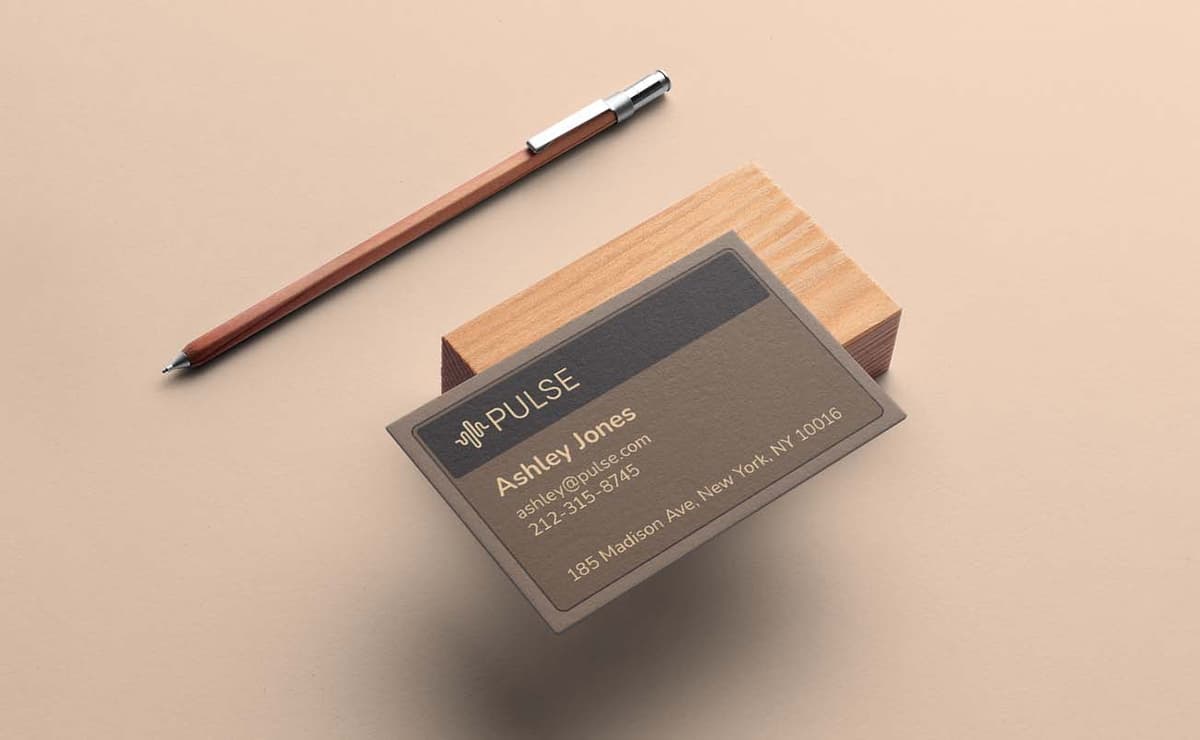
preview business card mockup

Exercise Overview

Professional presentation is everything in design work. In this exercise, you'll master the art of placing your design into a pre-made mockup to create compelling, client-ready presentations that showcase your work in realistic contexts. Whether you're presenting to stakeholders or building your portfolio, mockups transform flat designs into tangible, persuasive visuals. A quick search for "business card mockup PSD" reveals thousands of high-quality templates available for free or at minimal cost—making professional presentation accessible to designers at any level.

Mockup Integration Process

1

Template Selection

Download professional mockup files from reliable sources like Behance. Look for PSD files that include smart object layers for easy design placement.

2

Design Placement

Use smart object layers to insert your designs non-destructively. This allows for easy updates and modifications without quality loss.

3

Customization

Adjust opacity, colors, and textures to match your design aesthetic. Fine-tune background colors and surface effects for optimal presentation.

Placing Your Design into a Mockup

We've sourced a professional business card template from behance.net/gallery/147855279/Free-Professional-Business-Card-Mockup, which is included in your class files. This template exemplifies the smart object workflow that's become the industry standard for efficient mockup integration.

  1. From the Photoshop Class folder, open 4B Free Professional Business Card Mockup.psd.
  2. In the Layers panel, locate the Your Design layer and examine its properties:

    • The descriptive layer name immediately signals where your design should be placed—a hallmark of well-organized template files.
    • The layer thumbnail displays a distinctive icon smart object icon indicating this is a smart object. Smart objects preserve your original design's quality while allowing non-destructive editing—essential for maintaining flexibility throughout your design process.
  3. Double-click the layer thumbnail for the Your Design layer in the Layers panel.

    This action opens the smart object in a separate document window, revealing a placeholder design that demonstrates the expected dimensions and positioning.

  4. Select the topmost layer or group to ensure your design will appear above any existing placeholder content.
  5. Navigate to File > Place Embedded to import your design while maintaining full editability.
  6. Browse to the Photoshop Class folder and select 4B Pulse Business Card.pdf.

    NOTE: This PDF was exported from Adobe InDesign, where the original design was created. This cross-application workflow—designing in InDesign, then placing into Photoshop mockups—represents current industry best practices for maintaining design integrity across different presentation formats.

  7. When the import dialog appears with PDF-specific options, click OK to proceed with the default settings.
  8. Your business card design will appear within the document boundaries. Press Return (Mac) or Enter (Windows) to confirm the placement and sizing.

  9. Save and close this smart object document to apply your changes.
  10. You'll return to the main mockup file, where your Pulse business card design now appears seamlessly integrated into the realistic presentation context.

Smart Object Advantage

Smart object layers maintain your design's original quality and allow for easy updates. The thumbnail icon in the layers panel indicates when a layer is a smart object that can be edited separately.

Design Placement Checklist

0/5

Customizing the Mockup

Professional mockups offer extensive customization options to match your brand aesthetic and presentation needs. Let's explore the key adjustments that will elevate your mockup from template to tailored presentation.

  1. Set your view to 200% via View > 200% for precise detail work.
  2. Select the Overlay Effect—Change Opacity layer at the top of your Layers panel.

  3. Adjust the Fill opacity slider at the top of the Layers panel to control the paper texture's intensity.

    NOTE: While standard Opacity would achieve similar results, some template creators use Fill opacity for specific blending behaviors. This inconsistency is common in crowdsourced templates—always examine the layer structure to understand the creator's intended workflow.

  4. Locate the Change BG Color layer near the bottom of your layers stack and double-click its layer thumbnail.
  5. The color picker opens, offering multiple selection methods. For brand consistency, click directly on a color from your business card design, then fine-tune using the picker's controls.

    This approach ensures your background complements rather than competes with your design. Click OK when satisfied.

  6. Double-click the Change Side Color layer thumbnail to modify the card's edge coloring.

    • This subtle detail affects the dimensional edges visible on the left and bottom of the card.
    • Choose a deeper tone that creates realistic shadow depth—typically a darker variant of your background color—then click OK.
  7. Consider cropping excessive background space using the Crop tool crop tool to create a more focused composition.

Remember that mockup quality varies significantly across sources and price points. While this example demonstrates professional-grade features and organization, you'll encounter templates with different capabilities and workflows. Always invest time in exploring a new template's layer structure and customization options before committing to it for client presentations. The most expensive option isn't always the best—focus on templates that offer the specific customization features your projects require while maintaining clean, logical organization.

Fill Opacity vs Regular Opacity

Pros
Fill opacity affects only the layer content, preserving effects
Provides more granular control over texture visibility
Maintains layer style effects while reducing content opacity
Cons
Can be confusing for beginners expecting regular opacity
Not all template creators use this feature appropriately
Quality varies depending on template maker's expertise

Mockup Customization Steps

1

Adjust Paper Texture

Select the Overlay Effect layer and modify Fill opacity to control paper texture visibility. Lower values reduce texture prominence.

2

Change Background Color

Double-click the Change BG Color layer thumbnail. Use the color picker to select complementary colors or sample from your design.

3

Modify Edge Colors

Adjust the Change Side Color layer for card edges. Choose darker tones to prevent light edges from distracting from the main design.

4

Crop Excess Space

Use the Crop tool to remove unnecessary empty space around the business card for a tighter, more focused presentation.

Template Quality Varies

Free and paid mockup templates can vary greatly in quality, customizable features, and ease of use. Always examine the layer structure to understand what modifications are possible before committing to a template.

Key Takeaways

1Smart objects in mockup templates allow non-destructive design placement while maintaining original quality and enabling easy updates
2Professional mockups can be found through searches like 'business card mockup PSD' on platforms like Behance, available free or at low cost
3Layer thumbnails with smart object icons indicate editable containers where you can place your designs using File > Place Embedded
4Fill opacity differs from regular opacity by affecting only layer content while preserving effects, providing better texture control
5Background and edge colors can be customized by double-clicking specific layer thumbnails and using the color picker tool
6Template quality varies significantly between creators, requiring examination of layer structure to understand customization possibilities
7Cropping excess space around mockups creates tighter, more professional presentations that focus attention on the design
8PDF files exported from design software like InDesign integrate seamlessly into Photoshop mockups through the Place Embedded function

RELATED ARTICLES