April 1, 2026Dan Rodney/8 min read

Exporting Assets from a 2x Design

Master Photoshop asset exporting for high-resolution web design

Key Concepts in 2x Asset Exporting

Adobe Generator

Automated asset exporting system that creates files based on layer naming conventions. Essential for efficient workflow management.

Slicing Technique

Manual method for precise control over exported graphics. Ideal when Adobe Generator includes unwanted elements.

2x File Scaling

High-resolution files that require 50% scaling to create standard 1x versions for web display.

Topics Covered in This Photoshop for Web Design Tutorial:

Master the nuances of exporting high-resolution assets: Understanding how 2x files differ from standard 1x exports, implementing layer-based and custom slicing techniques, and optimizing assets for modern responsive workflows.

Exercise Preview

preview slicing

Exercise Overview

In this exercise, you'll advance your asset export workflow by mastering Adobe Generator in high-resolution (2x) files—building on the foundational 1x techniques from the previous lesson. More importantly, you'll discover the precision and control offered by Slices, Photoshop's most granular export method. This technique becomes essential when automated exports fall short of professional standards, giving you pixel-perfect control over your final assets.

Adobe Generator vs Slicing Methods

FeatureAdobe GeneratorSlicing
Setup ComplexityLayer naming requiredManual slice creation
Precision ControlLimited to layer boundsExact custom boundaries
Automation LevelFully automatedManual export process
Best Use CaseClean isolated graphicsGraphics with backgrounds
Recommended: Use Adobe Generator for simple assets, slicing for complex graphics with unwanted backgrounds

Exporting Assets from a 2x File

High-resolution workflows require a different approach to asset naming and scaling. Let's explore how to efficiently generate both retina and standard resolution assets from a single source file.

  1. In Photoshop, close any open files to start with a clean workspace.
  2. Open your project file: File > Open or use Cmd–O (Mac) or CTRL–O (Windows).
  3. Navigate to Desktop > Class Files > yourname-Photoshop for Web Class > iTastify and open iTastify Ready to Slice.psd.

    NOTE: This file has been strategically cropped to focus on the header section, streamlining the export process while demonstrating key techniques you'll apply to full-page designs.

  4. In the Layers panel, expand the features folder to access the assets we'll be exporting.
  5. Since we're working in a 2x file, all graphics exported at current size will automatically be @2x resolution. Rename the app-icon layer to app-icon@2x.png-8

    While SVG would be the optimal format for this vector-based logo in modern web development, we're demonstrating PNG export here as it remains crucial for HTML emails, mobile apps, and legacy system compatibility. To export as SVG, you'd need to use Illustrator for proper vector handling.

  6. To generate a standard-resolution version simultaneously, we'll leverage Adobe Generator's scaling capabilities. Add the following bold text to your layer name:

    • app-icon@2x.png-8, 50% app-icon.png-8

    This syntax tells Generator to create two files: the full-size @2x version and a 50%-scaled standard version, automating your responsive asset workflow.

  7. Activate the export process: File > Generate > Image Assets (ensure it's checked).
  8. Switch to your Desktop (minimize or hide Photoshop) to verify the export results.
  9. Navigate to Class Files > yourname-Photoshop for Web Class > iTastify.
  10. Look for the newly created yourname-iTastify Sliced assets folder—Generator automatically names this folder after your PSD file. Open it to inspect the exported assets.

    You should find both the 2x and 1x versions of your app icon, demonstrating how a single layer rename can generate your entire responsive asset set.

  11. Keep this folder accessible while you return to Photoshop for the next export.

  12. Now let's export the hero image. Navigate to the masthead folder in your Layers panel and rename iphone-hand-mockup to iphone-hand-mockup.jpg

  13. Return to the yourname-iTastify Sliced assets folder you left open on the Desktop.

  14. Preview the exported iphone-hand-mockup.jpg:
    • Mac: Press Spacebar for Quick Look preview
    • Windows: Double-click to open in your default image viewer or Photoshop
  15. Notice the excessive background space in the preview—a common issue with automated exports.

    Adobe Generator includes the entire layer boundary, but our design requires just the hand and iPhone. While layer masking can sometimes solve this, we'll demonstrate a more precise solution: manual slicing, which gives you complete control over export boundaries.

  16. Close the preview when finished reviewing.

  17. Return to Photoshop to refine our export approach.

  18. Undo the layer rename: Edit > Undo Name Change to stop Generator from continuing to export this problematic version.

  19. Disable Adobe Generator temporarily to prevent interference with our slicing work: File > Generate > Image Assets (uncheck it).

Adobe Generator Setup Process

1

Configure Layer Naming

Rename layers with specific syntax: filename@2x.format for high-res, add scaling percentage for 1x versions

2

Enable Adobe Generator

Navigate to File > Generate > Image Assets to activate automatic asset creation

3

Verify Output Folder

Check desktop for automatically created assets folder matching your PSD filename

Layer Naming Convention

Use the format 'app-icon@2x.png-8, 50% app-icon.png-8' to generate both high-resolution and standard versions simultaneously

Slicing

When automated exports lack precision, slicing provides surgical control over your asset boundaries. This technique is invaluable for complex layouts, precise cropping, and when you need pixel-perfect results.

  1. Ensure the iphone-hand-mockup layer remains selected in your Layers panel.

  2. Rather than manually drawing a slice with the Slice tool slice tool, let's use Photoshop's intelligence: Layer > New Layer Based Slice.

    The generated slice automatically aligns with the layer boundaries—notice how it correctly includes the hand's blurred edge on the left while properly framing the sides. However, the bottom boundary needs adjustment. Layer-based slices dynamically update with layer changes, but for custom sizing, we need to convert this to a user slice.

  3. Select the Slice Select tool slice select tool. If it's not visible, click and hold the Crop tool crop tool to access the hidden tools.
  4. Click the outlined slice to select it. Note that layer-based slices don't show resize handles—they're locked to the layer dimensions.
  5. In the Options bar, click Promote to convert this to a user slice, unlocking manual control.
  6. Now you'll see resize handles. Drag the bottom handle upward until it snaps precisely to the bottom of the hand. Zoom in for pixel-perfect accuracy—this precision separates professional from amateur exports.
  7. Define the export filename by double-clicking anywhere within the slice area.
  8. In the Slice Options dialog, set the name to iphone-hand@2x

    NOTE: Omit the file extension here—Photoshop will append the appropriate extension based on your optimization settings in the next step.

  9. Click OK to confirm the naming.
  10. The overlapping text layers will contaminate our export. Before proceeding, we need to hide the interfering elements.

    Pro tip: Drag through the eye column in the Layers panel to batch hide/show multiple adjacent layers—much faster than individual clicking.

    Hide these two layers from the masthead group:

    • Never forget your restaurant…
    • Be Your Own Food Critic
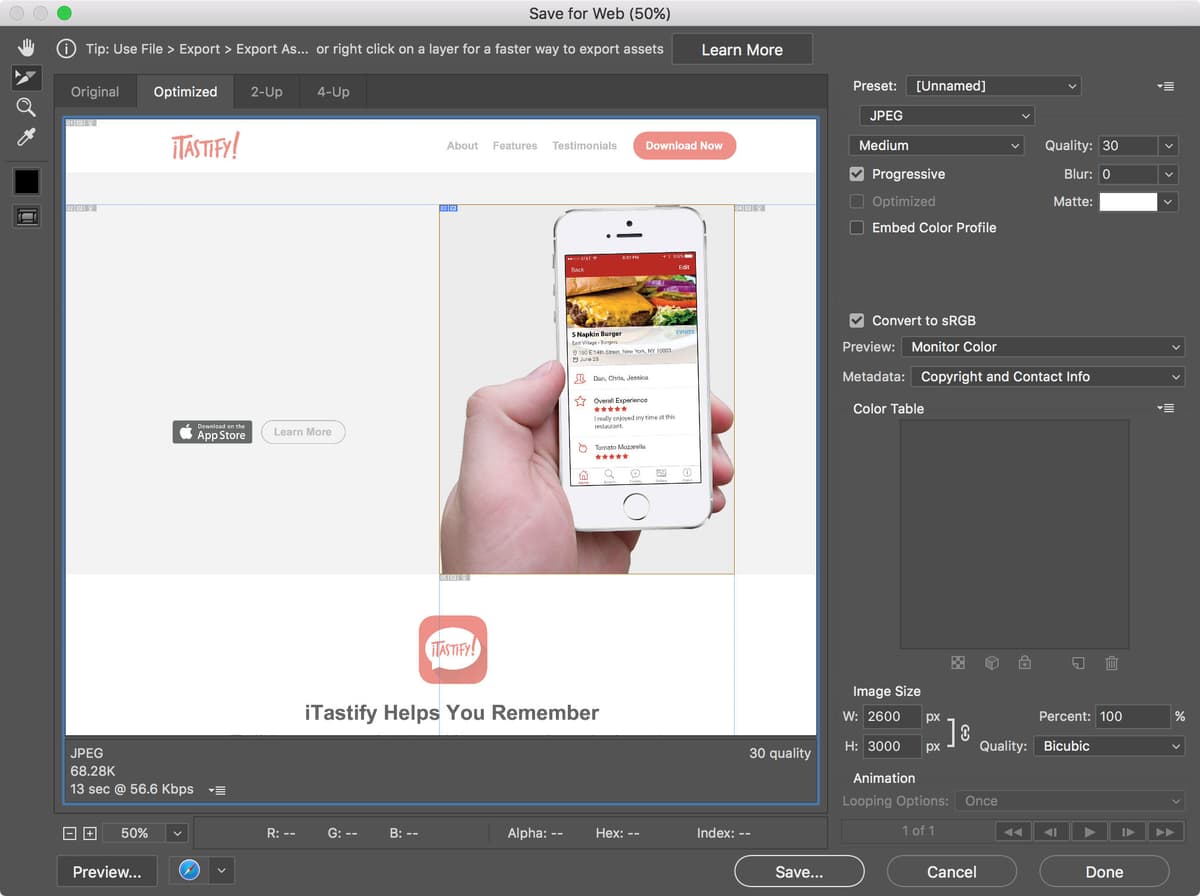
  11. Export your slice using Photoshop's dedicated optimization interface: File > Export > Save for Web (Legacy).

    Be patient during the initial load—2x files require more processing time for the optimization preview, but the precision is worth the wait.

  12. In the Optimized tab, set an accurate preview zoom:

    • Standard Resolution Screen: Zoom to 50% using Cmd–1 (Mac) or CTRL–1 (Windows), then Cmd–Minus(-) (Mac) or CTRL–Minus(-) (Windows) twice
    • High Resolution Screen: View > 100% or Cmd–1 (Mac) or CTRL–1 (Windows)
  13. Click the iPhone slice to select it as your export target. If it's off-screen, hold Spacebar and drag to pan the view.

    The selected slice appears at full opacity while non-selected slices are dimmed, helping you focus on the asset you're optimizing.

  14. Choose an appropriate compression preset: Preset > JPEG Medium for balanced quality and file size.

  15. Enable Progressive loading for improved user experience—progressive JPEGs appear gradually as they download, creating a perception of faster loading.

  16. Initiate the export process: click Save at the bottom right.

  17. In the save dialog, change Slices from All Slices to All User Slices. This prevents Photoshop from exporting the auto-generated filler slices around your custom slice.

  18. Navigate to Desktop > Class Files > yourname-Photoshop for Web Class.

    NOTE: We're saving to the parent folder rather than the iTastify subfolder to keep our sliced assets organized separately from the Generator exports.

  19. Complete the export by clicking Save.

Layer Based Slices

Pros
Automatically aligns with layer boundaries
Updates dynamically when layer changes
Quick setup with single menu command
Preserves layer effects like blurred edges
Cons
May include unwanted background areas
Limited customization without promotion
Not always precise for complex compositions
Requires manual adjustment for most use cases

Creating and Customizing Slices

1

Create Layer Based Slice

Select target layer and choose Layer > New Layer Based Slice for automatic boundary detection

2

Promote to User Slice

Use Slice Select tool and click Promote button to enable manual resize handles

3

Adjust Boundaries

Drag resize handles to precisely define export area, ensuring clean edges

4

Configure Export Settings

Double-click slice to set filename and prepare for Save for Web export

Export Process Checklist

0/6
File Organization Strategy

Save sliced assets to a separate folder from Adobe Generator exports to maintain clear organization and prevent file conflicts

Slicing: Creating 1x Versions

Responsive design demands both high-resolution and standard assets. Here's how to efficiently generate the standard resolution version from your existing slice.

  1. Reopen the export interface: File > Export > Save for Web (Legacy).

  2. Under Image Size on the right panel, set Percent to 50% and press Tab to apply the scaling.

  3. Adjust your preview zoom for the new dimensions:
    • Standard Resolution Screen: 100% zoom using Cmd–1 (Mac) or CTRL–1 (Windows)
    • High Resolution Screen: 200% zoom using Cmd–1 (Mac) or CTRL–1 (Windows), then Cmd–Plus(+) (Mac) or CTRL–Plus(+) (Windows) once
  4. Update the filename for the scaled version by double-clicking the slice.

  5. Change the name to iphone-hand (removing the @2x suffix for the standard resolution version).

  6. Confirm the change: click OK.

  7. Fine-tune the compression for the smaller file size by adjusting JPEG Quality to 60—the reduced dimensions allow for higher compression while maintaining visual quality.

  8. Export the standard resolution asset: click Save at the bottom right.

  9. Navigate to Desktop > Class Files > yourname-Photoshop for Web Class if not already there.

  10. Complete the export: click Save.

  11. Switch to Desktop view (minimize or hide Photoshop) to verify your exports.

  12. Navigate to Class Files > yourname-Photoshop for Web Class > images to review your complete asset set.

  13. Verify both iphone-hand.jpg and iphone-hand@2x.jpg are present—you now have a complete responsive image pair.

  14. Quality-check your exports:
    • Mac: Use Spacebar to quickly preview files with Quick Look
    • Windows: Double-click filenames to open in your default image viewer or Photoshop
  15. Return to Photoshop to clean up your workspace.
  16. Hide the slice guides for a cleaner interface: View > Show > Slices (uncheck it).
  17. Restore the hidden text layers in the masthead group for future work:

    • Never forget your restaurant…
    • Be Your Own Food Critic
  18. Save your Photoshop file to preserve your slice setup for future exports, then close it.

Layer Based Slices

Pros
Automatically aligns with layer boundaries
Updates dynamically when layer changes
Quick setup with single menu command
Preserves layer effects like blurred edges
Cons
May include unwanted background areas
Limited customization without promotion
Not always precise for complex compositions
Requires manual adjustment for most use cases

Creating and Customizing Slices

1

Create Layer Based Slice

Select target layer and choose Layer > New Layer Based Slice for automatic boundary detection

2

Promote to User Slice

Use Slice Select tool and click Promote button to enable manual resize handles

3

Adjust Boundaries

Drag resize handles to precisely define export area, ensuring clean edges

4

Configure Export Settings

Double-click slice to set filename and prepare for Save for Web export

Export Process Checklist

0/6
File Organization Strategy

Save sliced assets to a separate folder from Adobe Generator exports to maintain clear organization and prevent file conflicts

Key Takeaways

12x design files require specific workflows to generate both high-resolution and standard web assets efficiently
2Adobe Generator automates asset creation through layer naming conventions, ideal for clean isolated graphics
3Layer naming syntax 'filename@2x.format, 50% filename.format' creates both resolution versions simultaneously
4Slicing provides manual control for complex graphics where Adobe Generator includes unwanted background elements
5Layer based slices automatically align with layer boundaries but often require promotion to user slices for customization
6Save for Web export process requires careful slice selection and appropriate compression settings for each resolution
7Proper layer visibility management is crucial before export to prevent unwanted elements in final assets
8File organization strategies help maintain separation between different export methods and prevent workflow conflicts

RELATED ARTICLES