April 1, 2026Dan Rodney/6 min read

Creating Shadows & Layers

Master Photoshop Layers and Professional Drop Shadow Effects

Core Skills You'll Develop

Layer Management

Learn to work with layers effectively, understanding how to separate elements from background layers for advanced editing capabilities.

Drop Shadow Techniques

Master the art of creating realistic shadows using Photoshop's layer styles and blend modes for professional results.

Layer Effects

Understand how to apply, modify, and manage layer effects to enhance your digital compositions.

Topics Covered in This Photoshop Tutorial:

Adding Effects to Layers, Drop Shadows

Tutorial Prerequisites

0/3

Exercise Preview

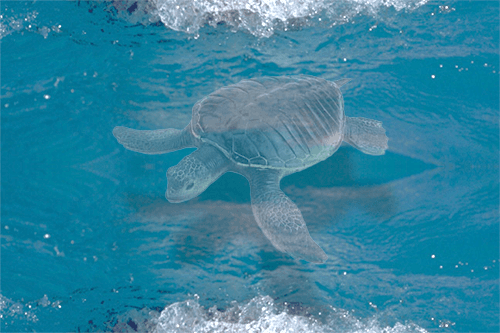
water and turtle

Exercise Overview

This comprehensive exercise demonstrates the fundamental principles of layer management and drop shadow creation in Photoshop. You'll master essential compositing techniques that form the backbone of professional photo manipulation, learning how to seamlessly integrate objects from different images while maintaining realistic lighting and depth. These skills are crucial for creating compelling visual narratives in advertising, digital art, and professional photography workflows.

Complete Tutorial Workflow

1

Subject Selection

Use Photoshop's Select Subject feature to automatically identify and select the turtle from the background

2

Layer Separation

Create a new layer via cut to separate the turtle from the background layer, enabling layer effects

3

Shadow Application

Apply drop shadow effect using layer styles with customizable settings for realistic results

4

Composition Transfer

Move the layered turtle with its shadow to a new background document for final composition

Silhouetting the Turtle

Before we can apply sophisticated layer effects, we need to isolate our subject from its original background. This process, known as silhouetting, is a fundamental skill that separates amateur work from professional-grade compositions.

  1. From the Photoshop Class folder, open the Turtle.jpg file.

  2. Choose Select > Subject.

    Adobe's AI-powered subject detection continues to improve with each update, and by 2026, it's remarkably accurate for most organic subjects like animals and people. Photoshop analyzes the image using machine learning algorithms to identify the primary subject and create a selection automatically. While this tool doesn't work perfectly in every scenario—particularly with complex backgrounds or low-contrast subjects—it's an excellent starting point that can save significant time compared to manual selection methods.

  3. We're going to apply a Layer Effect to create a realistic drop shadow. You'll find the Drop Shadow effect in the Layer menu under Layer Style. However, this option is currently unavailable because we're working on the Background layer. Photoshop's Background layer has specific limitations—it cannot support transparency or layer effects like drop shadows.

    To convert our turtle selection into a workable layer, execute Layer > New > Layer Via Cut. This command simultaneously cuts the selected pixels from the background and places them on a new, independent layer.

  4. The turtle now exists on its own layer, ready for advanced effects and manipulations. In the Layers panel, double-click the layer's name and rename it turtle for better organization—a professional practice that becomes essential in complex projects with dozens of layers.

Why Background Layers Can't Have Shadows

Photoshop restricts layer effects on Background layers because they serve as the base canvas. Converting to a regular layer via Layer Via Cut unlocks all layer style capabilities.

Selection Methods Available

Select Subject (AI-Powered)

Photoshop's intelligent selection tool that automatically identifies main subjects. Works best with clear subject-background contrast.

Manual Selection Tools

Traditional tools like Magic Wand, Lasso, and Pen Tool offer precise control for complex selections when AI fails.

Adding the Drop Shadow

While you can access drop shadows through the Layer menu, the Layers panel method offers more intuitive workflow integration and faster access to multiple layer styles.

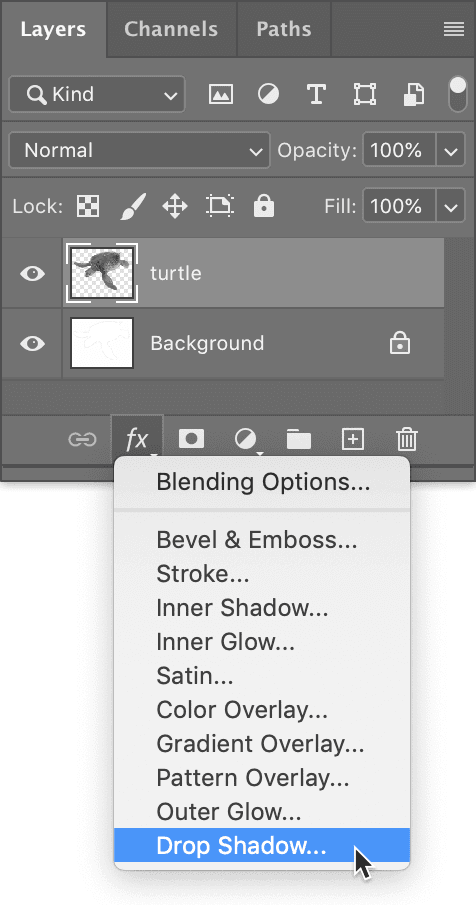
  1. At the bottom of the Layers panel, click the Add a layer style button adjustment layer fx and select Drop Shadow from the contextual menu, as shown below.

    turtle layer add drop shadow

  2. When the Layer Style dialog opens, you'll immediately see a subtle shadow beneath the turtle. This real-time preview is one of Photoshop's most powerful features—click and drag directly within the image window to interactively position the shadow. This hands-on approach gives you immediate visual feedback and helps you understand how light direction affects shadow placement.

  3. Configure the following settings in the Layer Style dialog to create a natural-looking shadow:

    Blend Mode: Multiply (darkens underlying pixels, simulating how real shadows work)
    Opacity: 50% (allows some light to pass through, creating realistic shadow transparency)
    Angle: Your choice! (Distance and Angle respond dynamically when you drag the shadow in the preview window)
    Distance: Also your choice! (Consider the implied height of your subject above the surface)
    Spread: 0% (keeps the shadow edge soft and natural)
    Size: 8 px (creates appropriate blur for the shadow's distance)
    Noise: 0% (maintains smooth shadow gradation)
  4. Click OK to apply the effect.

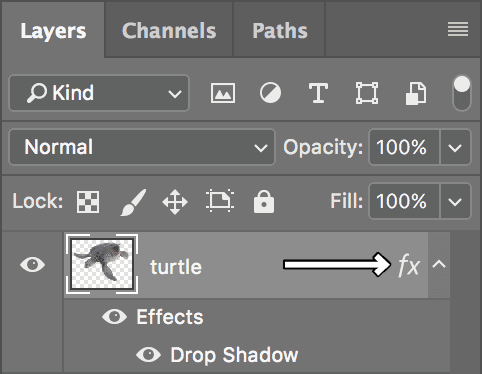
  5. Notice how effortlessly we've created a professional drop shadow! Examine the Layers panel—to the right of the turtle layer, you'll see an effects icon adjustment layer fx, which indicates active layer styles. Below the turtle layer, all applied Effects are listed individually, allowing precise control over each effect.

    turtle layer drop shadow effects

  6. To streamline your Layers panel workspace, click the up arrow effects arrow hide effect adjacent to the effects icon. This collapses the Drop Shadow listing, reducing visual clutter in complex documents.

  7. Click the arrow again to expand the Effects list whenever you need access to individual effects.

  8. Double-click any effect name to reopen its dialog and modify settings like distance, angle, opacity, or color. This non-destructive workflow means you can refine your shadows at any stage of your project—a significant advantage over static filter applications.

Drop Shadow Access Methods

FeatureLayer Menu MethodLayer Style Button Method
NavigationLayer > Layer Style > Drop ShadowLayer Panel > Add Layer Style button
ConvenienceMultiple menu clicks requiredSingle click access
VisibilityHidden in menu structureAlways visible in interface
Recommended: Layer Style button method is faster and more intuitive for beginners

Key Drop Shadow Settings

Blend Mode: Multiply

Creates realistic shadow by darkening underlying pixels. Most natural choice for shadow effects in most lighting conditions.

Opacity: 50%

Provides subtle shadow that doesn't overpower the subject. Adjust based on desired shadow intensity and realism.

Size: 8px

Controls shadow blur and softness. Larger values create more diffused shadows, smaller values create sharper edges.

Moving the Turtle onto Another Picture

Now we'll demonstrate the true power of layer-based compositing by seamlessly integrating our turtle into a completely different environment while preserving all applied effects.

  1. Open water.psd. This will serve as our new background environment, providing the aquatic context for our turtle composite.

  2. Switch back to turtle.jpg using the document tab. Execute the following steps to transfer the turtle layer (ensure it remains selected):
    • Execute Edit > Copy to place the layer content on the clipboard.
    • Return to water.psd by clicking its document tab.
    • Execute Edit > Paste to integrate the turtle into the new document.
  3. Examine the Layers panel and observe that the entire turtle layer—including its drop shadow effect—has been seamlessly transferred to this document. This demonstrates the power of Photoshop's layer system: effects travel with their associated layers, maintaining all styling and adjustments.

  4. Close the Turtle.jpg file without saving changes, as we've extracted everything we need.

  5. With water.psd as your active document, you can now reposition the turtle freely. Notice how the shadow maintains its relationship to the turtle, moving as a cohesive unit—this behavior exemplifies the intelligence built into Photoshop's layer effects system.

  6. Position the turtle so it appears naturally centered within the water environment, considering compositional balance and visual flow.

  7. To create the illusion of an underwater scene, select the turtle layer in the Layers panel, ensuring it's highlighted.

  8. Reduce the layer Opacity to approximately 30% or adjust to achieve realistic underwater transparency. This technique simulates how water diffuses light and reduces the visibility of submerged objects.

  9. The turtle now appears convincingly underwater, but the shadow requires adjustment to match the new environment. In the Layers panel, double-click the Drop Shadow effect to reopen its settings. Modify the Angle, Size, and Opacity to simulate a shadow cast on the ocean floor, considering how water would affect shadow characteristics—typically making them softer and less defined than surface shadows.

  10. To preserve your work, choose File > Save As and configure the following settings:

    • Ensure Format (Mac) or Save as type (Windows) is set to Photoshop to maintain full editability.
    • Name the file yourname-dropshadow-layered.psd and click Save.

    PROFESSIONAL NOTE: The .psd format preserves your complete layer structure, effects, and editability—essential for iterative client work and future modifications. When integrating with InDesign for print production, you can import .psd files directly without flattening, maintaining full quality and transparency. For comprehensive guidance on optimizing files for various output destinations, consult the Print File Formats reference section in this workbook.

Layer Transfer Process

1

Open Destination Document

Open water.psd file which will serve as the new background for your turtle composition

2

Copy Source Layer

Return to turtle document, select turtle layer, and use Edit > Copy to copy both layer and effects

3

Paste and Position

Paste into water document and position turtle appropriately, noting that shadow moves with the layer

Creating Underwater Effect

Reducing layer opacity to 30% creates a realistic underwater appearance. Remember to adjust shadow settings to match the new environment for believable lighting.

File Format Considerations

PSD Format Benefits

Maintains all layers and effects for future editing. Essential for preserving your workflow and allowing modifications later.

InDesign Compatibility

PSD files import directly into InDesign with full layer support. No flattening required for professional print workflows.

Key Takeaways

1Select Subject feature uses AI to automatically identify main subjects, though manual selection tools remain important for complex images
2Background layers cannot accept layer effects - use Layer Via Cut to separate subjects and enable drop shadow capabilities
3Layer Style button at bottom of Layers panel provides faster access to effects than navigating through Layer menu
4Drop shadows with Multiply blend mode at 50% opacity create the most natural-looking shadow effects
5Interactive shadow positioning by dragging in the image window offers intuitive control over shadow placement
6Layer effects transfer with layers when copying between documents, preserving all styling work
7Reducing layer opacity creates realistic transparency effects for underwater or glass-like appearances
8PSD format preserves all layers and effects for future editing while maintaining InDesign compatibility

RELATED ARTICLES