April 1, 2026Dan Rodney/3 min read

Default Color Settings for Class

Master Professional Photoshop Color Management Settings

Before You Begin

This tutorial is specifically tested with Photoshop CC 2018. Color management settings are crucial for consistent image display and printing results across your workflow.

Topics Covered in This Photoshop Tutorial:

Color Management Setup

Key Learning Objectives

Color Management Setup

Configure Photoshop color settings for consistent display and print output. Learn why proper setup is essential for professional workflows.

Monitor Calibration

Understand the importance of hardware calibration over software methods. Discover professional calibrator options and implementation strategies.

Exercise Overview

Color management is the backbone of professional digital imaging—it determines how Photoshop displays colors on your screen and how accurately they translate to print. Without proper color settings, your carefully crafted edits may appear dramatically different when viewed on other displays or printed. While we'll dive deep into customizing these settings for your specific workflow later in this course, establishing the correct foundation now is crucial for completing the exercises ahead with predictable, consistent results.

  1. Launch Photoshop.

    NOTE: This tutorial has been tested with Photoshop CC 2018 and remains compatible with current versions through 2026, including the latest Creative Cloud releases.

  2. Navigate to Edit > Color Settings to access Photoshop's color management controls.

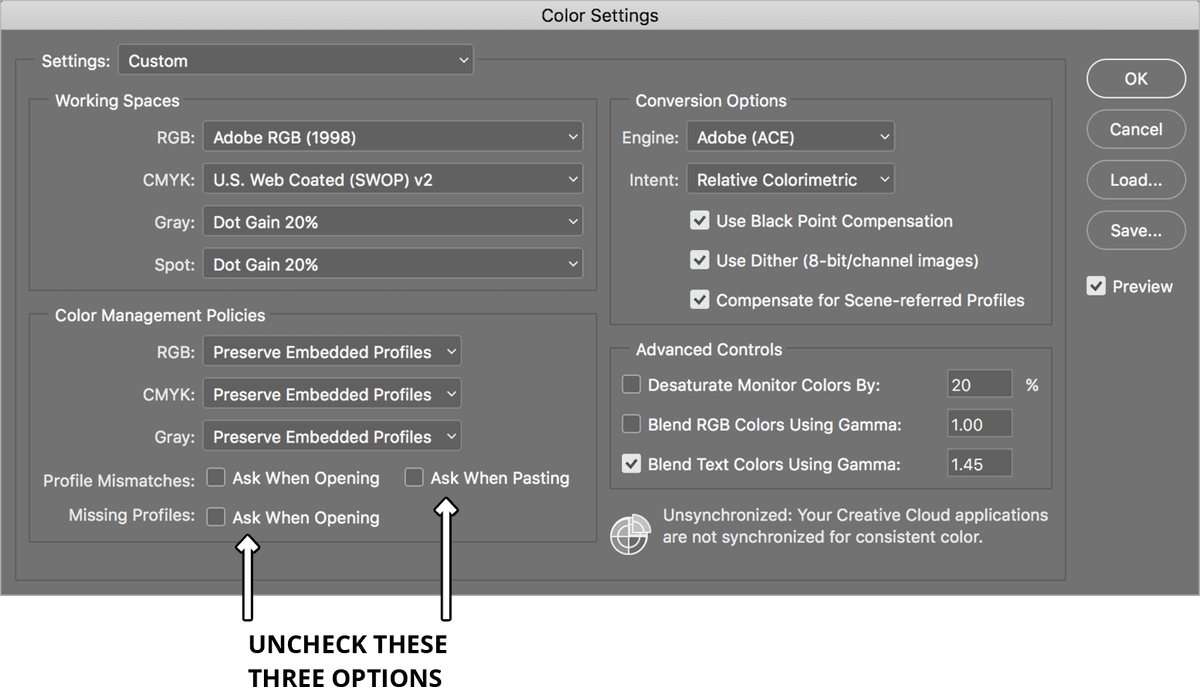
  3. From the Settings dropdown menu at the top, select North America Prepress 2. This preset provides an industry-standard foundation optimized for professional print workflows.

  4. While most settings will automatically configure correctly, you'll need to modify three critical checkboxes in the Color Management Policies section. Uncheck these boxes to prevent disruptive dialog warnings during our exercises, ensuring your configuration matches the reference shown below:

    color settings default for class

  5. Click OK to apply your changes and complete the setup.

    NOTE: These settings serve as our training baseline. In professional practice, optimal color management varies significantly based on your output requirements, client specifications, and industry standards. As you progress through this course, you'll learn to customize these settings for maximum accuracy in your specific workflow.

Photoshop Color Settings Configuration

1

Launch Photoshop

Open Photoshop CC 2018 or compatible version to begin color management setup

2

Access Color Settings

Navigate to Edit menu and select Color Settings to open configuration panel

3

Select Preset

Choose North America Prepress 2 from the Settings menu at the top

4

Modify Policies

Uncheck three specific checkboxes in Color Management Policies section

5

Apply Changes

Click OK to save and implement the new color management settings

Important Workflow Note

These settings are optimized for this class. Individual workflows may require different configurations. You will learn customization options later in the course.

Monitor Calibration

Even with perfect color settings in Photoshop, an uncalibrated monitor undermines every color decision you make. Visual calibration using software alone—relying on your eyes to adjust colors—is notoriously unreliable and often produces results worse than your monitor's factory defaults. What looks "correct" to your eyes may be significantly skewed, leading to prints that bear little resemblance to your screen display.

Professional colorists and photographers rely on hardware calibration for a reason: it eliminates human perception variables and provides objective, measurable accuracy. A quality spectrophotometer or colorimeter measures your display's actual color output and creates a custom profile that corrects for its specific characteristics. Leading manufacturers like X-Rite, Datacolor, and Calibrite offer reliable calibration solutions ranging from $150 to $500, with entry-level models providing dramatically better results than visual methods.

  1. Hardware calibrators follow a standardized workflow that typically includes:

    • Installing the manufacturer's calibration software and drivers
    • Connecting the USB calibration device to your computer
    • Launching the calibration software and following guided setup prompts
    • Allowing the device to measure your display's color output automatically
    • Saving the generated color profile, which your system will apply automatically
  2. Schedule regular recalibration every 2-4 weeks for critical color work, as display characteristics drift over time. Complete your initial calibration before beginning the practical exercises in this workbook to ensure consistent, predictable results.

Calibration Methods Comparison

FeatureSoftware OnlyHardware Calibrator
AccuracyUnreliableProfessional Grade
CostFree$70-$300
ResultsMay Worsen ColorEliminates Guesswork
Recommended: Hardware calibrators provide significantly better results despite higher initial cost

Hardware Calibrator Manufacturers

ColorVision

Professional color calibration solutions with software integration. Offers spectrophotometer devices for accurate monitor profiling.

X-Rite

Industry-standard color management tools and calibrators. Provides comprehensive color workflow solutions for professionals.

Hardware Calibration Workflow

1

Install Software

Install the calibration software that comes with your hardware device

2

Connect Hardware

Plug in the USB hardware calibrator to your computer

3

Run Calibration

Execute the installed software and follow the on-screen prompts carefully

4

Complete Setup

Enjoy your professionally calibrated monitor with accurate color representation

Best Practice Recommendation

For optimal results, calibrate your monitor before starting the exercises in this workbook. This ensures color accuracy throughout your learning process.

Key Takeaways

1Proper color management settings are essential for consistent image display and printing results in Photoshop workflows
2North America Prepress 2 setting provides a reliable baseline configuration for most professional applications
3Color Management Policies checkboxes must be unchecked to match the tutorial requirements and ensure exercise compatibility
4Software-only monitor calibration using visual methods is often unreliable and may actually worsen color accuracy
5Hardware spectrophotometers from companies like ColorVision and X-Rite eliminate calibration guesswork
6Professional monitor calibrators typically cost between $70-$300 but provide significantly better results than free alternatives
7Monitor calibration should be completed before beginning practical exercises for optimal learning outcomes
8Individual workflows may require different color settings customization beyond the basic classroom configuration

RELATED ARTICLES