April 1, 2026Dan Rodney/8 min read

Converting to Black & White & Lens Correction

Master Professional Black White Photography Enhancement Techniques

Core Techniques You'll Master

Black & White Conversion

Learn professional adjustment layer techniques for superior control over grayscale conversion. Avoid destructive Grayscale mode changes.

Selective Color Restoration

Master Color Range selection and masking to bring back specific colors in targeted areas while maintaining black and white effect.

Lens Distortion Correction

Remove wide-angle and fish-eye distortions using Photoshop's Lens Correction filter with custom geometric adjustments.

Topics Covered in This Photoshop Tutorial:

Converting to Black & White, Bringing Back Color in a Specific Area, Removing Lens Distortion

Exercise Preview

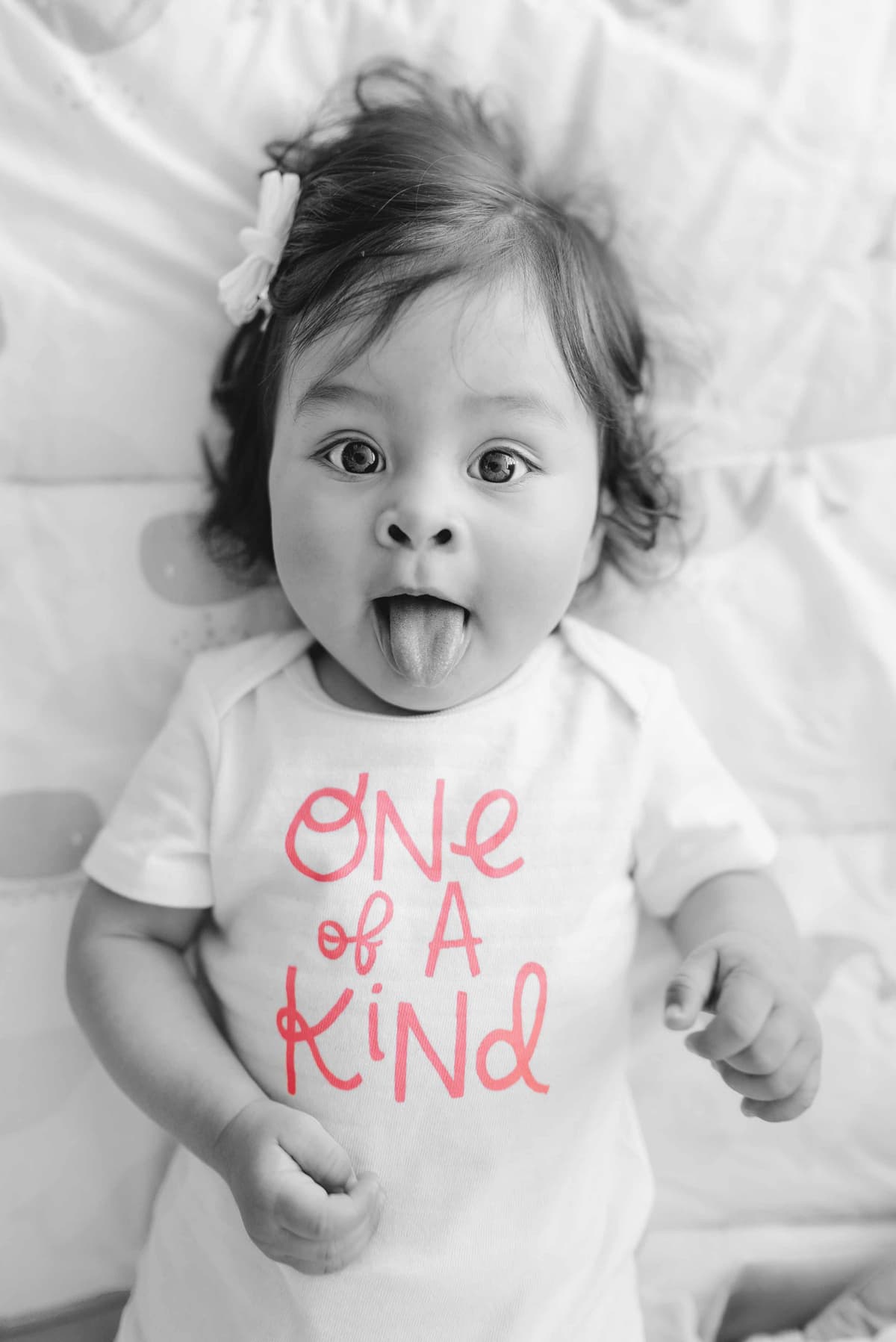
preview convert to b&w

Photo by Juan Encalada on Unsplash

Exercise Overview

In this comprehensive exercise, you'll master two essential Photoshop techniques that every professional photographer and designer should have in their toolkit: creating sophisticated black and white conversions with selective color restoration, and correcting lens distortion for technically superior images. These skills are fundamental for editorial work, commercial photography, and artistic image enhancement in 2026's competitive visual landscape.

Why Use Adjustment Layers

Choosing Image > Mode > Grayscale gives you black and white but eliminates the ability to add color anywhere and provides less control. Professional adjustment layers maintain flexibility.

Converting to Black & White

Professional black and white conversion requires precision and control. We'll use Photoshop's dedicated Black & White adjustment layer to achieve superior results while maintaining maximum flexibility.

  1. From the Photoshop Class folder, open the 4A Baby.jpg file.

    NOTE: While Image > Mode > Grayscale provides a quick black and white conversion, this destructive method permanently removes color information and offers no creative control. Professional workflows demand the non-destructive flexibility of adjustment layers, which preserve the original image data and allow for infinite refinement.

  2. Choose View > Fit on Screen (Cmd–0 (Mac) or CTRL–0 (Windows)) to optimize your workspace view.
  3. At the bottom of the Layers panel, click the Create new fill or adjustment layer button adjustment layer button and from the menu, choose Black & White.

    • In the Properties panel, experiment with the Reds slider by dragging it left and right. Notice how it dramatically affects the tonal relationships in your image—this granular control is what separates professional conversions from amateur attempts.
  4. At the top left of the Properties panel, activate the targeted adjustment tool Targeted Adjustment Tool.

    • Position your cursor over the lettering on the shirt and drag left and right. This intuitive tool allows you to adjust specific tonal ranges by directly manipulating the image elements—a workflow enhancement that streamlines the conversion process significantly.
  5. Return to the Properties panel and experiment with the Yellows slider to observe its impact on skin tones and overall warmth translation.

  6. For optimal results in this exercise, apply these refined settings:

    • Reds: -42 (darkens skin tones for dramatic contrast)
    • Yellows: 60 (brightens warm tones for luminous skin)

Black & White Conversion Process

1

Create Adjustment Layer

Click Create new fill or adjustment layer button and choose Black & White from the Layers panel

2

Adjust Color Sliders

Use the targeted adjustment tool to click and drag on image areas or manually adjust sliders

3

Set Optimal Values

Apply Reds: -42 and Yellows: 60 for the best tonal balance in this exercise

Recommended Slider Settings

Reds
-42
Yellows
60

Bringing Back the Color in the Shirt Lettering

Selective colorization is a powerful technique for drawing attention to specific image elements. By strategically masking our Black & White adjustment layer, we'll restore the original shirt text color while maintaining the monochromatic aesthetic elsewhere.

  1. In the Layers panel select the Background layer to ensure proper selection targeting.
  2. Choose Select > Color Range to access Photoshop's intelligent selection tool.
  3. In the large image behind the Color Range dialog, click directly on the shirt text.

    • The Color Range preview window displays your selection as a black and white mask—white areas indicate selected pixels, black areas remain unselected.
    • You'll notice excessive white areas beyond the intended text selection, which would create an imprecise mask. We need to refine our approach.
    • Click Cancel to start over with a more strategic method.
  4. In the Tools panel, select the Rectangular Marquee tool rectangular marquee tool.
  5. Create a tight rectangular selection around the shirt text. This pre-selection constrains the Color Range tool to analyze only the relevant image area, dramatically improving selection accuracy.
  6. With your marquee active, choose Select > Color Range again.

    Now Color Range will analyze only the constrained rectangular area, eliminating unwanted selections from the broader image.

  7. Follow this refined selection process, adapting the specific values based on your image's unique characteristics:

    In the image behind the Color Range dialog:

    • Click the center of the K in Kind to establish your primary color target.
    • Increase Fuzziness to 100 to capture color variations within the text.
    • Hold Shift (to add to selection) and click the e in One where line segments intersect.
    • Adjust Fuzziness to 80 for refined edge detection.
    • Continue holding Shift and click the center of the N in One where shadow detail appears in the preview.
    • Reduce Fuzziness to approximately 22 to eliminate excessive background selection.
    • Fine-tune your results iteratively. To completely restart, hold Option (Mac) or ALT (Windows) and click Reset (the Cancel button transforms into Reset with this modifier key).
  8. When satisfied with your selection precision, click OK.
  9. In the Layers panel, select the Black & White 1 layer mask (the white thumbnail adjacent to the adjustment layer).
  10. Execute Edit > Fill (or use the keyboard shortcut Shift–Delete (Mac) or Shift–Backspace (Windows)).

    • Set Contents to Black—remember, black conceals the adjustment effect on layer masks, revealing the original color beneath.
    • Click OK to apply the fill.
  11. Choose Select > Deselect to clear the marching ants.
  12. You'll likely observe some edge artifacts—dark halos around the colorized text and possibly some unwanted colorization in adjacent areas. We'll refine the mask to achieve professional results.
  13. Choose Select > Select and Mask to access Photoshop's advanced masking workspace.
  14. In the Properties panel on the right:

    • Click the View thumbnail and select On Layers for optimal visual feedback.
    • Apply subtle Feather (1-2 pixels) to soften overly sharp selection edges—this mimics natural color bleed for more realistic results.
    • Adjust Shift Edge leftward to expand the color into letter forms, ensuring complete coverage when combined with feathering.
  15. To eliminate unwanted color spill on the shirt fabric:

    • Select the Brush tool brush tool in select and mask from the left toolbar.
    • Ensure Add to selection add to selection select and mask is active in the Options bar.
    • Resize your brush using the [ and ] keys for precise control.
    • Modify brush hardness by holding Shift while pressing [ or ] (alternatively, click the Brush thumbnail in the Options bar).
    • Carefully paint over areas requiring color removal, working with small, controlled strokes for precision.
  16. Once your mask refinements meet professional standards, click OK to apply the changes.

Color Range Selection Workflow

1

Create Selection Boundary

Use Rectangular Marquee tool to limit Color Range analysis to the text area only

2

Fine-tune Selection

Start with Fuzziness at 100, then adjust to 80, finally reduce to 22 for optimal text isolation

3

Apply Mask

Fill selection with black on the layer mask to hide the black and white effect in text areas

Selection Refinement Tips

Use Shift-click to add to selections and adjust Fuzziness values progressively. Hold Option/Alt and click Reset if you need to start the Color Range selection over completely.

Removing Lens Distortion

Lens distortion correction is crucial for maintaining professional image quality, particularly with wide-angle photography. Modern digital workflows demand technically precise images, and subtle distortion correction can significantly elevate the perceived quality of your work.

  1. In the Layers panel, select the Background layer.
  2. Choose Filter > Lens Correction.

    When images retain their original camera metadata, Photoshop can automatically apply manufacturer-specific lens corrections based on the camera and lens combination used. However, metadata is frequently stripped during web optimization or stock photo processing, requiring manual correction—a common scenario in professional retouching workflows.

  3. Click the Custom tab for manual control.

    • Under Geometric Distortion, set Remove Distortion to +19 to counteract the wide-angle barrel distortion.
  4. Click OK to apply the correction.

    Notice that only the background layer has been transformed, creating a misalignment with your Black & White adjustment layer mask. This is a common workflow challenge when applying filters to individual layers.

  5. Choose Edit > Undo to revert and implement a more sophisticated approach.
  6. In the Layers panel:

    • Select the bottom layer first.
    • Hold Shift and click the top layer to select both layers simultaneously.

    This multi-layer selection ensures uniform transformation of all image elements.

  7. Right-click (Windows) or CTRL–click (Mac) on either selected layer and choose Convert to Smart Object. This creates a container that treats multiple layers as a single, editable unit while preserving individual layer properties.
  8. Choose Filter > Lens Correction again (select the second instance, not the recently-used filter at the menu top).

    NOTE: Photoshop places your most recent filter at the menu top for quick reapplication with identical settings. To modify filter parameters, always choose the filter from its standard menu location.

  9. In the Custom tab, apply these refined corrections:

    • Under Geometric Distortion, set Remove Distortion to +19
    • Under Transform, set Vertical Perspective to -19 to correct keystoning effects
  10. Toggle the P key repeatedly or use the Preview checkbox to compare before and after states—this visual confirmation is essential for quality control.
  11. Click OK to finalize the corrections.

    The Smart Object approach ensures that all corrections apply uniformly to your composite image, maintaining mask alignment and color relationships.

Lens Correction Approaches

FeatureManual MethodSmart Object Method
AffectsSingle layer onlyAll layers together
AlignmentBreaks mask alignmentMaintains relationships
FlexibilityLimited adjustmentsEditable filter
Recommended: Always use Smart Object method to maintain layer relationships and enable filter adjustments.

Smart Object Lens Correction

1

Convert to Smart Object

Select all layers, right-click and choose Convert to Smart Object to group everything

2

Apply Geometric Correction

Set Remove Distortion to +19 to counteract wide-angle lens fish-eye effect

3

Adjust Perspective

Set Vertical Perspective to -19 to correct perspective distortion

Editing the Contents of the Smart Object

One of Smart Objects' most powerful features is the ability to edit their contents non-destructively. Any changes made within the Smart Object automatically propagate to all instances, streamlining iterative workflows.

  1. To refine the black and white conversion, double-click the layer thumbnail for Black & White 1 in the Layers panel.
  2. A new document window opens, displaying the original two-layer structure without lens corrections applied. This is the Smart Object's internal workspace.
  3. Select the Black & White 1 layer in the Layers panel.
  4. In the Properties panel, implement these enhanced adjustments:

    • Reds: 5 (lightens skin tones for a more flattering rendition)
    • Blues: Experiment with this slider to observe its effect on background elements and shadows, then settle on 70 for optimal contrast
  5. To intensify the colorized text impact, select the top layer in the Layers panel to ensure proper layer stacking.

  6. Click the Create new fill or adjustment layer button adjustment layer button and choose Vibrance from the menu.
  7. In the Properties panel, set Vibrance to +80. Unlike Saturation, Vibrance intelligently protects already-saturated colors while enhancing muted tones, preventing color clipping.
  8. Execute File > Save to commit your changes to the Smart Object.
  9. Close the Smart Object editing window to return to your main document, where all modifications are now reflected in the lens-corrected final image.

Final Black & White Adjustment Values

Reds
5
Blues
70
Smart Object Workflow Advantage

Double-clicking the Smart Object thumbnail opens the original layers for editing. Changes automatically update in the final image with lens corrections applied.

Final Enhancement Steps

1

Access Smart Object Contents

Double-click layer thumbnail to open original layers in separate window

2

Refine Black & White Settings

Adjust Reds to 5 and Blues to 70 for improved tonal balance

3

Boost Color Intensity

Add Vibrance adjustment layer set to +80 to make the text color more vivid

Key Takeaways

1Use Black & White adjustment layers instead of Grayscale mode to maintain color flexibility and superior conversion control
2Combine Rectangular Marquee selection with Color Range for precise text selection when restoring selective colors
3Apply lens corrections using Smart Objects to maintain layer relationships and avoid mask alignment issues
4Set Remove Distortion to +19 and Vertical Perspective to -19 for effective wide-angle distortion correction
5Use progressive Fuzziness adjustments in Color Range starting high then reducing for optimal selection refinement
6Double-click Smart Object thumbnails to edit original content while preserving applied filters and corrections
7Enhance selective color areas with Vibrance adjustments set to +80 for more impactful visual contrast
8Always save Smart Object contents to automatically update the main image with lens corrections intact

RELATED ARTICLES