April 1, 2026Dan Rodney/6 min read

Color Settings & CMYK Conversions

Master Professional CMYK Color Profile Management

Essential Color Profile Concepts

CMYK Conversion

Process of converting RGB images to print-ready CMYK color space. Critical for maintaining color accuracy in professional printing workflows.

Color Profiles

ICC profiles that define how colors should be interpreted and converted. Each printer and paper combination requires specific profiles for optimal results.

Workspace Management

Proper workspace selection preserves color integrity throughout the editing process. ColorMatch RGB and Adobe RGB are industry-standard options.

Topics Covered in This Photoshop Tutorial:

Converting to CMYK, Loading Color Profiles, Comparing Different CMYK Conversions

Exercise Preview

cmyk conversions

Exercise Overview

Selecting the appropriate CMYK profile for color conversion is one of the most critical—yet frequently overlooked—steps in professional print workflow. The difference between a mediocre print and exceptional output often hinges on this single decision. In this exercise, we'll conduct a side-by-side comparison of different CMYK profiles to demonstrate their profound impact on color separation and final print quality. Understanding these nuances will elevate your print preparation skills and help you deliver consistently superior results to clients.

Profile Selection Impact

Choosing the correct profile for CMYK conversion is often neglected but critically important. Different profiles can produce dramatically different color separations for the same image.

Getting Started

We'll begin by establishing our working environment and ensuring proper color profile handling from the outset.

  1. Close all open files to avoid any color management conflicts, then open yourname-lifestyle.psd.

  2. When the Profile Mismatch dialog appears, ensure Use the embedded profile is selected and click OK.

    color settings profile mismatch

    Professional insight: This image contains an embedded ColorMatch RGB profile. While we typically work in Adobe RGB for this course, ColorMatch RGB is equally robust as a device-independent workspace. Converting between high-quality RGB working spaces introduces unnecessary data loss and potential color shifts. The golden rule: when an image already exists in a professional-grade color space, preserve that original workspace to maintain maximum image integrity.

  3. Save the file as yourname-lifestyle-flat4printer.psd to create our working copy.

  4. Navigate to Layer > Flatten Image to prepare the file for CMYK conversion.

Embedded Profile Best Practice

When an image has ColorMatch RGB embedded, avoid unnecessary conversions to Adobe RGB. Converting between colorspaces can cause quality loss even between good workspaces.

File Preparation Workflow

1

Close Existing Files

Clear workspace by closing all open files to avoid confusion during color profile operations

2

Open Target Image

Open yourname-lifestyle.psd and confirm Use the embedded profile option in dialog

3

Save Working Copy

Save as yourname-lifestyle-flat4printer.psd then flatten layers for print preparation

Checking for Profiles

Before proceeding, we need to verify that the specialized CMYK profiles required for this exercise are available on your system.

  1. In professional print workflows, your commercial printer should provide custom ICC profiles that precisely characterize their specific press and paper combination. These profiles are essential for accurate color reproduction. For this exercise, we'll use two industry-standard profiles that may not be installed by default. Navigate to Edit > Color Settings to check their availability.

  2. Under Working Spaces, click the CMYK dropdown menu and look for these profiles:

    • Light GCR 280 UCR CMYK US Negative Proofing
    • Light GCR 360 UCR CMYK US Negative Proofing
  3. Click Cancel to close the dialog. If both profiles appear in the list, skip the next section and continue with "Making a Copy." If either profile is missing, proceed to the profile installation steps below.

Required CMYK Profiles Verification

0/4

Loading Extra Profiles

Installing custom color profiles correctly ensures they're available system-wide and integrated properly with Adobe's color management engine.

  1. Minimize Photoshop to access your desktop and file system.

  2. Navigate to Class Files > Photoshop Adv Class, then open the extra_profiles folder.

  3. Press Cmd–A (Mac) or Ctrl–A (Windows) to select both profile files.

  4. Copy the files using Cmd–C (Mac) or Ctrl–C (Windows).

  5. The installation location varies by operating system. Follow the appropriate steps below:

Mac Users

  1. Hold the Option key and select Library from the Go menu in Finder.

  2. Navigate to ColorSync > Profiles.

  3. Once inside the Profiles folder, paste the files using Cmd–V. macOS will automatically register these profiles with the ColorSync system.

Windows Users

  1. Open File Explorer and navigate to C:\Windows\System32\spool\drivers\color.

  2. Paste the profile files using Ctrl–V. Windows will integrate them into the system color management framework.
  • Return to Photoshop. The profiles are now available for use in color conversions.

  • Profile Installation Paths by Operating System

    FeatureMac InstallationWindows Installation
    Access MethodHold Opt + Go menu > LibraryNavigate to C: drive
    Profile DirectoryColorSync > ProfilesWindows > System32 > spool > drivers > color
    Installation ActionCmd-V to paste profilesCtrl-V to paste profiles
    Recommended: Both systems require administrative access to install color profiles in system directories

    Making a Copy so We Can Compare the Settings

    To effectively demonstrate the impact of different CMYK profiles, we'll create a side-by-side comparison setup that allows for real-time evaluation.

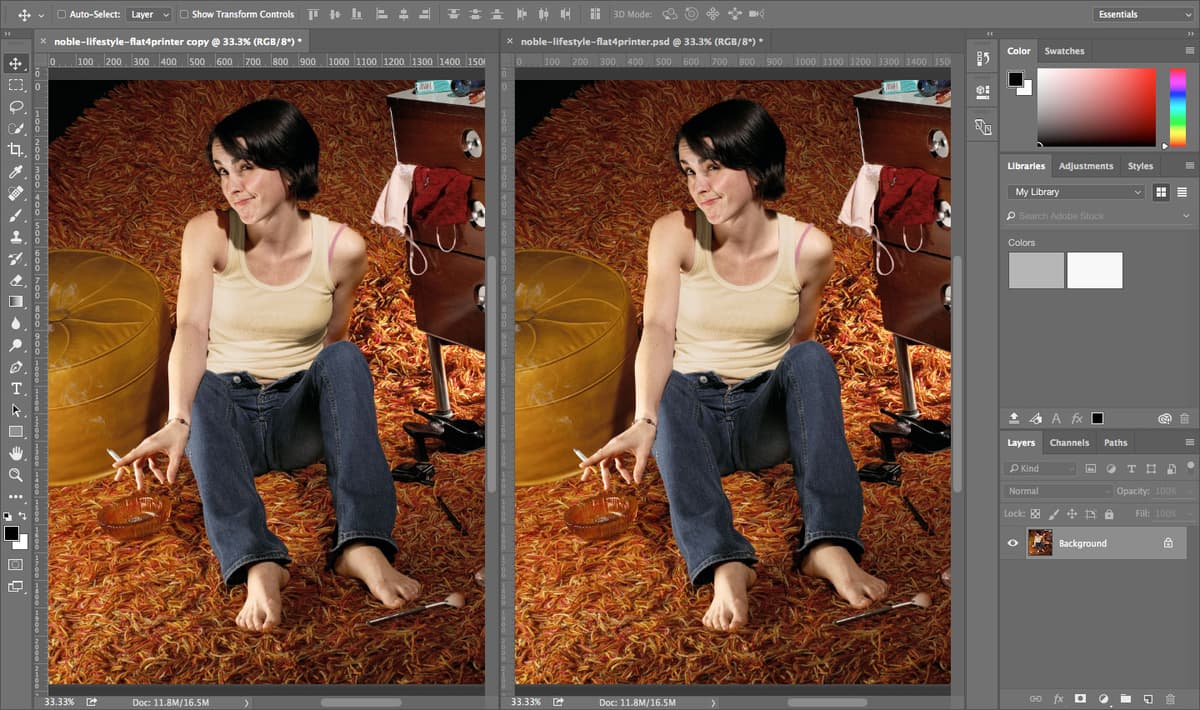
    1. Create a duplicate by going to Image > Duplicate and clicking OK. This gives us two identical starting points for our comparison.

    2. Arrange the windows for optimal comparison by selecting Window > Arrange > 2-up Vertical two up.

    3. In either window, adjust the zoom level to display most of the image comfortably.

    4. Synchronize both views by selecting Window > Arrange > Match All. Your workspace should now resemble the setup shown below, optimized for detailed comparison work.

      cmyk conversion 2up

    Comparison Setup Process

    1

    Duplicate Image

    Use Image > Duplicate to create identical copy for side-by-side comparison

    2

    Arrange Windows

    Apply Window > Arrange > 2-up Vertical for optimal comparison layout

    3

    Match Zoom Levels

    Zoom out in one pane, then use Window > Arrange > Match All for consistent viewing

    Applying the Settings & Converting to CMYK

    Now we'll apply different CMYK profiles to each image copy and observe how the choice of color space affects the conversion process.

    1. Begin with the left image. Click to ensure it's the active document.

    2. Access Edit > Color Settings to configure the first profile.

    3. Under Working Spaces, select U.S. Web Coated (SWOP) v2 from the CMYK dropdown. This industry-standard profile simulates typical commercial web offset printing conditions.

    4. Click OK to apply the settings.

    5. Execute the conversion via Image > Mode > CMYK Color.

    6. If prompted about profile handling, check Don't show again and click OK to streamline future conversions.

    7. Now activate the right image by clicking on it.

    8. Open Edit > Color Settings again.

    9. From the CMYK menu, select Light GCR 360 UCR CMYK US Negative Proofing. This profile uses advanced Gray Component Replacement (GCR) and Under Color Removal (UCR) techniques for superior shadow detail and ink density control.

    10. Click OK to confirm the profile selection.

    11. Convert this image using Image > Mode > CMYK Color.

    CMYK Profile Conversion Settings

    FeatureLeft Image SettingsRight Image Settings
    Profile SelectionU.S. Web Coated (SWOP) v2Light GCR 360 UCR CMYK US Negative Proofing
    Conversion MethodImage > Mode > CMYK ColorImage > Mode > CMYK Color
    Profile WarningsCheck Don't show againCheck Don't show again
    Recommended: Different profiles will produce varying color separations for identical source images

    Comparing Differences Between the Conversions

    The real revelation comes when examining how different profiles separate colors into individual CMYK channels. This analysis reveals why profile selection is crucial for professional print work.

    1. With both images now converted to CMYK, examine the composite images first. While the overall appearance should be relatively similar, the critical differences lie in how colors are distributed across individual ink channels—this affects print quality, ink usage, and press stability.

    2. Let's examine the channel separations systematically. Select each image in turn and display only the Cyan channel so both images show their cyan separations simultaneously. Pay particular attention to the dark denim areas—notice how different profiles allocate cyan ink differently in shadow regions.

    3. Repeat this process for the Magenta channel, comparing how each profile handles skin tones and warm colors. Professional profiles often show significant variation in magenta distribution, directly affecting flesh tone reproduction.

    4. Continue your analysis with the Yellow and Black channels. The black channel differences are often the most dramatic, as different GCR/UCR strategies fundamentally alter how shadow detail is rendered.

      The variations you're seeing demonstrate why professional printers invest heavily in custom profiles. Each CMYK profile represents a different strategy for ink separation, optimized for specific press conditions, paper stocks, and quality objectives. The "Light GCR" profile, for instance, uses more black ink in shadows while reducing CMY components—this approach often produces richer blacks and more stable press runs while using less expensive colored inks.

    5. When you've completed your analysis, close both files without saving. This exercise demonstrates a fundamental principle: in professional print production, the CMYK profile you choose can be as important as the quality of your original image.

    Channel Analysis Reveals True Differences

    While composite CMYK images may appear similar, examining individual Cyan, Magenta, Yellow, and Black channels reveals significant separation differences between profiles.

    Channel Comparison Analysis

    0/4
    Choosing the correct CMYK profile based on your output device can create the right separations and color specifically for that device
    This demonstration shows why printer-specific profiles are essential for professional color management workflows

    Key Takeaways

    1CMYK profile selection dramatically affects color separation quality and requires careful consideration for each printing scenario
    2ColorMatch RGB and Adobe RGB are both professional workspaces - avoid unnecessary conversions between them to prevent quality loss
    3Printer-specific ICC profiles must be obtained from print providers and properly installed in system color directories
    4Individual channel analysis reveals separation differences that may not be visible in composite CMYK previews
    5Profile installation locations differ between Mac and Windows systems, requiring administrator access for proper installation
    6Side-by-side comparison workflows help visualize the impact of different color management decisions
    7GCR and UCR profiles handle black generation differently, significantly affecting final print appearance
    8Flattening layers and creating working copies protects original files during color conversion experiments

    RELATED ARTICLES