April 1, 2026Dan Rodney/4 min read

Color Correction Using Color Balance

Master Professional Color Correction in Adobe Photoshop

Core Photoshop Color Correction Techniques

Color Balance Adjustments

Fine-tune the color temperature and tint of your images using intuitive slider controls. Perfect for correcting color casts and achieving natural-looking results.

Brightness & Contrast Control

Enhance image luminosity and contrast to bring out details and create more impactful visual compositions. Essential for professional photo editing workflows.

Non-Destructive Editing

Use adjustment layers to preserve your original image data while applying corrections. Toggle effects on and off to compare results instantly.

Topics Covered in This Photoshop Tutorial:

Creating Adjustment Layers for Color Correction, Adjusting Color Balance, Adjusting Brightness/contrast

Exercise Preview

color balance exercise preview

Photo by Dan Rodney

Exercise File Requirements

This tutorial uses specific practice files including koalas variations.png and koalas.jpg from the Photoshop Class folder. The variations file serves as a visual reference to understand color correction principles before applying techniques.

Exercise Overview

Professional photographers and digital artists rely on Photoshop's sophisticated color correction arsenal to transform ordinary images into compelling visual narratives. While the software offers dozens of correction tools—from advanced Curves adjustments to AI-powered neural filters—mastering the fundamentals remains crucial for building expertise. This exercise focuses on two cornerstone techniques: Color Balance and Brightness/Contrast adjustments. These intuitive tools provide immediate, visible results while teaching the color theory principles that underpin all professional image enhancement work.

Color Balance vs Advanced Correction Methods

Pros
Intuitive slider-based interface for beginners
Real-time preview of color adjustments
Separate control over highlights, midtones, and shadows
Non-destructive adjustment layer workflow
Cons
Limited precision compared to curves or levels
May not handle complex color problems effectively
Requires practice to identify which colors need adjustment
Less control over specific color ranges

Pre-Correction Assessment Checklist

0/4

Intro to Color Correction

  1. From the Photoshop Class folder, open koalas variations.png.

    This reference file serves as a visual training tool, demonstrating how subtle color shifts dramatically impact image quality and mood. Professional colorists develop their eye through systematic comparison—exactly what this exercise provides. Notice how each variation affects the perceived warmth, naturalness, and overall appeal of the subject. This comparative analysis builds the visual literacy essential for confident color correction decisions.

  2. Study each example methodically, identifying which variations feel most natural and which appear over-corrected. Ask yourself: Which colors dominate? What emotional response does each version evoke? Does the lighting feel consistent with natural outdoor conditions?

  3. Close the file when you've internalized these visual differences. This reference knowledge will guide your adjustment decisions in the following steps.

Visual Learning Strategy

The koalas variations.png file demonstrates different color correction scenarios side by side. Study these examples carefully to train your eye for recognizing which adjustments improve image quality and which colors need to be added or removed.

Adjusting Color Balance

  1. Open koalas.jpg to begin working with the uncorrected source image.

  2. Navigate to Layer > New Adjustment Layer > Color Balance to create your first non-destructive color correction layer.

  3. Click OK to confirm the layer creation.

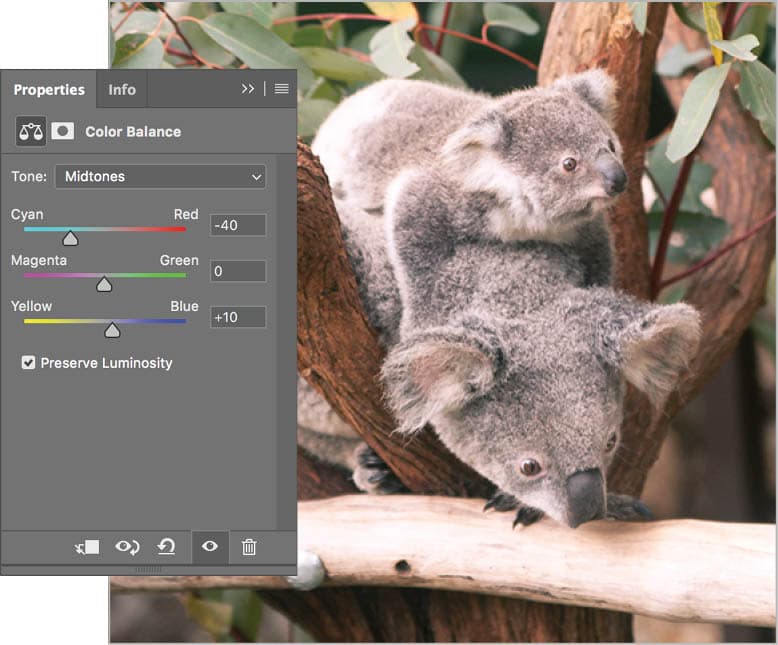
    The Properties panel displays the Color Balance interface, showing three slider pairs representing complementary color relationships: Cyan/Red, Magenta/Green, and Yellow/Blue. These controls follow traditional color theory principles—moving toward one color automatically reduces its complement. All sliders begin at zero, representing the image's current color balance.

  4. Referencing your earlier analysis, add cyan to neutralize the excessive warmth by dragging the Cyan/Red slider left to −40. This shift immediately cools the overall image temperature, creating a more natural skin tone for the koalas.

  5. The cyan adjustment has revealed underlying yellow cast in the image. Counter this by adding blue: drag the Yellow/Blue slider right to +10. This creates better color harmony while maintaining natural-looking fur tones.

    Professional tip: Highlight areas often require separate attention since they reflect environmental light differently than midtones and shadows.

  6. Switch your adjustment target by selecting Highlights from the Tone dropdown menu. This isolates your next adjustment to only the brightest areas of the image.

  7. Fine-tune the highlight temperature by moving the Yellow/Blue slider to +20. This removes the remaining warm cast from the brightest fur areas, creating consistent color temperature throughout the image.

Color Balance Adjustment Workflow

1

Create Adjustment Layer

Navigate to Layer > New Adjustment Layer > Color Balance and click OK to open the Properties panel with default zero values.

2

Adjust Cyan/Red Balance

Drag the Cyan/Red slider to the left and set it to -40 to add cyan and reduce the red color cast in the image.

3

Correct Yellow/Blue Balance

Move the Yellow/Blue slider to the right and set it to +10 to add blue and counteract the yellow tint that appeared after the cyan adjustment.

4

Fine-tune Highlights

Switch to Highlights mode and adjust the Yellow/Blue slider to +20 to cool off the warm highlights and achieve better overall color balance.

Color Balance Slider Settings Applied

Cyan/Red (Overall)
-40
Yellow/Blue (Overall)
10
Yellow/Blue (Highlights)
20

Adjusting Brightness/Contrast

  1. With color balance optimized, address the image's tonal range. Create a second adjustment layer via Layer > New Adjustment Layer > Brightness/Contrast, then click OK. This maintains your non-destructive workflow while keeping adjustments easily modifiable.

  2. In the Properties panel, increase the Brightness value to 10 by dragging the slider right. This subtle lift enhances detail visibility without sacrificing the natural lighting mood or creating blown highlights.

  3. Toggle the visibility eye eye hide show icon icon for each adjustment layer to evaluate your cumulative improvements. The before-and-after comparison should reveal significantly enhanced color accuracy, improved contrast, and more appealing overall tonality. The koalas now exhibit healthy, natural coloring that better represents how they would appear under optimal lighting conditions.

  4. Preserve your work and maintain layer flexibility by choosing File > Save As and naming the file yourname-koalas.psd. Ensure the Format (Mac) or Save as type (Windows) is set to Photoshop to maintain all adjustment layers and editability for future refinements.

Brightness Enhancement Process

1

Add Brightness/Contrast Layer

Go to Layer > New Adjustment Layer > Brightness/Contrast and click OK to create a new adjustment layer above your color balance layer.

2

Increase Brightness

In the Properties panel, move the Brightness slider to the right and set it to 10 to brighten the overall image without losing detail.

3

Compare Results

Click the eye icon next to each adjustment layer multiple times to toggle visibility and see the before and after effects of your corrections.

4

Save Your Work

Use File > Save As to save as yourname-koalas.psd, ensuring you select Photoshop format to preserve all adjustment layers for future editing.

Layer Management Best Practice

Always save your corrected images in PSD format to preserve adjustment layers. This allows you to return later and fine-tune your corrections or experiment with different settings without losing your original work.

Complete Color Correction Workflow

Step 1

Image Analysis

Open and study the variations file to understand color correction principles

Step 2

Color Balance Correction

Apply cyan and blue adjustments to overall image and highlights

Step 3

Brightness Enhancement

Add subtle brightness increase to improve overall image luminosity

Step 4

Final Review & Save

Compare before/after results and save in PSD format for future editing

Key Takeaways

1Color Balance and Brightness/Contrast are intuitive adjustment tools perfect for beginners learning color correction fundamentals in Photoshop.
2Adjustment layers provide non-destructive editing capabilities, allowing you to modify or remove corrections without damaging the original image data.
3Color correction requires practice to develop an eye for identifying which colors need adjustment - reference images and variations help train visual perception.
4The Color Balance tool offers separate control over highlights, midtones, and shadows, enabling targeted corrections in specific tonal ranges.
5Small adjustments often produce better results than dramatic changes - the example uses modest settings of -40 cyan, +10 blue overall, and +20 blue in highlights.
6Always save color-corrected images in PSD format to preserve adjustment layers for future modifications and experimentation.
7Toggling adjustment layer visibility allows for easy before-and-after comparisons to evaluate the effectiveness of your corrections.
8Understanding complementary color relationships is crucial - adding cyan reduces red, while adding blue counteracts yellow color casts in images.

RELATED ARTICLES