April 1, 2026Dan Rodney/5 min read

Color Correction Techniques: Extreme Image

Master Advanced Color Correction in Severely Damaged Images

Tutorial Focus

This advanced Photoshop tutorial demonstrates professional color correction techniques for extremely damaged vintage photographs with severe color casts and fading.

Topics Covered in This Photoshop Tutorial:

Advanced Color Correction Using Curves, Setting Custom White & Black Points for Professional Results

Key Techniques You'll Master

Advanced Curves Adjustment

Learn to use Curves adjustment layers with custom white and black point sampling for precise color correction.

Color Cast Neutralization

Master the technique of identifying neutral reference points in severely damaged images to remove extreme color casts.

Custom Eyedropper Tools

Utilize advanced eyedropper sampling methods to establish proper white and black points in compromised images.

Exercise Preview

1950s family before&after

Exercise Overview

This severely damaged vintage photograph presents a classic restoration challenge: extreme yellowing, fading, and an overwhelming color cast that obscures the image's original character. While comprehensive restoration would typically require extensive manual work, we'll demonstrate how strategic color correction can dramatically improve even the most challenging images in just minutes. The key lies in identifying neutral reference points within the image—elements that should be colorless—and using them as anchors for your correction workflow.

Image Condition Assessment

Pros
Still contains recoverable color information
Clear subject matter with identifiable neutral references
Good contrast potential beneath the color cast
Cons
Extreme yellow-orange color cast obscures original colors
Severely faded with minimal color saturation
Requires advanced restoration techniques beyond basic adjustments

Getting Started

  1. From the Photoshop Adv Class folder, open 1950sFamily.psd.

    This image exemplifies why professional colorists focus on neutral reference points rather than attempting to guess original colors. The pervasive yellow-orange cast makes it nearly impossible to determine the photograph's true palette, but notice the white socks worn by several children—these provide our pathway to color accuracy. In professional color grading, this technique of identifying known neutrals forms the foundation of virtually all correction work, whether you're restoring family photographs or color-timing Hollywood films.

  2. Make sure the Info panel is visible (Window > Info).

Professional Color Correction Strategy

The key to correcting extreme color casts is identifying known neutral colors like white socks, sky, or grass as reference points for your corrections.

Pre-Correction Setup

0/3

Correcting an Extreme Image's Overall Tone & Color

Before diving into manual correction, it's worth testing Photoshop's automated tools—even with challenging images like this one. While AI-powered correction has improved significantly in recent versions, severely damaged photographs often exceed the capabilities of automatic algorithms.

  1. Go to Layer > New Adjustment Layer > Curves.

  2. Name the layer overall tone & color and click OK.

  3. In the Properties panel, Option–click (Mac) or ALT–click (Windows) the Auto button to display the options dialog.

  4. Test each of the four algorithms systematically, both with and without Snap Neutral Midtones enabled. Even when automatic correction falls short, observing how Photoshop interprets the image can inform your manual approach. Note which algorithm comes closest to your desired result—you may want to apply it as a starting point before fine-tuning manually.

  5. As expected with such an extreme color cast, the automatic tools struggle to deliver professional results. Click Cancel to return to the Properties panel and proceed with our targeted manual approach.

Initial Auto-Correction Assessment

1

Create Curves Adjustment Layer

Add a new Curves adjustment layer named 'overall tone & color' to maintain non-destructive editing workflow.

2

Test Automatic Algorithms

Option-click the Auto button to access four different algorithms and test with Snap Neutral Midtones on and off.

3

Evaluate Results

Determine if automatic correction is sufficient or if manual intervention is required for severe color casts.

Sampling the Current Color from the Image

Now we'll implement the professional technique of setting custom white and black points using actual image data. This method ensures that your corrections are based on the photograph's specific characteristics rather than generic assumptions.

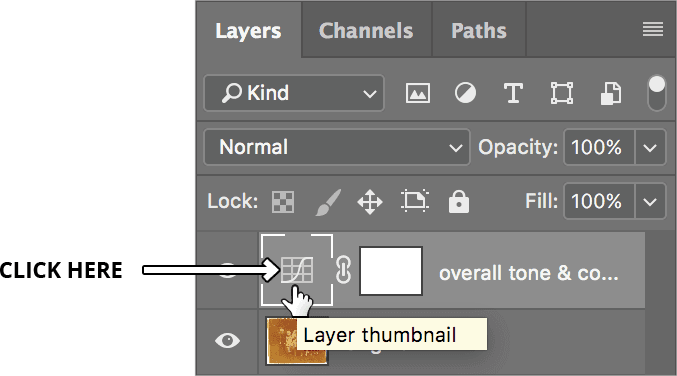
  1. First, click on the Layer thumbnail (NOT the layer mask) to ensure the layer mask remains unselected—a crucial step that's often overlooked.

    1950s layer thumbnail

  2. In the Properties panel, double–click on the Set white point eyedropper set white point to access the Color Picker interface.

  3. Zoom in on the white socks of the girl second from the right. Precision is critical here—you'll need to sample the exact same pixel twice, so take your time to identify the optimal location.

    Layer Selection Critical

    Always click on the Layer thumbnail, NOT the layer mask, to ensure proper sampling functionality when using eyedropper tools.

Zooming While in a Dialog

To navigate efficiently while working within dialogs:

  • Use the View menu's zoom commands for precise magnification control.
  • Hold Cmd–Space (Mac) or CTRL–Space (Windows) and drag to zoom dynamically into your target area.
  • Hold Cmd–Opt–Space (Mac) or CTRL–ALT–Space (Windows) and click to zoom out incrementally.
  • Drag the scrollbars for broad positioning adjustments.
  • Hold the Spacebar and drag to reposition the image within the window.
  • Locate and click on the brightest, most detailed pixel within the sock area—avoid blown-out highlights or heavily textured regions. This samples the current color information, capturing both the intended white value and the unwanted color cast.

  • Mark this location mentally or with a temporary guide—accurate repositioning is essential for the correction to work effectively.

  • Dialog Navigation Shortcuts

    Zoom In

    Hold Cmd-Space (Mac) or Ctrl-Space (Windows) and click-drag to zoom into specific image areas while dialogs are open.

    Zoom Out

    Hold Cmd-Opt-Space (Mac) or Ctrl-Alt-Space (Windows) and click to zoom out from the current view level.

    Pan Image

    Hold Spacebar and drag to move around the image when zoomed in during dialog operations.

    Correcting the Color

    With the contaminated color sampled, we'll now transform it into a neutral reference point. This two-step process—removing color cast, then adjusting brightness—mirrors professional color grading workflows used across the industry.

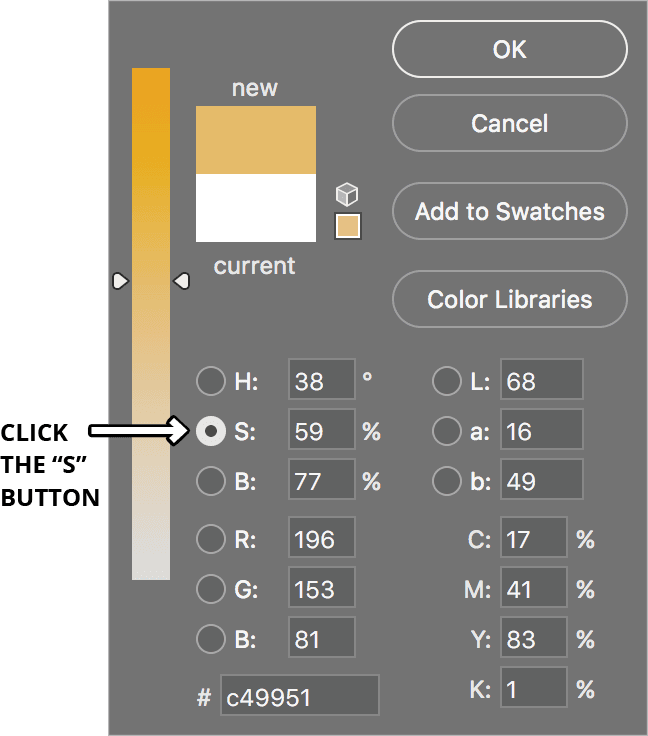
    1. Switch to Saturation mode by clicking the S button. This allows you to neutralize the color while preserving the luminance information.

      set saturation s button

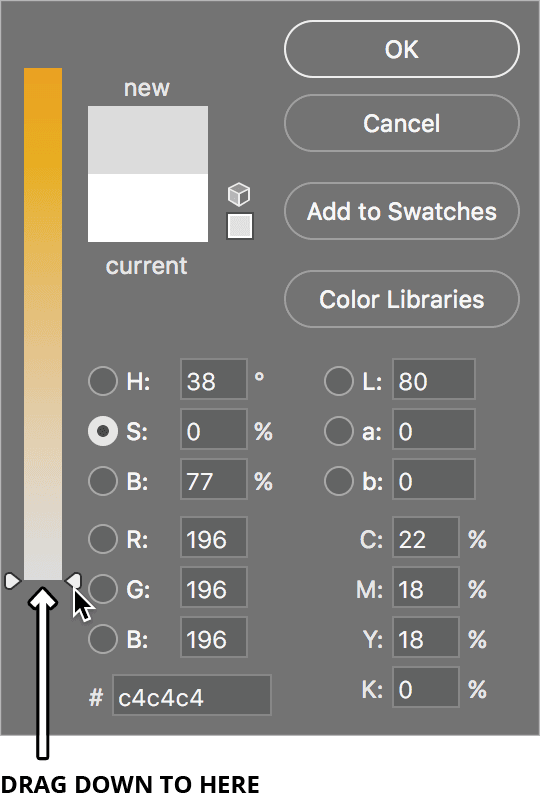
    2. Drag the saturation slider to zero, creating a perfectly neutral gray. This eliminates the color cast while maintaining the pixel's brightness relationship to the rest of the image. Resist the urge to click OK—we're not finished optimizing this target color.

      set saturation s slider

    3. Switch to the B (Brightness) control to fine-tune the luminance value.

    4. Adjust the brightness slider to achieve the white value appropriate for the sock material—not paper white, but the slightly off-white tone typical of cotton fabric. This subtlety separates professional correction from amateur over-correction.

    5. Click OK to confirm your target color. When prompted about saving as default, click No to maintain flexibility for future projects.

    Manual White Point Correction Process

    1

    Sample Contaminated White

    Click on the brightest white pixel to sample the current color cast contamination from the reference point.

    2

    Remove Color Cast

    Drag the Saturation slider to zero to eliminate the color cast and create a neutral gray tone.

    3

    Adjust Brightness

    Use the Brightness slider to set the appropriate white point luminosity for the corrected reference.

    Applying Your Correction to the Image

    The final step transforms your carefully crafted target color into a global correction that affects the entire image proportionally.

    1. Carefully click the exact same pixel location you sampled earlier. The transformation should be dramatic and immediate—you'll see the yellow cast disappear and natural colors begin to emerge throughout the image.

    2. Complete the tonal range by establishing a proper black point using the same methodology:
      • Double–click the Set black point eyedropper set black point to access the Color Picker.
      • Identify the deepest shadow that should retain detail—consider the fence rail in the upper right or the shadowed area behind the grandmother. Avoid pure black areas that lack detail.
      • Neutralize the saturation and adjust brightness to create a rich, detailed black point rather than a dead shadow.
      • Click OK, decline to save as default, then sample your chosen black reference pixel.

      With both white and black points established, you've created a solid foundation for further refinement. Consider making subtle adjustments to individual color channels or adding slight contrast enhancements to complete your restoration. The goal is natural-looking results that honor the photograph's original character while eliminating the technical defects that obscure its content.

    3. Save your corrected file as yourname-1950sFamily.psd to preserve your adjustment layers, then close the document.

    Key Takeaways

    1Extreme color correction requires manual intervention when automatic algorithms fail with severe color casts
    2Identifying neutral reference points like white clothing is crucial for establishing proper color correction baselines
    3The custom white and black point eyedropper technique provides precise control over tonal range correction
    4Saturation adjustment to zero effectively removes color contamination while preserving luminosity information
    5Sequential white point and black point corrections create dramatic improvements in severely damaged images
    6Navigation shortcuts enable precise sampling even when working within dialog boxes and zoomed views
    7Non-destructive editing with adjustment layers preserves original image data throughout the correction process
    8Final curve adjustments to individual color channels allow for precise fine-tuning after establishing proper white and black points

    RELATED ARTICLES