April 1, 2026Dan Rodney/5 min read

Changing Color With a Blending Mode

Master Professional Color Manipulation in Photoshop

Essential Photoshop Skills You'll Master

Object Selection Techniques

Learn precise selection methods using the Object Selection tool with modifier keys for complex shapes. Master the art of isolating specific elements from detailed backgrounds.

Advanced Blending Modes

Understand the difference between Color and Hue blend modes and when to use each. Discover how blend modes preserve luminosity while changing color information.

Mask Refinement

Develop skills in refining selections using Select and Mask workspace. Learn to perfect edges and transitions for professional-quality results.

Topics Covered in This Photoshop Tutorial:

Master advanced color manipulation techniques using the Color Blend Mode to seamlessly transform object colors while preserving natural lighting and texture details.

Exercise Preview

preview change color shirt

Photo by Jonathon Dorofy on Unsplash

Tutorial Prerequisites

This tutorial assumes you have Photoshop installed and access to the Photoshop Class folder with the 5A Shirt.jpg file. Basic familiarity with Photoshop's interface is recommended.

Exercise Overview

This exercise demonstrates professional color-changing techniques that preserve the natural characteristics of fabrics and materials. You'll master the strategic use of blend modes to achieve realistic recoloring that maintains the original object's depth, shadows, and highlights—essential skills for product photography, fashion retouching, and commercial design work.

Color Change Workflow Overview

1

Precise Selection

Use Object Selection tool to isolate the target object, subtracting unwanted areas with modifier keys

2

Selection Refinement

Apply Select and Mask workspace to perfect edges and remove artifacts

3

Color Application

Add solid color fill layer and apply appropriate blend mode for natural results

4

Final Optimization

Fine-tune mask and color choices for professional finishing

Selecting the Shirt

Precision in selection is critical for professional results. We'll use Photoshop's AI-powered Object Selection tool combined with manual refinement to create a mask that captures fabric details while excluding unwanted areas.

  1. From the Photoshop Class folder, open the 5A Shirt.jpg file.
  2. Choose View > Fit on Screen to optimize your workspace for detailed selection work.
  3. In the Tools panel, choose the Object Selection tool object selection tool. This AI-enhanced tool, significantly improved in recent Photoshop versions, provides intelligent object recognition for faster initial selections.
  4. Hover over the subject to observe how the tool automatically detects the entire figure, but we need granular control for just the shirt area.
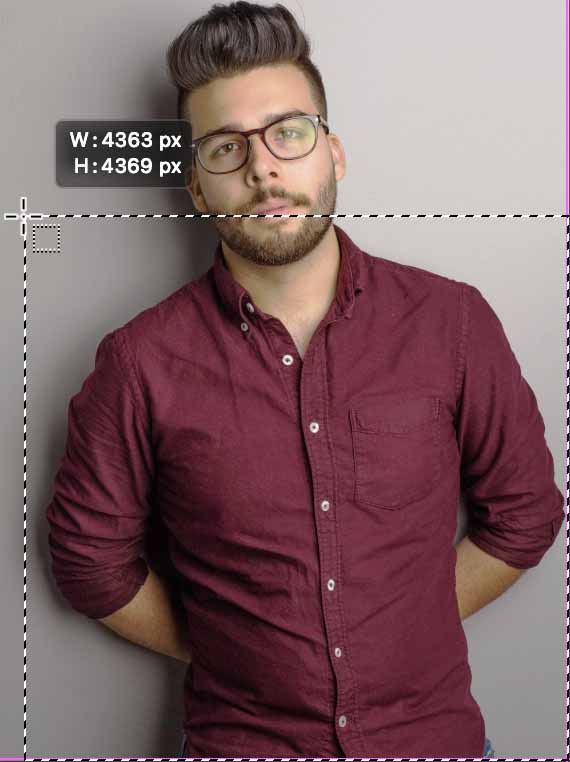
  5. As shown below, drag a precise selection over just the shirt area, avoiding the arms and other clothing elements.

    select guy shirt

  6. The initial selection provides a solid foundation, but professional work demands refinement. Notice the arms are included, which would compromise our color effect.

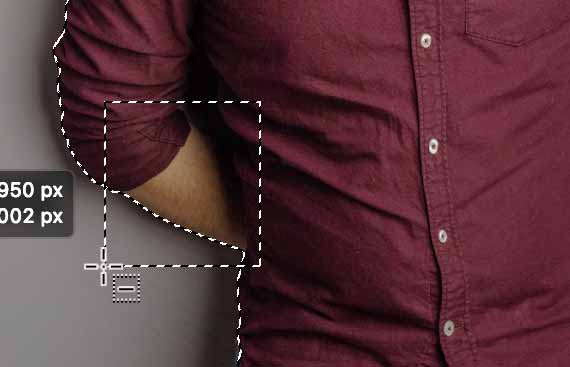
    Hold Option (Mac) or ALT (Windows) to subtract from the selection and drag over the left arm area.

    remove guy left arm

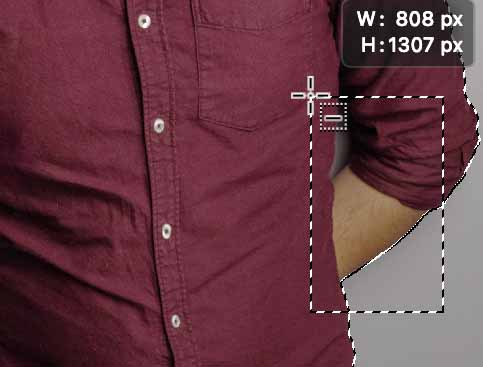
  7. Continue holding Option (Mac) or ALT (Windows) and drag a selection over the right arm, including any background elements that were inadvertently selected.

    remove guy right arm

  8. Now we'll refine our selection using Photoshop's advanced Select and Mask workspace. In the Options bar, click Select and Mask to enter the dedicated refinement environment.
  9. In the Properties panel on the right, configure optimal viewing settings:

    • Next to View click the thumbnail and choose Overlay
    • Set Opacity to 50% for clear visibility of both selection and underlying image
    • Change the Indicates menu from Masked Areas to Selected Areas for intuitive red overlay feedback

    The red overlay now clearly indicates your active selection areas, making refinement work more intuitive.

  10. Select the Brush tool brush tool in select and mask for precise manual control:

    • Utilize the Options bar controls to toggle between adding and subtracting modes, adjusting brush size and hardness for different fabric textures and edge types.
    • Carefully remove any unwanted areas, paying special attention to arm boundaries and fabric folds.
    • Paint back any missing shirt areas, particularly around seams and collar details.
  11. Switch the View to On Black in the Properties panel. This high-contrast view reveals edge quality issues and helps identify areas requiring additional refinement.

  12. Fine-tune the global refinements using professional parameters: adjust Smooth to reduce jagged edges, Feather for natural transitions, and Shift Edge to optimize boundary placement. These controls are particularly effective for fabric selections.

  13. When your selection meets professional standards, configure the output in the Properties panel's Output Settings:

    • Output To: Selection
  14. Click OK to apply your refined selection.

Object Selection Tool Workflow

0/4
Selection Modifier Keys

Remember that Option (Mac) or ALT (Windows) subtracts from your selection, while Shift adds to it. These modifier keys are essential for precise object isolation.

Coloring the Shirt

With our precise selection complete, we'll now apply color using adjustment layers and blend modes—a non-destructive approach that maintains maximum flexibility for client revisions and creative exploration.

  1. At the bottom of the Layers panel, click the Create new fill or adjustment layer button adjustment layer button and choose Solid Color.

    Enter the hex value #104632 for a professional forest green and click OK.

  2. Understanding blend modes is crucial for realistic color manipulation. The solid fill currently replaces all luminosity information, creating an unnatural flat appearance. We need to preserve the original fabric's lighting characteristics while applying our new color.

    • At the top left of the Layers panel, click the Normal blend mode menu and select Color.

    • The Color blend mode applies hue and saturation while preserving luminosity, creating realistic fabric appearance. However, notice that non-fabric elements like buttons also receive the color treatment.

    • Switch the blend mode from Color to Hue for comparison.

    • The Hue blend mode offers more selective color application. Unlike Color mode, which applies uniform saturation, Hue respects the original saturation levels of underlying elements. This means desaturated elements (like buttons) remain relatively unchanged, while saturated areas (like the colored fabric) receive the full color treatment. This behavior often produces more natural results for clothing and textile recoloring.

  3. To explore different color options, double-click the layer thumbnail (currently displaying green) of the Color Fill 1 layer.

    • The color picker reopens, allowing real-time color experimentation. Try various hues and observe how the blend mode intelligently integrates your choices with the fabric's natural luminosity and texture patterns.

    • Select a color that complements the overall composition and lighting conditions, then click OK to confirm.

Color vs Hue Blend Modes

FeatureColor Blend ModeHue Blend Mode
Color ApplicationApplies color regardless of underlying saturationApplies color based on underlying saturation
Gray AreasColors gray areas fullyPreserves gray areas as gray
Button TreatmentColors buttons greenKeeps buttons less saturated
Best ForUniform color changesNatural color variations
Recommended: Use Hue blend mode for more natural results that respect the original saturation levels of different elements
Understanding Luminosity Preservation

Blend modes like Color and Hue preserve the luminosity (brightness and shadows) of the original image while changing only the color information, creating realistic recoloring effects.

Optional: Improving Your Mask

Professional work often requires iterative refinement. If you notice mask imperfections during the coloring process, you can return to Select and Mask for additional adjustments without losing your progress.

  • Select the mask thumbnail (the black and white thumbnail representing your shirt selection) on the Color Fill layer.
  • Choose Select > Select and Mask to re-enter the refinement workspace.
  • Make targeted improvements using the full Select and Mask toolset. The On Layers view setting provides optimal feedback for final adjustments, showing your color effect in context with the complete image.

Select and Mask Workspace Features

View Options

Switch between Overlay, On Black, and On Layers views to evaluate selection quality. Each view reveals different aspects of edge refinement needs.

Global Refinements

Use Smooth, Feather, and Shift Edge controls to perfect selection boundaries. These tools work across the entire selection for consistent results.

Professional Mask Editing

Always review your mask on different backgrounds using the View settings. The On Layers view is particularly useful for seeing how your color changes will look in the final composition.

Key Takeaways

1The Object Selection tool provides AI-powered selection capabilities, but requires manual refinement using modifier keys like Option/ALT to subtract unwanted areas
2Select and Mask workspace offers comprehensive tools for refining selections with different view modes, brush tools, and global adjustment controls
3Color blend mode applies uniform color changes regardless of underlying saturation, while Hue blend mode respects original saturation levels for more natural results
4Solid Color fill layers combined with blend modes preserve the original luminosity and shadows while changing only the color information
5The hex color #104632 demonstrates how specific color values can be applied systematically for consistent results across projects
6Mask refinement is crucial for professional results and can be revisited at any time by accessing the mask thumbnail and Select and Mask workspace
7Different blend modes produce distinctly different results on elements like buttons versus fabric, requiring careful evaluation of the final appearance
8The workflow of selection, refinement, color application, and optimization provides a systematic approach to object recoloring that maintains photorealistic quality

RELATED ARTICLES