Masking Smart Filters
What This Tutorial Covers
Smart Object
Convert layers for non-destructive filtering.
Filter Mask
Limit filter effects to specific areas.
Re-Editable
Reopen and adjust filter parameters anytime.
Noble Desktop's Graphic Design Certificate covers Photoshop alongside Illustrator and InDesign.
Learn how to utilize masks with smart filters in Photoshop, featuring detailed instructions on selecting a specific object, manipulating properties, refining edges, and applying blur effects with this comprehensive tutorial guide.
Exercise Preview
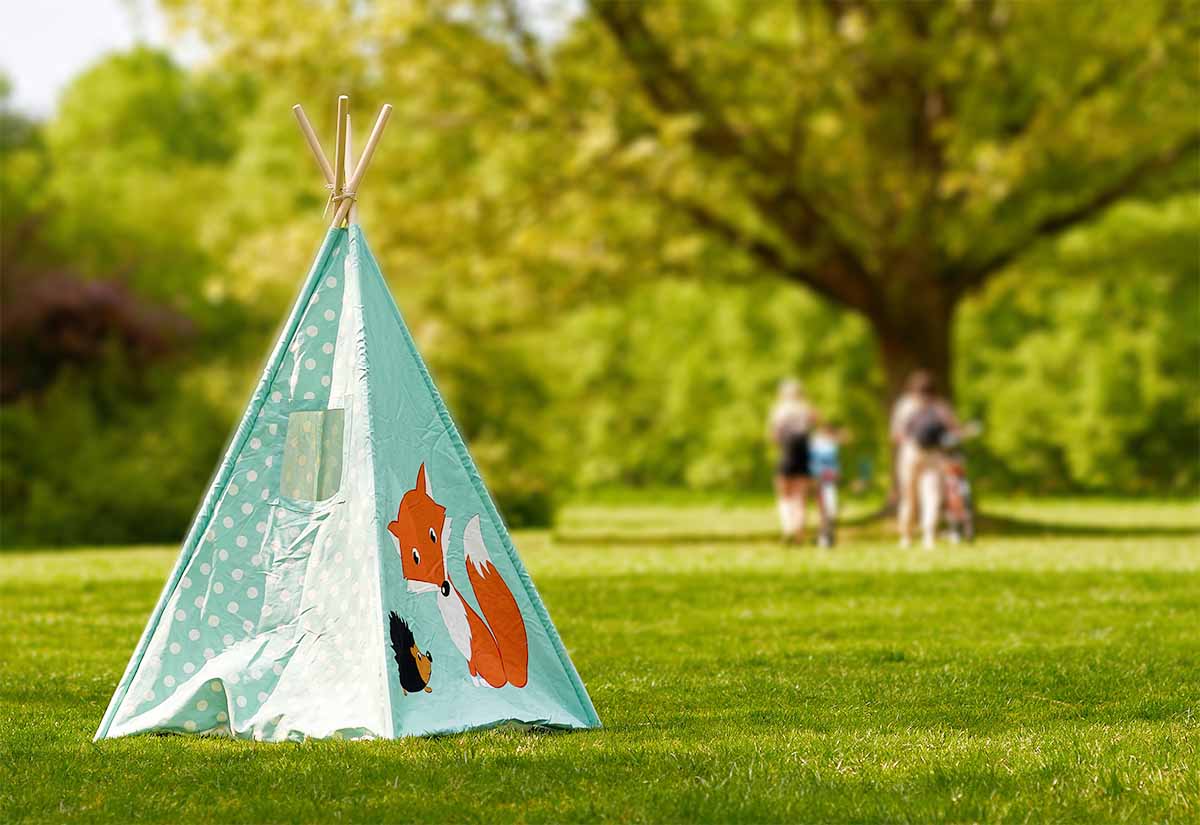
Photo by Alexei Maridashvili on Unsplash
Selecting the Teepee
- From the Photoshop Class folder, open the 3D Teepee.jpg file.
- Go into the Select menu and choose Subject.
- While this does an OK job at selecting the teepee, it also includes part of one of the people. Let’s try a different way.
- Press Cmd–D (Mac) or CTRL–D (Windows) to deselect.
- In the Tools panel, choose the Object Selection tool
 .
. Photoshop immediately starts looking for objects to select, which can take a moment depending on the speed of your computer and the size and complexity of the image. In the Options bar, if the arrow circle
 is spinning Photoshop is still working. Once that stops spinning, all objects have been found.
- Hover over the teepee (it should highlight pink) and click on it to select it.
- In the Options bar at the top of the window click Select and Mask (or choose it from the Select menu).
In the Properties panel on the right:
- Next to View click the thumbnail and choose Overlay
- Set Opacity to 50%
- Below Opacity, change the Indicates menu from Masked Areas to Selected Areas
Now the red overlay indicates parts that are currently selected.
Choose View > 200%.
Notice the edges are not that well selected, especially on the right side of the teepee.
- In the Tools panel on the left, select the Brush tool
 .
. In the Options bar at the top of the window:
- To the right of Select Subject click the down arrow and choose Cloud (Detailed results).
- Click Select Subject button to use the cloud version, which should give you a slightly better selection (although it’s still not perfect).
- If asked about discarding your current selection, click OK.
That’s done a much better job around the edge of the teepee, although it also selected the people.
- Choose View > Fit on Screen (Cmd–0 (Mac) or CTRL–0 (Windows)).
- In the Tools panel, click on the Lasso tool
 .
. Hold Option (Mac) or ALT (Windows) so you’re subtracting from the selection, and draw a selection around the 3 people.
When you’re done, the people should no longer be red.
- Choose View > 200%.
- Scroll to the top of the teepee.
- In the Tools panel on the left, select the Brush tool .
- To size the brush, hover over wooden poles of the teepee top and use the
[or]keys until the brush fits inside that area. In the Options bar at the top of the window:
- Click on the brush thumbnail.
- Size should be around 25 px.
- Set Hardness to 80%.
- Click on the brush thumbnail again to close the brush options.
Now you need to clean up the selection, a process that requires skill that comes with experience. It’s difficult to describe each step, but you need to paint all the parts of the teepee so they are red, making sure that any of the background is NOT red. Here are things to keep in mind as you do this:
- Painting a straight line by hand is impossible, but you can click at one end, hold Shift, click at the other end, and Photoshop will connect that with a straight line.
- To remove unwanted red areas (like under the rope), hold Option (Mac) or ALT (Windows) so you’re subtracting from the selection as you paint over an area.
- Adjust your brush size as needed using the
[or]keys. - Adjust the brush hardness as needed.
- Don’t worry about the bottom of the teepee, we won’t be blurring that area.
When you’re done, at the bottom of the Properties panel on the right (you may have to scroll down to see this), expand the Output Settings and set:
- Output To: Selection
- Click OK (at the bottom right).
You currently have the teepee selected, but we want the background (everything but the teepee). Choose Select > Inverse.
Editing the Contents of the Smart Object
We want to remove the biker closest to the teepee because we find them distracting.
- Double–click on the photo layer’s thumbnail.
- A new window will open with the original unblurred photo.
- Press Cmd–J (Mac) or CTRL–J (Windows) to duplicate the current layer.
- Name the new layer retouching.
In the Tools panel choose the Spot Healing Brush tool
 . You may have to click and hold on the Healing Brush tool
  to choose it.
- Adjust your brush size as needed using the
[or]keys. - In one drag, paint over the entire biker (closest to the teepee), including a bit of the background area them.
- When you release, the biker should be gone. Do more touch ups if needed.
- Adjust your brush size as needed using the
- Save and close the current file.
- You should now be back in the blurred version and see the biker is no longer there!
Do a File > Save As a Photoshop document named yourname-teepee.psd.