April 1, 2026Dan Rodney/8 min read

Batch Actions & the Image Processor

Master automated batch processing in Adobe Photoshop

Essential Photoshop Automation Tools

Actions

Record and replay sequences of operations automatically. Perfect for repetitive tasks like color corrections or resizing.

Batch Processing

Apply actions to entire folders of images simultaneously. Save hours of manual work with automated workflows.

Image Processor

Advanced script for creating thumbnails and applying actions while converting file formats in one streamlined process.

Topics Covered in This Photoshop Tutorial:

Creating & Running Actions, Batch Processing Files, the Image Processor Script, Adobe Bridge

Exercise Preview

image processor batch actions

Photos Copyright © Dan Rodney, danrodney.com

Exercise Overview

Photoshop delivers unmatched power for automating repetitive image processing tasks through batch processing. This capability can transform hours of manual work into minutes of automated efficiency—a critical skill for photographers, designers, and digital professionals managing large image libraries. In this comprehensive exercise, you'll master the art of recording custom actions and applying them systematically across multiple files. We'll also explore the sophisticated Image Processor tool, which enables you to simultaneously create thumbnail-sized images while executing custom actions—effectively doubling your productivity in a single workflow.

Workflow Efficiency

Photoshop's batch processing capabilities can transform hours of repetitive manual work into automated tasks that run in minutes, making it essential for photographers and designers handling large image collections.

Making a Simple Action

Photoshop's action recording system operates on an elegant principle: the software observes and memorizes your every move, creating a digital recipe that can be replicated flawlessly across hundreds or thousands of images. This fundamental automation tool has remained essential to professional workflows since its introduction, and understanding it deeply will elevate your efficiency dramatically.

  1. Open Photoshop Adv Class > Actions > koala 3.tif.

  2. Access the Actions panel by navigating to Window > Actions. This panel serves as your command center for all automation activities.

  3. At the bottom of the Actions panel, click the Create new set button folder button. Creating organized action sets is crucial for maintaining workflow efficiency, especially in professional environments where multiple team members may use shared action libraries.

  4. Name it yourname-actions and click OK. Using descriptive, personal naming conventions prevents conflicts in collaborative workflows.

  5. Click the Create new action button new button at the bottom of the Actions panel.

  6. Name it Convert to Grayscale and click Record. Clear, descriptive action names become invaluable when managing extensive action libraries.

  7. You're now in record mode—indicated by the pressed Record button actions record button pressed at the bottom of the Actions panel. During recording, Photoshop captures every menu selection, tool adjustment, and parameter change you make.

  8. Navigate to Image > Mode > Grayscale. If prompted about discarding color information, click Discard. This warning is normal when converting color images to grayscale.

  9. Stop the recording by clicking the Stop button actions stop button at the bottom of the Actions panel.

  10. Close the file without saving—we only needed it to demonstrate the recording process. The action now exists independently and can be applied to any compatible image.

Creating Your First Action

1

Set Up Action Panel

Open Actions panel and create a new action set with your name for organization

2

Record Mode

Click Create new action, name it Convert to Grayscale, and start recording

3

Perform Actions

Execute the steps you want automated - in this case, converting to grayscale mode

4

Stop Recording

Click Stop button to finish recording and save your reusable action

Using the Action

Now let's test our newly created action to ensure it performs exactly as intended before deploying it across multiple files.

  1. Open Photoshop Adv Class > Actions > koala 8.tif to test with a fresh image.

  2. Return to the Actions panel (Window > Actions) if it's not already visible.

  3. Select the Convert to Grayscale action and click Play actions play button at the panel's bottom.

  4. Notice the instantaneous transformation—this speed advantage multiplies exponentially when processing large image batches. Close the file without saving changes, as we're simply validating our action's functionality.

Testing Actions

Always test your recorded action on a single file before running it on an entire batch to ensure it performs exactly as expected.

Running a Batch

With our action tested and proven, we'll now scale up to process an entire folder of images automatically while implementing a systematic file naming convention—essential for maintaining organized output in professional workflows.

  1. Navigate to File > Automate > Batch. Don't execute yet—we'll configure all parameters first to ensure optimal results.
  2. In the Play section on the far left:

    • Verify that Set displays yourname-actions.
    • Confirm Action is set to Convert to Grayscale.
  3. Ensure Source is set to Folder—this tells Photoshop to process all compatible files within a directory.
  4. Click Choose and navigate to the Photoshop Adv Class folder.
  5. Select the Actions folder and click Choose (Mac) or OK (Windows).
  6. Verify Include All Subfolders remains Unchecked to process only the immediate directory contents.
  7. Ensure Suppress Color Profile Warnings is checked to prevent interruptions during automated processing—critical for unattended batch operations.
  8. Set Destination to Folder to save processed files to a specific location.
  9. Click Choose and navigate to Photoshop Adv Class > Actions > Grayscale, then click Choose (Mac) or OK (Windows).
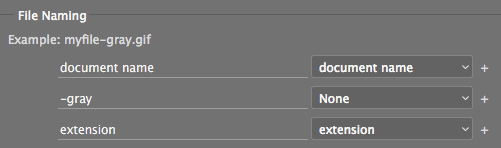
  10. Configure File Naming for optimal organization:
    • From the first line's right menu, select document name to preserve original filenames.
    • In the second line's left field, type -gray (including the dash) to create a clear identifier for processed files.
    • From the third line's right menu, choose extension to maintain proper file associations.
  11. When the Example displays myfile-gray.gif (as illustrated below), click OK to begin processing. This naming convention ensures processed files are easily distinguishable while maintaining clear relationships to their source files.

    batch file naming

Batch Processing Setup Checklist

0/5

Viewing Files in Adobe Bridge

Adobe Bridge remains the industry standard for visual file management and metadata handling, seamlessly integrated with Creative Cloud applications. Let's examine our batch processing results using Bridge's robust browsing capabilities.

  1. Launch Adobe Bridge using either method:

    • Open Bridge directly from your applications.
    • From any Creative Cloud application (including Photoshop), select File > Browse in Bridge.
  2. Standardize the interface to ensure consistent navigation:

    • Select Window > Workspace > Essentials for the optimal layout.
    • Follow with Window > Workspace > Reset Workspace to eliminate any customizations.
  3. Locate the Favorites and Folders tabs in the upper-left panel area.

  4. Click Desktop in the Favorites tab to establish your starting navigation point.

  5. Improve file visibility by adjusting the zoom slider at the bottom right. Drag it rightward to enlarge thumbnails, making filename reading significantly easier during file management tasks.

    bridge zoom slider

  6. In the main Content area (the central, largest panel), locate and double-click the Class Files folder.

  7. Double-click Photoshop Adv Class to continue navigating.

  8. Double-click the Actions folder. You may need to scroll to locate it depending on your folder contents.

  9. Double-click the Grayscale folder to reveal your processing results.

  10. Examine your newly created grayscale images. Double-click any image to open it in Photoshop for detailed inspection.

  11. Once satisfied with the results, close the file to return to Bridge.

Adobe Bridge Navigation Features

Workspace Management

Use Essentials workspace and reset functionality to maintain consistent viewing experience across different projects.

Dynamic Thumbnail Sizing

Adjust zoom slider to optimize thumbnail size for better file name readability and visual inspection.

Using Image Processor to Save Thumbnails

The Image Processor represents one of Photoshop's most powerful automation tools, capable of simultaneously resizing, format converting, and action processing. This sophisticated script eliminates the need for multiple processing passes, dramatically streamlining workflow efficiency for web optimization and client deliverables.

  1. Return to Photoshop as our primary workspace.
  2. Close any open files to ensure clean processing without conflicts.
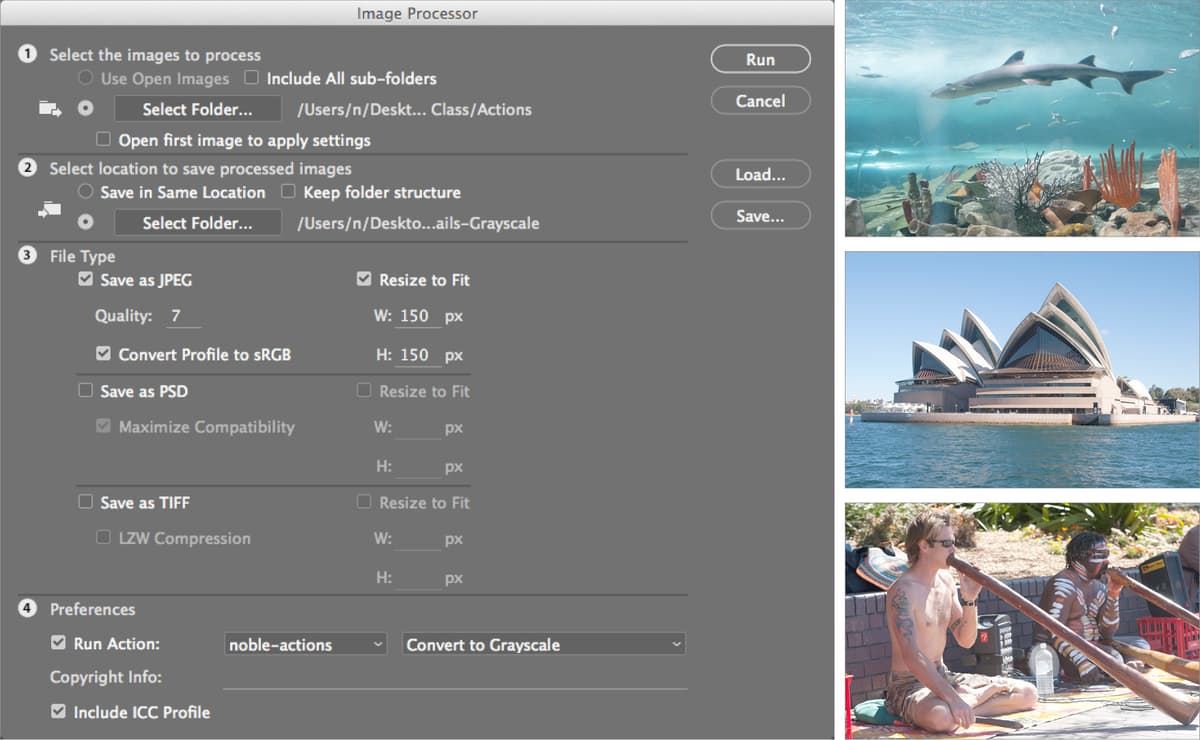
  3. Access File > Scripts > Image Processor to launch this comprehensive automation tool.
  4. In the Select the images to process section, click Select Folder.
  5. Navigate to Photoshop Adv Class > Actions folder to establish your source directory.
  6. Click Open (Mac) or OK (Windows) to confirm your selection.
  7. Under Select location to save processed images, choose Select Folder, then click the Select Folder button.
  8. Navigate to Photoshop Adv Class > Actions > Thumbnails-Color and click Open (Mac) or OK (Windows).
  9. Configure File Type settings for web-optimized output:

    • Check Save as JPEG for optimal web compatibility.
    • Set Quality to 7—this balance provides excellent image quality while maintaining reasonable file sizes for web use.
    • Check Convert Profile to sRGB for maximum web browser compatibility and consistent color display.
    • Check Resize to Fit to enable thumbnail creation.
    • Set both W and H to 150px for uniform thumbnail dimensions suitable for galleries and preview applications.
    • Ensure Save as PSD and Save as TIFF remain unchecked to focus solely on JPEG output.
    • Verify Run Action is unchecked for this color thumbnail generation.
  10. Click Run and observe the automated processing power in action.

  11. Navigate to the results using File > Browse in Bridge.

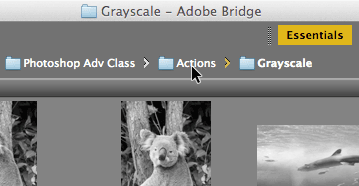
  12. Click the Actions folder in the breadcrumb navigation at the window's top:

    bridge click actions folder

  13. Double-click Thumbnails-Color to access the output directory.

  14. Double-click the JPEG folder to view your automatically generated thumbnails.

  15. Select the first thumbnail and press spacebar to launch Bridge's slideshow feature—an excellent tool for rapid quality assessment.
    • Navigate through files using arrow keys for efficient review.
    • Press Escape to exit the slideshow when your review is complete.

Manual vs Automated Thumbnail Creation

FeatureManual ProcessImage Processor
Time per image2-3 minutesSeconds
ConsistencyVariablePerfect
Error rateHighMinimal
Batch capabilityOne at a timeUnlimited
Recommended: Image Processor provides superior efficiency and consistency for thumbnail generation workflows

Image Processor Configuration

1

Source Selection

Choose the folder containing your original images to process

2

Output Settings

Set JPEG quality to 7, enable sRGB conversion for web compatibility

3

Resize Parameters

Configure thumbnail dimensions to 150px x 150px for optimal web display

4

Execute Processing

Run the processor and monitor automated thumbnail creation

Batch Processing Grayscale Thumbnails

Professional workflows often require multiple output variations from a single source set. Here, we'll demonstrate the Image Processor's ability to simultaneously resize images and apply custom actions—creating grayscale thumbnails in a single, efficient pass.

  1. Return to Photoshop for the final automation demonstration.
  2. Launch File > Scripts > Image Processor again.
  3. Most settings should remain from our previous session, but update the destination: under Select location to save processed images, click Select Folder.
  4. Navigate to Photoshop Adv Class > Actions > Thumbnails-Grayscale and click Open (Mac) or OK (Windows).
  5. In the Preferences section, check Run Action to enable action processing during thumbnail creation.
  6. From the left dropdown, select yourname-actions to specify your action set.
  7. From the right dropdown, choose Convert to Grayscale to apply your custom action.
  8. Click Run to execute the combined resize and grayscale conversion process.
  9. Review the results by selecting File > Browse in Bridge.
  10. Navigate using the breadcrumb by clicking Actions folder:

    bridge click actions folder from thumb color

  11. Double-click Thumbnails-Grayscale to access your combined processing results.

  12. Double-click the JPEG folder to reveal your efficiently created grayscale thumbnails—demonstrating the power of combining multiple processes into a single automated workflow.

Advanced Automation

The Image Processor's ability to simultaneously create thumbnails AND apply custom actions represents the pinnacle of Photoshop automation efficiency, combining multiple operations into a single streamlined workflow.

Combined Processing Approach

Pros
Single workflow handles multiple transformations
Consistent output quality across all images
Significant time savings for large image batches
Automatic file organization and naming
Cons
Less granular control over individual processing steps
Requires careful setup to avoid processing errors
Memory intensive for very large image collections

Deleting the Action

Maintaining organized action libraries is crucial for long-term workflow efficiency. Since this was a demonstration action, we'll remove it to keep your Actions panel clean and professional.

  1. Switch back to Photoshop to complete the cleanup process.

  2. Open the Actions panel (Window > Actions) if not already visible.

  3. Select yourname-actions to highlight the entire action set.

  4. Click the Delete button trash button at the bottom of the Actions panel, then confirm by clicking OK. This removes both the action set and all actions within it, maintaining a clean workspace for future projects.

Action Management

Regular cleanup of custom actions helps maintain an organized workspace and prevents the Actions panel from becoming cluttered with outdated or single-use automation scripts.

Key Takeaways

1Actions automate repetitive Photoshop tasks by recording and replaying sequences of operations, dramatically improving workflow efficiency
2Batch processing applies actions to entire folders of images simultaneously, eliminating the need for manual file-by-file processing
3The Image Processor script provides advanced automation capabilities, combining thumbnail creation with custom action application in a single workflow
4Proper file naming conventions during batch processing ensure organized output and easy identification of processed images
5Adobe Bridge integration allows for efficient preview and management of batch-processed images with dynamic thumbnail sizing
6Testing actions on individual files before batch processing prevents widespread errors and ensures expected results
7Image Processor settings like JPEG quality level 7 and sRGB profile conversion optimize images for web display while maintaining quality
8Regular cleanup of custom actions maintains workspace organization and prevents panel clutter from accumulating over time

RELATED ARTICLES