April 1, 2026Dan Rodney/6 min read

Working with Virtual Copies

Master Lightroom Virtual Copies for Creative Photo Editing

Virtual Copies vs Physical Copies

Virtual copies allow unlimited experimentation without duplicating files or consuming additional storage space, making them essential for efficient photo editing workflows.

Topics Covered in This Lightroom Tutorial:

Creating Virtual Copies, Editing Virtual Copies, Reviewing Virtual Copies

Tutorial Learning Path

1

Creating Virtual Copies

Learn to generate multiple virtual versions of your photos using right-click menu options in the Filmstrip panel

2

Editing Virtual Copies

Apply different editing treatments including black and white conversion and color corrections to separate virtual copies

3

Reviewing Virtual Copies

Compare multiple versions side-by-side using Survey View and organize them using photo stacking features

Exercise Preview

lightroom preview3I

Exercise Overview

In this exercise, you'll master one of Lightroom's most powerful yet underutilized features: Virtual Copies. Think of Virtual Copies as your creative sandbox—they allow you to experiment with unlimited editing variations of a single image without consuming additional storage space or altering your original file. Whether you're exploring different color treatments for client presentations or testing creative workflows, Virtual Copies give you the freedom to push boundaries without consequences. Professional photographers routinely create multiple Virtual Copies to deliver varied looks from a single capture, maximizing both creative output and client value.

Key Virtual Copy Benefits

Non-Destructive Editing

Make unlimited changes to virtual copies without affecting the original photo file. Perfect for experimentation and creative exploration.

Multiple Creative Directions

Create as many virtual copies as needed to explore different editing styles and treatments for the same image.

Efficient Workflow

No additional storage space required since virtual copies are just metadata references to the original file.

Creating Virtual Copies

We'll build on the photo import skills from your first exercise, working with the tree image to demonstrate Virtual Copy workflows that mirror real-world professional scenarios.

  1. Ensure you're working in the Library module—your command center for file organization and initial image review.

  2. In the Catalog panel, click on All Photographs to access your complete image library.

  3. Double–click the picture of the trees (20110831_YourName_037) to open it in Loupe View, where you can examine the image at full resolution.

  4. Press the D key to transition seamlessly to the Develop module, where the real magic happens.

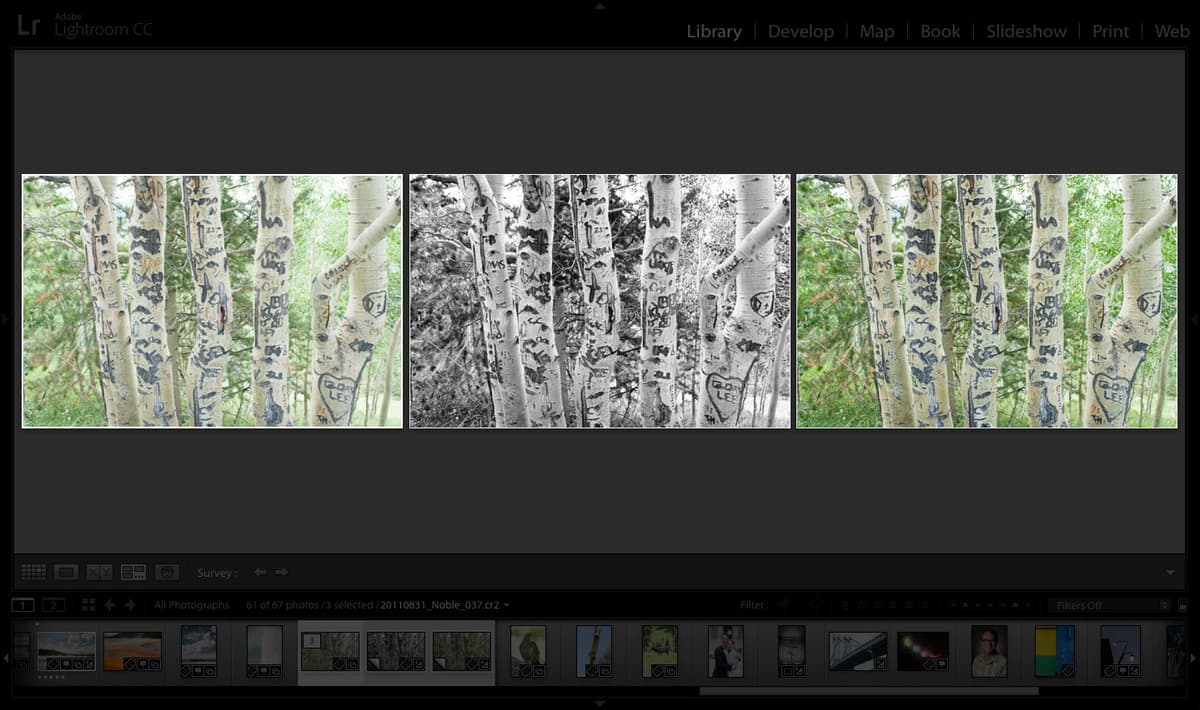
    We're about to create two Virtual Copies of this photo—one for a dramatic black and white conversion, and another for enhanced color treatment. This approach mirrors how professionals often deliver multiple creative interpretations from a single capture.

  5. Verify that the Filmstrip panel is visible at the bottom of your screen. If it's hidden, navigate to Window > Panels > Show Filmstrip to restore this essential workflow tool.

  6. In the Filmstrip panel, CTRL–click (Mac) or Right–click (Windows) the photo of the trees (20110831_YourName_037), and select Create Virtual Copy. This creates an identical duplicate that exists only as editing instructions—no additional file storage required.

  7. Repeat the previous step to create a second Virtual Copy, giving you three total versions to work with: the original master file plus two creative variations.

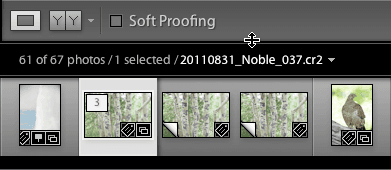
  8. In the Filmstrip panel, observe how Virtual Copies are distinguished by an upturned page symbol virtual photo at the lower left corner—your visual cue for tracking creative iterations.

    NOTE: If these icons aren't visible, expand the Filmstrip panel using the method shown below to reveal all essential visual indicators:

    resize the toolbar

Virtual Copy Creation Steps

0/4
Visual Identification

Virtual copies display an upturned page symbol at the lower left corner in the Filmstrip panel. Resize the toolbar if these icons aren't visible.

Editing Virtual Copies

Now we'll transform each Virtual Copy into a distinct creative interpretation, demonstrating techniques that professional photographers use to maximize the potential of every capture.

  1. In the Filmstrip panel, select the first virtual copy of the trees (2 of 3). Notice how Lightroom clearly indicates which version you're editing.

  2. In the HSL / Color / B & W panel on the right (scroll down if necessary), click B & W to convert the image to black and white. This isn't just desaturation—Lightroom's B&W conversion maintains full tonal control over individual color channels.

  3. Navigate to the Tone Curve panel (scroll up if needed) and apply these targeted adjustments to enhance tonal drama:

    Highlights: Increase to + 62
    Shadows: Decrease to – 66
  4. Return to the HSL / Color / B & W panel and decrease Green to – 47. This darkens the foliage areas, creating more dramatic separation between elements.

  5. Click the Targeted Adjustment tool target adjustment tool at the top-left corner of the HSL / Color / B & W panel. This precision tool lets you adjust tones by clicking directly on image areas.

  6. With the tool active, hover over the tree limbs in the upper-right corner. Watch how Yellow becomes highlighted in the panel—Lightroom is showing you which color channel controls those tones.

  7. In the HSL / Color / B & W panel, increase Yellow to + 16 to brighten the tree branches and create more visual impact in your black and white conversion.

  8. Click the Targeted Adjustment tool target adjustment tool again to deselect it and return to normal adjustment mode.

  9. In the Basic panel (scroll up if necessary), apply these final refinements to perfect your black and white interpretation:

    Exposure: Decrease to – 0.30
    Contrast: Increase to + 14

    Excellent! You now have your original capture, a dramatic black and white version, and one untouched Virtual Copy ready for color enhancement. This workflow exemplifies how professionals efficiently create multiple deliverables from single captures.

  10. In the Filmstrip panel, select the second virtual copy of the trees (3 of 3) to begin crafting an enhanced color interpretation.

  11. In the Basic panel, apply these carefully balanced adjustments to enhance the natural color palette without overdoing the processing:

    Exposure: Reduce slightly to – 0.10
    Contrast: Increase to + 11
    Highlights: Decrease to – 27
    Clarity: Increase to + 24
    Vibrance: Increase to + 17
  12. Navigate to the HSL / Color / B & W panel and click on Luminance if it's not already active. This tab controls the brightness of individual color ranges.

  13. Reduce Green to – 55 to subtly darken the background foliage, creating better subject separation and a more professional, polished look.

Black and White vs Color Treatment

FeatureBlack and White CopyColor Copy
Conversion MethodHSL/Color/B&W panelBasic panel adjustments
Tone Curve AdjustmentsHighlights +62, Shadows -66Not applied
Color Channel EditsGreen -47, Yellow +16Green luminance -55
Basic Panel SettingsExposure -0.30, Contrast +14Exposure -0.10, Contrast +11
Recommended: Use black and white for dramatic contrast, color for natural enhancement

Color Copy Adjustment Values

Basic Tone Adjustments

Exposure reduced to -0.10 for subtle darkening. Contrast increased to +11 for improved definition and visual impact.

Highlight and Clarity

Highlights decreased to -27 to recover detail. Clarity boosted to +24 for enhanced midtone contrast and sharpness.

Color Enhancement

Vibrance increased to +17 for natural saturation boost. Green luminance reduced to -55 to darken background elements.

Reviewing Virtual Copies

With three distinct interpretations complete, it's time to evaluate them side-by-side using Lightroom's comparison tools—a critical step in professional workflows for making final creative decisions.

  1. Press G to enter Grid view, where you can see all three versions of your trees photo displayed together for easy comparison.

  2. Cmd–click (Mac) or CTRL–click (Windows) on each tree photo to select all three versions simultaneously.

  3. Press N to switch to Survey View—Lightroom's specialized comparison mode that displays all selected images at optimal sizes for critical evaluation.

  4. Press Tab to hide all interface panels, maximizing screen real estate for your images.

  5. Press L twice to activate "lights out" mode, eliminating visual distractions and allowing you to focus entirely on your creative choices.

    This distraction-free environment is essential for making objective creative decisions. Many professionals use this exact workflow when presenting options to clients or making final selects.

  6. Press L once to restore normal lighting and return to standard viewing conditions.

  7. Press Tab to restore all panels and return to full interface functionality.

  8. Press G to return to Grid view for final organization tasks.

  9. For optimal organization, we'll stack these related images together. Work from either the Filmstrip or Grid view—whichever feels most comfortable for your workflow.

  10. Click the stack number to the left of the original thumbnail (displays as 3 normally, or 1 of 3 on hover) to group all three versions into a tidy stack. This professional organization technique keeps related images together while reducing visual clutter. To unstack later, simply click the number again.

Side-by-Side Comparison Workflow

1

Enter Grid View

Press G to see all three photo versions in thumbnail grid layout for initial overview

2

Select All Versions

Cmd-click or Ctrl-click each tree photo thumbnail to select all three virtual copies simultaneously

3

Activate Survey View

Press N to switch to Survey View for detailed side-by-side comparison of selected images

4

Optimize Display

Press Tab to hide panels and L twice to darken interface for distraction-free comparison

Photo Stacking for Organization

Click the number to the left of the original thumbnail to stack all three versions together. This keeps related virtual copies organized while reducing visual clutter in your catalog.

Virtual Copy Workflow Stages

Creation
1
Black & White Edit
2
Color Edit
3
Comparison Review
4

Key Takeaways

1Virtual copies enable non-destructive editing experimentation without consuming additional storage space or affecting original image files
2Create virtual copies by right-clicking photos in the Filmstrip panel and selecting the Create Virtual Copy option from the context menu
3Virtual copies are identified by an upturned page symbol in the lower left corner of thumbnails in the Filmstrip panel
4Different editing treatments can be applied to separate virtual copies, including black and white conversion and color correction workflows
5The Targeted Adjustment tool helps identify which color channels affect specific areas of your image for precise editing control
6Survey View provides optimal side-by-side comparison of multiple virtual copies by pressing N after selecting all versions
7Photo stacking keeps virtual copies organized by clicking the number beside the original thumbnail to group related versions together
8Professional comparison workflow involves hiding panels with Tab and adjusting lighting with L key for distraction-free evaluation

RELATED ARTICLES