April 1, 2026Dan Rodney/7 min read

Working with Smart Previews

Master Smart Previews for Efficient Photo Editing

What Are Smart Previews?

Smart Previews are compressed RAW files that allow you to edit photos without access to the original files. Perfect for travel editing when your main photo storage isn't available.

Topics Covered in This Lightroom Tutorial:

Simulating Ejecting an External Drive, the Advantage of Smart Previews

Exercise Preview

lightroom preview4J

Exercise Overview

Smart Previews represent one of Lightroom's most powerful yet underutilized features. These lightweight RAW files enable you to maintain full editing capabilities even when your original image files are stored elsewhere. In today's mobile workflow environment, this functionality has become indispensable for professional photographers and serious enthusiasts.

Consider this scenario: you've catalogued thousands of images on an external drive connected to your desktop workstation. You need to travel for client meetings or field work, bringing only your laptop. Traditionally, this would mean either copying gigabytes of RAW files or losing the ability to edit entirely. Smart Previews eliminate this compromise—you can edit freely during travel, and when you reconnect your external drive, all adjustments automatically sync to the original files through Lightroom's non-destructive workflow.

This exercise demonstrates the complete Smart Preview workflow, from creation through real-world application, giving you the confidence to implement this technique in your own professional practice.

Smart Preview Use Cases

Travel Editing

Store originals on external drive at home while editing compressed versions on your laptop during trips. Changes sync automatically when you return.

Storage Management

Keep original RAW files on external storage while maintaining editing capability through lightweight Smart Previews on your main drive.

Workflow Efficiency

Continue editing projects even when original files are temporarily unavailable. All adjustments apply non-destructively when files are restored.

Adding Smart Previews While Importing Photos

The most efficient time to generate Smart Previews is during import. This approach ensures consistency and eliminates the need for batch processing later.

  1. Navigate to the Library module if you're not already there.

  2. Click Import at the bottom of the left panel to launch the Import dialog.

  3. Under Source, navigate to Desktop > Class Files > Lightroom Class and select the European Trip folder.

  4. Ensure Add is selected (highlighted) at the top, above the photo thumbnails. This mode adds photos to your catalog without moving or copying the original files.

  5. In the File Handling panel on the right side of the Import dialog, verify that Build Smart Previews is checked. This option generates the lightweight editing files we'll use in our offline scenario.

  6. Click in the field below Keywords and type Europe to add organizational metadata that will help with future searches and collections.

  7. Click the Import button in the bottom right corner.

    The progress indicator in the top-left corner will show Lightroom performing two simultaneous operations: importing photos and building Smart Previews. The Smart Preview generation creates DNG-based files that are roughly 5-10% the size of your original RAW files while maintaining full editing capability.

  8. Wait for both processes to complete—this may take several minutes depending on the number and size of your images. A confirmation dialog will appear when Smart Previews are finished building. Click OK to dismiss it.

  9. Verify you're viewing the newly imported photos in the Library module's Grid view.

  10. Select any photograph and expand the Histogram panel on the right. Below the histogram graph, you'll see Original + Smart Preview, confirming that both the original file and its Smart Preview are available.

  11. Expand the Catalog panel on the left if it's collapsed.

  12. Click All Photographs to view your complete catalog.

  13. Select any photograph that was NOT part of the European Trip import—perhaps from a previous exercise or existing catalog entry.

  14. Check the Histogram panel again. You'll notice it displays only Original Photo, indicating no Smart Preview exists for this image. This histogram label serves as a quick visual indicator for Smart Preview status across your catalog.

Import Process with Smart Previews

1

Access Import Dialog

Navigate to Library module and click Import button at bottom of left panel

2

Select Source and Add Mode

Choose European Trip folder from Desktop > Class Files > Lightroom Class and ensure Add is selected

3

Enable Smart Previews

Check Build Smart Previews option in File Handling panel on the right side

4

Complete Import

Add keywords and click Import button. Lightroom will import photos and build Smart Previews simultaneously

Identifying Smart Preview Status

Check the Histogram panel beneath the graph. It will show 'Original + Smart Preview' for photos with Smart Previews or 'Original Photo' for those without.

Simulating Ejecting an External Drive

To demonstrate Smart Preview functionality, we'll simulate the common scenario where your external drive becomes unavailable. In a real-world situation, this would occur when you disconnect your external storage or when working remotely from your main workstation.

  1. Navigate to your Desktop and open Class Files > Lightroom Class.

  2. Hold Cmd (Mac) or Ctrl (Windows) and click to select both the European Trip folder and the Library folder.

  3. Drag both selected folders to the Trash (Mac) or Recycle Bin (Windows). This simulates the disconnection of an external drive containing these image files.

Photo Status After Simulated Drive Removal

FeatureLibrary Folder PhotosEuropean Trip Photos
Folder Icon StatusGrayed-outGrayed-out
Photo Alert TypePhoto is missingSmart Preview alert
Editing CapabilityNo editing possibleFull editing available
Recommended: Smart Previews maintain editing functionality even when original files are unavailable

The Advantage of Smart Previews

Now we'll explore how Smart Previews maintain workflow continuity even when original files are unavailable—a critical capability for professional photographers working in distributed environments.

  1. Return to Lightroom and observe the immediate visual feedback indicating file availability.

  2. Expand the Folders panel on the left if it's collapsed. Notice that both the European Trip and Library folders now display grayed-out folder icons, Lightroom's visual indicator for offline or missing file locations.

  3. Click on the Library folder to select it.

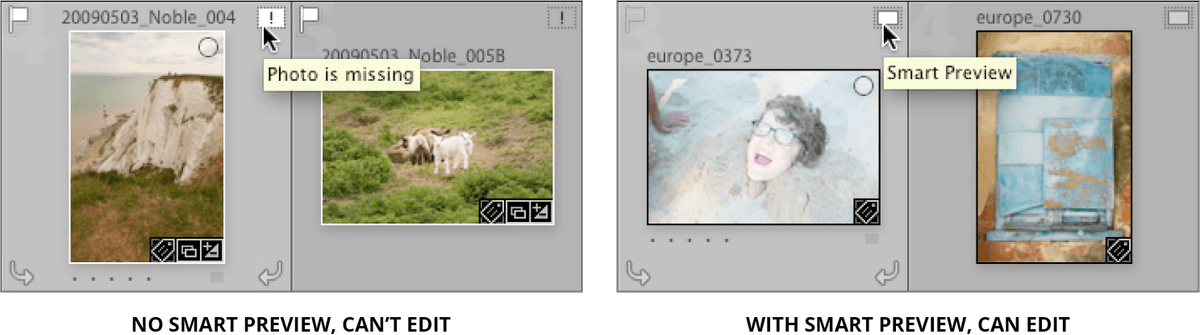
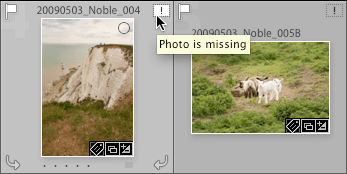
  4. Hover your cursor over the upper-right corner of any photo thumbnail in the grid view. An exclamation point icon appears with a Photo is missing alert, as shown below:

    smart previews photo is missing

  5. Select the European Trip folder from the Folders panel.

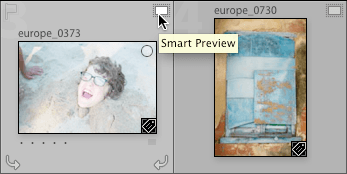
  6. Hover over the same thumbnail area for any European Trip photo. Instead of the missing file warning, you'll see a Smart Preview indicator as shown below:

    smart previews photo is missing not

  7. Now let's test the practical difference between these two states. Select the Library folder from the Folders panel.

  8. Click on a photo you've previously edited—if you've completed earlier exercises, select the sheep photograph.

  9. Press D to switch to the Develop module.

  10. Expand the Basic panel on the right. Notice that all adjustment sliders appear grayed-out and inactive. Without the original file or a Smart Preview, Lightroom cannot process any edits—you're limited to viewing the embedded JPEG preview only.

  11. Press G to return to the Library module's Grid view.

  12. Select the European Trip folder from the Folders panel.

  13. Choose the ship and ocean photograph (europe_0098).

  14. Press D to enter the Develop module.

  15. Expand the Basic panel. Excellent—all adjustment controls are fully functional! Smart Previews provide complete access to Lightroom's editing capabilities, even without the original RAW files.

  16. Expand the HSL / Color / B & W panel to demonstrate advanced editing capabilities.

  17. Click B & W to convert the image to monochrome, showcasing the sophisticated processing possible with Smart Previews.

  18. Expand the Effects panel to add finishing touches.

  19. Under Post-Crop Vignetting, drag the Amount slider to -30 (or adjust to taste). This darkening vignette draws attention toward the image center.

  20. Press G to return to Grid view and see your edited thumbnail.

Smart Previews vs Regular Import

Pros
Edit photos without access to original RAW files
Maintain full editing capabilities while traveling
Automatic synchronization when files are restored
Non-destructive edits preserved throughout process
Smaller file sizes reduce storage requirements
Cons
Additional processing time during import
Requires extra storage space for Smart Previews
Initial setup step must be remembered during import
Missing File Limitations

Photos without Smart Previews show grayed-out sliders in Develop module when original files are unavailable. No editing adjustments can be made until files are restored.

Restoring the Files & Seeing Automatic Changes

The true power of Smart Previews becomes evident when original files become available again. All edits made during the offline period automatically synchronize with the original RAW files, maintaining Lightroom's non-destructive editing philosophy.

  1. Navigate to your computer's Desktop.

  2. Arrange your screen to view both the Trash (Mac) or Recycle Bin (Windows) and the Class Files > Lightroom Class folder simultaneously. This side-by-side arrangement facilitates the file restoration process.

  3. In the Trash or Recycle Bin, hold Cmd (Mac) or Ctrl (Windows) and select both the European Trip and Library folders.

  4. Drag both folders back to the Class Files > Lightroom Class directory. This action simulates reconnecting an external drive to your system.

  5. Return to Lightroom—the catalog will automatically detect the restored file paths.

  6. Select All Photographs from the Catalog panel. Notice that all exclamation point warning icons have disappeared, confirming that Lightroom has successfully reconnected with the original files at their expected locations.

  7. Locate and select the ship and ocean (europe_0098) photograph.

  8. Press D to enter the Develop module.

  9. Expand the History panel on the left side if it's not already visible. You'll see a complete record of all modifications: Convert to Black & White and Vignette adjustments. These changes have been seamlessly applied to the original RAW file through Lightroom's non-destructive workflow.

    This automatic synchronization occurs without any user intervention—no manual syncing, no file management, no risk of losing work. In professional scenarios where you might edit hundreds or thousands of images while traveling, this seamless integration between Smart Previews and original files represents a significant workflow advantage. Smart Previews have evolved into an essential tool for modern photography workflows, particularly as hybrid remote and studio work becomes increasingly common in 2026.

Smart Preview Workflow Demonstration

Step 1

Import with Smart Previews

Photos imported with Smart Preview generation enabled

Step 2

Simulate Drive Removal

Original folders moved to Trash/Recycle Bin to simulate disconnected external drive

Step 3

Edit with Smart Previews

Applied black and white conversion and post-crop vignetting to ship photo

Step 4

Restore Original Files

Folders restored from Trash/Recycle Bin to original location

Step 5

Automatic Sync

All edits automatically applied to original files without additional work

Seamless Workflow Integration

Changes made to Smart Previews automatically sync to original files when restored. History panel shows all adjustments were applied non-destructively without any manual intervention required.

Key Takeaways

1Smart Previews are compressed RAW files that enable photo editing without access to original files, perfect for travel workflows
2Enable Smart Previews during import by checking the Build Smart Previews option in the File Handling panel
3Check Smart Preview status in the Histogram panel - it displays Original + Smart Preview for photos with Smart Previews enabled
4Photos without Smart Previews show grayed-out editing controls when original files are unavailable, preventing any adjustments
5Smart Previews maintain full editing capabilities even when original files are stored on disconnected external drives
6All edits made to Smart Previews automatically sync to original files when storage devices are reconnected
7The workflow is completely non-destructive - changes are preserved and applied seamlessly without manual intervention
8Smart Previews are ideal for photographers who store images on external drives but need editing flexibility while traveling

RELATED ARTICLES