April 1, 2026Dan Rodney/3 min read

Creating & Printing a Contact Sheet

Master Lightroom Contact Sheet Creation and Printing

Essential Lightroom Print Module Skills

Contact Sheet Creation

Learn to organize and display multiple photos in a professional grid layout for client presentations. Master template selection and photo organization.

Layout Customization

Discover how to modify grid dimensions, add photo information, and adjust spacing for optimal presentation. Control rows, columns, and metadata display.

Print Configuration

Configure printer settings and output options to ensure professional quality results. Handle different paper sizes and printer specifications.

Topics Covered in This Lightroom Tutorial:

Creating a Contact Sheet, Altering a Contact Sheet's Appearance, Printing a Contact Sheet

Pre-Tutorial Preparation

0/4

Exercise Preview

lightroom previewB1

Exercise Overview

In this exercise, you'll master the creation of professional contact sheets using Lightroom's Print module—a fundamental skill for any photographer working with clients. Contact sheets remain essential in professional photography workflows, serving as visual catalogs that allow clients to quickly review, select, and reference images for licensing, purchasing, or further editing. Whether you're delivering proofs to wedding clients or presenting options to commercial buyers, a well-crafted contact sheet demonstrates professionalism and streamlines the selection process.

Client Workflow Integration

Contact sheets serve as professional presentation tools that allow clients to review and select photos efficiently. This method has been a photography industry standard for decades, now digitally enhanced through Lightroom's Print module.

Workflow Overview

1

Collection Selection

Navigate to your organized photo collections and select the appropriate folder containing client photos

2

Template Application

Choose from Lightroom's built-in contact sheet templates or create custom layouts based on your needs

3

Layout Customization

Adjust grid dimensions, photo information display, and spacing to match professional standards

4

Print Execution

Configure printer settings and execute the print job with appropriate quality settings

Creating a Contact Sheet

The foundation of any effective contact sheet lies in proper preparation and organization. Let's build one from your existing collection using Lightroom's robust Print module capabilities.

  1. Navigate to the Library module to access your photo collections and prepare your image set.

  2. Expand the Collections panel if it isn't already visible—this is where your organized photo sets live.

  3. From the Collections panel, click on USA > Wyoming to select your target collection.

  4. Unreject all photos that have been flagged as rejected by clicking on the black flag on each rejected photo's thumbnail. For contact sheet purposes, you'll often want to show clients a broader selection than your personally curated favorites.

  5. Click the Print tab at the top to enter the Print module, where Lightroom's sophisticated layout engine awaits.

    This specialized workspace offers professionally designed templates optimized for common print sizes and formats, saving you significant time in layout creation while ensuring consistent, polished results.

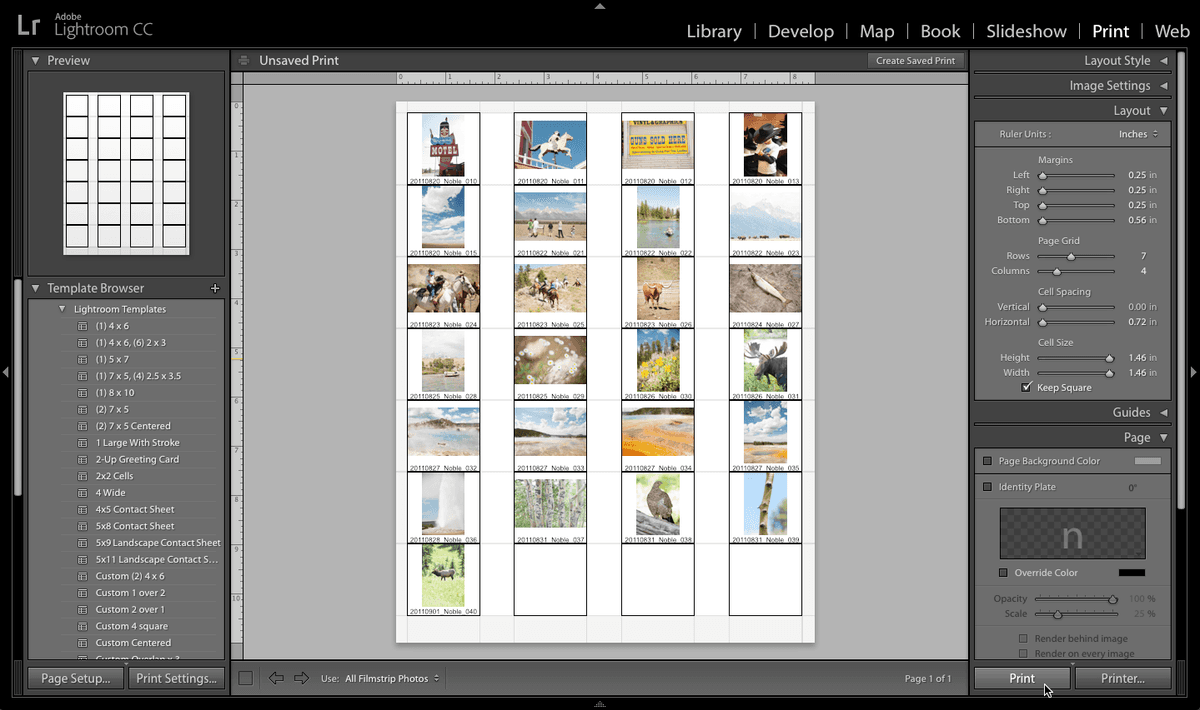
  6. In the Template Browser panel on the left, expand Lightroom Templates and select 5x8 Contact Sheet as your starting foundation.

  7. At the bottom of the screen, locate the Use dropdown menu and select All Filmstrip Photos. This ensures your contact sheet includes every image in the current collection, providing clients with comprehensive coverage.

Photo Rejection Management

Always unreject photos before creating contact sheets for clients. This ensures they can see all available options and make informed purchasing decisions based on the complete collection.

Template Selection Comparison

Feature5x8 Contact SheetCustom Layout
Setup TimeImmediate5-10 minutes
FlexibilityLimitedComplete control
Professional AppearanceStandardizedBranded
Client FamiliarityHighVariable
Recommended: Start with 5x8 Contact Sheet template for consistent professional results, then customize as needed for specific client requirements.

Changing a Contact Sheet's Layout

Now that your basic contact sheet is established, let's refine its appearance and functionality to meet professional standards and client expectations.

  1. In the Page panel on the right (scroll down if necessary), ensure Photo Info is checked and set to Filename.

    Including filenames is crucial for professional workflows—clients frequently reference specific images by filename when placing orders, requesting edits, or providing feedback. This simple addition eliminates confusion and streamlines communication.

  2. Within the Layout panel on the right, locate the Page Grid section and configure the following dimensions:

    Rows: 7
    Columns: 4

    This 7×4 grid strikes an optimal balance—images are large enough for clients to evaluate composition and quality while maintaining efficient use of paper real estate. The result is 28 images per sheet, an ideal quantity for most client review sessions.

  3. When you're ready to produce your contact sheet, navigate to the bottom right and choose your printing approach:

    • Click Print for immediate output using your current printer settings.
    • Select Printer if you need to adjust paper type, print quality, or color management settings—critical considerations for accurate color representation in client presentations.
  4. Once printed, examine your finished contact sheet with a critical eye. Notice how the systematic layout, clear filenames, and generous image sizing create a professional presentation tool that instills client confidence while facilitating efficient decision-making.

Optimal Grid Configuration

Standard Layout
20
Tutorial Configuration
28
Maximum Density
35

7x4 Grid Configuration Analysis

Pros
Larger individual photo size for better detail visibility
Easier client review and selection process
Professional spacing maintains clean appearance
Filename display enables precise photo identification
Cons
Fewer photos per page may require multiple sheets
Increased paper and printing costs for large collections
More pages to manage during client presentations
Professional Best Practice

Including filenames on contact sheets is essential for professional photography workflows. Clients can easily reference specific images when making selections, reducing communication errors and streamlining the ordering process.

Key Takeaways

1Lightroom's Print module provides professional contact sheet templates that streamline client presentation workflows
2The 5x8 Contact Sheet template offers an excellent starting point for most professional photography applications
3Always unreject photos before creating contact sheets to give clients complete visibility of available options
4Including filename information on contact sheets enables precise photo identification and reduces ordering errors
5Adjusting grid layout to 7 rows by 4 columns creates larger photo previews while maintaining professional appearance
6The Template Browser provides multiple pre-configured options that save time and ensure consistent formatting
7Using 'All Filmstrip Photos' setting ensures complete collection inclusion in the contact sheet output
8Proper printer configuration and testing before final output prevents waste and ensures professional quality results

RELATED ARTICLES