April 1, 2026Dan Rodney/4 min read

Working with Quick Develop

Master Lightroom Quick Develop for Efficient Photo Editing

Quick Develop Panel Benefits

Speed

Make rapid adjustments without switching to Develop module. Perfect for batch processing workflows.

Consistency

Apply identical edits across multiple photos quickly. Maintain uniform look across photo series.

Efficiency

Preview and edit simultaneously in Library module. Streamline your photo editing process.

Topics Covered in This Lightroom Tutorial:

Mastering Quick Edits in the Quick Develop Panel and Efficiently Applying Edits Across Multiple Photos

Exercise Preview

lightroom preview2D

Prerequisites for This Exercise

0/3

Exercise Overview

In this comprehensive exercise, you'll master one of Lightroom's most efficient workflows: making precise quick edits using the Library module's Quick Develop panel and seamlessly applying those adjustments across an entire collection of photographs. This technique is essential for professional photographers who need to maintain consistency across image series while maximizing their editing efficiency. The Quick Develop panel offers the perfect balance between speed and control, making it an indispensable tool for batch processing and initial image corrections.

Exercise Workflow Overview

1

Select Target Image

Choose the fourth lighthouse image as your primary editing subject in Loupe View

2

Apply Quick Edits

Use Quick Develop panel to adjust white balance, exposure, and shadows

3

Sync Settings

Apply your edits to remaining lighthouse photos using Sync Settings function

Making Quick Edits in the Quick Develop Panel

  1. Ensure you're working in the Library module, which serves as your command center for image organization and quick adjustments.

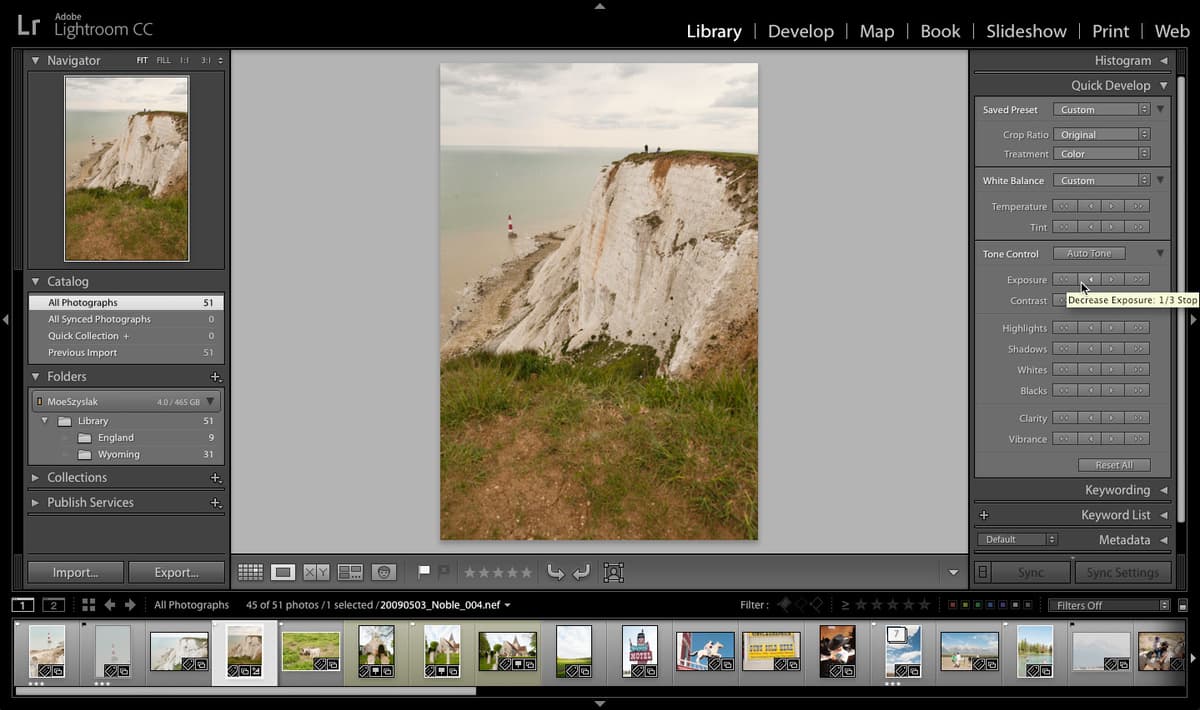
  2. Double–click the fourth lighthouse image (20090503_YourName_004) featuring the second cliff composition to view it in Loupe View, giving you a detailed preview of your editing canvas.

  3. Navigate to the Quick Develop panel in the right sidebar—you may need to scroll up to locate it. This panel is strategically positioned for rapid access during your workflow. Expand the panel if it's currently collapsed to reveal all available adjustment options.

  4. Before diving into edits, familiarize yourself with the Quick Develop panel's intuitive control system, which uses a standardized approach across all adjustment categories:

    • The single arrow buttons provide precise control, adjusting settings by 1/3 of a stop—ideal for subtle refinements.
    • The double arrow buttons deliver more dramatic changes, adjusting by a full stop for significant corrections.
    • Clicking directly on any attribute name (such as Exposure) instantly resets that parameter to its default value—a quick way to start over with specific adjustments.
  5. Click the expansion arrow to the right of the White Balance menu to reveal the temperature and tint adjustment controls, essential for color correction work.

  6. Located next to Temperature, click the double right arrow button video quick develop right arrow 2x once to add warmth to the image. This adjustment counteracts the cool, bluish cast often present in outdoor photography, particularly during overcast conditions.

  7. Click the expansion arrow beside the Auto Tone button to access the full range of exposure and contrast adjustments, giving you granular control over your image's tonal balance.

  8. The image appears overexposed and needs darkening. Next to Exposure, make the following adjustments to achieve optimal brightness:

    • Click the single left arrow button video quick develop left arrow once. Notice the immediate improvement in highlight detail.
    • Click the single left arrow button video quick develop left arrow a second time. The image may now appear slightly underexposed, but we'll address this in the next step.
  9. Next to Shadows, click the double right arrow button video quick develop right arrow 2x once to lift the shadow details. This technique preserves highlight information while recovering detail in the darker areas—a hallmark of professional landscape processing.

  10. Excellent work! Press the G key to return to Grid View and assess your adjustments in context with the other images in your collection.

Now that you've perfected the adjustments on your hero image, it's time to leverage Lightroom's powerful synchronization capabilities to maintain consistency across your entire photo series.

Quick Develop Arrow Functions

FeatureSingle ArrowDouble Arrow
Adjustment Amount1/3 stopFull stop
Precision LevelFine adjustmentsMajor corrections
Best Use CaseSubtle tweaksSignificant changes
Recommended: Use single arrows for precise control, double arrows for dramatic adjustments
Quick Reset Function

Click directly on any attribute name (like 'Exposure' or 'Shadows') to instantly reset that setting to zero. This provides a fast way to undo adjustments without affecting other edits.

Image Adjustment Sequence

1

Increase Temperature

Click double right arrow next to Temperature to add warmth to the lighthouse image

2

Reduce Exposure

Click single left arrow twice next to Exposure to darken the overly bright photo

3

Lift Shadows

Click double right arrow next to Shadows to recover detail in darker areas

Applying Edits to Multiple Photos

  1. Verify that the fourth lighthouse image (20090503_YourName_004) remains selected as your primary reference photo. This image will serve as the source for all synchronization settings, making selection order crucial for successful batch processing.

  2. While holding Cmd (Mac) or CTRL (Windows), click each of the remaining lighthouse photographs to add them to your selection:

    • 20090503_YourName_001B (or 20090503_YourName_001 if you're continuing from a previous session)
    • 20090503_YourName_002
    • 20090503_YourName_003

    Your selection should now include all four lighthouse images, with the edited photo serving as the active source.

  3. Locate and click the Sync Settings button at the bottom right of your screen. This powerful feature is the cornerstone of efficient batch processing in professional workflows.

  4. In the Sync Settings dialog window, exercise precise control over which adjustments transfer to your selected images:

    • Click Check None to start with a clean slate, ensuring only your intended adjustments are applied.
    • Check White Balance to transfer your temperature correction across all images.
    • Under the Basic Tone section, select both Exposure and Shadows to apply your carefully crafted tonal adjustments.

    This selective approach prevents unwanted adjustments from affecting images that may have different requirements.

  5. Click the Synchronize button to execute the batch processing operation.

  6. Watch as Lightroom intelligently applies your refined adjustments across the entire lighthouse series, creating visual cohesion while maintaining each image's unique characteristics. This synchronized approach ensures professional consistency—a critical factor in portfolio presentation and client deliverables.

    Congratulations! You've successfully completed this essential workflow exercise. In the upcoming tutorial, you'll expand your technical skills by importing fresh images and mastering advanced techniques for controlling image dimensions and orientation—fundamental skills for professional image preparation and output.

Selection Order Matters

Always ensure your edited photo is selected first before adding other images to the selection. The first selected image serves as the source for all sync operations.

Multi-Photo Sync Process

1

Confirm Source Selection

Verify the edited lighthouse image (20090503_YourName_004) remains selected as your primary photo

2

Add Target Photos

Cmd-click (Mac) or Ctrl-click (Windows) to select remaining lighthouse images for batch processing

3

Configure Sync Settings

Click Sync Settings button, then Check None, and select only White Balance, Exposure, and Shadows

Selective Synchronization

Using 'Check None' before selecting specific settings prevents unwanted adjustments from being applied. This selective approach maintains precise control over your batch edits.

Target Images for Synchronization

0/3

Key Takeaways

1Quick Develop panel allows efficient photo editing without leaving Library module
2Single arrow buttons adjust settings by 1/3 stop while double arrows adjust by full stops
3Clicking attribute names directly resets those specific settings to default values
4Temperature adjustments control image warmth using right arrows for warmer tones
5Exposure and shadow adjustments can recover details in overly bright or dark images
6Sync Settings function applies edits from one photo to multiple selected images simultaneously
7Selective synchronization using 'Check None' provides precise control over batch adjustments
8Proper selection order ensures the edited photo serves as the source for all synchronization operations

RELATED ARTICLES