April 1, 2026Dan Rodney/5 min read

Using the Graduated Filter Tool

Master Lightroom's Graduated Filter for Professional Photo Editing

Core Skills You'll Master

Graduated Filter Application

Learn to apply selective exposure adjustments with smooth transitions. Master the fundamental technique for enhancing skies and horizons.

Filter Adjustment Techniques

Discover how to modify filter scope and feathering. Control the intensity and coverage of your graduated effects.

Non-Destructive Editing

Practice deleting and re-applying filters without damaging your original image. Build confidence in experimental editing.

Topics Covered in This Lightroom Tutorial:

The Graduated Filter Tool, Adjusting the Size & Scope of the Graduated Filter, Deleting Filter Masks

Exercise Preview

lightroom preview4B

Exercise Focus

This tutorial uses a sky and horizon photograph to demonstrate graduated filter techniques. You'll learn to darken overexposed skies while maintaining natural-looking transitions.

Exercise Overview

In this exercise, you'll master one of Lightroom's most powerful tools for landscape photography: the Graduated Filter. This versatile tool allows you to apply selective adjustments that gradually fade across your image—perfect for balancing challenging exposures like bright skies against darker foregrounds. We'll demonstrate by creating a professional feathered darkening effect on an overexposed sky, a technique that mimics traditional graduated neutral density filters used by landscape photographers for decades.

Tutorial Workflow Overview

1

Setup and Import

Import the practice images and navigate to the Develop module to begin working with the graduated filter tool.

2

Apply Initial Filter

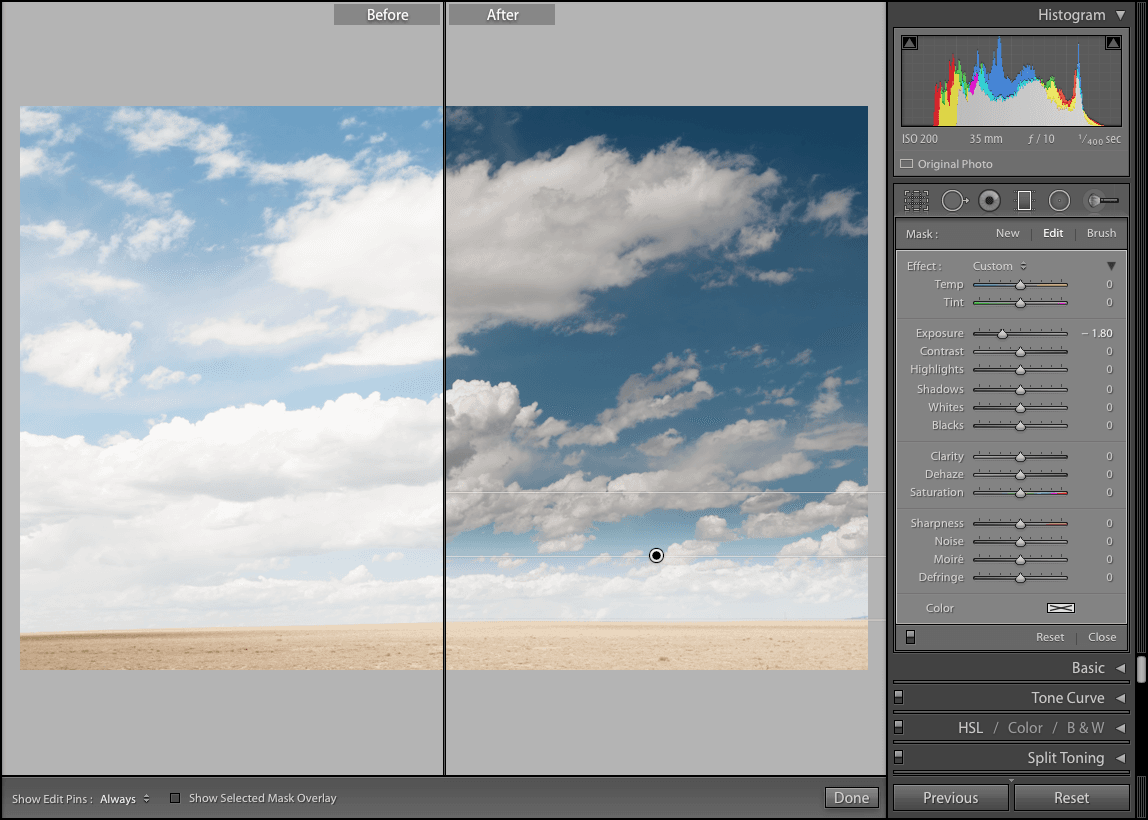
Use the Graduated Filter tool to create a darkening effect on the sky using exposure adjustment at -1.80 stops.

3

Evaluate and Refine

Review the results using Before & After view, then adjust the filter scope and feathering for optimal results.

The Graduated Filter Tool

  1. If you have not imported the photos that were imported in Exercise 2E:
    • Navigate to the Library module.
    • At the bottom left of the screen, click Import.
    • In the dialog box that appears, on the left under Source, navigate to Desktop > Class Files > Lightroom Class and select the Develop folder.
    • At the top, above the photos, ensure Add is selected (highlighted).
    • On the bottom right, click Import.
  2. In the Library module, select the sky & horizon photo (20110820_ben_199). This image is ideal for demonstrating graduated filter techniques because of the stark contrast between the bright sky and darker landscape elements.

  3. Press D to enter the Develop module, where all the magic happens.

  4. On the right side under the Histogram panel, click the Graduated Filter tool graduated filter. This activates the tool and reveals its adjustment panel.

  5. In the panel that appears, from the Effect menu, select Exposure. While you can adjust multiple parameters simultaneously, starting with exposure gives you the most dramatic and visible results for sky adjustments.

  6. Below that, drag the Exposure slider to the left, to approximately − 1.80. This significant reduction will darken the overexposed areas of the sky while maintaining detail in the highlights.

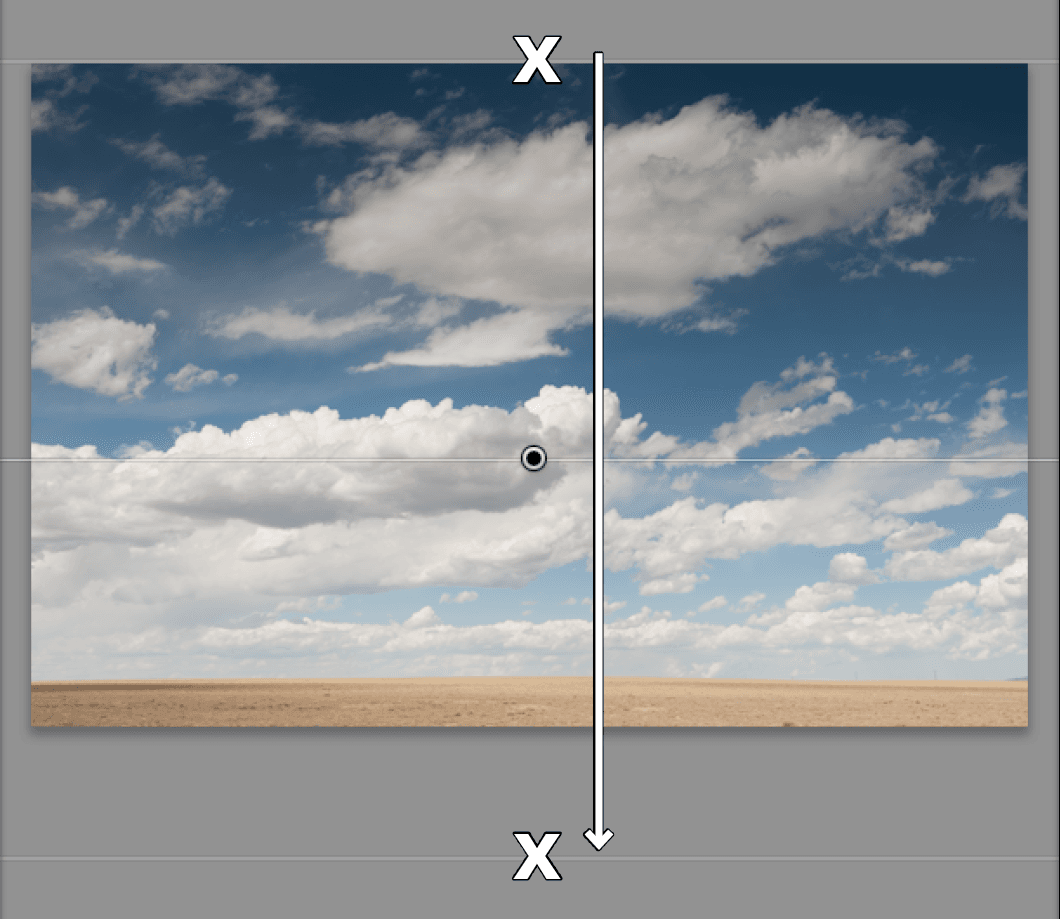
  7. Hold Shift (this ensures a perfectly straight application), then click and drag from the topmost center point of the photo to a little past the bottom of the photo, creating a straight vertical line as shown below:

    screenshot gradfilter 1

  8. Click the Graduated Filter tool graduated filter again to deselect it and see your results clearly.

  9. Now let's evaluate our initial work using Lightroom's comparison tools:
    • At the bottom of the screen, click the Before & After icon before after yy button to see the dramatic difference.
    • Press Tab to hide the panels for an unobstructed view.
    • Press L twice to cycle through the lighting modes for optimal viewing.
  10. The effect is dramatic, but likely too strong for professional work. Press L again to return to normal lighting mode.

  11. Press Tab to restore the panels.

  12. At the bottom of the screen, click the Loupe View icon loupe view, or press D to return to single image view.
The initial application demonstrates the tool's power, but professional results require precise control over the filter's placement and intensity. Let's refine our technique.

Pre-Exercise Setup Checklist

0/4
Professional Technique

Hold Shift while dragging to maintain perfectly straight graduated filter lines. This ensures even transitions and professional-looking results.

Deleting a Graduated Filter

Before we create a more refined effect, let's remove the current filter and start fresh. This workflow—applying, evaluating, and refining—is essential for developing a professional eye.

  1. Click the Graduated Filter tool graduated filter to reactivate it.

  2. Click on the circle gray circle that appears in the middle of the photo. This circle represents the center point of your graduated filter effect.

  3. Notice that a black dot black dot circle appears inside to indicate the filter is selected and ready for editing or deletion.

  4. Press Delete on your keyboard to remove the filter completely.

Filter Deletion Process

1

Activate Tool

Click the Graduated Filter tool to make existing filters visible as circular markers on your image.

2

Select Filter

Click on the circle marker to select the filter. A black dot inside indicates successful selection.

3

Delete Filter

Press Delete key to remove the selected graduated filter completely from your image.

Adjusting a Graduated Filter

Now we'll create a more sophisticated graduated filter effect. Professional landscape photographers typically apply graduated filters more selectively, affecting primarily the sky while preserving the natural exposure of the foreground elements.

  1. Hold Shift, then click and drag from the topmost center point of the photo to about two thirds of the way down the photo (stopping just before the ground). This more targeted approach creates a natural-looking sky adjustment without over-darkening the landscape.

  2. Drag the bottom of the filter slightly to experiment with the feathering effect. Notice how this changes the transition zone between affected and unaffected areas.

  3. Observe that the center of the effect moved during this adjustment. For precise control, we want the center to remain stationary while we adjust only the feathering.

  4. Press Cmd–Z (Mac) or CTRL–Z (Windows) to undo the previous adjustment.

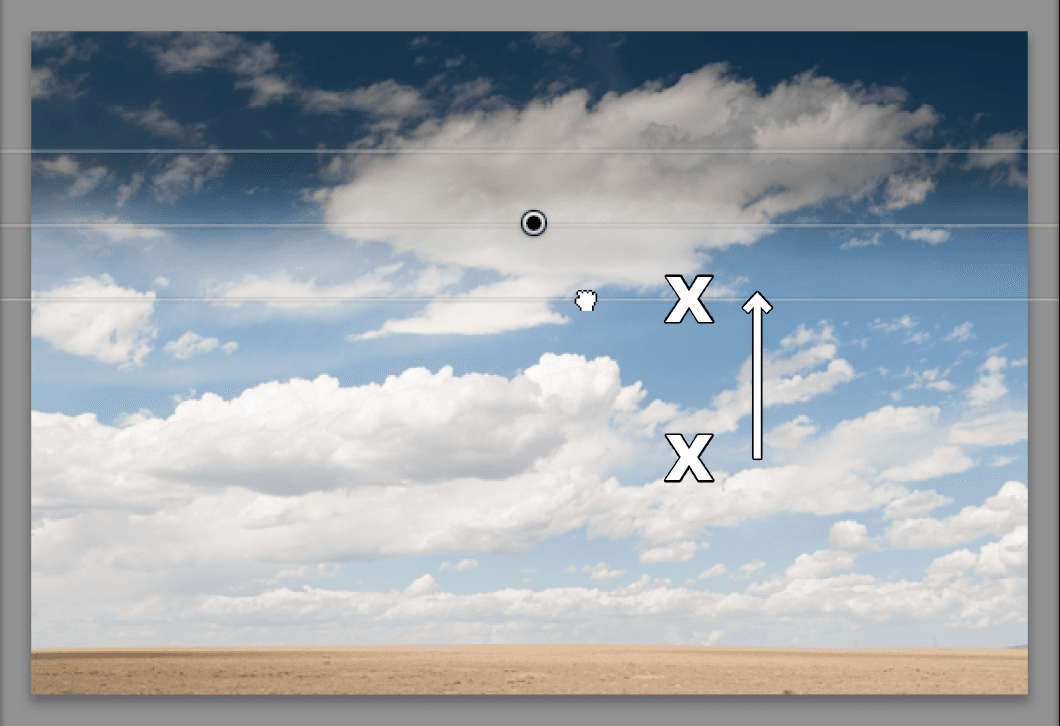
  5. Hold Opt (Mac) or ALT (Windows) and drag the bottom part of the filter up as shown below:
    screenshot gradfilter 2

    This modifier key technique keeps the center point fixed while allowing you to adjust the feathering distance—essential for creating natural-looking gradients.

  6. Drag the bottom of the filter down again to extend the effect closer to the horizon. This repositions the center point lower and increases the overall scope of the filter, affecting more of the sky.

  7. Hold Opt (Mac) or ALT (Windows) and drag the bottom part of the filter up once more to fine-tune the feathering. This back-and-forth process is normal in professional retouching work.

  8. Continue refining these adjustments until the graduated filter's center point and feathering create a natural, believable effect. The goal is an enhancement that looks intentional but not obviously processed. For reference, examine the screenshot below:

    final graduated filter

  9. Click the Graduated Filter tool graduated filter again to deselect it and view your final result.

  10. At the bottom of the screen, click the Before & After icon before after yy button to compare your refined work with the original image.

    The difference is striking yet natural—exactly what separates professional image processing from amateur over-editing. You've successfully balanced the exposure while maintaining the scene's authentic character.

Filter Adjustment Methods

FeatureStandard DragOption/Alt + Drag
Center PointMoves with adjustmentStays fixed
Filter ScopeChanges overall coverageAdjusts feathering only
Best UseRepositioning entire effectFine-tuning transitions
Recommended: Use Option/Alt + drag for precise feathering control without moving the filter's center point.
Avoid Over-Processing

The initial -1.80 exposure setting may appear too strong. Adjusting filter scope and feathering often provides better results than extreme slider values.

Graduated Filter Advantages and Limitations

Pros
Non-destructive editing allows unlimited adjustments
Natural-looking transitions between adjusted and original areas
Precise control over filter scope and feathering intensity
Multiple filters can be applied to single image
Cons
Limited to straight-line gradients only
Complex horizon lines may require masking tools instead
Visible artifacts possible with extreme adjustment values
Requires practice to achieve professional-looking results

Key Takeaways

1The Graduated Filter tool applies selective adjustments with smooth transitions, ideal for balancing exposure between sky and foreground elements
2Holding Shift while dragging ensures perfectly straight filter application, maintaining professional standards in your edits
3Filters can be easily deleted and reapplied, encouraging experimentation without fear of damaging the original image
4Standard dragging moves the entire filter, while Option/Alt + dragging adjusts only the feathering while keeping the center point fixed
5The Before & After view is essential for evaluating filter effectiveness and avoiding over-processing
6Starting with moderate settings like -1.80 exposure and refining through scope adjustment often yields better results than extreme slider values
7Filter scope adjustment changes the overall coverage area, while feathering adjustment controls the transition softness
8Multiple rounds of adjustment and evaluation are normal in professional workflow - the tutorial demonstrates undoing and re-applying techniques

RELATED ARTICLES