April 1, 2026Dan Rodney/4 min read

Adjusting Contrast Using the Tone Curve

Master Lightroom Tone Curve for Professional Photo Editing

Lightroom Tone Curve Fundamentals

Selective Contrast Control

The Tone Curve panel allows precise adjustment of contrast in specific tonal ranges without affecting the entire image. This targeted approach gives you professional-level control over your photo's mood and impact.

Interactive Adjustment Tools

Lightroom's Adjust Tone Curve tool lets you click directly on your image and drag to modify specific areas. This intuitive method makes complex tonal adjustments accessible to photographers at any skill level.

Topics Covered in This Lightroom Tutorial:

Master precision tonal adjustments through targeted contrast and lighting controls: Highlights, Lights, Darks, and Shadows, plus advanced manual editing techniques using the Tone Curve panel

Tonal Range Distribution

Highlights
25
Lights
25
Darks
25
Shadows
25

Exercise Preview

lightroom preview3C

Exercise Requirements

This tutorial uses specific practice files from the Lightroom Class materials. Ensure you have the White House photo (_CAS1968) imported before beginning the hands-on exercises.

Exercise Overview

Professional photo editing demands precise control over tonal balance and contrast. In this hands-on exercise, you'll master the powerful Tone Curve panel in Lightroom's Develop module—a critical tool that separates amateur adjustments from professional-grade image enhancement. You'll learn both targeted adjustment techniques and manual curve manipulation to achieve the exact mood and contrast your images require.

Tone Curve Panel Access

1

Navigate to Develop Module

Press D to switch from Library to Develop module where all tone adjustments are made

2

Locate Tone Curve Panel

Expand the T1Curve panel on the right side of the Develop module interface

3

Set Navigator View

Select FIT in the Navigator panel for optimal viewing during adjustments

Two Adjustment Methods

Slider Method

Use the Highlights, Lights, Darks, and Shadows sliders in the Tone Curve panel for precise numerical control. Double-click any slider name to reset it to default values.

Interactive Method

Click the Adjust Tone Curve icon, then click and drag directly on image areas to modify their tones. Use arrow keys for fine adjustments after clicking on specific areas.

Adjusting Tones

  1. If you have not imported the photos that were imported in Exercise 2E:
    • Navigate to the Library module.
    • At the bottom left of the screen, click Import.
    • In the dialog box that appears, on the left under Source, navigate to Desktop > Class Files > Lightroom Class and select the Develop folder.
    • At the top, above the photos, ensure Add is selected (highlighted).
    • On the bottom right, click Import.
  2. Press G to enter Grid View for efficient photo selection.

  3. In the Library module, select the first photo (the White House: _CAS1968). This architectural subject provides excellent contrast reference points for learning tonal adjustments.

  4. Press D to enter the Develop module—your primary workspace for professional image enhancement.

  5. In the Navigator panel, select FIT if it isn't already selected to optimize your viewing experience.

  6. Once in the Develop module, expand the Tone Curve panel on the right. This panel offers more nuanced control than the basic exposure adjustments above it.

  7. Experiment with the Highlights slider by dragging it left and right. Notice how it affects only the brightest portions of your image—this selective targeting is what makes the Tone Curve so powerful.

  8. Double-click on the word Highlights to reset it to zero—a quick technique every professional editor should know.

  9. Test and reset all the other tonal controls to understand their individual impact:
    • Lights (affects bright midtones)
    • Darks (controls dark midtones)
    • Shadows (targets the darkest areas without pure blacks)
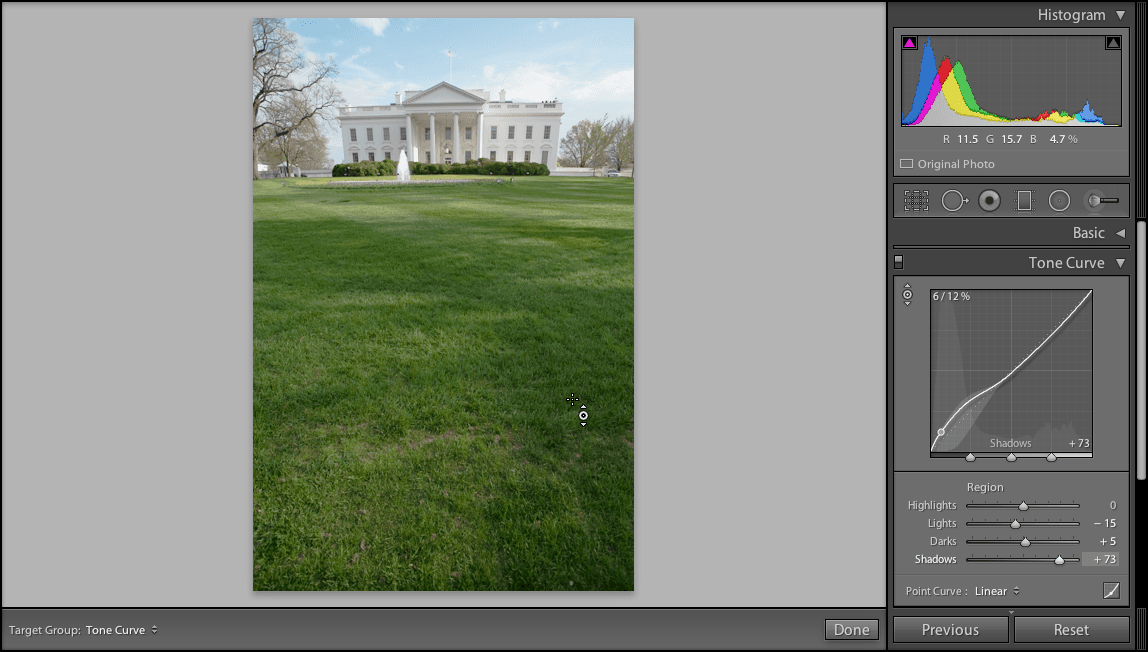
  10. Now for the real power move: At the top-left corner of the Tone Curve panel, click the Targeted Adjustment Tool target adjustment tool. This tool allows you to make adjustments by clicking directly on the areas you want to modify.

  11. Click on a dark area of the grass in the photo, and drag upwards to lighten the shadows. This intuitive approach lets you work directly with your image rather than guessing at slider positions.

    NOTE: While you could manually adjust the sliders in the Tone Curve panel, the targeted adjustment approach is faster and more precise for specific area corrections.

  12. Double-click the word Shadows to reset it and start fresh.

  13. Click on the darker green grass again to select that tonal range.

  14. Press the Up Arrow key several times to incrementally lighten the grass. This keyboard method offers precise control in small increments—essential for subtle, professional adjustments.

  15. Click on the sky area to target the highlights.

  16. Press the Down Arrow key several times to darken the sky, creating more dramatic contrast and recovering any blown highlights.

  17. Click on the White House structure itself.

  18. Press the Up Arrow key several times to ensure your main subject has proper brightness and separation from the background.

  19. Click the Targeted Adjustment Tool target adjustment tool again to deselect it and return to normal navigation.

  20. In the top-left corner of the Tone Curve panel, click the Before/After Toggle switch icon several times to compare your adjustments. This instant comparison is crucial for evaluating whether your changes enhance or detract from the original image.

    NOTE: You can also access the dedicated Before & After view before after yy button at the bottom of the screen for a side-by-side comparison. (If this option isn't visible, ensure you've deselected the Targeted Adjustment Tool target adjustment tool first, or click Done to exit the tool.)

    Excellent work! You've now mastered the fundamentals of targeted tonal adjustments—a cornerstone technique in professional photo editing that will elevate the impact and visual hierarchy of your images.

File Import Verification

0/3

Tone Curve Slider Testing Process

1

Test Each Slider

Drag Highlights, Lights, Darks, and Shadows sliders left and right to understand their effects

2

Reset After Testing

Double-click each slider name to return it to default before beginning actual adjustments

3

Activate Interactive Tool

Click the Adjust T1Curve icon at the top-left of the panel to enable direct image manipulation

Interactive Adjustment Technique

Click on dark grass areas and drag upwards to lighten, or use arrow keys for precise incremental adjustments. This method provides immediate visual feedback and intuitive control.

Targeted Area Adjustments

1

Lighten Dark Grass

Click on dark grass areas and drag upward or press Up Arrow key to brighten shadows

2

Darken Sky

Click on sky areas and press Down Arrow key to add drama and contrast to bright areas

3

Enhance Main Subject

Click on the White House and press Up Arrow key to make the primary subject more prominent

Adjustment Method Comparison

FeatureManual SlidersInteractive Tool
PrecisionNumerical ControlVisual Feedback
SpeedSlowerFaster
Learning CurveTechnicalIntuitive
Fine ControlExact ValuesArrow Key Steps
Recommended: Use interactive tool for initial adjustments, then fine-tune with sliders if needed
Before and After Comparison

Use the Switch button in the Tone Curve panel or the Before & After icon at the bottom of the screen to evaluate your adjustments. Remember to deselect the Adjust T1Curve icon first.

Key Takeaways

1The Tone Curve panel in Lightroom's Develop module provides selective contrast control through Highlights, Lights, Darks, and Shadows adjustments
2Two primary adjustment methods exist: manual sliders for precise numerical control and interactive tools for intuitive visual adjustments
3The Adjust T1Curve icon enables direct image manipulation by clicking and dragging on specific areas to modify their tonal values
4Arrow keys provide fine incremental control when using the interactive adjustment tool after clicking on image areas
5Double-clicking slider names instantly resets them to default values, allowing for easy experimentation and correction
6Before and after comparisons using the Switch button or Before & After icon help evaluate the effectiveness of tonal adjustments
7Proper file organization and import settings ensure smooth workflow when working with exercise materials and practice images
8The interactive adjustment method provides immediate visual feedback, making complex tonal corrections more accessible to beginners

RELATED ARTICLES