April 1, 2026Dan Rodney/8 min read

Working with Collections

Master Lightroom Collections for Streamlined Photo Organization

Three Essential Collection Types in Lightroom

Quick Collections

Temporary groupings that allow you to quickly gather images for immediate tasks. Perfect for rapid selection and organization workflows.

Collection Sets

Organizational folders that help group related collections together. Think of them as filing cabinets for your photo collections.

Smart Collections

Automated collections based on criteria like keywords, ratings, or metadata. They update automatically as you add matching photos.

Topics Covered in This Lightroom Tutorial:

Mastering Quick Collections creation and management, Building comprehensive Collection Sets for professional workflow organization, and Implementing Smart Collections for automated image categorization

Exercise Preview

lightroom preview1C

Exercise Overview

In this comprehensive exercise, you'll master Lightroom's powerful Collections feature—one of the most underutilized yet essential tools for professional photographers. Collections allow you to create virtual groupings of images without duplicating files or altering your folder structure, making them invaluable for client deliveries, portfolio curation, and project management. Unlike physical folders, Collections can contain the same image multiple times across different groupings, providing unprecedented organizational flexibility.

Prerequisites Required

Make sure you have completed exercises 1A-1B before proceeding. This exercise builds on previous work and requires existing photo imports to be effective.

Grouping Images in Quick Collections

Quick Collections serve as a temporary workspace for gathering images before committing them to permanent Collections. Think of them as a staging area where you can rapidly collect images during your initial review process.

  1. If you have not completed the previous exercises (1A–1B), finish them before proceeding with this exercise. These foundational steps ensure your catalog structure is properly established.

  2. Verify you're in the Library module by checking the module picker at the top right of your interface.

  3. Click the Grid View button grid view button at the bottom of the Library or press G to enter Grid View if you are not already there. Grid View provides the optimal layout for selecting multiple images efficiently.

  4. Locate the Catalog panel in the left sidebar. This panel serves as your navigation hub for all image groupings. Expand the Catalog panel if it's currently collapsed.

  5. Click on the first lighthouse image (20090503_YourName_001) to select it as your starting point for the collection.

  6. Shift–click on the field image (20090503_YourName_009) to select it and all images in between. This range selection technique is essential for efficient batch operations.

    NOTE: If filenames aren't visible, navigate to View > View Options. Under Compact Cell Extras, ensure Top Label is checked. Visible filenames are crucial for professional workflow management.

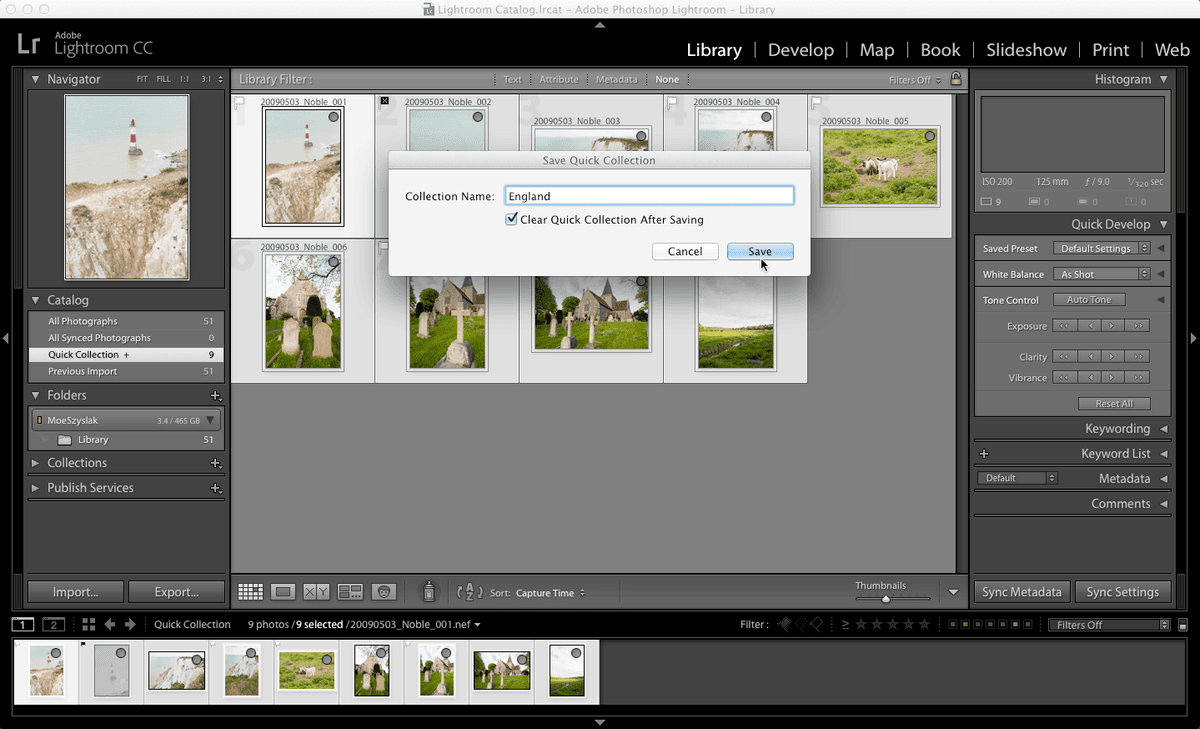
  7. Press B to Add to Quick Collection. You'll immediately see a gray dot appear in the upper-right corner of each selected photo—this visual indicator confirms inclusion in the Quick Collection.

  8. In the Catalog panel, click on Quick Collection to verify all selected photos now appear in this temporary grouping.

  9. Ctrl–click (Mac) or Right–click (Windows) on Quick Collection to access the contextual menu. Choose Save Quick Collection to convert this temporary grouping into a permanent Collection.

  10. Enter England as the Collection Name. Use descriptive, consistent naming conventions to maintain professional organization standards.

  11. Ensure the Clear Quick Collection After Saving box remains checked. This setting automatically empties the Quick Collection, preparing it for your next batch of images.

  12. Click Save to finalize the Collection creation.

  13. In the Catalog panel, click on All Photographs to return to your complete image library view.

  14. Scroll down and locate the motel sign photo (20110820_YourName_010). This will begin your second Collection grouping.

  15. Shift–click on the second elk photo (20110901_YourName_040) to select this new range of images representing your Wyoming collection.

  16. Press B to Add to Quick Collection, utilizing the same efficient workflow you've just established.

  17. In the Catalog panel, Ctrl–click (Mac) or Right–click (Windows) on Quick Collection and choose Save Quick Collection.

  18. Set Wyoming as the Collection Name, maintaining the geographic organization theme.

  19. Verify that Clear Quick Collection After Saving remains checked for consistent workflow efficiency.

  20. Click Save to create your second Collection.

  21. Expand the Collections panel on the left sidebar if it's currently collapsed. This panel now serves as your primary Collections management interface.

  22. Click on England to review the Collection contents and verify proper organization.

  23. Click on Wyoming to examine that Collection as well. Notice how quickly you can switch between curated image groups without navigating complex folder structures.

  24. In the Catalog panel, click All Photographs to return to your master library view.

Now that you've mastered basic Collections, let's explore Collection Sets—a powerful organizational layer that transforms good workflow into exceptional project management.

Creating Your First Quick Collection

1

Select Image Range

Click the first lighthouse image, then Shift-click the field image to select all images in between. This creates a contiguous selection.

2

Add to Quick Collection

Press B to add selected images. Look for gray dots in the upper-right corners to confirm inclusion in the Quick Collection.

3

Save Collection

Right-click Quick Collection, choose Save, name it 'England', and check Clear Quick Collection After Saving to prepare for the next group.

Visual Confirmation

If you cannot see filenames, go to View > View Options and ensure Top Label is checked under Compact Cell Extras for better organization visibility.

Creating Collection Sets

Collection Sets function as master folders for your Collections, enabling hierarchical organization that scales with your professional needs. Think of them as project containers that can hold multiple related Collections, making them invaluable for complex shoots, client work, or thematic portfolio development. In this exercise, we'll create geographical Collection Sets to demonstrate how this hierarchy enhances both navigation and long-term catalog management.

  1. In the Collections panel, click the New Collection button add new icon and select Create Collection Set.

  2. In the Create Collection Set dialog, configure the following settings:
    • For Name enter Europe
    • Uncheck Inside a Collection Set if it's currently selected—this creates a top-level Collection Set
    • Click Create to establish your first organizational container
  3. Observe that a Collection Set named Europe now appears in the Collections panel with a distinctive folder icon. While it contains no images directly, it's ready to house related Collections, creating a logical geographical hierarchy.

  4. Next to the Collections panel title, click New Collection add new icon and select Create Collection Set to build your second organizational container.

  5. In the Create Collection Set dialog, establish your second geographical grouping:
    • For Name enter USA
    • Confirm Inside a Collection Set is unchecked to maintain the same hierarchical level
    • Click Create to finalize the second Collection Set
  6. In the Collections panel, notice your two Collection Sets now provide a foundation for sophisticated organizational structure. This hierarchy will prove invaluable as your image library grows.

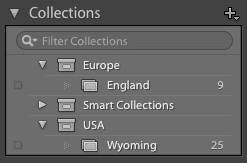
  7. In the Collections panel, drag the England Collection into the Europe Collection Set. Watch as the interface immediately reflects this logical geographical relationship.

  8. Drag the Wyoming Collection into the USA Collection Set, creating the organized hierarchy shown below:

    screenshot cities continent

With your Collection Sets established, you're ready to explore Lightroom's most sophisticated organizational feature: Smart Collections that automatically update based on your specified criteria.

Collection Sets vs Regular Collections

FeatureCollection SetsRegular Collections
PurposeOrganizational containersPhoto groupings
Contains PhotosNo, contains collectionsYes, directly
Best ForGeographic/project organizationSpecific photo groups
NestingCan contain multiple collectionsCannot contain other collections
Recommended: Use Collection Sets for high-level organization like geographic regions (USA, Europe) and Collections for specific shoots or themes.

Building Organized Collection Structure

1

Create Collection Sets

Create Europe and USA collection sets first. Uncheck 'Inside a Collection Set' to make them top-level organizational containers.

2

Drag and Organize

Drag the England collection into Europe set and Wyoming collection into USA set. This creates a logical geographic hierarchy.

Creating Smart Collections

A Smart Collection represents the pinnacle of automated organization in Lightroom—dynamically updating Collections that maintain themselves based on metadata criteria you define. Unlike static Collections, Smart Collections continuously monitor your entire catalog, automatically including new images that match your parameters and removing those that no longer qualify. This powerful feature is particularly valuable for ongoing projects, client deliveries, or portfolio maintenance where manual curation would be time-intensive. Let's create a Smart Collection based on keyword criteria to demonstrate this intelligent automation.

  1. In the Catalog panel, click on All Photographs if it isn't currently selected, ensuring you're viewing your complete image library.

  2. Locate and click on the sheep photo (20090503_YourName_005) to begin building your keyword-based Smart Collection.

  3. Cmd–click (Mac) or Ctrl–click (Windows) each of the following animal images to build your selection. This multi-select technique allows efficient batch keywording:
    • 20110823_YourName_024
    • 20110823_YourName_025
    • 20110823_YourName_026
    • 20110824_YourName_027
  4. Access the Keywording panel in the right sidebar—this panel serves as your metadata command center for assigning and managing keywords. Expand the Keywording panel if it's currently collapsed.

  5. In the Keywording panel, click in the lower text field labeled "Click here to add keywords." This field enables batch keyword application to all selected images.

  6. Type Animal to establish your Smart Collection criteria keyword.

  7. Press Return (Mac) or Enter (Windows) to apply the keyword to all selected images simultaneously.

  8. Navigate to Edit > Select None to clear all selections and prepare for verification.

  9. Click on the sheep photo (20090503_YourName_005) to select it individually.

  10. In the Keywording panel, confirm that this image now displays the Animal keyword, verifying successful metadata application.

  11. In the Collections panel, click New Collection add new icon and choose Create Smart Collection to access the intelligent automation features.

  12. In the Create Smart Collection dialog, configure your automated Collection parameters:
    • For Name enter Animals
    • Ensure Inside a Collection Set is checked with Smart Collections selected in the dropdown menu
    • From the Match menu, select all to require all criteria to be met
    • From the first dropdown in the criteria section, choose Other Metadata > Keywords
    • From the second dropdown, select contains for flexible keyword matching
    • In the text field beside Contains, type Animal
    • Click Create to establish your Smart Collection
  13. In the Collections panel, expand Smart Collections if necessary and locate your new Animals Smart Collection (identifiable by its distinctive gear icon). This Collection now contains all images with the Animal keyword and will automatically update as you add more.

  14. Complete the keywording process by adding the Animal keyword to remaining animal photos. In the Catalog panel, click All Photographs to return to your complete library view.

  15. Click on the grazing bison photo (20110822_YourName_023) to begin selecting additional animal images.

  16. Cmd–click (Mac) or Ctrl–click (Windows) the remaining animal photos to select them all:
    • 20110826_YourName_031
    • 20110826_YourName_038
    • 20110901_YourName_040
    • 20110904_YourName_046
    • 20121227_YourName_049
  17. In the Keywording panel, locate the text field displaying "Click here to add keywords" below any existing keywords (note that asterisks indicate keywords applied to some but not all selected images).

    NOTE: The asterisk next to existing keywords like "iphone wallpaper" indicates partial application—this keyword exists on some selected photos but not others, highlighting the importance of consistent keywording practices.

  18. Type Animal in the keyword field to maintain consistency with your Smart Collection criteria.

  19. Press Return (Mac) or Enter (Windows) to apply the keyword and trigger the Smart Collection update.

  20. Return to the Animals Smart Collection in the Collections panel and observe how these newly keyworded images have been automatically included. This demonstrates the true power of Smart Collections—any future image you keyword with "Animal" will automatically appear in this Collection without manual intervention.

    Smart Collections can incorporate multiple criteria including capture date, camera settings, ratings, color labels, and virtually any metadata parameter. You can modify existing Smart Collection criteria at any time by double-clicking the Smart Collection name, making them incredibly flexible for evolving project needs. For professional workflows, consider creating Smart Collections for recent imports, client-specific criteria, or technical specifications like high ISO images that may need special attention.

Smart Collection Advantage

Smart Collections automatically update when new photos match the criteria. Once you create an 'Animals' smart collection, any future photo tagged with 'Animal' keyword will automatically appear in it.

Setting Up Keyword-Based Smart Collection

1

Apply Keywords

Select animal photos and add 'Animal' keyword using the Keywording panel. This creates the searchable metadata for the smart collection.

2

Configure Criteria

Create Smart Collection with Match 'all', choose Other Metadata > Keywords 'contains' Animal. This ensures only relevant photos are included.

3

Test and Expand

Add more animal photos with the keyword to verify automatic inclusion. The collection updates in real-time as you keyword additional images.

Photos Added to Collections in This Exercise

England Collection
9
Wyoming Collection
31
Animals Smart Collection
12

Key Takeaways

1Quick Collections serve as temporary holding areas that can be saved and cleared for efficient workflow management
2Collection Sets provide hierarchical organization by grouping related collections into logical categories like geographic regions
3Smart Collections automatically populate based on specified criteria such as keywords, ratings, or metadata parameters
4The 'B' keyboard shortcut provides the fastest method to add selected images to Quick Collection during selection workflows
5Gray dots in image corners provide visual confirmation that photos are included in the current Quick Collection
6Clearing Quick Collections after saving prevents confusion and prepares the workspace for the next grouping task
7Keywords applied through the Keywording panel become searchable criteria for Smart Collection automation
8Smart Collections can be modified anytime by double-clicking to add new parameters or adjust existing criteria

RELATED ARTICLES