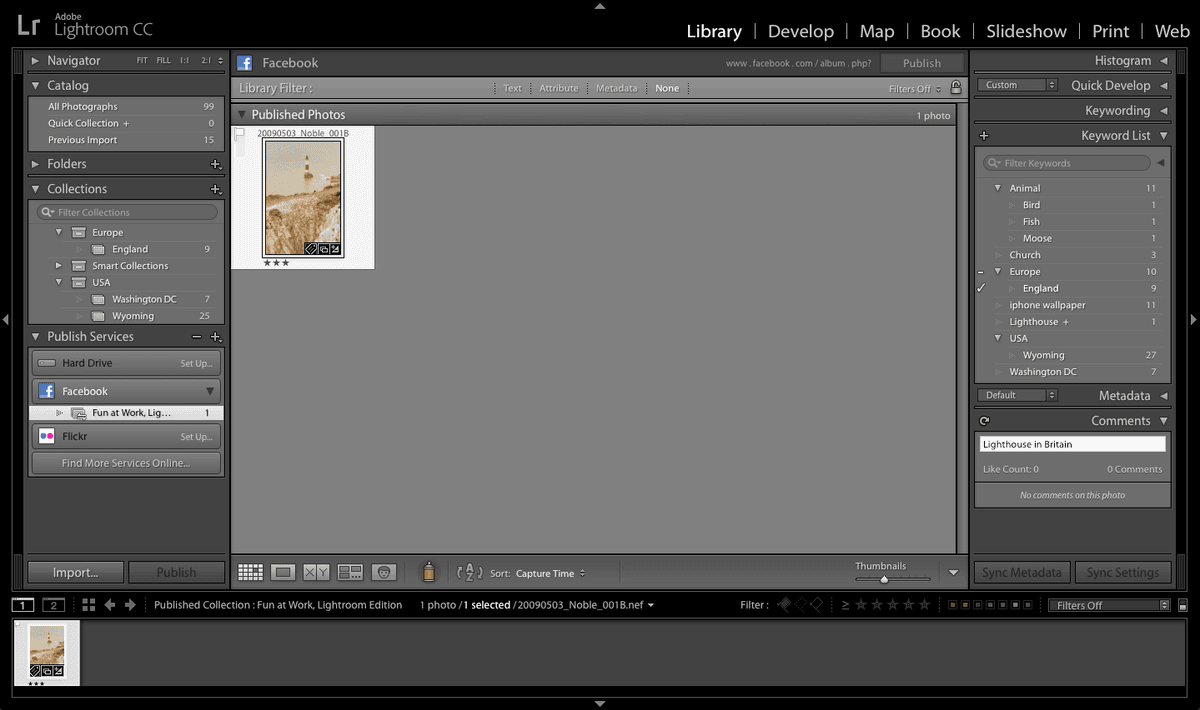
Posting to Facebook: Free Lightroom Tutorial
Master Lightroom to Facebook Publishing Workflow
Key Skills You'll Master
Direct Publishing
Learn to publish photos directly from Lightroom to Facebook without switching applications. Streamline your photography workflow with integrated social media posting.
Album Management
Create and organize Facebook photo albums directly within Lightroom. Manage your social media presence from your photo editing workspace.
Social Interaction
Comment on and interact with your Facebook posts without leaving Lightroom. Monitor engagement and respond to feedback efficiently.
This tutorial assumes you have Lightroom installed and a Facebook account ready. Make sure you have photos imported in your Lightroom Library module before starting.
Facebook Authorization Process
Access Publish Services
Navigate to Library module and expand the Publish Services panel to locate Facebook integration options.
Initiate Authorization
Click 'Set Up' next to Facebook or double-click Facebook if previously configured. Select 'Authorize on Facebook' in the dialog.
Complete Facebook Login
Log into Facebook in the browser window that opens and grant permissions to Adobe Photoshop Lightroom.
Confirm Connection
Return to Lightroom, click 'Done', and save settings in the Publishing Manager dialog to complete the setup.
When prompted to allow the website to open a program on your computer, click 'Allow' only if you initiated the connection from within Lightroom to ensure security.
Return to the Collections panel and click on Europe > England to view your available images.
Click and drag the first lighthouse photo (20090503_YourName_001) into the Timeline Photos album (or your newly created custom album). This action queues the image for publishing while maintaining your original file organization.
Under the Facebook section, select Timeline Photos (or your custom album) to review the queued content before publishing.
At the top right of your screen, click the Publish button to initiate the upload process.
Lightroom will process and upload your selected image to Facebook, with progress indicated by the status bar in the top-left corner. The system automatically applies your export settings while optimizing for social media display requirements.
Album Creation Checklist
This initiates the album creation process within Lightroom
Consistency helps with organization and recognition
Gives you control over which specific photos to add later
Improves discoverability and provides context for viewers
Controls who can view your album on Facebook
Comment Management Features
Real-time Monitoring
The Comments panel displays likes and comments from your Facebook posts. Use the refresh icon to update the display with latest interactions.
Direct Interaction
Type responses directly in Lightroom's text box without switching to Facebook. This keeps your workflow centralized and efficient.
After publishing, minimize Lightroom and check Facebook.com to verify your post appears correctly. This confirms the integration is working properly.
Key Takeaways

to sync the latest engagement data from Facebook.