April 1, 2026Dan Rodney/4 min read

Editing in Photoshop

Master seamless Lightroom to Photoshop workflow integration

Essential Skills You'll Master

Photo Transfer Workflow

Learn the proper method to open Lightroom photos in Photoshop while preserving your adjustments. Master the edit handoff process between applications.

Cross-Application Editing

Understand how to make advanced edits in Photoshop that aren't possible in Lightroom. Apply professional enhancement techniques seamlessly.

File Management

Discover how edited files are automatically organized and renamed. Learn where your Photoshop-edited images are stored in your system.

Topics Covered in This Lightroom Tutorial:

Opening a Lightroom Photo in Photoshop, Adjusting a Lightroom Photo in Photoshop, Locating the Photoshop-edited Photo in Lightroom

Exercise Preview

lightroom previewB4

System Requirements

You must have Photoshop installed on your computer to complete this exercise. The tutorial demonstrates Adobe Photoshop CC 2018, but other versions will work with similar menu options.

Exercise Overview

In this exercise, you'll master the essential workflow of seamlessly transferring a Lightroom photo to Adobe Photoshop for advanced editing, then returning the enhanced image to your Lightroom catalog. This round-trip editing capability is fundamental to professional photography workflows, allowing you to leverage Lightroom's powerful organizational tools alongside Photoshop's pixel-level precision.

The integration between these two industry-standard applications has been refined over many years, creating an intuitive bridge that preserves your adjustments and maintains catalog organization. By the end of this exercise, you'll understand how to efficiently move between both programs while maintaining complete control over your image files and metadata.

NOTE: You must have Photoshop installed on your computer to complete this exercise. Adobe Creative Cloud subscribers have access to both applications as part of their Photography Plan or All Apps subscription.

Workflow Overview

1

Select Your Photo

Navigate to the Library module and locate your target image in the All Photographs section of the Catalog panel.

2

Launch Photoshop

Right-click the image and select Edit In Adobe Photoshop, choosing to edit a copy with Lightroom adjustments preserved.

3

Apply Photoshop Edits

Make your desired adjustments using Photoshop's advanced tools and save the file when complete.

4

Return to Lightroom

Close Photoshop and return to Lightroom where both original and edited versions will appear side-by-side automatically.

Editing in Photoshop

Follow these steps to experience the complete round-trip editing workflow that professional photographers rely on daily:

  1. Ensure you're working in the Library module, which provides the best interface for managing and selecting images for external editing.

  2. In the Catalog panel on the left, click on All Photographs to access your complete image library.

  3. CTRL–click (Mac) or Right–click (Windows) on the first Washington Monument photo (_CAS2074). If you don't see this photo in your catalog, you'll need to complete the first part of Exercise 4G: Creating a Basic Web Gallery to import this set of practice images.

  4. From the context menu, select Edit In > Edit in Adobe Photoshop (the specific version name may vary based on your current Creative Cloud installation).

    NOTE: The menu will display your currently installed version of Photoshop. As of 2026, this is typically Photoshop 2026 or the latest Creative Cloud release.

  5. When the editing options dialog appears, choose Edit a Copy with Lightroom Adjustments and click Edit. This option preserves any adjustments you've made in Lightroom's Develop module while creating a separate file for Photoshop editing.

  6. If prompted about Camera Raw compatibility, click Render using Lightroom. This ensures your Lightroom adjustments are properly applied before transferring to Photoshop.

  7. Once Photoshop loads your image, navigate to Image > Adjustments > Desaturate to convert the photo to black and white. This creates a classic monochromatic look that emphasizes the monument's architectural details.

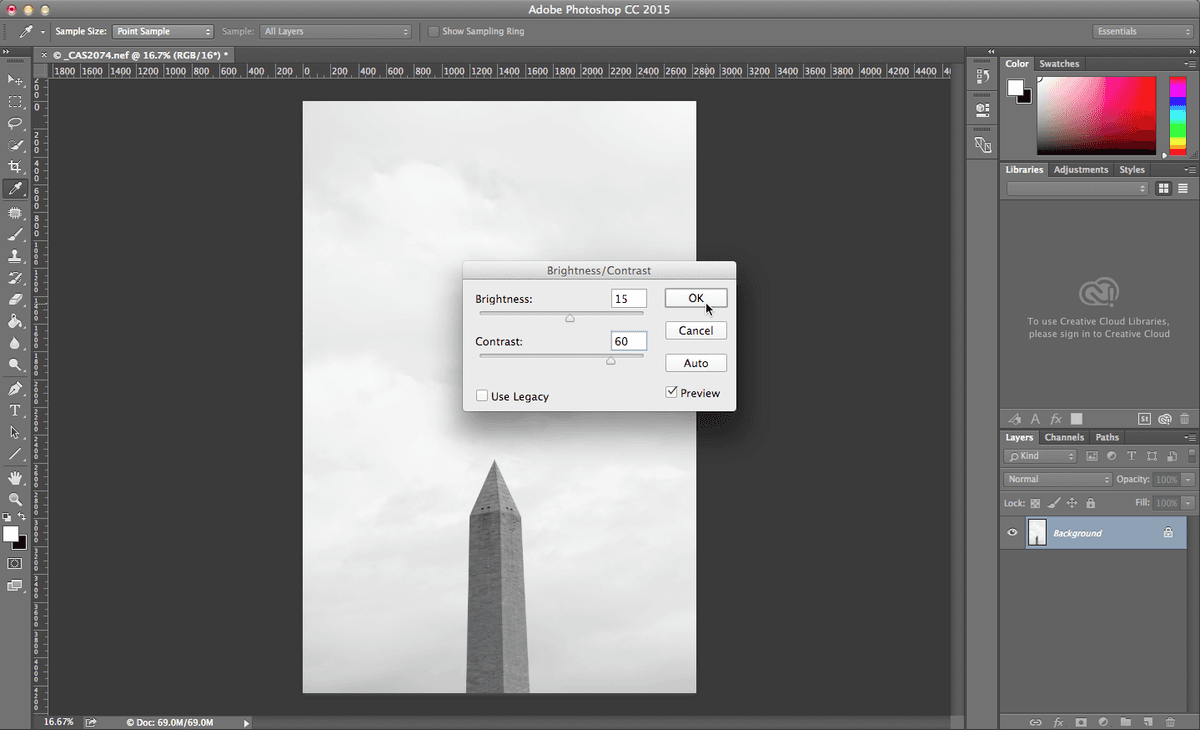
  8. Enhance the dramatic impact by going to Image > Adjustments > Brightness/Contrast to fine-tune the tonal balance.

  9. In the Brightness/Contrast dialog, apply these specific adjustments to create a striking architectural image:

    Brightness: 15
    Contrast: 60
  10. Click OK to apply the adjustments. Notice how these changes enhance the monument's architectural details and create more visual impact.

  11. Save your work by going to File > Save. Photoshop will automatically save the file in a format that Lightroom can recognize and import back into your catalog.

  12. Close Photoshop and return to Lightroom to see the results of this round-trip editing workflow.

  13. Back in Lightroom, observe that both the original photo and the Photoshop-edited version now appear side-by-side in your catalog. The edited version has been automatically renamed _CAS2074-Edit, clearly distinguishing it from the original while maintaining the connection between both files.

  14. To verify the file organization, CTRL–Click (Mac) or Right–click (Windows) on the _CAS2074-Edit photo and select Show in Finder (Mac) or Show in Explorer (Windows).

    You'll see that Lightroom has intelligently saved the edited photo in the same folder as the original image, maintaining your organizational structure while preserving the relationship between source and edited files.

    This seamless integration demonstrates why the Lightroom-Photoshop workflow has become the gold standard for professional photographers. The round-trip editing process is not only quick and convenient, but it also maintains complete file organization and preserves your creative intent across both applications. This workflow efficiency allows you to focus on creative decisions rather than technical file management, ultimately improving both your productivity and creative output.

Pre-Edit Setup Checklist

0/4
Dialog Box Navigation

When dialog boxes appear asking what to edit, always choose 'Edit a Copy with Lightroom Adjustments' to preserve your original work. If prompted about Camera Raw compatibility, select 'Render using Lightroom' for best results.

Photoshop Enhancement Process

1

Apply Desaturation

Navigate to Image > Adjustments > Desaturate to remove color information and create a black and white base.

2

Adjust Brightness and Contrast

Go to Image > Adjustments > Brightness/Contrast and set Brightness to 15 and Contrast to 60 for optimal tonal balance.

3

Save Your Work

Use File > Save to preserve your edits, then quit Photoshop to automatically return the edited file to Lightroom.

Lightroom-Photoshop Workflow Benefits

Pros
Automatic file organization and renaming
Preserves original Lightroom adjustments
Creates backup copies automatically
Seamless integration between applications
Files appear in original folder structure
Cons
Requires both applications installed
Increases file storage requirements
May create version confusion for beginners
Processing time increases with file transfers
File Management Automation

The edited photo is automatically renamed with '-Edit' suffix and stored in the same folder as your original. Both versions appear side-by-side in Lightroom, making it easy to compare your before and after results.

Key Takeaways

1Lightroom and Photoshop integration allows seamless photo editing workflows while preserving original files and adjustments automatically
2The Edit In function creates copies with Lightroom adjustments intact, ensuring non-destructive editing practices throughout your workflow
3Edited files are automatically renamed with '-Edit' suffix and stored in the original photo's folder for easy organization and retrieval
4When dialog boxes appear during the transfer process, always choose options that preserve Lightroom adjustments and render using Lightroom for compatibility
5Both original and Photoshop-edited versions appear side-by-side in Lightroom's Library module for easy comparison and selection
6The workflow requires Adobe Photoshop installation and works across different versions with similar menu structures and commands
7Basic Photoshop adjustments like desaturation and brightness/contrast changes demonstrate the extended editing capabilities beyond Lightroom's tools
8File saving in Photoshop automatically returns control to Lightroom, creating a streamlined editing experience between both applications

RELATED ARTICLES