Using Flags & Ratings
Master Lightroom Photo Organization and Rating Workflows
This tutorial assumes completion of exercises 1A-1F. Ensure you have the Wyoming subfolder with sample photos available in your Lightroom catalog before proceeding.
Core Learning Objectives
Photo Flagging System
Learn to mark photos as picks or rejects using keyboard shortcuts for efficient culling workflows.
Star Rating Assignment
Master the 5-star rating system to categorize and prioritize your best photographs for editing.
Advanced Filtering
Use flags and ratings together to create powerful filtering systems for large photo collections.
Workflow Setup Process
Environment Preparation
Navigate to Library module, select Wyoming subfolder, and configure optimal viewing conditions using light dimming features.
Photo Selection
Use keyboard navigation and flagging shortcuts to mark approximately 5 photos as picks and reject unwanted images.
Rating Application
Apply star ratings to flagged photos and use filtering tools to view specific rating categories.
Essential Keyboard Shortcuts
Navigation Controls
Press E for Loupe View, G for Grid View, and Right Arrow to move between photos efficiently.
Flagging Commands
Use P to pick photos, X to reject images, and U to unflag previously marked selections.
Display Options
Press L once to dim lights, twice to fade completely, and once more to return to normal viewing.
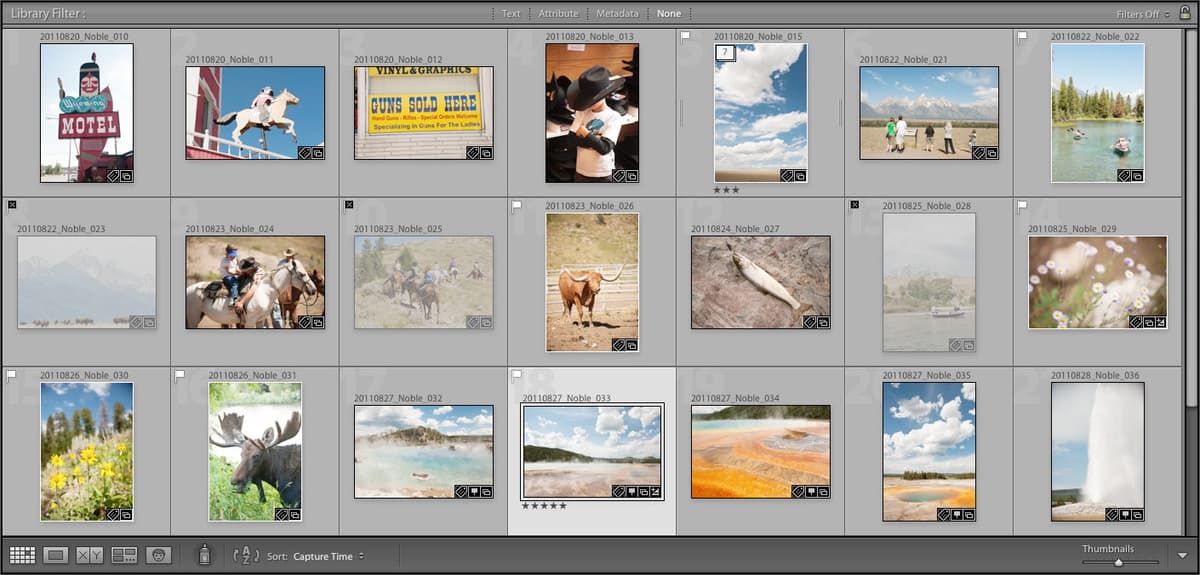
Flagged photos display white flag icons in top-left corners, while rejected photos show black flags with X symbols and appear grayed out in Grid View.
Filter Options Comparison
| Feature | Flagged Filter | Rating Filter |
|---|---|---|
| Access Location | Bottom right Filmstrip panel | Top Library Filter panel |
| Selection Method | Dropdown menu selection | Click star rating level |
| Filter Logic | Shows only flagged photos | Greater than or equal to rating |
Rating and Filter Workflow
Apply Flagged Filter
Select 'Flagged' from Filters menu to display only previously marked photos for rating assignment.
Assign Star Ratings
Click dots below thumbnails to assign ratings - third dot for 3-star, fifth dot for 5-star rating.
Configure Rating Filters
Use Library Filter panel to show specific rating levels and adjust logic from 'greater than or equal' to 'equal to' as needed.
Click 'None' in Library Filter panel or select 'Filters Off' from Filmstrip menu to clear all active filters and return to full photo view.
Key Takeaways