Portrait Retouching
What This Tutorial Covers
Local Adjustments
Brush and gradient tools for targeted retouching.
Skin Tone Refinement
Subtle color and exposure work for natural-looking skin.
Non-Destructive Workflow
All Lightroom edits preserve the original file.
Noble Desktop's Graphic Design Certificate covers Photoshop alongside the broader Adobe toolkit that complements Lightroom in any photography workflow.
Improve your photo editing skills with this comprehensive Lightroom tutorial, covering essential techniques such as teeth whitening, skin tone adjustment, iris enhancement, skin softening, and detail enhancement.
Exercise Preview
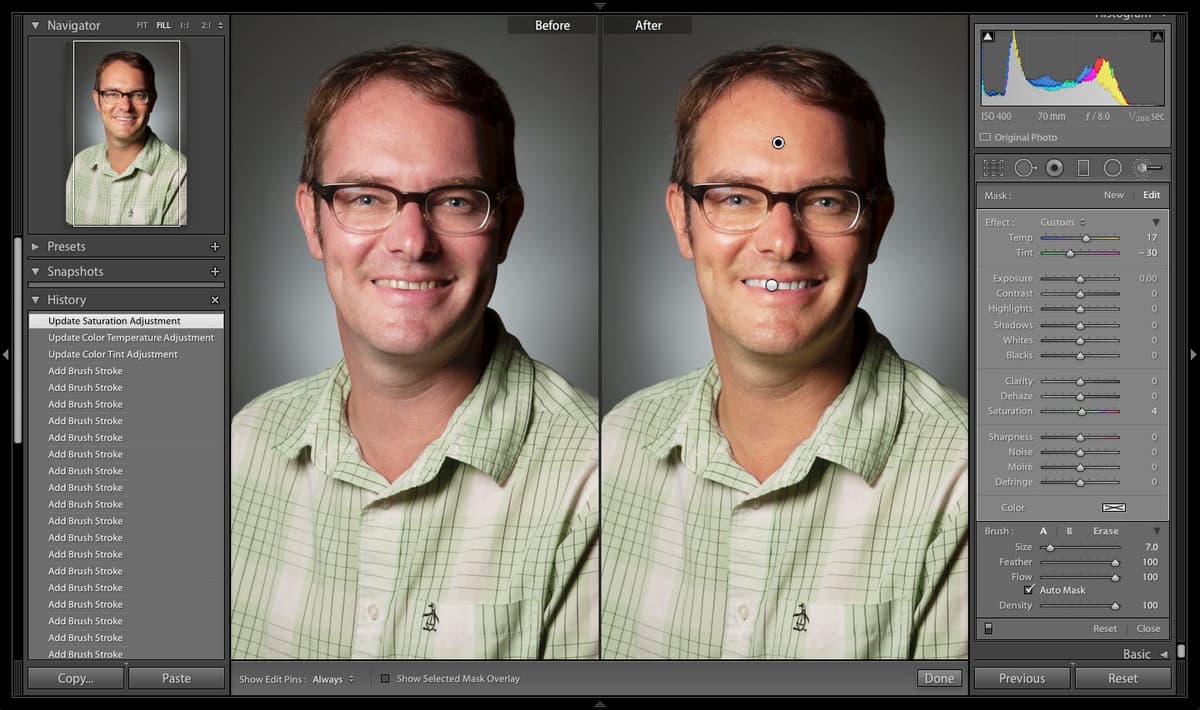
Whitening the Man’s Teeth
Click on the teeth to zoom in on them.
Drag the photo so the teeth are centered on the screen.
Below the Histogram panel on the right, click the Adjustment Brush tool
 .
.Some options will be revealed below the tool. (You may have to scroll up to see them.) From the Effect menu, select Teeth Whitening.
Press the left bracket (
[) to see that the brush gets smaller.Press the right bracket (
]) to see that it gets bigger.Resize the brush so it’s around the same height as a front tooth.
Brush over the teeth to whiten them. (If instead of whitening they become highlighted in red, press O to turn off the layer mask.)
Press O to reveal the red layer mask and see any areas you missed.
Brush any missed areas to add them to the layer mask.
If you added the layer mask to anything other than the teeth, make the brush a little smaller, then hold Opt (Mac) or ALT (Windows) and paint over the mask section that you want to erase.
When you are satisfied with the layer mask, press O to hide the layer mask.
Click the Adjustment Brush tool
to deselect it.Press the backslash (
\) key to toggle between the before and after. When you are done comparing, make sure you are seeing the after.Press Z to zoom out.
Fixing the Man’s Skin Tone
Click the Adjustment Brush tool
.Below the tool, double–click on the word Effect to zero out all of the effects.
If you don’t see the Temp and Tint sliders below the Effect menu and instead only see an Amount slider, to the right of the Effect menu, click the triangle to reveal all the options.
Reduce the Tint to – 25.
Reduce the Saturation to – 10.
Make the brush a bit bigger by pressing the right bracket (
]) key.Brush over the entire face and neck (including glasses, eyes, ears, mouth, etc.).
Press O to reveal the red layer mask.
Brush any missed areas to add them to the layer mask.
Press Z to zoom in.
Hold down the spacebar and drag the photo so the top left along his hairline is visible. (Holding the spacebar allows you to pan/move.)
Along his hairline we want to remove the mask from the hair if you over-brushed. Hold down the Opt (Mac) or ALT (Windows) key and paint over the mask section that you want to erase.
Hold down the spacebar and drag the photo so the teeth are centered.
Let’s also remove the mask from his teeth and the inside of his mouth (we want to preserve the teeth whitening). Hold down the Opt (Mac) or ALT (Windows) key and paint over the teeth and the inside of the mouth to remove the mask in these areas.
Press Z to zoom out.
Press O to turn off the layer mask.
Press the backslash key (
\) to toggle between the before and after. When you are done comparing, make sure you are seeing the after.Notice that there are two circles on the man’s face (one on his teeth and one on his face or neck). Each circle represents a new brush sequence.
Click on the circle over his face or neck to select this brush sequence. Notice that a black dot appears on the center of the circle to show this brush sequence is selected.
Continue to hover over the circle and the layer mask associated with that brush will appear. Let’s adjust it a little more. Make sure you have the circle on the face/neck selected and not the one on his teeth.
Move the Tint slider back-and-forth to see how it changes the face.
When you are done experimenting, set the Tint to – 30.
Change the Temp to + 17 to warm up the face.
Move the Saturation slider back-and-forth to see how it changes the face.
When you are done experimenting, set the Saturation to 4.
Click the Adjustment Brush tool
again to close it.Press the backslash key (
\) to toggle between the before and after. When you are done comparing, make sure you are seeing the after.You can see the teeth are white and the redness of the face is greatly reduced. That’s looking good!
Whitening the Couple’s Teeth
Next we’ll work on the picture of the couple (to_edit-042). We will whiten the man and woman’s teeth and brighten their eyes. Then we’ll soften the woman’s skin and add some richness to her hair color.
Press G to return to the Library.
Double–click the portrait of the couple (to_edit-042) to open it in Loupe View.
Press Z to zoom in.
Drag the photo so the woman’s teeth are centered.
Press D to switch to the Develop module.
Below the Histogram panel, click the Adjustment Brush tool
.Double–click on the word Effect to zero out all of the effects.
From the Effect menu, select Teeth Whitening.
Resize the brush so it’s around the same size as the teeth.
Brush the teeth.
Press O to reveal the red layer mask.
Brush any missed areas to add them to the layer mask.
Hold down the spacebar and drag the picture so the man’s teeth are centered on the screen.
With the layer mask still on, brush the man’s teeth.
Press O to turn off the layer mask.
Click the Adjustment Brush tool
to deselect it.Press Z to zoom out.
Press the backslash key (
\) to toggle between the before and after. When you are done comparing, make sure you are seeing the after.
Iris Enhancement
Under the Histogram panel, click the Adjustment Brush tool
.Press Z to zoom in.
Hold down the spacebar and drag the picture so that both of the woman’s eyes are visible on the screen.
Below the Adjustment Brush tool
, next to Mask, click New.From the Effect menu, select Iris Enhance.
Brush around the pupil of the woman’s right eye making sure not to brush over the pupil itself.
Press O to reveal the red layer mask.
Brush any missed areas to add them to the layer mask.
With the layer mask still on, brush around the pupil of her left eye.
Hold down the spacebar and drag the picture so the man’s eyes are centered on the screen.
Brush around the pupil of each eye.
Press O to turn off the layer mask.
Click the Adjustment Brush tool
to deselect it.Press the backslash key (
\) to toggle between the before and after. You can see a little pop around the iris. Let’s pump it up a little more. Make sure you are seeing the photo after and not the before.Click the Adjustment Brush tool
.Press Z to zoom out.
Click on the white circle over the woman’s right eye to select this brush sequence.
Press Z to zoom in on her eyes.
In the options below the Adjustment Brush tool
, change the Exposure to 0.90. Now the eyes are really popping!
Skin Softening
Make sure you still have the Adjustment Brush tool
selected.Below the Adjustment Brush tool
, next to Mask, click New.From the Effect menu, select Soften Skin.
Press Z to zoom in so the woman’s whole face fits on screen, if it’s not already.
Using a large brush, brush over the entire face (including the neck and ears).
Move the picture around as necessary, so you can brush the entire neck and the top of her back.
Make the brush smaller to get the edges of her face where her face touches his.
Press O to reveal the red layer mask.
Hold down the Opt (Mac) or ALT (Windows) key and paint over the eyes, the eyebrows, lips, mouth, and any other border area where you over-brushed (the dress, the man’s face, etc.).
Press O to hide the red layer mask.
Click the Adjustment Brush tool
to deselect it.Press Z to zoom out.
Press the backslash key (
\) to toggle between the before and after. The effect is a little too much so let’s adjust it. Make sure you are seeing the after photo and not the before.Click the Adjustment Brush tool
.Notice there are several circles on the woman’s face. Each circle represents a new brush sequence that we executed earlier: teeth whitening, iris enhancement, and skin softening.
Click on the white circle
 over her face (not the teeth or eyes) to select the brush sequence associated with the skin softening. You should see a black dot in the center of the circle
  .
.With the skin softening brush sequence selected, in the options below the Adjustment Brush tool
, increase the Clarity to – 40.Click the Adjustment Brush tool
to deselect it.Press the backslash key (
\) to toggle between the before and after. The effect is a lot better. The photo is looking good! When you are done comparing, make sure you are seeing the after.
Detail Enhancement
Click the Adjustment Brush tool
.Below the Adjustment Brush tool
, next to Mask, click New.Double–click on Effect to zero out all the effects.
Make the following adjustments:
Contrast: Increase to 25 Clarity: Increase to 50 Sharpness: Increase to 50 We want to save these adjustments as a New Preset. From the Effect menu select Save Current Settings as New Preset.
In the New Preset window, name the preset Enhance Detail.
Click the Create button.
Press Z to zoom in.
Hold down the spacebar and drag the picture so some of the woman’s hair is visible on the screen.
Make your brush large and paint over the woman’s hair, being careful not to go over the woman or the man’s face.
Hold down the spacebar and drag the picture around as necessary so you can brush all of the woman’s hair.
Press Z to zoom out.
Press the O key to reveal the red layer mask. Perfect the layer mask by brushing over any areas you may have missed.
Click the Adjustment Brush tool
to deselect it.Press the backslash key (
\) to toggle between the before and after. Notice the change in the detail of her hair. When you are done comparing, make sure you are seeing the after.- If you don’t like the effect, feel free to go back to the Adjustment Brush and tweak it. Here is a recap of the steps:
- Click the Adjustment Brush tool to select it.
- Click on the white circle over the woman’s hair to select the brush sequence.
- After you select the brush, a black dot will appear in center of the white circle .
- If the red layer mask is showing, press the O key to turn off the layer mask.
- Adjust the Clarity, Sharpness, and/or Contrast up or down until you think it looks good.
- Remember that you can press the backslash key (
\) to toggle between the before and after.
- Click the Adjustment Brush tool