April 1, 2026Dan Rodney/5 min read

Split Toning a Black & White Image

Master Professional Split Toning Techniques in Lightroom

What is Split Toning?

Split toning is a classic darkroom technique that adds different colors to the highlights and shadows of black and white images, creating depth and visual interest through controlled color contrast.

Topics Covered in This Lightroom Tutorial:

Working with Highlights & Shadows

Tutorial Learning Objectives

Photo Import Workflow

Learn proper techniques for importing and organizing photos in Lightroom's Library module. Master file handling settings for optimal performance.

Split Toning Mastery

Convert images to black and white, then apply sophisticated highlight and shadow color treatments for professional results.

Exercise Preview

lightroom previewB6

Exercise Overview

Split toning traces its roots to traditional darkroom techniques, where photographers selectively colorized black and white prints to create compelling visual narratives. This method involves applying one color to the highlights and a contrasting color to the shadows, creating depth and emotional resonance that pure monochrome cannot achieve. While digital photography has transformed the medium, split toning remains a powerful artistic tool for photographers seeking to elevate their work beyond standard processing. In this exercise, you'll master the split toning workflow in Lightroom, learning not just the technical steps but the creative principles that separate professional results from amateur attempts.

Before diving into the technique, let's establish your workspace by importing the exercise files we'll be working with.

Split Toning Benefits and Considerations

Pros
Creates visual depth in black and white images
Adds artistic flair while maintaining monochrome feel
Helps separate highlights from shadows naturally
Non-destructive editing preserves original image data
Cons
Can appear unnatural if overdone
Requires understanding of color theory
May not suit all image types or subjects
Color Temperature Best Practice

Generally use warm colors for highlights and cool colors for shadows to create natural-looking contrast that mimics how our eyes perceive light and shadow.

Importing New Photos

  1. Ensure you're operating in the Library module, which serves as Lightroom's central hub for file management and organization.

  2. Locate and click the Import button at the bottom of the left panel to initiate the import dialog.

  3. In the Source panel, navigate to Desktop > Class Files > Lightroom Class and select the Bonus folder containing our exercise images.

  4. Verify that Add is selected (highlighted) in the workflow options at the top. This setting links the files to your catalog without moving or copying them.

  5. Within the File Handling panel on the right, uncheck Build Smart Previews if it's currently enabled. Smart previews aren't necessary for this exercise and will only slow down the import process.

  6. Complete the import by clicking the Import button in the bottom right corner.

With your files imported, you're ready to begin the split toning process. This technique works best when you understand the relationship between highlights and shadows in your composition.

Photo Import Process

1

Navigate to Library Module

Ensure you're in the correct workspace for file management and import operations

2

Access Import Function

Click Import button at bottom of left panel to open import dialog

3

Select Source Location

Navigate to Desktop > Class Files > Lightroom Class and select Bonus folder

4

Configure Import Settings

Select Add mode and disable Build Smart Previews for better performance

Working with Highlights & Shadows

  1. In the Catalog panel on the left, confirm that Previous Import is already expanded to display your newly imported images.

  2. Select the photo of the tree (20110827_ben_1428) featured in the exercise preview. This image provides an ideal balance of highlights and shadows for demonstrating split toning principles.

  3. Press D to switch to the Develop module, where all your creative processing takes place.

  4. Begin by converting the image to monochrome, which forms the foundation for effective split toning. Locate and expand the HSL / Color / B & W panel on the right side if it isn't already visible.

  5. Click B & W to convert the image to black and white. Notice how this conversion maintains the tonal relationships while removing color distractions.

  6. Expand the Split Toning panel located below the HSL / Color / B & W panel. This is where the creative magic happens.

  7. Observe that the Split Toning panel contains two distinct sections: Highlights and Shadows. Understanding this separation is crucial for creating balanced, professional-looking results.

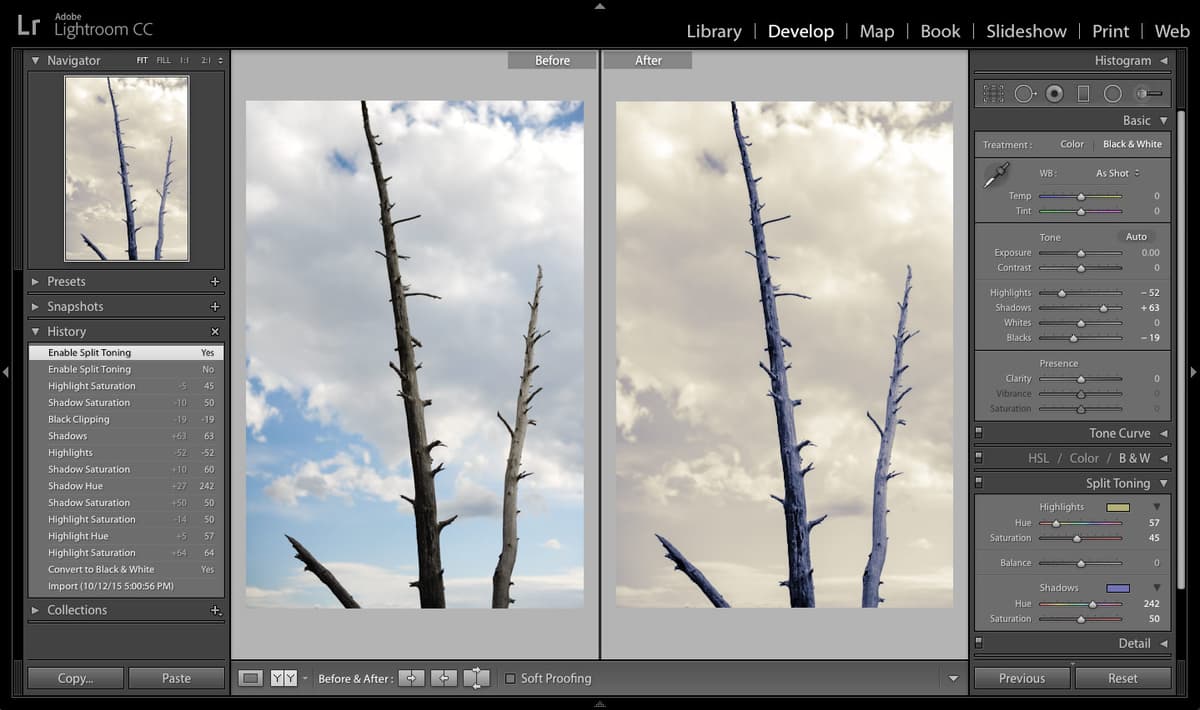
    For this exercise, we'll apply yellow to the highlights and blue to the shadows—a classic color combination that follows fundamental color theory. Warm colors in highlights create inviting, luminous areas, while cool colors in shadows add depth and mystery. This contrast enhances the three-dimensional quality of your images.

  8. Begin with the highlights by clicking the color rectangle color rectangle to the right of Highlights. Use the eyedropper tool to select a warm yellow color that complements your image's mood.

  9. Close the color picker by clicking the X button in the top left corner. You'll immediately notice the highlights adopting a subtle yellow tint that adds warmth to the brighter areas.

    NOTE: While the color picker offers intuitive selection, the Hue and Saturation sliders provide precise numerical control for consistent results across multiple images.

  10. Experiment with the Hue slider under Highlights to understand how different color temperatures affect the image's emotional impact. Move the slider back and forth to see the transition from cool to warm tones.

  11. Set the Hue to 57 once you've finished experimenting. This value provides an optimal yellow that's warm without being overwhelming.

  12. Test the Saturation slider under Highlights by moving it left to minimize the effect. Lower saturation creates subtle, sophisticated color casts.

  13. Move the Saturation slider right to intensify the effect. Higher values create more dramatic, stylized looks that work well for artistic interpretations.

  14. Set the Saturation to 50 after experimenting. This moderate setting provides noticeable color enhancement without sacrificing realism.

  15. Now address the shadows by clicking the color rectangle color rectangle next to Shadows. Select a complementary blue color using the eyedropper tool.

  16. Close the color picker by clicking the X button. The shadows now display a blue tint that creates visual depth and contrast against the warm highlights.

  17. Fine-tune the shadow color using these precise settings under Shadows:

    Hue: 242
    Saturation: 60

    These values create a sophisticated blue that complements the yellow highlights while maintaining natural-looking shadow detail. Next, we'll enhance the overall tonal balance to maximize the split toning effect.

  18. Navigate to the Basic panel and apply these strategic adjustments to optimize highlight and shadow separation:

    Highlights: Decrease to – 52
    Shadows: Increase to + 63
    Blacks: Decrease to – 19

    These adjustments enhance the tonal range by pulling down bright highlights and lifting dark shadows, creating more surface area for your split toning colors to affect.

  19. Return to the Split Toning panel for final refinements that perfect the color balance:
    • Reduce the Saturation of the blue Shadows slightly to 50 for a more subtle, professional appearance.
    • Adjust the Saturation of the yellow Highlights to 45 to achieve perfect harmony between warm and cool tones.
  20. Use the Switch icon switch icon located to the left of Split Toning to toggle between your processed image and the black and white version, allowing you to assess the impact of your color work.

  21. Click the Before & After icon before after yy button at the bottom left to display a side-by-side comparison between the original color image and your split-toned masterpiece. This view demonstrates the complete transformation and helps you evaluate the effectiveness of your creative choices.

Highlight vs Shadow Color Settings

FeatureHighlightsShadows
Recommended ColorYellow (Warm)Blue (Cool)
Hue Value57242
Saturation Value4550
Recommended: Use warm highlights and cool shadows for natural-looking results

Black and White Conversion Process

1

Select Target Image

Choose the tree photo (20110827_ben_1428) from Previous Import in Catalog panel

2

Enter Develop Module

Press D key to switch to Develop workspace for editing tools

3

Convert to Black and White

Expand HSL/Color/B&W panel and click B&W to convert image to monochrome

4

Access Split Toning Panel

Expand Split Toning panel to reveal Highlights and Shadows controls

Final Basic Panel Adjustments

Highlights
-52
Shadows
63
Blacks
-19
Color Selection Methods

You can choose colors either by clicking the color rectangle and using the eyedropper tool, or by manually adjusting the Hue and Saturation sliders for precise control.

Final Split Toning Checklist

0/4

Key Takeaways

1Split toning is a traditional darkroom technique that adds separate colors to highlights and shadows of black and white images
2Always convert images to black and white first using the HSL/Color/B&W panel before applying split toning effects
3Warm colors work best for highlights while cool colors are ideal for shadows to create natural-looking contrast
4The Split Toning panel offers both color picker and manual Hue/Saturation slider controls for precise color selection
5Proper import workflow includes selecting Add mode and disabling Build Smart Previews for better performance
6Basic panel adjustments to Highlights, Shadows, and Blacks enhance the split toning effect by improving tonal separation
7Use the Switch icon and Before & After view to compare your edits and ensure balanced results
8Saturation controls the intensity of the color effect - higher values create more dramatic results while lower values provide subtle enhancement

RELATED ARTICLES