April 1, 2026Dan Rodney/9 min read

Creating a Quick Promo Card

Master Lightroom Print Module for Professional Marketing

Key Skills You'll Learn

Print Module Mastery

Navigate Lightroom's Print module to create professional marketing materials. Learn to import photos and configure print settings effectively.

Custom Sizing & Layout

Create custom paper sizes and layouts for your promo cards. Master positioning and scaling for professional presentation.

Text Integration

Add branded text elements using Identity Plate Editor. Customize fonts, colors, and positioning for cohesive design.

Topics Covered in This Lightroom Tutorial:

Importing a Photo into the Print Module, Positioning Elements & Adding Text, Resizing & Printing the Promo Card

Exercise Preview

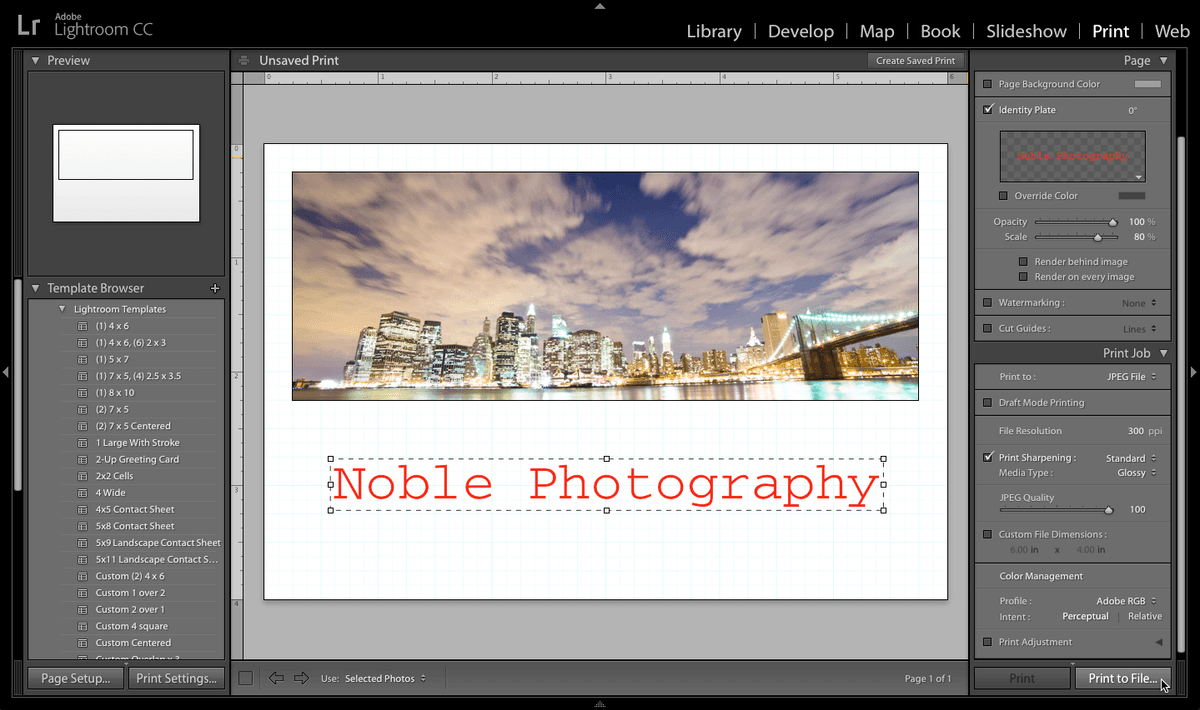
lightroom previewB10

Exercise Overview

In this exercise, you'll harness Lightroom's Print module to create professional promotional cards—an essential marketing tool for photographers building their brand. While many photographers overlook the Print module in favor of external design software, mastering this built-in functionality can streamline your workflow and maintain consistency across your promotional materials. This hands-on approach will demonstrate how to transform a single image into a polished marketing piece that represents your brand effectively.

Before You Start

Ensure you have the required class files imported from Desktop > Class Files > Lightroom Class in the Bonus folder. This exercise uses the New York City skyline photo named _BTR0456-Edit.

Importing a Photo into the Print Module

Before diving into the creative process, we need to establish our foundation by importing and selecting the right image. The Print module works seamlessly with your existing Lightroom catalog, making it easy to repurpose images you've already processed.

  1. If you have not imported the photos that were imported in Exercise B6, import them now (from Desktop > Class Files > Lightroom Class in the Bonus folder).

  2. Make sure you're in the Library module.

  3. In the Catalog panel on the left, click All Photographs.

  4. Select the photo of the New York City skyline named _BTR0456-Edit. This dramatic skyline image will serve as an excellent example for creating impactful promotional materials.

  5. At the top, click on the Print tab to go into the Print module. Notice how the interface transforms to focus on layout and printing options rather than image editing.

  6. At the bottom of the Print module, from the Use menu, select Selected Photos. This ensures you're working with your chosen image rather than the entire collection.

  7. In the Template Browser panel on the left, expand Lightroom Templates and select: (1) 8 X 10 (for printing a single photo at 8" by 10"). This template provides a solid starting point that we'll customize for our promotional card.

Print Module Setup Process

1

Navigate to Library Module

Open the Library module and click 'All Photographs' in the Catalog panel to view your imported photos.

2

Select Target Photo

Choose the New York City skyline photo named _BTR0456-Edit from your photo collection.

3

Switch to Print Module

Click the Print tab at the top to enter the Print module workspace.

4

Configure Print Settings

Set the Use menu to 'Selected Photos' and choose '8 X 10' from Lightroom Templates in the Template Browser.

Resizing the Card

Standard photo sizes rarely work for promotional materials. Creating a custom size gives your promo card a distinctive look while ensuring it fits standard mailing envelopes and portfolio presentations. The 6x4 inch format we're creating strikes an ideal balance between visual impact and practical distribution.

  1. Let's shrink the dimensions to a custom size that's perfect for promotional purposes. Below the Template Browser panel, click the Page Setup button and follow the appropriate steps below for your system:

    Custom Size Configuration

    Creating a 6x4 inch custom size ensures your promo cards have the perfect dimensions for professional marketing materials while maintaining proper aspect ratios.

Mac

  1. From the Paper Size menu, choose Manage Custom Sizes.

  2. At the window's bottom left, click the + icon to add a new custom size.

  3. Next to Width type 6 in.

  4. Next to Height type 4 in.

  5. Under Non-Printable Area, select User Defined from the menu.

  6. Set the Left, Top, Right, and Bottom boxes to 0. This maximizes your printable area for the most impactful design.

  7. Double–click the last Untitled listed on the left and rename it 6x4.

  8. Click OK twice to close the dialog, then the window.

Mac Custom Size Setup

1

Access Paper Size Menu

Click Page Setup button and select 'Manage Custom Sizes' from the Paper Size menu.

2

Create New Size

Click the + icon, set Width to 6 inches and Height to 4 inches with User Defined non-printable areas set to 0.

3

Save Configuration

Rename the custom size to '6x4' and click OK twice to save and close all dialogs.

Windows

  1. On the top right, click the Properties button.

    Unfortunately, the options you'll see will differ depending on your individual printer driver. Nevertheless, you should try to approximate the following instructions to create a custom size. Modern printer drivers in 2026 generally offer more intuitive custom sizing options than earlier versions.

  2. Click on an option that allows you to manage/create custom sizes.

  3. For Name, type 6x4.

  4. Make sure Units is set to Inches.

  5. Set Width to 6.

  6. Set Height to 4.

  7. Save the custom size.

  8. Close the printer dialog.

  9. Back in the Print Setup dialog, click Cancel. (We need to exit and then re‑enter to be able to select the new size.)

  10. Click the Page Setup button again.

  11. Under Paper, set Size to the new 6x4 option you just created.

  12. Click OK.
Driver Variations

Windows printer driver options vary significantly between manufacturers. You may need to adapt these instructions based on your specific printer's interface and available options.

Windows Custom Size Checklist

0/4

Positioning Elements & Adding Text

Now comes the creative phase where your promotional card takes shape. The Custom Package layout style offers maximum flexibility, allowing you to position your image and branding elements precisely. Remember that effective promotional materials balance visual impact with clear brand messaging—your goal is to create something recipients will want to keep and remember.

  1. In the Layout Style panel on the right, click Custom Package. This mode gives you complete control over element placement, essential for creating professional promotional materials.

  2. A window opens with the photo and you can move the photo around. If you don't see the photo in the main window, select it from the filmstrip at the bottom and drag it onto the page into the box, if there is one.

  3. On the right, expand the Cells panel if it isn't already.

  4. Make sure the box for Lock to Photo Aspect Ratio is unchecked. This freedom allows us to create the panoramic crop that works better for promotional layouts.

  5. Resize the photo by dragging the edges of the photo until it has an approximate ratio of a panorama and has the same margin from the edge of the paper on the left, top and right. (We recommend 1/4" margins. If necessary, refer to the Exercise Preview at the start of this exercise for a sample.) This panoramic format creates a modern, cinematic feel that's particularly effective for landscape and architectural photography.

    NOTE: If you move the image and it automatically snaps to a certain location, expand the Rulers, Grid & Guides panel on the right and from the Grid Snap menu choose Off. You can also change the Ruler Units to Inches in this panel if they aren't already.

  6. Expand the Page panel.

  7. Check on Identity Plate. This feature transforms your promotional card from a simple photo print into a branded marketing tool.

  8. At the bottom right of the Identity Plate, click the arrow down arrow.

  9. In the dialog box, select Edit to bring up the Identity Plate Editor.

  10. In the text box, type YourName Photography (replacing the current text). Keep your business name concise and professional—this text will represent your brand on every card you distribute.

  11. Select the text and in the Font menu (first menu below the text), select Courier or if it isn't available select Courier New. The monospaced character of Courier provides a clean, professional appearance that remains readable at small sizes.

  12. Click the small color picker box to the right and select a red color. Choose a color that complements your image while ensuring your brand stands out—red creates urgency and memorability in marketing materials.

  13. Click OK to set the color (or dismiss the dialog if there's no OK button).

  14. Click OK again.

  15. Drag the text to reposition it below the photo, and resize the photo if needed. The text placement should feel intentional and balanced with your image composition.

  16. Make the text bigger, by using the resize handles to change the text size. Your business name should be easily readable without overwhelming the image.

  17. In the Page panel, the Scale slider may also be used to resize the text, either by moving the slider or typing in a number in the text box next to the slider. Set the Scale to 80% (feel free to reduce that if your name is long). This size typically provides optimal readability while maintaining design hierarchy.

  18. Position the text so it is centered and approximately two grid squares below the photo (see the exercise preview at the start of this exercise for a sample). This spacing creates visual breathing room and prevents the design from feeling cramped.

Layout and Text Configuration

1

Switch to Custom Package

Select Custom Package in Layout Style panel to enable flexible positioning and sizing of elements.

2

Configure Photo Layout

Uncheck 'Lock to Photo Aspect Ratio' and resize photo to panorama ratio with 1/4 inch margins on left, top, and right.

3

Add Identity Plate Text

Enable Identity Plate, edit to add 'YourName Photography' using Courier font in red color.

4

Position and Scale Text

Position text below photo, set Scale to 80%, and center approximately two grid squares below the image.

Printing the Promo Card

The final step transforms your digital design into a tangible marketing tool. Whether you're printing at home for immediate use or creating high-resolution files for professional printing, these settings ensure maximum quality. In 2026's competitive photography market, the quality of your promotional materials directly reflects the quality clients can expect from your work.

  1. On the right, expand the Print Job panel if it is not already open.

    Here you can select whether to send the document to a printer, print to a JPEG file, or send it to a commercial printing source. For the purposes of this exercise, we are going to print to a JPEG file, which gives you flexibility to print multiple copies or send to different printing services as needed.

  2. Next to Print to choose JPEG File.

    NOTE: If you are working from home and have a printer connected, you would choose it from this menu. Modern home printers can produce excellent results for small promotional runs.

  3. Uncheck Draft Mode Printing. Draft mode sacrifices quality for speed—never acceptable for promotional materials that represent your professional brand.

  4. Set Print Sharpening to Standard. This applies output-specific sharpening that compensates for the softening that occurs during the printing process.

  5. Set Media Type to Glossy. Glossy finishes enhance color saturation and provide a premium feel that recipients associate with professional quality.

  6. Make sure that the JPEG Quality slider is set to 100. Maximum quality is essential for promotional materials that will be scrutinized by potential clients.

  7. Under Color Management, choose Profile: Adobe RGB. This RGB color space has a wide gamut and is great for images you'd like to print. Adobe RGB captures more colors than sRGB, particularly in the green and cyan ranges crucial for landscape photography.

  8. At the bottom right of the screen, click the Print to File button.

    NOTE: If you are sending to a printer connecting to your computer, this button would read Printer. The Print button to its left would not be grayed out.

  9. In the window that opens, navigate to your Desktop.

  10. Name the file yourname-promocard and click Save. Using descriptive filenames helps you organize multiple promotional designs and versions.

  11. The file will be saved to your desktop as a JPEG. Or if sent to a printer, the promo card would print out. You now have a professional promotional tool ready for distribution at networking events, client meetings, or direct mail campaigns. Consider printing a test copy on your target paper stock to ensure colors and layout meet your expectations before ordering larger quantities.

Output Options Comparison

FeatureJPEG FilePhysical Printer
Use CaseDigital sharing, portfolioPhysical marketing materials
Quality Control100% JPEG quality settingDepends on printer capability
Color ProfileAdobe RGB recommendedPrinter-specific profiles
ConvenienceImmediate outputRequires printer setup
Recommended: Use JPEG output for portfolio and digital sharing, physical printing for client presentations and marketing materials.

Print Quality Settings

0/4

Key Takeaways

1The Print module in Lightroom serves as a powerful tool for creating professional marketing materials beyond traditional photo printing
2Custom paper sizes (6x4 inches) provide optimal dimensions for promo cards while maintaining professional proportions
3Platform-specific setup procedures differ significantly between Mac and Windows systems, requiring adapted workflows
4Custom Package layout style offers maximum flexibility for positioning photos and text elements precisely
5Identity Plate Editor enables branded text integration with full control over fonts, colors, and scaling
6Adobe RGB color profile provides the widest gamut for print reproduction, ensuring accurate color representation
7JPEG output at 100% quality creates versatile files suitable for both digital sharing and professional printing
8Proper margin spacing (1/4 inch) and text positioning (two grid squares below image) ensures professional presentation standards

RELATED ARTICLES