April 1, 2026Dan Rodney/6 min read

Creating a Panorama: Free Lightroom Tutorial

Master Professional Panorama Creation in Lightroom and Photoshop

Software Requirements

Adobe Lightroom

Primary tool for photo adjustment, importing, and synchronizing settings across multiple images.

Adobe Photoshop

Required for the panorama merging process. Must be installed on your computer to complete this tutorial.

Topics Covered in This Lightroom Tutorial:

Mastering photo adjustments in Lightroom, seamless panorama creation in Photoshop, and advanced final processing techniques in Lightroom

Tutorial Workflow Overview

1

Photo Adjustment

Import and adjust exposure and shadow settings in Lightroom, then sync these adjustments across all seven panorama source images

2

Panorama Creation

Use Photoshop's Photomerge tool to combine seven photographs into a single panoramic image with automatic layout

3

Final Processing

Return to Lightroom for final exposure, shadow, and clarity adjustments to perfect the panoramic result

Exercise Preview

lightroom previewB9

Exercise Overview

This comprehensive exercise demonstrates the powerful synergy between Lightroom and Photoshop for panoramic photography. You'll master the art of composing seven individual photographs into a stunning panoramic image while learning efficient batch processing techniques that will transform your workflow.

The workflow you'll learn here represents industry-standard practices used by professional landscape and architectural photographers. By adjusting one source photograph and synchronizing those settings across all panorama components, you'll discover how to maintain consistent exposure and color balance—crucial elements for successful panoramic merging.

IMPORTANT: Adobe Photoshop must be installed and properly integrated with Lightroom to complete this exercise. This workflow leverages Photoshop's advanced Photomerge technology, which has been significantly enhanced in recent versions for better alignment and blending.

Prerequisites Required

You must have Photoshop installed on your computer to finish the exercise. The panorama merging process requires Photoshop's Photomerge functionality.

Image Processing Breakdown

Seven Source Images88%
Final Panorama13%

Adjusting Photographs in Lightroom

Before creating your panorama, you'll establish a consistent look across all source images. This preparation step is crucial—inconsistent exposures between frames can create visible seams and unnatural transitions in your final panorama.

  1. If you haven't imported the photos from Exercise B6, import them now from Desktop > Class Files > Lightroom Class in the Bonus folder. These sample images were captured specifically for panoramic merging, with proper overlap between frames.

  2. Ensure you're working in the Library module, where you can efficiently view and select multiple images.

  3. In the Catalog panel on the left, click All Photographs to display your complete image collection.

  4. Locate the seven consecutive cityscape images captured at dusk (numbered from 20130203_ben_2130 to 20130203_ben_2136). These images form a sequential panoramic series.

  5. Select the final image in the sequence, 20130203_ben_2136. We'll use this as our reference frame for color and exposure adjustments.

  6. Press D to seamlessly transition into the Develop module, where Lightroom's powerful adjustment tools await.

  7. Expand the Basic panel on the right if it's not already visible. This panel contains your most essential exposure and color correction tools.

  8. In the Tone section, move the Shadows slider to + 65. This adjustment will recover detail in the darker areas of your cityscape while maintaining the dramatic evening atmosphere.

  9. Adjust the Exposure slider to + 0.50. This moderate increase will brighten the overall image while preserving highlight detail in the sky.

  10. Return to the Library module to apply these carefully crafted adjustments to all seven panoramic frames. This synchronization ensures seamless blending in Photoshop.

  11. Verify that your edited photo (20130203_ben_2136) remains selected—it will serve as the source for your adjustment settings.

  12. Shift–click the first cityscape image (20130203_ben_2130) to select all seven sequential photos. This range selection is the most efficient method for batch operations.

  13. Click the Sync Settings button located at the bottom right of the interface. This powerful feature will propagate your adjustments across multiple images instantly.

  14. In the Synchronize Settings dialog, click Check None to start with a clean slate. This prevents unwanted settings from being applied to your panoramic sequence.

  15. Under Basic Tone, check only Exposure and Shadows—the precise adjustments you made to optimize the panoramic source material.

  16. If a process version warning appears, check the Process Version box to ensure all images use Lightroom's latest processing engine for optimal results.

  17. Click Synchronize to apply your adjustments. Lightroom will process each image, ensuring consistent exposure and shadow detail across your entire panoramic sequence.

  18. Notice the small +/- icon plusminusicon that appears on each processed thumbnail—this indicator confirms that custom adjustments have been applied to each frame.

Key Adjustment Settings

+65
Shadows slider adjustment
+50
Exposure slider adjustment

Synchronization Process

0/4

Creating a Panorama in Photoshop

Now comes the exciting part—transforming your prepared images into a seamless panoramic masterpiece. Photoshop's Photomerge feature uses sophisticated algorithms to align, blend, and merge your individual frames into a cohesive wide-format image.

  1. With all seven adjusted photos selected, Ctrl+click (Mac) or right-click (Windows) on the last image (20130203_ben_2136) and select Edit In > Merge to Panorama in Photoshop. This command launches Photoshop's advanced panoramic merging workflow directly from Lightroom.

  2. If prompted about Camera Raw plug-in compatibility, click Open Anyway. Modern versions of both applications maintain excellent cross-compatibility for seamless integration.

  3. Be patient as Photoshop launches and loads your image sequence. The Photomerge dialog will appear, displaying thumbnails of all images queued for panoramic processing.

  4. In the Layout section, select Auto. This intelligent setting allows Photoshop's algorithms to analyze your images and automatically choose the optimal projection method for your specific panoramic sequence.

  5. Click OK to begin the merging process.

    Processing time varies significantly based on image resolution and computer specifications—expect anywhere from 2-10 minutes for high-resolution panoramas. Modern systems with ample RAM and fast processors will complete this operation more quickly. Monitor the progress bar and avoid interrupting the process for best results.

  6. Once processing completes, you'll see your merged panorama in Photoshop's workspace. To clean up the inevitable ragged edges, select the Rectangular Marquee tool rectangular marquee tool from the Tools panel on the left.

  7. Carefully drag the Rectangular Marquee selection just inside the irregular edges, maximizing your panoramic composition while eliminating transparent areas. This cropping step is crucial for a professional final result.

  8. Navigate to Image > Crop in the menu bar to apply your selection. Your panorama now displays clean, professional edges ready for final processing.

  9. Save your work using File > Save. Large panoramic files require substantial processing time—monitor the progress indicator near the filename or zoom percentage display. This creates a working PSD file that preserves all layer information.

  10. After saving completes, close Photoshop to return to your Lightroom workflow. The integration between these applications ensures your panorama appears automatically in Lightroom's catalog.

  11. Back in Lightroom's Library module, your completed panorama will appear adjacent to the source images, typically with an "-Edit" suffix indicating it's been processed in Photoshop.

Processing Time Expectations

The panorama processing may take up to 10 minutes depending on your computer's performance and image resolution. Be patient during this automated process.

Photomerge Process Steps

Step 1

Launch Photomerge

Right-click and select Edit In > Merge to Panorama in Photoshop

Step 2

Configure Layout

Select Auto layout option in the Photomerge dialog

Step 3

Processing Phase

Wait for Photoshop to merge all seven images automatically

Step 4

Crop and Clean

Use Rectangular Marquee tool to crop ragged edges

Final Processing in Lightroom

Your panorama is structurally complete, but Lightroom's powerful processing engine offers opportunities for final refinement. The beauty of this integrated workflow lies in your ability to move seamlessly between applications, applying the best tools from each program to achieve your creative vision.

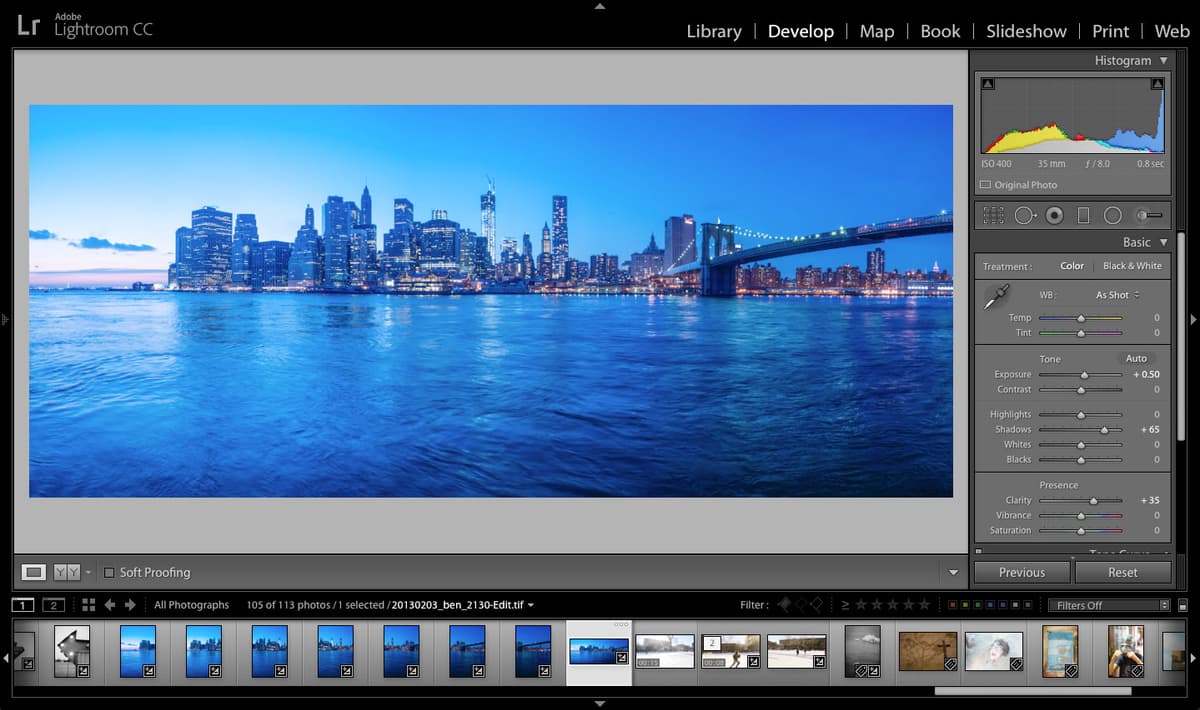
  1. Select your panoramic image (20130203_ben_2130-Edit) and press D to enter Develop module. Here you'll apply finishing touches that enhance the dramatic qualities of your cityscape panorama.

  2. Expand the Basic panel if it's not already visible. Even though your source images were pre-adjusted, the merging process may have slightly altered the overall exposure characteristics.

  3. In the Tone section, set the Shadows slider to + 65. This adjustment ensures shadow detail remains visible throughout the extended panoramic format.

  4. Move the Exposure slider to + 0.50 to maintain the optimal overall brightness across your wide-format composition.

  5. In the Presence section, increase Clarity to + 35. This enhancement adds mid-tone contrast that makes architectural details pop while maintaining the atmospheric quality of your dusk cityscape.

    Excellent work! Your panorama now displays the rich detail and dramatic presence that makes panoramic photography so compelling for architectural and landscape subjects.

Initial vs Final Settings

FeatureSource ImagesFinal Panorama
Shadows+65+65
Exposure+0.50+0.50
Clarity0+35
Recommended: The additional clarity adjustment enhances detail definition in the final panoramic image.
Workflow Flexibility

You can switch between Lightroom and Photoshop to further edit the panorama, allowing for iterative refinement of your final image.

Key Takeaways

1Panorama creation requires both Lightroom for photo adjustment and synchronization, and Photoshop for the actual merging process
2Synchronizing settings across multiple source images ensures consistent exposure and tone throughout the final panorama
3Photoshop's Auto layout option in Photomerge provides reliable automatic alignment for most panoramic scenarios
4Processing time can extend up to 10 minutes depending on image resolution and computer performance
5Cropping ragged edges with the Rectangular Marquee tool creates clean, professional panoramic boundaries
6The workflow allows flexible switching between Lightroom and Photoshop for iterative editing refinements
7Key adjustments include Shadows (+65), Exposure (+0.50), and final Clarity (+35) for enhanced detail definition
8The tutorial uses seven sequential photographs (20130203_ben_2130 to 20130203_ben_2136) of a city at dusk as source material

RELATED ARTICLES