April 1, 2026Dan Rodney/3 min read

Sharpening Details: Free Lightroom Tutorial

Master Lightroom Sharpening Techniques for Professional Results

What You'll Master

Detail Panel Sharpening

Learn to control global sharpening settings using the Detail panel. Master the Amount slider and understand optimal values for different image types.

Selective Masking

Apply sharpening only where needed using masking techniques. Perfect for portrait work where you want sharp eyes but smooth skin.

Topics Covered in This Lightroom Tutorial:

Master precision sharpening techniques within the Detail Panel and learn advanced selective sharpening using masking tools

Exercise Preview

lightroom preview3E

Required Files

This tutorial uses the three chimneys photo from the Develop folder. Make sure you have completed the import process from Exercise 2E or follow the import steps provided.

Exercise Overview

Professional image sharpening is both an art and a science. In this comprehensive exercise, you'll master Lightroom's sophisticated sharpening toolkit, learning to enhance image details with surgical precision while avoiding the over-sharpened look that marks amateur work. These techniques are essential for any photographer serious about delivering publication-quality results.

Workflow Overview

1

Import and Select

Import images from the Develop folder and select the three chimneys photo for sharpening practice

2

Global Sharpening

Use the Detail panel to apply overall sharpening with optimal Amount settings

3

Selective Masking

Apply masking to limit sharpening to specific areas like edges and shadows

Sharpening Within the Detail Panel

  1. If you have not imported the photos that were imported in Exercise 2E:
    • Navigate to the Library module.
    • Click Import at the bottom left of the interface.
    • In the import dialog, locate your source files under Source: navigate to Desktop > Class Files > Lightroom Class and select the Develop folder.
    • Ensure Add is selected at the top above the photo thumbnails.
    • Click Import in the bottom right to complete the process.
  2. Press G to enter the Library module's Grid View (if not already active).

  3. Select the three chimneys photograph (_CAS4871) from your image grid.

  4. Press D to switch to the Develop module, where all sharpening adjustments take place.

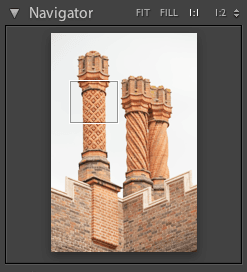
  5. In the Navigator panel (top left), click 1:1 to view the image at 100% magnification. This zoom level is crucial for accurate sharpening assessment—anything less can be misleading.

  6. Within the Navigator panel, position the bounding box over the top middle section of the leftmost chimney. This area contains the detail structures that will best demonstrate sharpening effects:

    screenshot chimneys1

  7. Expand the Detail panel on the right side of the interface if it isn't already visible.

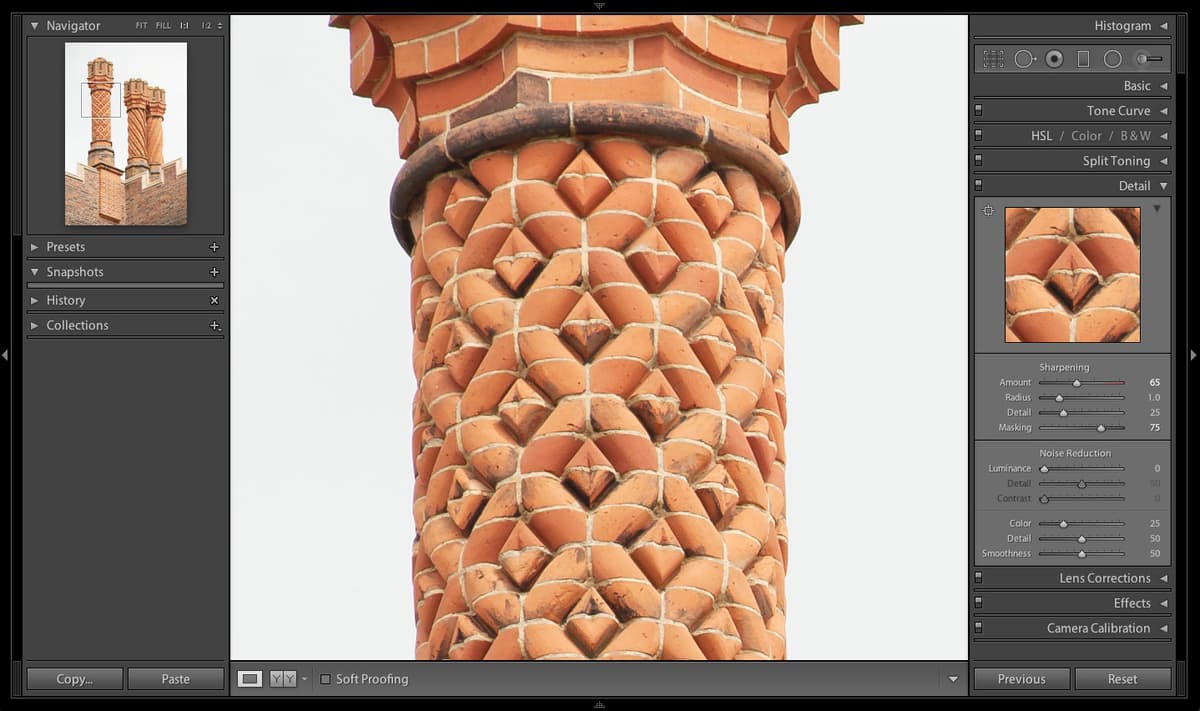
  8. Under the Sharpening section, drag the Amount slider to its maximum value of 150 to observe the extreme effect.

    Notice how the excessive sharpening creates harsh artifacts and an unnatural appearance—a common mistake that degrades image quality.

  9. Click directly on the 150 value to make it editable.

  10. Enter 65 and press Return (Mac) or Enter (Windows) to apply a more conservative, professional-grade sharpening amount.

  11. Toggle the Switch switch icon at the top-left corner of the Detail panel to compare the before and after states.

    The refined approach enhances detail without introducing unwanted artifacts—the hallmark of professional sharpening technique.

Sharpening Amount Values

FeatureSettingResult
150 (Maximum)Way too sharpOversharpened
65 (Recommended)Much betterBalanced
0 (Default)No sharpeningSoft
Recommended: Use 65 as a starting point for most images, then adjust based on content and output requirements.
Viewing at 100%

Always view your image at 1:1 (100%) zoom when applying sharpening. This ensures you see the actual effect without scaling artifacts that can mislead your adjustments.

Detail Panel Workflow

0/4

Sharpening Part of the Photo Using a Mask

Global sharpening affects the entire image uniformly, but sophisticated editing often requires selective enhancement. Professional photographers frequently need to sharpen specific areas—such as a subject's eyes while preserving smooth skin, or architectural details while maintaining clean skies. Lightroom's masking feature provides this precision control.

  1. In the Detail panel, locate the Masking slider and click to activate this powerful selective tool.

  2. Hold Option (Mac) or Alt (Windows) while slowly dragging the slider to the right. This reveals the masking overlay, showing exactly where sharpening will be applied.

  3. Toggle the Option (Mac) or Alt (Windows) key while maintaining your position on the slider. Pressing the modifier key displays the black-and-white mask; releasing it shows the color image. In the mask visualization, black areas receive no sharpening, while white areas receive full sharpening intensity.

    Professional Tip: Masking is invaluable for portrait work, allowing you to sharpen facial features like eyes and eyebrows while protecting skin texture. In landscape photography, it helps enhance foreground details while preserving smooth sky gradations.

  4. Set the Masking value to 75 for optimal selective sharpening in this architectural image.

  5. Use the Switch switch icon in the top-left corner of the Detail panel to toggle between the original and sharpened versions multiple times.

    The result demonstrates sophisticated selective enhancement—detail areas are crisper while smooth surfaces remain natural and artifact-free.

Understanding Masking

In sharpening masks, black areas receive NO sharpening while white areas receive full sharpening. This selective approach prevents over-sharpening of smooth areas like skin or sky.

Mask Visualization

FeatureMask ColorSharpening Applied
Black areasNo sharpeningSmooth surfaces protected
White areasFull sharpeningDetails enhanced
Gray areasPartial sharpeningGraduated effect
Recommended: Use Alt/Option key while dragging to preview the mask in real-time.

Masking Workflow

1

Activate Masking

Click on the Masking slider in the Detail panel to enable selective sharpening

2

Preview the Mask

Hold Alt (Windows) or Option (Mac) while dragging to see the mask overlay

3

Set Optimal Value

Adjust to 75 for this exercise, targeting darker areas like corners and edges

4

Review Results

Toggle before/after using the switch to evaluate the selective sharpening effect

Professional Applications

Portrait Photography

Sharpen eyes and hair while keeping skin smooth. Masking prevents texture enhancement in skin tones while maintaining detail in features.

Landscape Photography

Enhance rock textures and foliage details while leaving smooth water and sky untouched. Perfect for maintaining natural gradients.

Architecture Photography

Emphasize building edges and structural details while avoiding over-sharpening of uniform surfaces like walls or glass.

Key Takeaways

1Always view images at 100% zoom when applying sharpening to see the true effect without scaling interference
2Start with conservative sharpening amounts around 65 and adjust based on image content and intended output
3Use the Detail panel's before/after toggle frequently to compare your adjustments against the original image
4Masking allows selective sharpening where black areas receive no enhancement and white areas get full sharpening
5Hold Alt (Windows) or Option (Mac) while adjusting the Masking slider to preview the mask in real-time
6Portrait work benefits from masking to sharpen eyes while protecting skin texture from over-enhancement
7Set masking values around 75 to target darker areas like shadows, corners, and edges while protecting smooth surfaces
8The combination of Amount and Masking controls provides precise control over both intensity and placement of sharpening effects

RELATED ARTICLES