April 1, 2026Dan Rodney/6 min read

Noise Reduction: Free Lightroom Tutorial

Master Professional Noise Reduction in Adobe Lightroom

Essential Lightroom Skills for Mobile Photography

Noise Reduction

Remove unwanted grain and speckles from low-light photos. Critical for mobile photography where sensors struggle in challenging conditions.

Detail Recovery

Balance noise removal with image sharpness. Learn to preserve important details while eliminating distracting artifacts.

Mobile Enhancement

Transform smartphone photos to professional quality. Master techniques specifically designed for small sensor limitations.

Topics Covered in This Lightroom Tutorial:

Advanced Noise Reduction Techniques and Detail Recovery Methods

Exercise Preview

lightroom preview3D

Understanding Mobile Photography Challenges

Mobile phones have small sensors that struggle in low-light conditions, creating noise in the form of dots and color splotches. This tutorial addresses the most common issue facing smartphone photographers.

Exercise Overview

In this comprehensive exercise, you'll master professional noise reduction techniques to transform challenging low-light images into polished, publication-ready photographs. Digital noise—those unwanted speckles, dots, and color artifacts that plague images shot in challenging lighting conditions—is one of the most common issues photographers face, especially when working with mobile devices or high ISO settings. You'll learn to identify different types of noise and apply targeted corrections while preserving critical image detail that separates amateur from professional post-processing work.

Lightroom Setup Process

1

Import Photos

Navigate to Desktop > Class Files > Lightroom Class and select the Develop folder. Ensure Add is selected before importing.

2

Select Target Image

In Grid View, click on the streetlamp photo (20120815_YourName_043 or IMG_3109) taken with iPhone at dusk.

3

Optimize View

Press D for Develop module, set Navigator to 2:1 zoom, and ensure glowing streetlamp bulbs are visible for noise assessment.

Removing Noise

Before diving into noise reduction, it's essential to understand that effective noise removal requires a methodical approach and careful attention to preserving image quality. Let's begin by setting up your workspace for optimal results.

  1. If you have not imported the photos that were imported in Exercise 2E:
    • Go into the Library module.
    • At the bottom left of the screen, click Import.
    • In the dialog box that appears, on the left under Source, navigate to Desktop > Class Files > Lightroom Class and select the Develop folder.
    • At the top, above the photos, make sure Add is selected (highlighted).
    • On the bottom right, click Import.
  2. In the Library module, press G to enter Grid View if you are not already in it.

  3. Click on the streetlamp photo (20120815_YourName_043 or IMG_3109). This image represents a classic challenging scenario that modern photographers regularly encounter—mobile photography in mixed lighting conditions.

  4. Press D to enter the Develop module, where Lightroom's most powerful noise reduction tools reside.

  5. At the top of the Navigator panel, click on 2:1 to view the image at 200% magnification. (You may need to click on the zoom level triangles zoom level triangles and select it from the menu.) Working at this magnification level is crucial for accurately assessing noise patterns and the effectiveness of your corrections.

  6. Position your view so that one of the glowing streetlamp bulbs is clearly visible in the preview area.

    This photograph, captured with an iPhone during the golden hour transition to dusk, exhibits significant digital noise—the grainy, speckled artifacts that result from the camera sensor's struggle to capture clean data in low-light conditions. Mobile devices, despite their remarkable technological advances in 2026, still face physical limitations due to their compact sensor sizes, making noise reduction skills essential for any serious mobile photographer.

  7. On the right side of the interface, expand the Detail panel and collapse other panels to maximize your working space. This panel houses Lightroom's sophisticated noise reduction algorithms that have been refined over years of development.

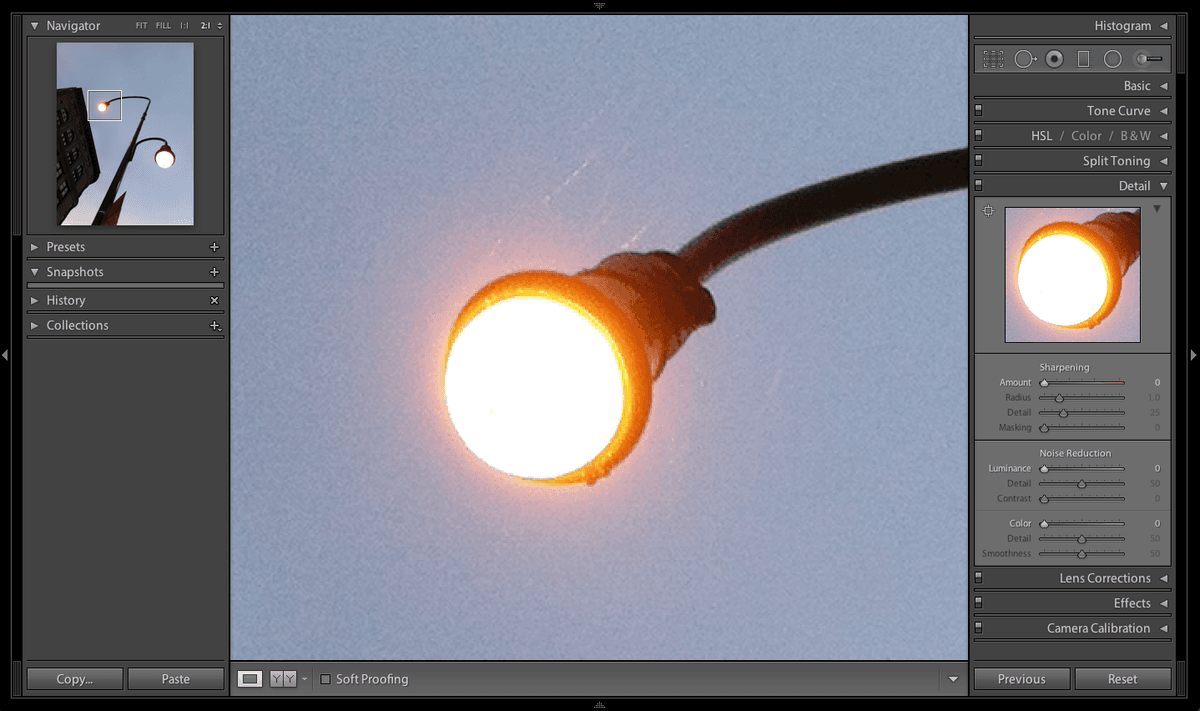
  8. To optimize your workspace for precise editing, hide the top and bottom panels by clicking the arrows at the top and bottom center of the screen. This creates an uncluttered environment that allows you to focus entirely on the noise reduction process. Your screen should now look similar to:

    noise reduction set up screen

  9. In the Detail panel under Noise Reduction, drag the Color slider from its default position of 0 to 100. Observe the changes carefully. In this particular photograph, you'll notice minimal improvement because it contains relatively little color noise (those distracting patches of artificial colors like lime green and magenta that often appear in severely underexposed images).

  10. Return the Color slider to 0. This demonstrates an important principle: not every image requires the same type of noise correction, and experienced editors apply adjustments based on the specific characteristics of each photograph.

  11. In the Navigator panel, carefully move the preview box to display the area shown in the reference image below. This positioning allows you to observe both textural details and noise patterns simultaneously (note that proportions may vary slightly depending on your monitor's aspect ratio):

    noise reduction navigator example

  12. Now we'll address the more prevalent issue in this image: luminance noise. This type of noise appears as random light and dark speckles throughout the image, creating an undesirable grainy texture that degrades image quality. In the Detail panel, under Noise Reduction, slowly drag the Luminance slider from 0 to 100 while watching the preview. The dramatic improvement in image smoothness demonstrates the power of Lightroom's luminance noise reduction algorithm.

Workspace Optimization

Hide the top and bottom panels by clicking the arrows at the top and bottom center to maximize your working space in the Detail panel.

Color Noise vs Luminance Noise

FeatureColor NoiseLuminance Noise
AppearanceBright color splotches (lime, magenta)Light and dark specks throughout image
Common inHigh ISO digital photosMobile phone low-light shots
Slider Range0-100 (minimal impact on this photo)0-100 (dramatic improvement)
Best SettingKeep at 0 for this exerciseStart at 60-70 for balance
Recommended: Focus on Luminance noise reduction for mobile photography, as it provides the most dramatic improvement in image quality.

Bringing Back Some Detail

While aggressive noise reduction can dramatically clean up an image, it often comes at the cost of fine detail and image sharpness. Professional post-processing requires finding the optimal balance between noise elimination and detail preservation—a skill that distinguishes expert editors from beginners.

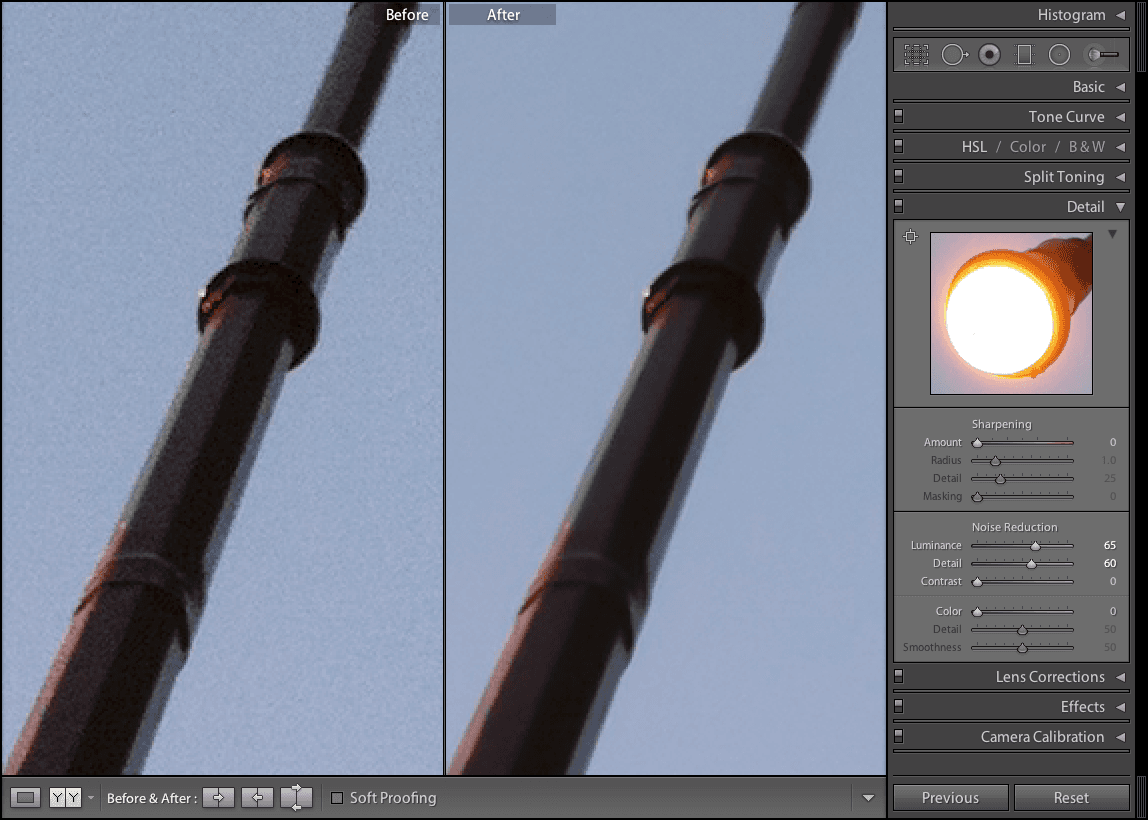
  1. At the top-left corner of the Detail panel, locate and toggle the Switch switch icon off and on repeatedly to compare the before and after states. Pay particular attention to the lamp post's surface texture and edge definition. You'll notice that while the noise has been eliminated, important structural details have been softened or lost entirely—a common side effect of aggressive luminance noise reduction.

  2. Because excessive detail loss compromises the image's professional quality, adjust the Luminance slider to approximately 60-70, fine-tuning until you achieve the optimal balance for your specific image and intended use.

    This iterative approach to slider adjustment represents a fundamental principle of professional post-processing: the "perfect" setting varies with each image and its intended application. An image destined for web use might tolerate more aggressive noise reduction than one intended for large-format printing, where detail preservation becomes paramount.

  3. Examine the Detail slider located directly below the Luminance control within the Noise Reduction section. This sophisticated control allows you to selectively restore edge definition and fine textural details that may have been compromised during the noise reduction process, giving you granular control over the final image quality.

  4. Drag the Detail slider to 0 and observe how the image becomes uniformly soft, with even important structural elements losing their crisp definition.

  5. Move the Detail slider to 100 and note the dramatic increase in sharpness and edge definition. However, this aggressive setting also reintroduces some of the noise you worked to eliminate, demonstrating the delicate balance required in professional noise reduction.

  6. Carefully adjust the Detail slider, monitoring both the noise levels and edge sharpness until you achieve clean results with crisp lamp post edges. In our testing, a setting around 60 provided excellent results, though your optimal setting may vary based on your monitor calibration and personal preferences. The goal is to maintain structural clarity while preserving the noise reduction benefits.

  7. Perform a final quality check by toggling the Switch switch icon at the top-left corner of the Detail panel multiple times to compare your processed image with the original.

    The transformation should be remarkable—what began as a noisy mobile phone capture now exhibits the clean, professional quality that clients and audiences expect from contemporary digital photography. This level of improvement demonstrates why mastering noise reduction techniques remains essential for photographers working across all platforms and devices in 2026.

Optimal Slider Settings for Mobile Photos

Luminance
65
Detail
60
Color
0

Fine-Tuning Detail Recovery

1

Test Extremes

Drag Detail slider to 0 (completely soft) then to 100 (very sharp but noisy) to understand the range.

2

Find Balance

Adjust Detail slider until noise is minimal but lamp post edges remain crisp. Around 60 works well for most cases.

3

Use Toggle Switch

Toggle the switch at top-left of Detail panel on and off to compare before and after results.

Professional Results

The key to noise reduction is finding the perfect balance between eliminating noise and preserving detail. With proper settings, mobile photos can look almost professional quality.

Key Takeaways

1Noise appears as dots and color splotches in low-light mobile photography due to small sensors and high ISO settings
2Luminance noise reduction (light and dark specks) provides more dramatic improvement than Color noise reduction for mobile photos
3The Detail panel in Lightroom contains all necessary noise reduction tools: Color, Luminance, and Detail sliders
4Optimal settings for mobile photos typically include Luminance around 60-70 and Detail around 60, with Color at 0
5Always use 200% zoom view to properly assess noise and the effectiveness of your adjustments
6The Detail slider helps recover sharpness lost during noise reduction, but too high settings reintroduce noise
7Toggle the switch in the Detail panel to compare before and after results throughout your editing process
8Proper noise reduction can transform smartphone photos to near-professional quality by eliminating distracting artifacts

RELATED ARTICLES