April 1, 2026Dan Rodney/5 min read

Exporting Photos: Free Lightroom Tutorial

Master Lightroom Photo Export and Preset Management

What You'll Master Today

Photo Export Process

Learn the complete workflow for exporting edited photos from Lightroom's Library module. Master file format selection and quality settings for optimal results.

Export Preset Creation

Discover how to save custom export settings as reusable presets. Streamline your workflow by creating templates for different output purposes.

Color Space Selection

Understand the critical differences between sRGB and Adobe RGB color spaces. Learn when to use each for web publishing versus print output.

Topics Covered in This Lightroom Tutorial:

Professional Photo Exporting Techniques, Custom Export Preset Creation

Exercise Preview

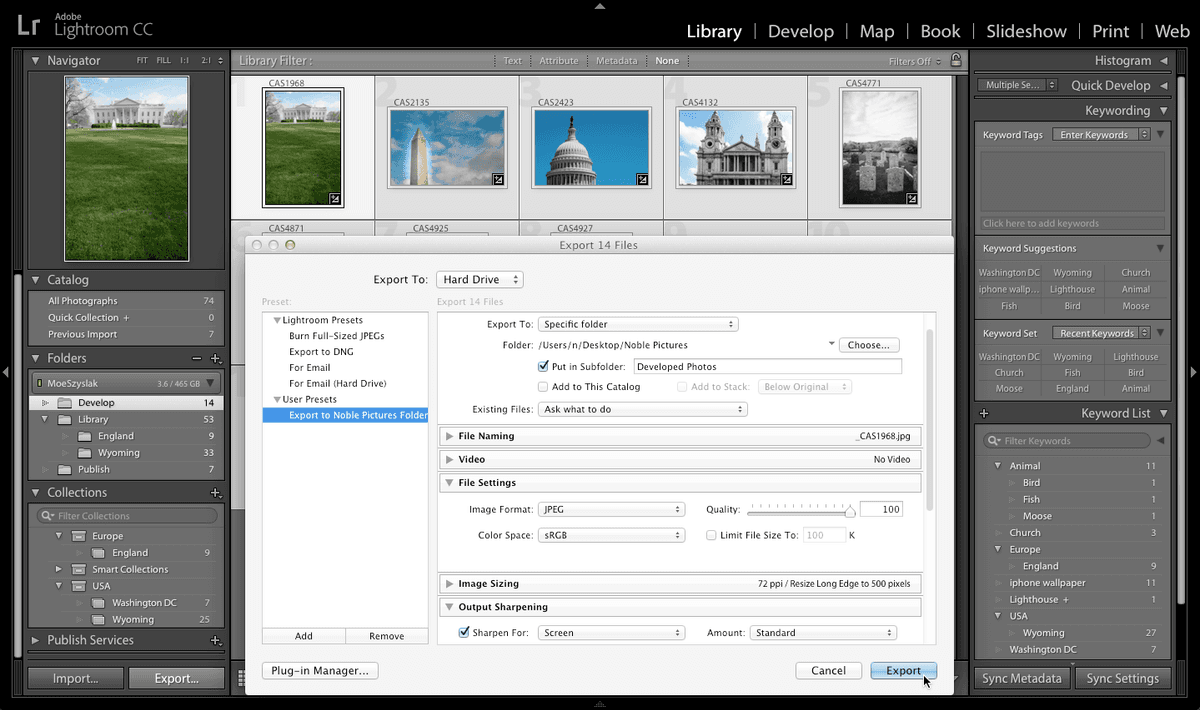
lightroom preview4I

Before You Begin

Ensure you have photos edited in the Develop module ready for export. This tutorial assumes you've completed basic photo editing and are ready to output your work.

Exercise Overview

In this comprehensive exercise, you'll master the art of exporting your carefully edited photos from Lightroom's Develop module. This workflow represents the final, crucial step in your digital photography process—transforming your RAW edits into publication-ready files. By the end of this tutorial, you'll have created a custom export preset that streamlines your future workflow and ensures consistent, professional output every time.

Export Workflow Overview

1

Prepare Photos

Navigate to Library module and select all edited photos from the Develop folder using keyboard shortcuts

2

Configure Export Settings

Access File Export dialog and set destination, file format, quality, and output sharpening parameters

3

Save as Preset

Create a reusable export preset to streamline future exports with identical settings

4

Execute Export

Run the export process and monitor progress until all photos are successfully exported

Exporting Photos

  1. Navigate to the Library module to access your complete photo collection and organizational tools.

  2. In the Folders panel on the left sidebar, locate and click on the Develop folder to display your edited images.

  3. Select your entire batch of edited photos by pressing Cmd–A (Mac) or CTRL−A (Windows). This bulk selection approach saves significant time when processing multiple images with identical export settings.

  4. Access the export dialog by navigating to File > Export, which opens Lightroom's comprehensive export control panel.

  5. At the dialog's top section, ensure the first Export To dropdown menu displays Hard Drive. This setting directs your exports to local storage rather than cloud services or third-party platforms.

  6. Keep this dialog open—we'll configure multiple settings before executing the export. Under the Export Location section, select Specific folder from the Export To menu to maintain precise control over your file destinations.

  7. Click the Choose button to browse your system's folder structure.

  8. Navigate to your Desktop for easy access to your exported files. The Desktop location ensures your processed images remain immediately visible and accessible.

  9. Create a new destination by clicking the New Folder button.

  10. Name your new folder YourName Pictures, replacing "YourName" with your actual name or project identifier. Confirm the folder remains selected after creation.

  11. Finalize your destination selection by clicking Choose (Mac) or Select Folder (Windows).

  12. Enable the Put in Subfolder option to create additional organizational structure within your main export directory.

  13. In the subfolder text field, enter Developed Photos. This naming convention clearly distinguishes processed images from original files.

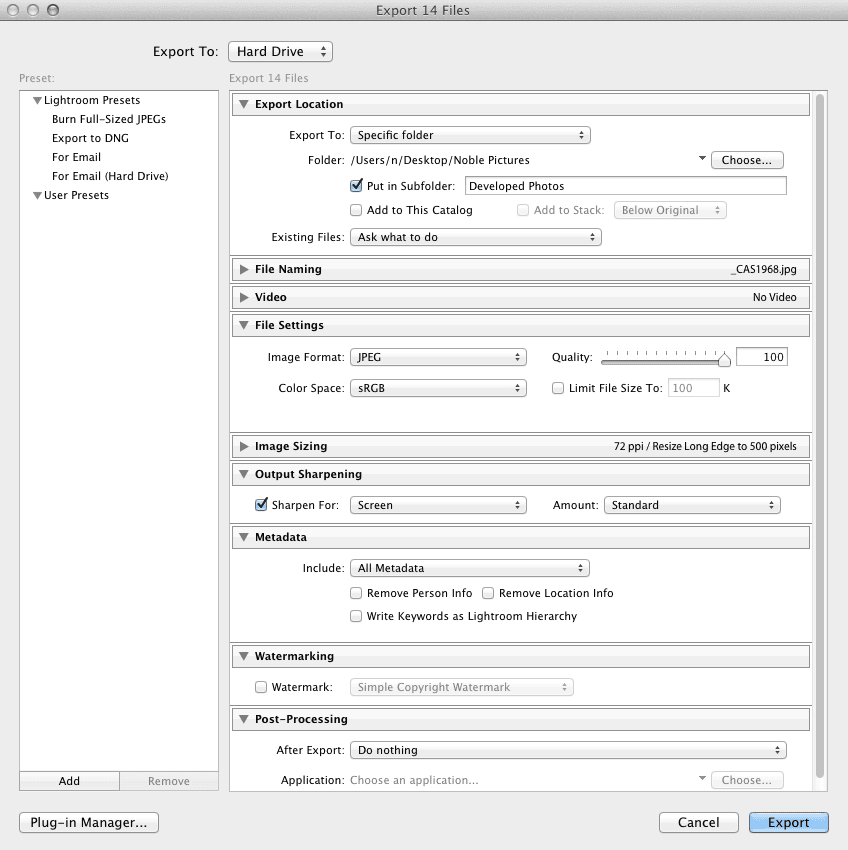
  14. Configure your file output parameters under File Settings (scroll down if necessary). These settings determine your final image quality and compatibility:

    Image Format: Select JPEG from the dropdown menu for maximum compatibility across devices and platforms.
    Quality: Set to 100 to preserve maximum image fidelity and detail.
    Color Space: Choose sRGB for optimal web display and general-purpose viewing.
  15. Under Output Sharpening, activate the Sharpen For checkbox to apply appropriate sharpening algorithms. Configure these critical sharpening parameters:

    Sharpen For: Select Screen from the dropdown to optimize for digital display viewing.
    Amount: Choose Standard for balanced sharpening that enhances detail without creating artifacts.
  16. In the Metadata section, select All Metadata from the Include dropdown menu. This preserves your complete EXIF data, copyright information, and keywords for future reference.

    Verify that all additional metadata options in this section remain unchecked to prevent unwanted data modifications.

  17. Under Watermarking, confirm that the Watermark option remains unchecked unless you specifically require branded output.

  18. In the Post-Processing section, set After Export to Do nothing. This prevents automatic launching of external applications that might slow your workflow.

  19. Before proceeding to create your export preset, carefully review all settings against this reference image. These configurations will become your template for future exports:

    screenshot export settings

Export Configuration Checklist

0/6
Critical Step

Do not close the Export dialog after configuring settings. You'll need it open to create the export preset in the next section.

Saving an Export Preset

Now that you've configured the optimal export settings, let's create a reusable preset that will dramatically accelerate your future workflow efficiency.

  1. Locate the Add button in the dialog's bottom-left corner and click it to create your custom preset.

  2. In the New Preset dialog box, enter Export to YourName Pictures Folder in the Preset Name field. Use descriptive preset names that clearly indicate both destination and settings for easy identification in future projects.

  3. Click Create to save your custom preset configuration. This preset now appears in your presets panel for instant access.

  4. Execute your export by clicking the Export button. Lightroom will now process each selected image according to your specified parameters.

  5. Monitor the export progress via the progress indicator in the top-left corner of the Lightroom interface. Processing time varies based on image count, file sizes, and your system's processing power.

    Excellent work! You've successfully completed a professional-grade export workflow. Your processed images now exist as high-quality, properly formatted files ready for sharing, printing, or further distribution. The custom preset you created will streamline all future exports with identical requirements, saving valuable time on recurring projects.

Creating Your Export Preset

1

Access Preset Creation

Click the Add button at the bottom left of the still-open Export dialog

2

Name Your Preset

Enter 'Export to YourName Pictures Folder' as the Preset Name for easy identification

3

Save and Execute

Click Create to save the preset, then click Export to process your photos

Workflow Efficiency Gained

Your saved preset now appears in future Export dialogs, allowing one-click application of these exact settings for similar projects.

Understanding Color Spaces in 2026

RAW files provide a significant advantage over JPEG formats because they defer color space assignment to the processing stage, giving you complete creative control. Our tutorial selection of sRGB reflects its continued dominance as the standard color space for web publishing, social media platforms, and digital displays in 2026.

However, professional workflows demand color space awareness. The sRGB gamut remains relatively constrained and inadequate for high-end print production. For commercial printing, fine art reproduction, or professional portfolio prints, Adobe RGB (1998) or the newer ProPhoto RGB offer substantially wider color gamuts that preserve the full tonal range captured by modern camera sensors. When exporting for print applications, adjust your Output Sharpening settings accordingly—select either Matte or Glossy paper sharpening algorithms to match your intended output medium. This technical precision separates professional workflows from amateur approaches and ensures your final prints match your creative vision.

Color Space Selection Guide

FeaturesRGBAdobe RGB (1998)
Gamut SizeSmallerLarger
Best Use CaseWeb PublishingPrint Output
Device CompatibilityUniversalProfessional Displays
Color AccuracyStandardEnhanced
Recommended: Choose sRGB for web and social media sharing, Adobe RGB for professional print work requiring expanded color reproduction.

Output Sharpening by Medium

Screen Display

Use Standard sharpening amount for web galleries, social media, and digital presentations. Compensates for screen pixel structure.

Matte Paper

Select Matte paper option for fine art prints and textured paper surfaces. Accounts for ink absorption characteristics.

Glossy Paper

Choose Glossy option for high-contrast prints on smooth surfaces. Maximizes detail retention on reflective papers.

Key Takeaways

1Always export photos from the Library module after selecting all desired images using Cmd-A or Ctrl-A keyboard shortcuts
2Create organized folder structures on your Desktop with project-specific names and subfolders for different export batches
3Use JPEG format with 100% quality setting for final exports to ensure maximum image quality while maintaining reasonable file sizes
4Choose sRGB color space for web publishing and digital sharing, Adobe RGB for professional print applications requiring expanded color gamut
5Enable output sharpening matched to your intended display medium - Screen for digital use, Matte or Glossy for print applications
6Save export settings as custom presets to streamline future workflows and maintain consistency across similar projects
7Include all metadata in exports to preserve important image information like camera settings and editing history
8RAW files provide superior flexibility compared to JPEG by allowing color space selection during export rather than capture

RELATED ARTICLES