April 1, 2026Dan Rodney/4 min read

Applying Basic Color Corrections

Master Essential Color Correction Techniques in Lightroom

Tutorial Prerequisites

This tutorial assumes you have Adobe Lightroom installed and basic familiarity with importing images. Exercise files should be downloaded and organized in the specified folder structure.

Topics Covered in This Lightroom Tutorial:

Master the fundamentals of color correction through Temperature & Tint adjustments, White Balance presets, and the precision White Balance Eyedropper Tool

Core Color Correction Techniques

Temperature & Tint Adjustments

Learn to manually adjust color temperature and tint using sliders for precise color balance control. These fundamental adjustments form the basis of professional color correction.

White Balance Presets

Explore built-in presets like Tungsten, Auto, and Cloudy for quick color corrections. Each preset is optimized for specific lighting conditions.

White Balance Eyedropper Tool

Master the selector tool for accurate one-click white balance correction. This tool analyzes neutral areas to determine optimal color balance settings.

Exercise Preview

lightroom preview3B

Exercise Overview

Color correction forms the foundation of professional image editing, and mastering white balance is essential for creating compelling, true-to-life photographs. In this hands-on exercise, you'll develop proficiency with Lightroom's three primary white balance correction methods: preset adjustments for quick fixes, manual slider control for precise tuning, and the selector tool for pinpoint accuracy. These techniques will transform images with color casts into professionally balanced photographs that accurately represent your creative vision.

Color Correction Workflow Setup

1

Import Exercise Files

Navigate to Desktop > Class Files > Lightroom Class and import the Develop folder using the Add option to maintain file locations.

2

Access Quick Develop Panel

In Library module Grid View, select the swan photo and expand the Quick Develop panel for initial white balance adjustments.

3

Enter Develop Module

Press D to access the full Develop module where comprehensive color correction tools are available in the Basic panel.

Keyboard Shortcuts for Efficiency

Use G for Grid View and D for Develop module. Double-click any slider to reset it to default values quickly during experimentation.

Adjusting Color Balance

Before diving into white balance corrections, ensure your workspace is properly configured with the necessary image files. The following workflow demonstrates industry-standard color correction techniques used by professional photographers and retouchers worldwide.

  1. If you have not imported the photos that were imported in Exercise 2E:
    • Navigate to the Library module to access your image catalog.
    • At the bottom left of the screen, click Import to begin the file import process.
    • In the dialog box that appears, on the left under Source, navigate to Desktop > Class Files > Lightroom Class and select the Develop folder.
    • At the top, above the photos, ensure Add is selected (highlighted) to add files to your existing catalog without moving them.
    • On the bottom right, click Import to complete the process.
  2. In the Library module, press G to enter Grid View if you are not already in it. This view provides an optimal overview of your image collection for selection purposes.

  3. Click on the first swan photo (_CAS4925) to select it as your working image. This photograph demonstrates common white balance challenges found in natural lighting conditions.

  4. On the right panel, expand the Quick Develop section if it is not already visible. This panel offers streamlined adjustment options perfect for rapid workflow processing.

  5. From the White Balance dropdown menu, select Tungsten. This preset compensates for the warm color cast typical of incandescent lighting, providing an immediate visual reference for comparison.

  6. Press D to transition into the Develop module, where you'll access Lightroom's comprehensive color correction tools. The Develop module remains the cornerstone of professional photo editing workflows in 2026.

  7. Professional color correction requires understanding multiple correction approaches, each suited to different scenarios and lighting conditions. The flexibility to switch between methods distinguishes proficient editors from novices.

    In the Basic panel on the right, systematically experiment with the White Balance (WB) presets (e.g., change Tungsten to Auto, Cloudy, Flash, etc.). Notice how each preset targets specific lighting scenarios—Auto uses algorithmic analysis, while Cloudy adds warmth to compensate for cool daylight conditions.

  8. Return the White Balance setting to Tungsten to establish your baseline for manual adjustments. This creates a consistent starting point for comparison.

  9. Now explore manual control through the Temp and Tint sliders, carefully observing how each parameter affects the photograph's color balance. Temperature adjustments move along the blue-yellow spectrum (measured in Kelvin), while Tint corrections address green-magenta color casts. This granular control enables precise color matching and creative color grading.

  10. Double-click on the Temp slider label to instantly reset it to the original camera setting, eliminating any temperature adjustments.

  11. Double-click on the Tint slider label to reset it as well, returning to your neutral starting point.

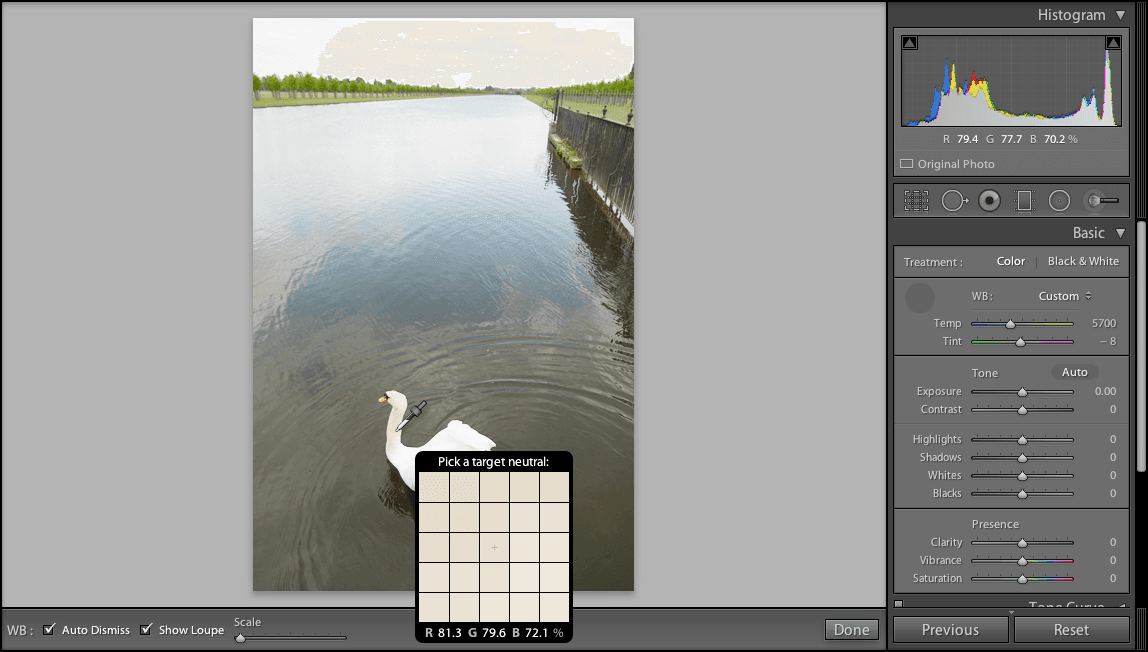
  12. The White Balance Selector white balance eyedropper tool represents the most precise white balance correction method available. This tool analyzes the selected pixel area and automatically calculates optimal temperature and tint values. In the Basic panel, click the White Balance Selector white balance eyedropper tool to activate this powerful correction tool.

  13. Target selection proves critical for accurate white balance correction. Avoid pure white areas, which may lack sufficient color information for analysis. Instead, click on the swan's neck area—a neutral tone that contains adequate detail for precise color analysis.

    Voilà! You've achieved professionally accurate white balance for this photograph using sampling-based correction. This technique replicates the precision methods used in high-end commercial photography workflows, ensuring color accuracy that meets industry standards.

White Balance Correction Methods

FeatureManual SlidersPreset OptionsEyedropper Tool
Precision LevelHighMediumHigh
Speed of ApplicationSlowFastFastest
Learning CurveSteepEasyMedium
ConsistencyVariablePredictableHigh
Recommended: Start with presets for quick results, then fine-tune with manual sliders or use the eyedropper for precise neutral point selection.

White Balance Eyedropper Technique

1

Activate the Selector Tool

Click the White Balance Selector in the Basic panel to enable the eyedropper cursor for sampling neutral tones.

2

Identify Neutral Target Area

Look for areas that should be neutral white or gray, slightly darker than pure white for best results. Avoid blown highlights.

3

Sample and Apply Correction

Click on the selected neutral area to automatically calculate and apply the correct white balance settings for the entire image.

Tungsten White Balance Preset

Pros
Excellent for indoor tungsten lighting conditions
Removes yellow/orange color casts from incandescent bulbs
Provides consistent starting point for warm light corrections
Quick one-click application saves time
Cons
May overcorrect in mixed lighting situations
Not suitable for daylight or fluorescent lighting
Can create unnatural blue tints in wrong conditions
Limited flexibility compared to manual adjustments

Color Correction Best Practices

0/4

Key Takeaways

1White balance correction is fundamental to professional photo editing and should be addressed before other color adjustments
2Lightroom offers three primary methods for color correction: presets, manual sliders, and the eyedropper tool
3The White Balance Selector tool provides the most accurate correction when used on appropriate neutral tone areas
4Tungsten preset effectively removes warm color casts from incandescent lighting but may overcorrect in mixed lighting
5Temperature and Tint sliders offer precise manual control but require understanding of color theory principles
6Double-clicking any slider instantly resets it to default, enabling quick experimentation without permanent changes
7Proper white balance correction should target slightly darker neutral areas rather than pure white highlights
8Combining multiple correction methods often yields the best results for challenging lighting conditions

RELATED ARTICLES