April 1, 2026Dan Rodney/9 min read

Editing Video: Free Lightroom Tutorial

Master video editing skills with Adobe Lightroom

What You'll Learn

Video Basics

Learn to identify and preview video files in Lightroom's Library module. Understand video characteristics and navigation controls.

Video Trimming

Master precise video trimming techniques using Current Time Indicator and grabber handles for professional clips.

Style Editing

Apply color corrections, presets, and advanced adjustments using the frame capture workaround method.

Topics Covered in This Lightroom Tutorial:

Video Basics, Editing a Video, Exporting a Video

Exercise Preview

lightroom previewB8

Exercise Overview

In this exercise, you'll master essential video editing skills within Lightroom Classic: trimming video length, applying professional color corrections, and exporting optimized files. These techniques form the foundation of efficient video workflows for photographers expanding into motion content.

Tutorial Workflow

1

Import and Identify

Import video files and learn to distinguish them from photos using aspect ratio and timestamp indicators

2

Trim and Preview

Use playback controls and trimming tools to create focused 8-second clips from longer footage

3

Edit and Export

Apply color corrections through frame capture method and export using H.264 compression

Video Basics

  1. If you haven't already imported the photos from Exercise B6, import them now from Desktop > Class Files > Lightroom Class in the Bonus folder. This step ensures you have all necessary media files for the exercise.

  2. Ensure you're working in the Library module—your primary workspace for media management and initial video processing.

  3. Expand the Catalog panel on the left if it's not already visible. This panel provides quick access to your recently imported media.

  4. Click on Previous Import to display your most recently added files.

  5. Video files are easily distinguished from photographs by two key characteristics: they typically display different aspect ratios than still images and feature a timestamp in the lower left corner indicating duration.

    Locate the two video clips we'll be working with: _DSC5591.MOV and _DSC5595.MOV. These files demonstrate typical camera-generated video content you'll encounter in professional workflows.

  6. Hover your mouse over the first video thumbnail to activate the preview function.

  7. Slowly move your mouse from left to right across the thumbnail to scrub through the video content. This preview technique allows rapid content assessment without full playback.

  8. Select the second video _DSC5595.MOV and press the E key (or double-click) to enter Loupe view for detailed inspection.

  9. Click the play button beneath the video to begin playback, or use the spacebar for quick start/stop control—a workflow habit that will accelerate your editing process.

    The video's most engaging moment occurs when two boys run through the park, with the dark-blond boy throwing his hat at the brown-haired boy around the 00:12 mark. Identifying these key moments is crucial for effective trimming.

Now that you understand Lightroom's video basics, let's move into the hands-on editing process, starting with precision trimming techniques.

Video Identification Tips

Videos in Lightroom are easily identified by two key characteristics: different aspect ratios compared to photos and timestamps showing duration in the lower left corner of thumbnails.

Navigation Checklist

0/4

Trimming a Video

Professional video editing requires strategic trimming to maintain viewer engagement. We'll shorten this video to focus on the action sequence—from when the boys begin running until an orange-gloved boy crosses the foreground, capturing the story's arc in a concise format.

  1. At the right end of the playback bar, click the gear icon video gear icon to enable thumbnail preview within the timeline. This feature provides visual reference points for precise editing.

  2. Use the Current Time Indicator video time indicator to scrub through the thumbnail previews, giving you frame-accurate control over your edit points.

  3. Let's establish a new starting point. Drag the Current Time Indicator video time indicator to the 00:07 mark, positioning just before the action begins.

    NOTE: This video runs at approximately 24 frames per second. While Lightroom doesn't offer frame-perfect precision like dedicated video editors, slow dragging movements will help you find the optimal cut points. The arrow controls beside the play button allow single-frame navigation for fine-tuning.

  4. To the left of the timeline thumbnail, click and drag the grabber handle video grabber rightward until it aligns with the Current Time Indicator, effectively setting your new in-point.

  5. To establish a new ending point, follow this sequence:

    • Drag the Current Time Indicator to 00:14 (capturing the hat-throwing moment and the happy boy in orange gloves).
    • Slowly advance the indicator until the orange-gloved boy exits the frame to the left. This should occur approximately six frames before the 00:16 mark, creating a natural conclusion to the action sequence.
  6. On the right side of the timeline thumbnail, click the grabber handle video grabber and drag leftward to meet the Current Time Indicator, setting your out-point.

  7. Press play to preview your newly trimmed 8-second video clip. This length is optimal for social media and maintains viewer engagement.

  8. Press G to return to Grid View and assess your edit within the broader context of your media library.

  9. Notice that the current Poster Frame (the thumbnail image representing your video in Grid view) doesn't effectively communicate the video's content. A compelling poster frame is essential for media organization and client presentations.

  10. Double-click the video in Grid view to reopen it in Loupe view (or press E for the same result).

  11. Navigate the Current Time Indicator video time indicator to 00:09, where the brown-haired boy is actively running across the frame—a moment that better represents the video's energy.

    NOTE: Take time to scrub through the 00:09 timeframe and examine multiple frames. Selecting the right poster frame can significantly impact how your content is perceived in portfolios and client galleries.

  12. Click the frame icon video poster frame in the bottom-right corner of the thumbnail and select Set Poster Frame.

  13. Press G to return to Grid View and observe how the new poster frame better represents your video content.

With your video properly trimmed and optimized for presentation, we'll now focus on enhancing the visual quality through color correction and stylistic adjustments.

Video Specifications

24 fps
frames per second
8 sec
seconds final duration
7
start time marker
~16
approximate end time

Key Video Moments

00:07

Boys Start Running

Set new starting point for trimmed video

00:12

Hat Throwing Scene

Most exciting moment - dark blond boy throws hat

00:14

Orange Gloves Appearance

Happy boy in orange gloves enters frame

00:16

Final Cut Point

End trim when orange-gloved boy exits frame

Editing Video Styles

  1. Keep the second video _DSC5595.MOV selected and press E to enter Loupe View for detailed editing work.

  2. Expand the Quick Develop panel on the right if it's not already visible. This panel provides immediate access to essential adjustment tools for video content.

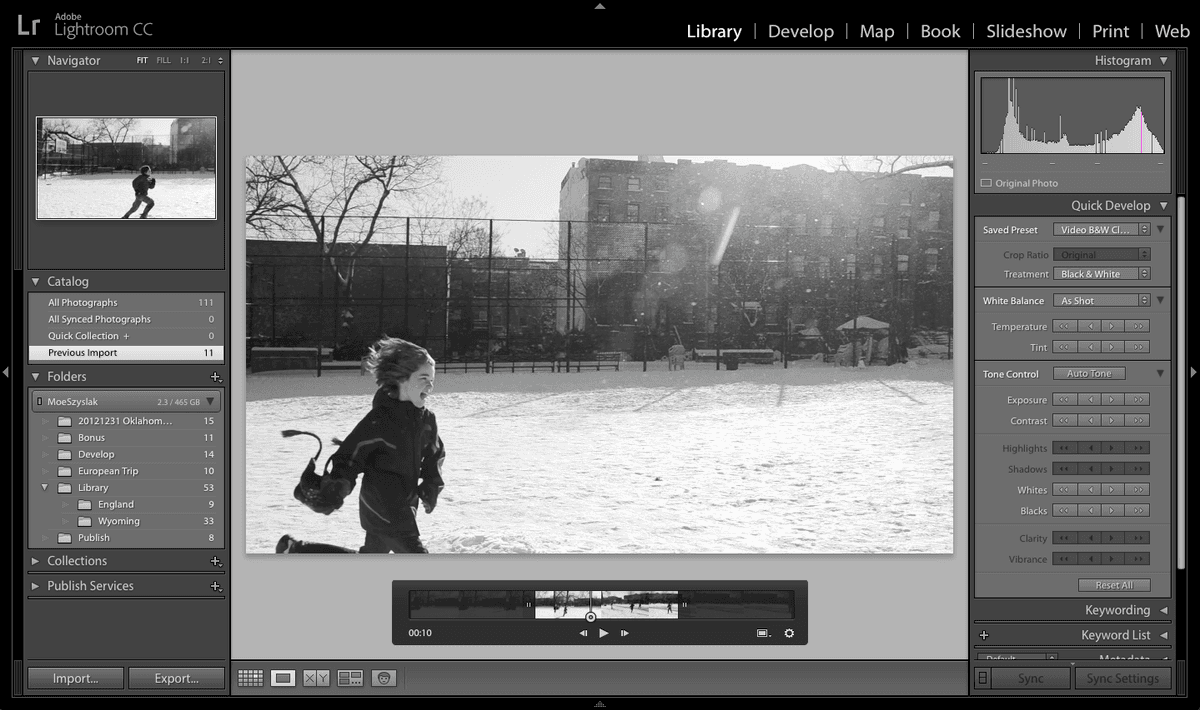
  3. Next to Exposure, click the single left arrow button video quick develop left arrow several times to darken the video by ⅓-stop increments, observing how exposure changes affect the overall mood.

    NOTE: The double left arrow button video quick develop left arrow 2x provides full-stop adjustments for more dramatic changes.

  4. Next to Exposure, click the single right arrow button video quick develop right arrow several times to brighten the video by ⅓-stop increments, understanding how this affects detail in highlights and shadows.

    NOTE: The double right arrow button video quick develop right arrow 2x provides full-stop brightening adjustments.

  5. Next to Vibrance, click the single left arrow button video quick develop left arrow several times to desaturate colors, creating a more subdued aesthetic.

  6. Next to Vibrance, click the single right arrow button video quick develop right arrow several times to enhance color vibrancy, making the video more visually compelling.

  7. Click Reset All to return to the original settings. We'll now explore preset-based styling, which offers consistent, professional looks for your video content.

  8. At the top of the Quick Develop panel, access the Saved Preset menu and select Lightroom Video Presets > Video B&W Classic. This preset demonstrates how quickly you can transform video aesthetics.

  9. Observe how the video transforms into an elegant black-and-white treatment. Presets like these provide starting points for developing your signature style.

  10. Click Reset All to clear the preset. For maximum control over your video's final appearance, we'll use Lightroom's full editing capabilities through a proven workaround technique.

  11. Press D to switch to the Develop module. You'll notice that video files aren't directly supported here—a limitation we can overcome with a professional technique.

  12. Press G to return to Grid View and prepare for the frame capture process.

  13. With video _DSC5595.MOV still selected, press E to re-enter Loupe View.

  14. Position the Current Time Indicator at any 00:13 frame to better assess the exposure challenges in this particular shot.

  15. At the bottom of the timeline thumbnail, click the frame icon video poster frame and select Capture Frame. This creates a still image that can be fully edited in the Develop module.

  16. Press G to return to Grid View and locate your newly created frame.

  17. In the Catalog panel, click All Photographs to display all available media files.

  18. Locate the captured frame, which appears as a JPEG file (_DSC5595-1.jpg) positioned to the right of the original video in Grid View. If file extensions aren't visible, hover over the thumbnail to see the filename in a tooltip.

  19. Select the photo _DSC5595-1.jpg and press D to enter the Develop module, where you'll have access to professional-grade color correction tools.

  20. In the Basic panel on the right, apply these carefully calibrated adjustments (either move sliders or input values directly in the text boxes):

    • Temp: +20 to add subtle warmth that enhances the natural lighting.
    • Exposure: +0.90 to properly expose the action while maintaining detail.
    • Contrast: +16 to add punch and visual separation.
    • Whites: -23 to preserve highlight detail and create richer, more nuanced lighting.
    • Vibrance: +33 to enhance color saturation naturally without oversaturation.
    • Click the Before & After icon before after yy button at the bottom of the screen to compare your adjustments against the original.
    • Fine-tune by reducing Whites to -45 for optimal highlight control.
  21. Now we'll transfer these professional-grade adjustments to the entire video. Press G to return to Grid View.

  22. Cmd-click (Mac) or Ctrl-click (Windows) the video _DSC5595.MOV to select both the corrected image and the original video file.

  23. Click the Sync Settings button at the bottom of the right panel to access synchronization options.

  24. In the Synchronize Settings dialog, click Check None to start with a clean slate, then selectively choose which adjustments to apply.

  25. Enable these specific settings for optimal video enhancement:

    • White Balance (for color temperature corrections)
    • Under Basic Tone: check Exposure, Contrast, and White Clipping
    • Under Color: check Vibrance
    • Process Version (ensures consistent processing across files)
  26. Click Synchronize to apply your professional color corrections to the video file.

  27. The enhanced settings are now applied to your video. This technique allows you to leverage Lightroom's full editing power for video content.

  28. Press Cmd-D (Mac) or Ctrl-D (Windows) to deselect all files.

    The three dots appearing at the top-right corner of the video thumbnail indicate active processing. Depending on your system's performance and the video's length, this may take several minutes to complete.

  29. Once processing finishes, select the video (_DSC5595.MOV) and press E to view the results.

  30. Press the spacebar to play the video and observe how the warmth, exposure, and vibrance adjustments have transformed the entire clip, creating a more professional and visually appealing result.

With your video professionally color-corrected and stylized, the final step involves exporting an optimized file suitable for your intended use, whether that's web distribution, client delivery, or archival purposes.

Quick Develop vs Develop Module

FeatureQuick Develop PanelDevelop Module
Video SupportFull supportNot supported
Adjustment Precision1/3 stop incrementsFine slider control
Preset AccessBuilt-in video presetsAll photo presets
Workaround NeededNoFrame capture method
Recommended: Use Quick Develop for basic adjustments, frame capture method for advanced editing

Frame Capture Workaround

1

Position and Capture

Navigate to desired frame (00:13) and use Capture Frame to create JPEG copy

2

Edit in Develop Module

Switch to captured JPEG and make detailed adjustments using full Develop panel controls

3

Sync Settings

Select both video and JPEG, then use Sync Settings to apply edits to original video

Exporting a Video

  1. With _DSC5595.MOV still selected, navigate to File > Export to access Lightroom's comprehensive export options.

  2. In the Export One File dialog, locate Lightroom Presets on the left panel and select Burn Full-Sized JPEGs as your starting preset template.

  3. From the Export To menu at the top, select Hard Drive to save your file locally with full control over naming and location.

  4. Under the Video section, check Include Video Files to enable video-specific export options.

  5. In the Video Format menu, select H.264. This industry-standard codec provides excellent compression efficiency while maintaining high visual quality—ideal for web distribution, social media, email delivery, and most professional applications in 2026.

    NOTE: If you need to preserve maximum quality for further editing or archival purposes, choose Original, unedited file from this menu, though file sizes will be significantly larger.

  6. For Quality, select the setting that best matches your intended use: higher quality for professional presentations or client deliverables, medium quality for web use, or lower quality for email distribution or preview purposes.

  7. Click Export to generate your professionally edited, optimized video file ready for distribution or further use in your workflow.

H.264 vs Original Export

Pros
H.264 compresses file to manageable size
Maintains great quality for web and email use
Widely compatible across platforms and devices
Includes all Lightroom adjustments and corrections
Cons
Some quality loss due to compression
Not suitable for further professional editing
File size reduction may affect fine details

Export Settings Checklist

0/4

Key Takeaways

1Lightroom can handle basic video editing tasks including trimming, color correction, and preset application through the Library module interface
2Videos are identified by different aspect ratios and duration timestamps, and can be previewed by mousing over thumbnails in Grid view
3The Current Time Indicator and grabber handles provide precise control for trimming videos to focus on key moments and scenes
4Quick Develop panel offers basic video adjustments in 1/3 stop increments, while advanced editing requires the frame capture workaround method
5Frame capture technique allows you to edit a still image in Develop module and sync those settings back to the original video file
6Poster frames can be customized to show representative moments from your video content in Grid view for better organization
7H.264 export format provides excellent compression and quality balance for web and email distribution while maintaining Lightroom adjustments
8Video processing in Lightroom may take several minutes, indicated by three dots on the thumbnail during rendering and adjustment application

RELATED ARTICLES