April 1, 2026Dan Rodney/6 min read

Cropping & Rotating Images

Master Essential Photo Editing Skills in Lightroom

Core Skills You'll Master

Cropping Techniques

Learn to crop images using various aspect ratios and constraint options. Master the art of composition refinement through strategic cropping.

Image Rotation

Discover how to rotate photos manually or automatically straighten horizons. Perfect for correcting tilted shots and improving composition.

Transformation Management

Understand how to undo changes and revert to original versions. Learn to use the History panel for non-destructive editing workflow.

Topics Covered in This Lightroom Tutorial:

Cropping Images, Rotating Images, Straightening Images, the History Panel

Exercise Preview

lightroom preview2E

Exercise Overview

In this exercise, you'll master the essential transformation tools in Lightroom's Develop module—cropping, rotating, and straightening images. These fundamental adjustments form the backbone of professional image editing, allowing you to refine composition, correct perspective issues, and prepare images for various output formats. Before diving into these techniques, you'll import a fresh set of practice images to work with.

Develop Module Focus

This tutorial focuses exclusively on Lightroom's Develop module, which serves as the primary workspace for photo editing. You'll learn essential transformation tools that form the foundation of photo enhancement.

Importing More Photos

  1. Navigate to the Library module if you're not already there.

  2. Click the Import button at the bottom of the left panel.

  3. Under Source, navigate to Desktop > Class Files > Lightroom Class and select the Develop folder.

  4. At the top, above the photos, ensure Add is selected (highlighted). This option adds photos to your catalog without moving or copying them from their current location.

  5. Since you'll use the same import settings from your previous session, click the Import button in the bottom right to proceed.

With your new images successfully imported, you're ready to explore Lightroom's powerful transformation capabilities.

Photo Import Process

1

Navigate to Library Module

Ensure you're in the Library module and click the Import button at the bottom of the left panel.

2

Select Source Directory

Navigate to Desktop > Class Files > Lightroom Class and select the Develop folder as your source.

3

Configure Import Settings

Select 'Add' at the top above photos and use previous import settings for consistency.

4

Execute Import

Click the Import button on the bottom right to add the new photos to your catalog.

Cropping Images

  1. Once the import completes, select the church façade photo (20111008_swny_030).

  2. Click Develop at the top center of the screen to enter the Develop module—Lightroom's comprehensive photo editing workspace. This module houses all the tools you need for professional image enhancement and correction.

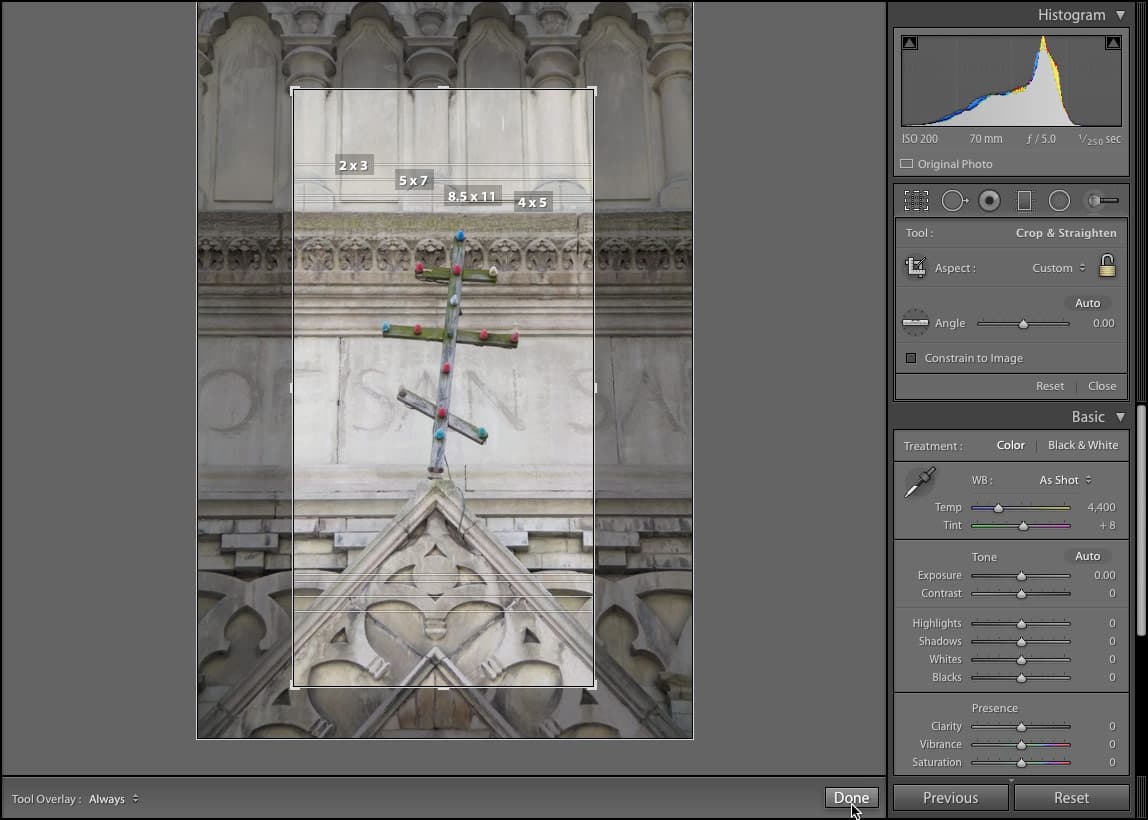
  3. In the right panel, locate the Crop Overlay tool crop tool beneath the Histogram and click it.

    A grid overlay should appear on your image. If it's not visible, access the Toolbar below the photo and change Tool Overlay to Always for consistent visibility.

  4. Explore the various composition guides by navigating to Tools > Crop Guide Overlay. Try options like Diagonal or Golden Spiral to see how they can inform your cropping decisions. These guides are based on classical composition principles used by photographers and artists for centuries. Ensure you select Aspect Ratios before proceeding.

  5. By default, Lightroom displays common print aspect ratios (8.5 X 11, 4 X 5, 5 X 7, and 2 X 3), helping you visualize how your image will appear when printed at various sizes—a crucial consideration for professional output. If these overlays aren't visible, follow the sidebar instructions below.

    Crop Overlay Tool Location

    The Crop Overlay tool is located in the right side panel under the Histogram. When activated, it displays a grid overlay to help with composition and framing decisions.

    Available Crop Guide Options

    Aspect Ratios

    Default option showing 8.5 X 11, 4 X 5, 5 X 7, and 2 X 3 ratios. Helps visualize how images will look when printed on various paper sizes.

    Diagonal Guides

    Provides diagonal line overlays for advanced composition techniques. Useful for creating dynamic visual flow in your cropped images.

    Golden Spiral

    Classic composition guide based on the golden ratio. Helps position key elements for naturally pleasing visual balance.

If You Don't See the Correct Aspect Ratios

  1. Navigate to Tools > Crop Guide Overlay > Choose Aspect Ratios.
  2. In the dialog box, check 8.5 X 11, 4 X 5, 5 X 7, and 2 X 3.
  3. Click OK to display the multiple overlaid grids that will guide your cropping decisions.
  • The Options panel directly below the Crop Overlay tool crop tool dynamically updates based on your selected tool. Configure these Crop Options:

    • From the Aspect dropdown (which may display "As Shot"), select Original to maintain the camera's native proportions.
    • Ensure the lock icon is in the locked lock icon position to constrain the aspect ratio during cropping. This prevents unintentional distortion of your composition.
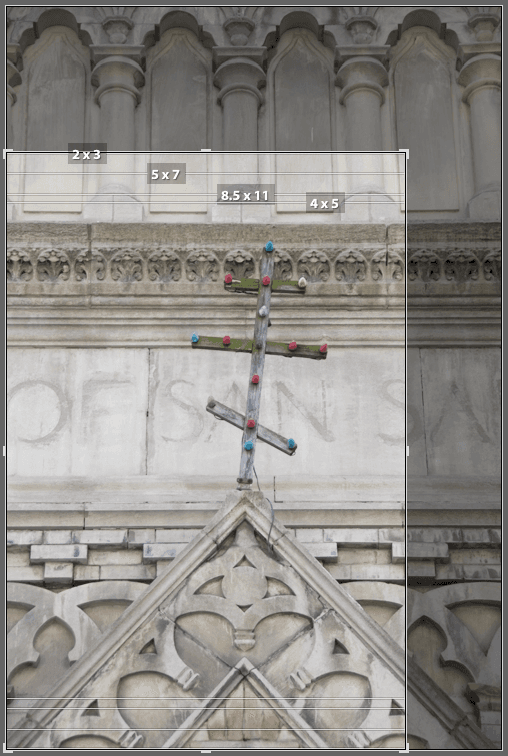
  • Click and drag the top-right corner handle down and to the left until approximately 75% of the photo remains within the bounding box. This tighter crop will eliminate distracting elements and strengthen the composition. Aim for a result similar to this:

    church1

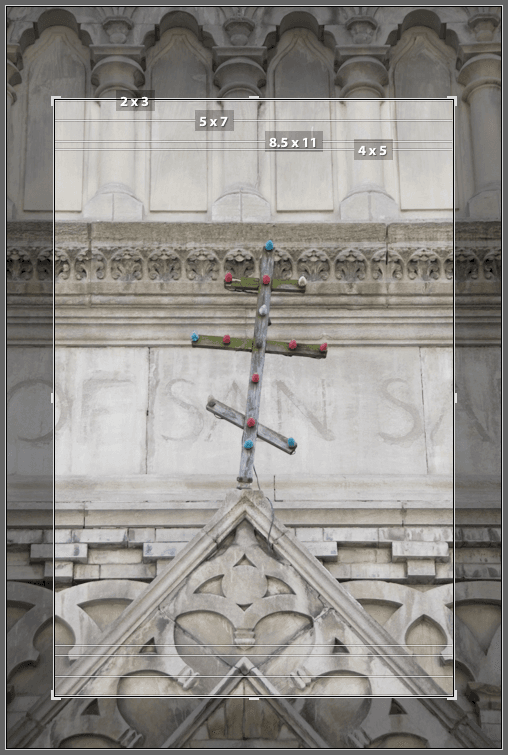
  • Click and drag the photo itself to center it within the bounding box, ensuring balanced negative space around your subject:

    church2

  • Click the Crop Overlay tool crop tool to apply your crop. The result looks strong, but let's refine the aspect ratio for even better visual impact.

  • Click the Crop Overlay tool crop tool again to re-enter crop mode.

  • Click the lock icon lock icon to unlock unlock icon the aspect ratio, giving you freedom to adjust proportions independently.

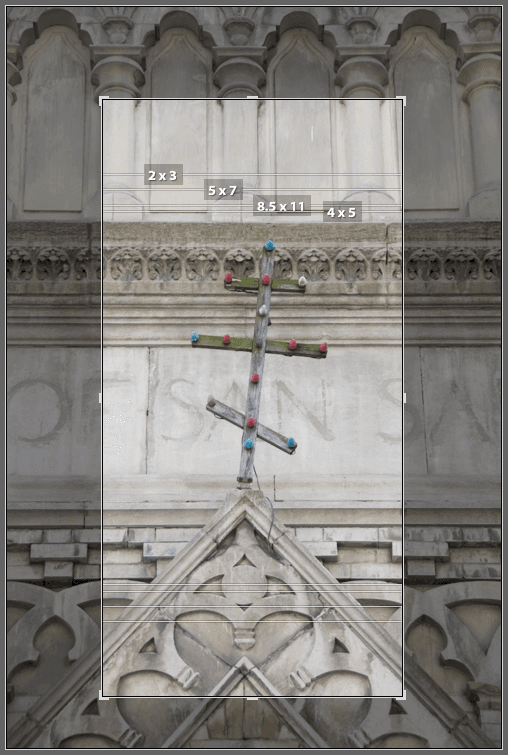
  • Fine-tune the photo's width for optimal composition. To achieve the refined result shown below:

    • Use Opt–drag (Mac) or Alt–drag (Windows) on the left or right handle to adjust both sides simultaneously—this maintains center alignment.
    • For asymmetrical adjustments, drag individual handles as needed.
    • Observe how the four aspect ratio overlays adapt to your changes, providing real-time feedback on print compatibility.

    church3

  • Click the Crop Overlay tool crop tool to finalize your crop. Excellent work—you've transformed a good photo into a compelling composition!

  • Now that you've mastered basic cropping techniques, let's explore how rotation can correct perspective issues and enhance visual appeal.

    Aspect Ratio Configuration

    0/3

    Rotating a Photo

    1. Click Library at the top of the screen to return to the Library module.

    2. In the Catalog panel, select All Photographs to view your complete image collection.

    3. Select the sky photo (20110820_YourName_014). If you previously stacked the sky photos, Ctrl–click (Mac) or Right–click (Windows) on the stack and choose Stacking > Expand Stack to access individual images.

    4. Press D to quickly switch to the Develop module—this keyboard shortcut streamlines your workflow significantly.

    5. Once the image loads completely, activate the Crop Overlay tool crop tool.

    6. Verify that Original is selected in the Aspect menu and the lock icon lock icon is in the locked position.

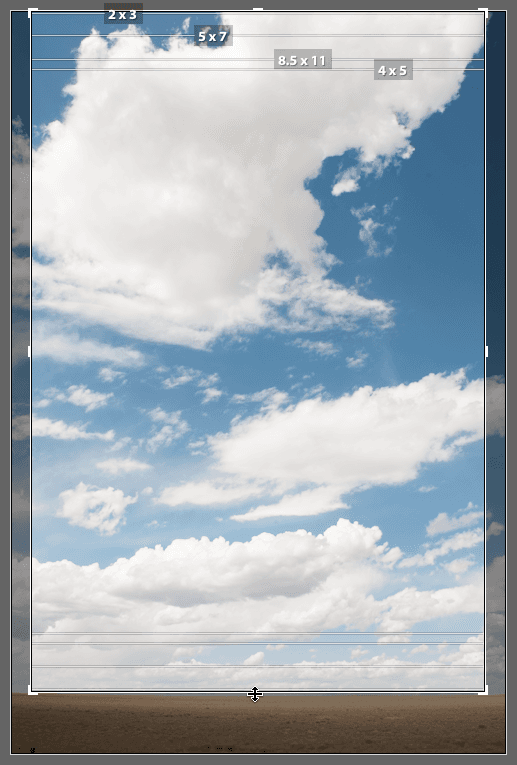
    7. Crop out the sand from the bottom of the photo to create a cleaner, more focused composition on the sky elements:

      sky1

    8. Position your cursor just outside the bounding box edges until a small rotate icon rotate icon appears. This indicates you're in rotation mode.

    9. Drag clockwise or counterclockwise to rotate the photo as needed. The rotation is particularly useful for correcting tilted horizons or adding dynamic energy to static compositions.

      Professional tip: For precise control, you can manually adjust the rotation using the Angle slider angle tool in the Crop Options panel, allowing for fractional degree adjustments.

    Understanding how to undo changes efficiently is crucial for experimental editing and client work. Let's explore Lightroom's powerful History panel.

    Rotation Methods Comparison

    FeatureManual RotationAngle Tool
    Activation MethodHover past bounding box edgesClick Angle tool in options panel
    Control TypeMouse drag rotationSlider adjustment
    Precision LevelVisual approximationExact degree control
    Best Use CaseQuick adjustmentsPrecise corrections
    Recommended: Use manual rotation for quick adjustments and the Angle tool for precise corrections requiring specific degree measurements.

    Undoing Transformations

    1. Locate the History panel on the left side and click Import (m/d/yy h:m:ss) to revert the photo to its original, unedited state. This non-destructive approach allows you to explore different editing directions without fear of permanently damaging your image.

    2. Click the Crop Overlay tool crop tool to access the Crop Options panel if it's not already visible.

    3. Now you'll straighten the horizon with precision. Click the Angle tool angle tool to activate Lightroom's intelligent straightening feature.

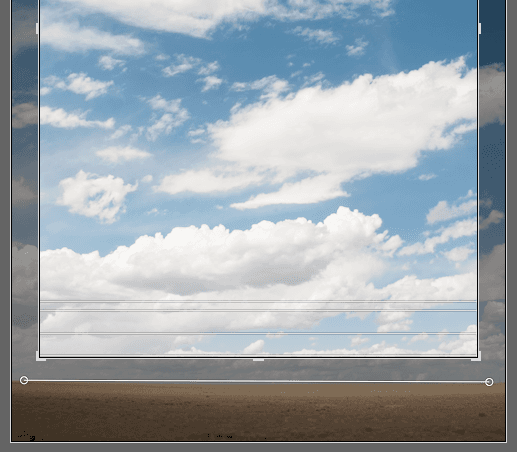
    4. Draw a line from left to right along the horizon. Lightroom will automatically calculate the necessary rotation to make this line perfectly horizontal. This technique works for any reference line in your image—architectural elements, water surfaces, or natural features:

      sky2

    5. Click the Crop Overlay tool crop tool to apply the straightening transformation.

      Perfect! You've achieved a mathematically straight horizon that enhances the image's professional quality and visual stability.

    6. Press G to efficiently return to the Library module's Grid view, where you can review your edited image alongside others in your catalog.

    You've now mastered the essential transformation tools in Lightroom's Develop module. These skills—precise cropping, controlled rotation, and accurate straightening—form the foundation of professional image editing. Combined with Lightroom's non-destructive workflow and comprehensive History panel, you have the tools to refine any image while maintaining complete creative flexibility.

    Non-Destructive Editing Power

    The History panel allows you to revert to any previous state, including the original import. This non-destructive workflow means you never lose your original image data.

    Horizon Straightening Process

    1

    Select Angle Tool

    Click the Angle tool in the Crop Options panel to activate the straightening function.

    2

    Draw Reference Line

    Drag from left to right across the horizon line to establish what should be horizontal.

    3

    Apply Correction

    Click the Crop Overlay tool to apply the automatic rotation correction based on your reference line.

    Key Takeaways

    1The Crop Overlay tool is located under the Histogram in Lightroom's Develop module and provides essential image transformation capabilities
    2Multiple aspect ratios (8.5 X 11, 4 X 5, 5 X 7, 2 X 3) can be displayed simultaneously to preview how images will look when printed
    3Aspect ratio constraints can be locked or unlocked using the lock icon, allowing for flexible or fixed-proportion cropping
    4Images can be rotated manually by hovering past bounding box edges or precisely using the Angle tool slider in the options panel
    5The History panel enables complete reversion to original image states, maintaining Lightroom's non-destructive editing workflow
    6Horizon straightening is automated by drawing a reference line across the horizon using the Angle tool
    7Alt-drag (Windows) or Opt-drag (Mac) allows simultaneous adjustment of both sides when cropping images
    8Tool Overlay settings control the visibility of crop guides and can be set to 'Always' for consistent grid display

    RELATED ARTICLES